How to Export Highlights and Notes into Workflowy

Jul 25, 2026
4 min read
13 views

Do you use Workflowy to organize your thinking in one endless outline? With Glasp's new Workflowy Export integration, you can send your web highlights and notes directly into your Workflowy Inbox, so everything you save while reading lands in your outline without any copying and pasting.
In this tutorial, you'll learn step by step how to connect Glasp to Workflowy, run your first export, and keep new highlights syncing automatically.
If you haven't signed up for Glasp or installed the Glasp browser extension, please do so. You can refer to this tutorial.
Step 1: Open the Workflowy Export card
Go to the Settings page on Glasp and click Integrations in the left sidebar. Open the Export tab, find Workflowy Export, and click it. It opens the Workflowy modal.
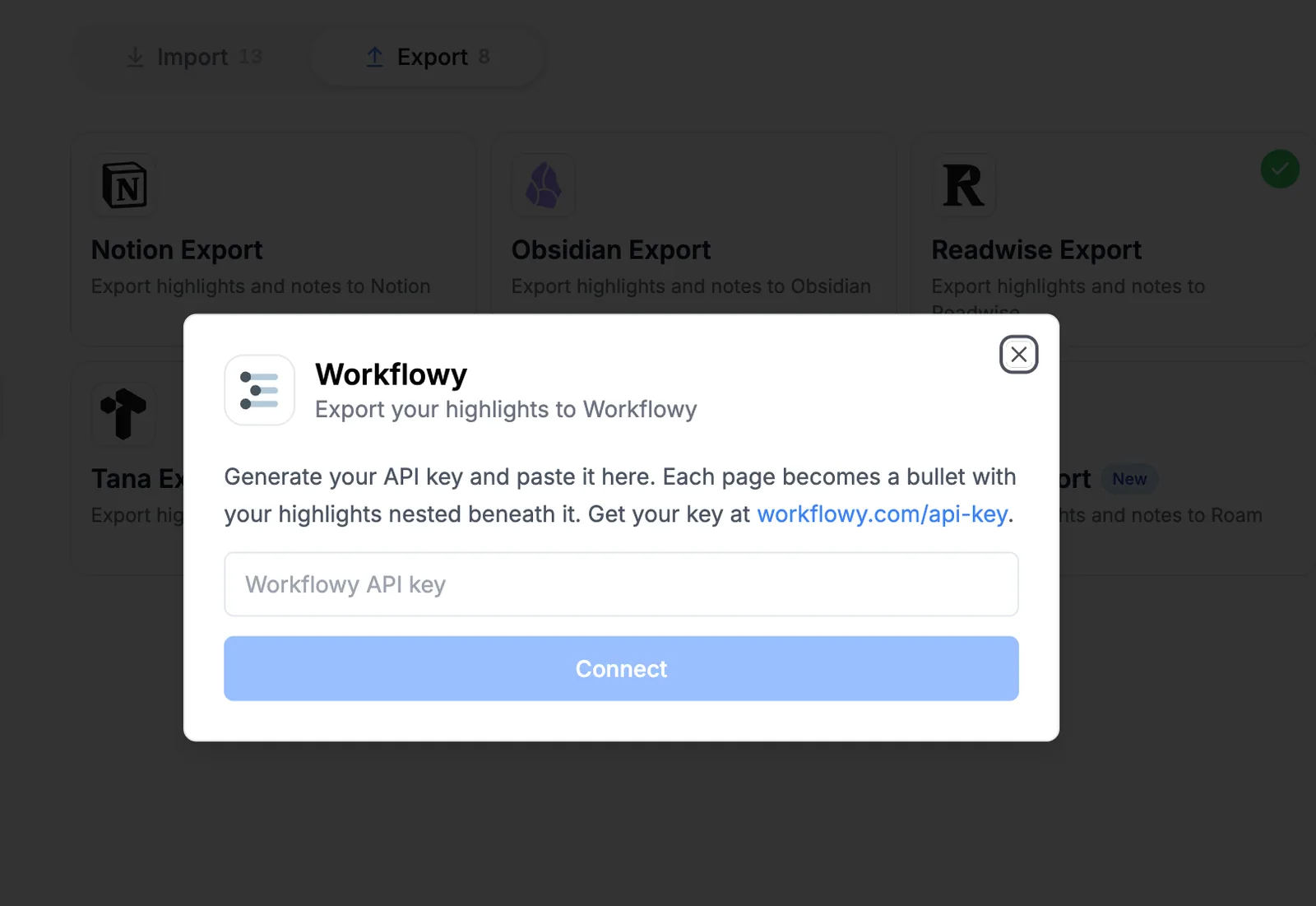
Step 2: Generate your Workflowy API key
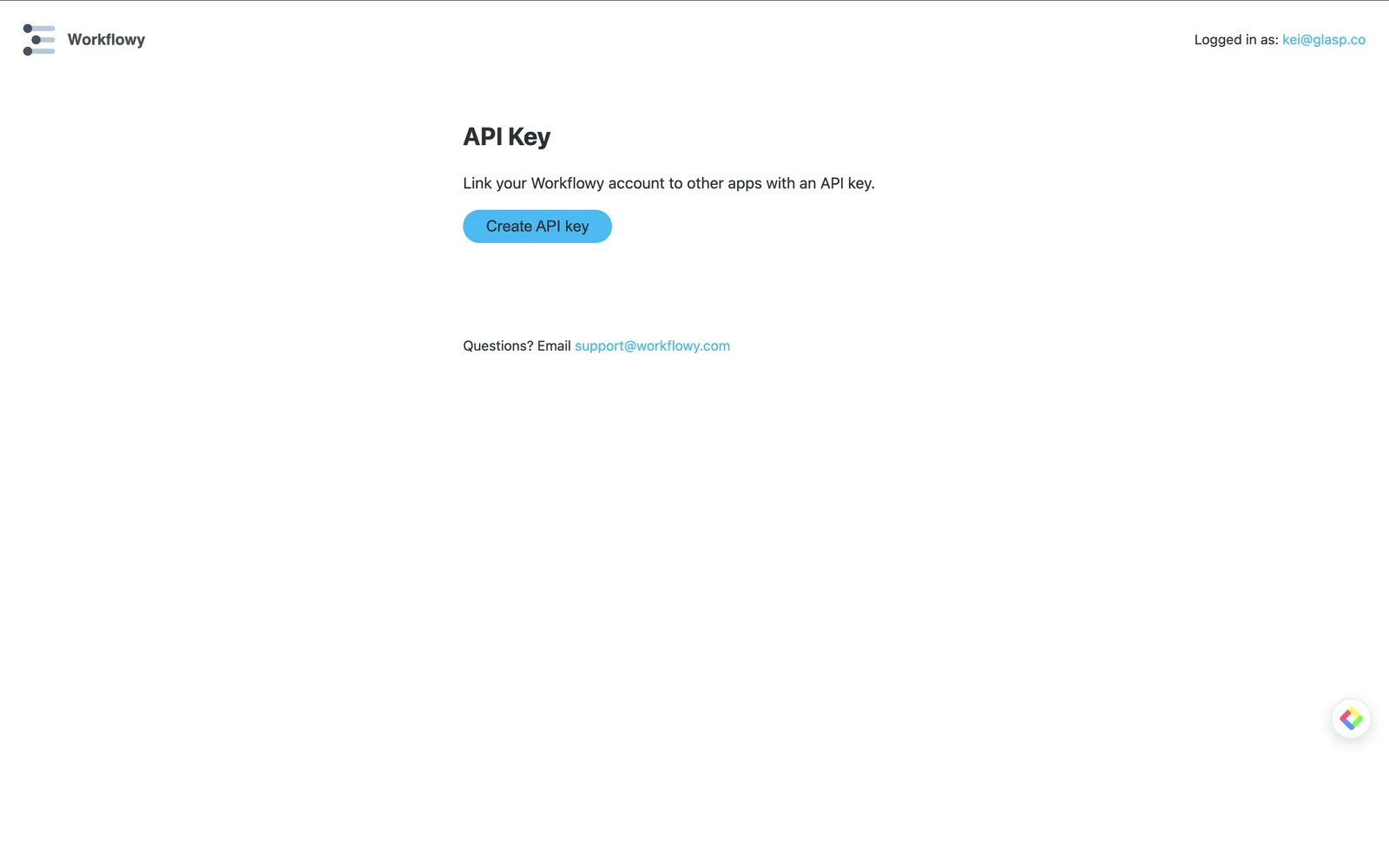
Go to workflowy.com/api-key while logged in to Workflowy, and click Create API key.
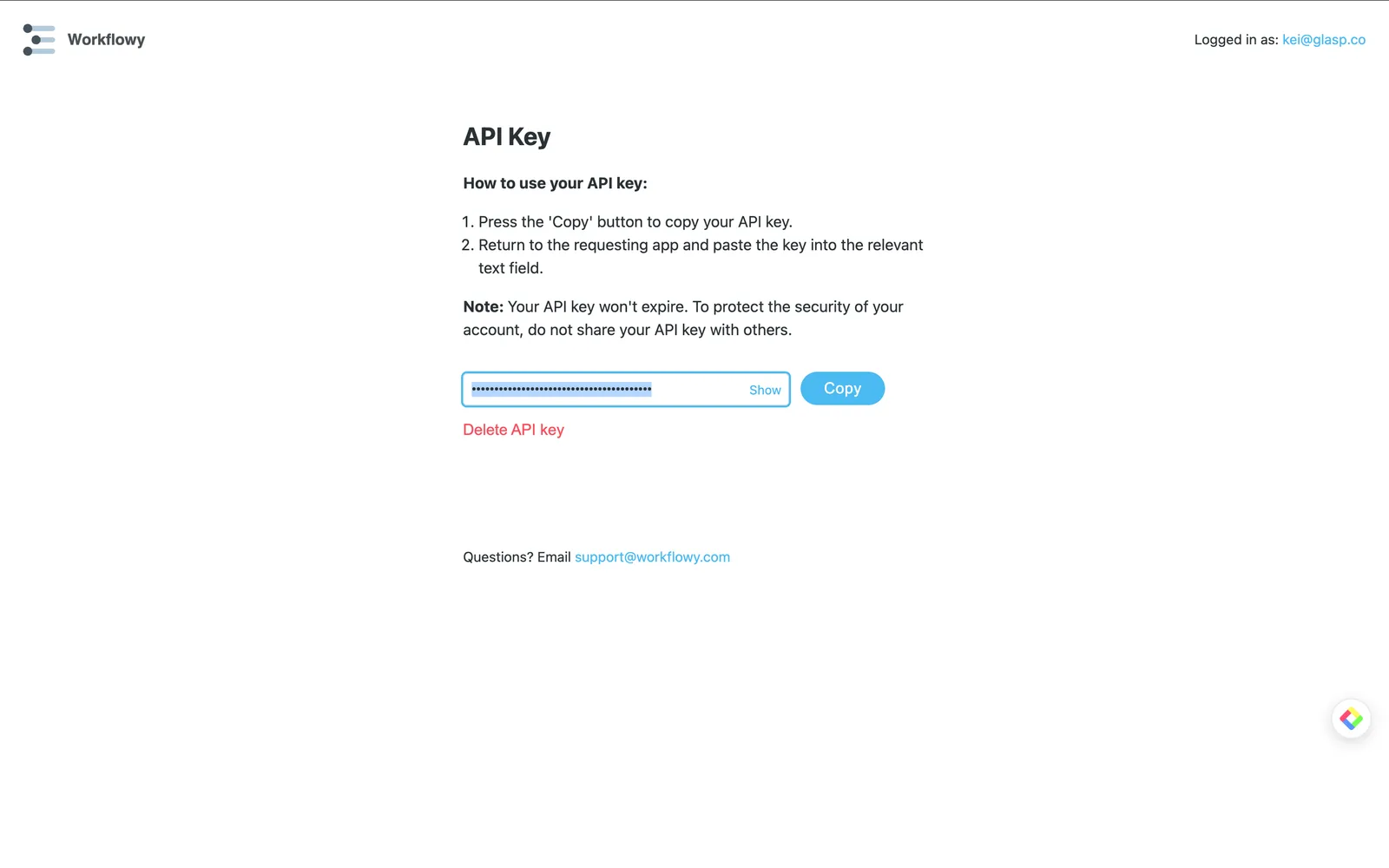
Your key is created right away. Click Copy to copy it. Please don't share the API key anywhere. As Workflowy notes on this page, the key doesn't expire, and you can delete it anytime with Delete API key.
Step 3: Paste the key and connect
Back in the Glasp modal, paste the key into the field and click Connect.
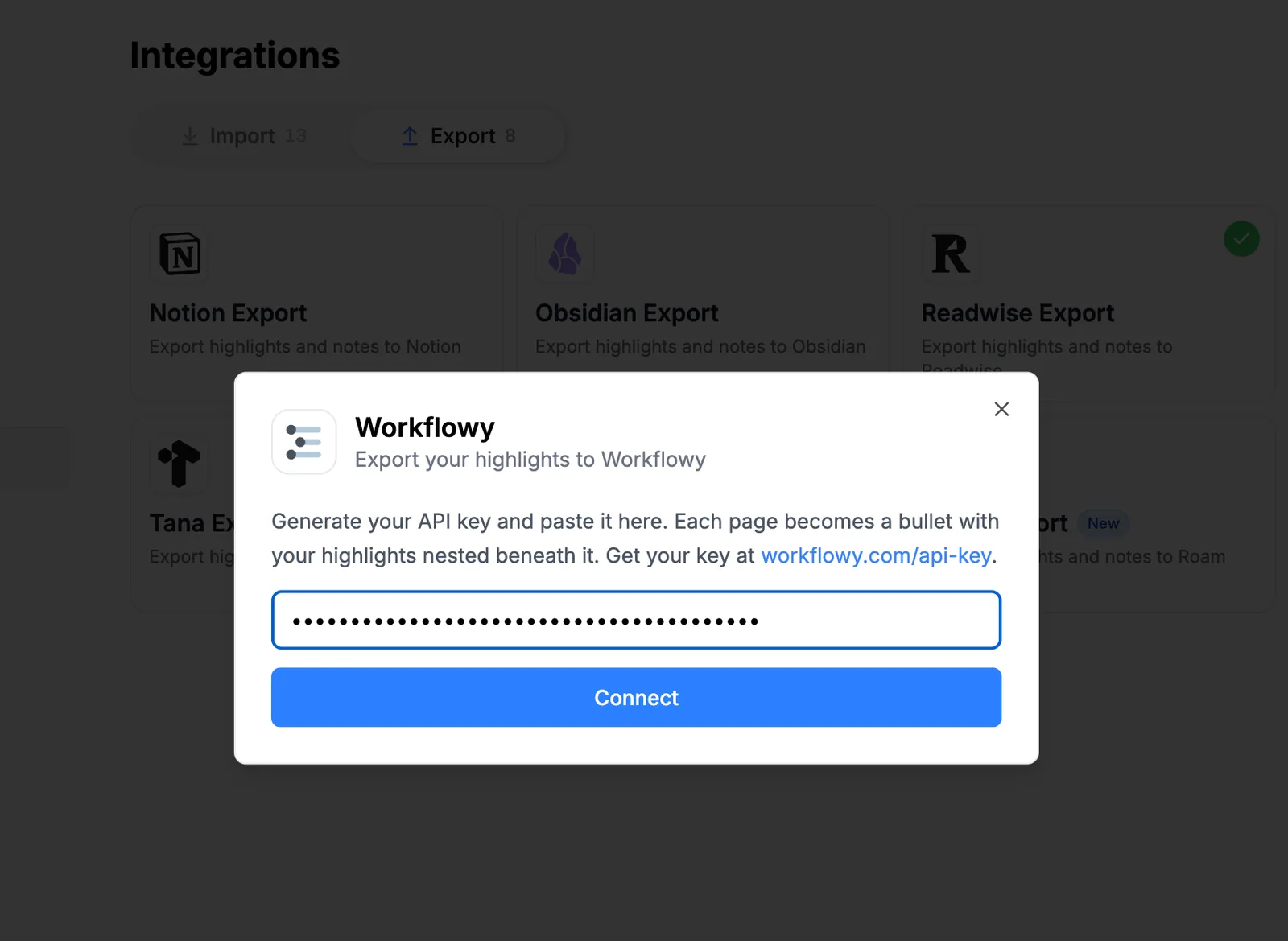
Step 4: Send a 3-page test, then export everything
After connecting, the modal shows a Connected badge with your export options.
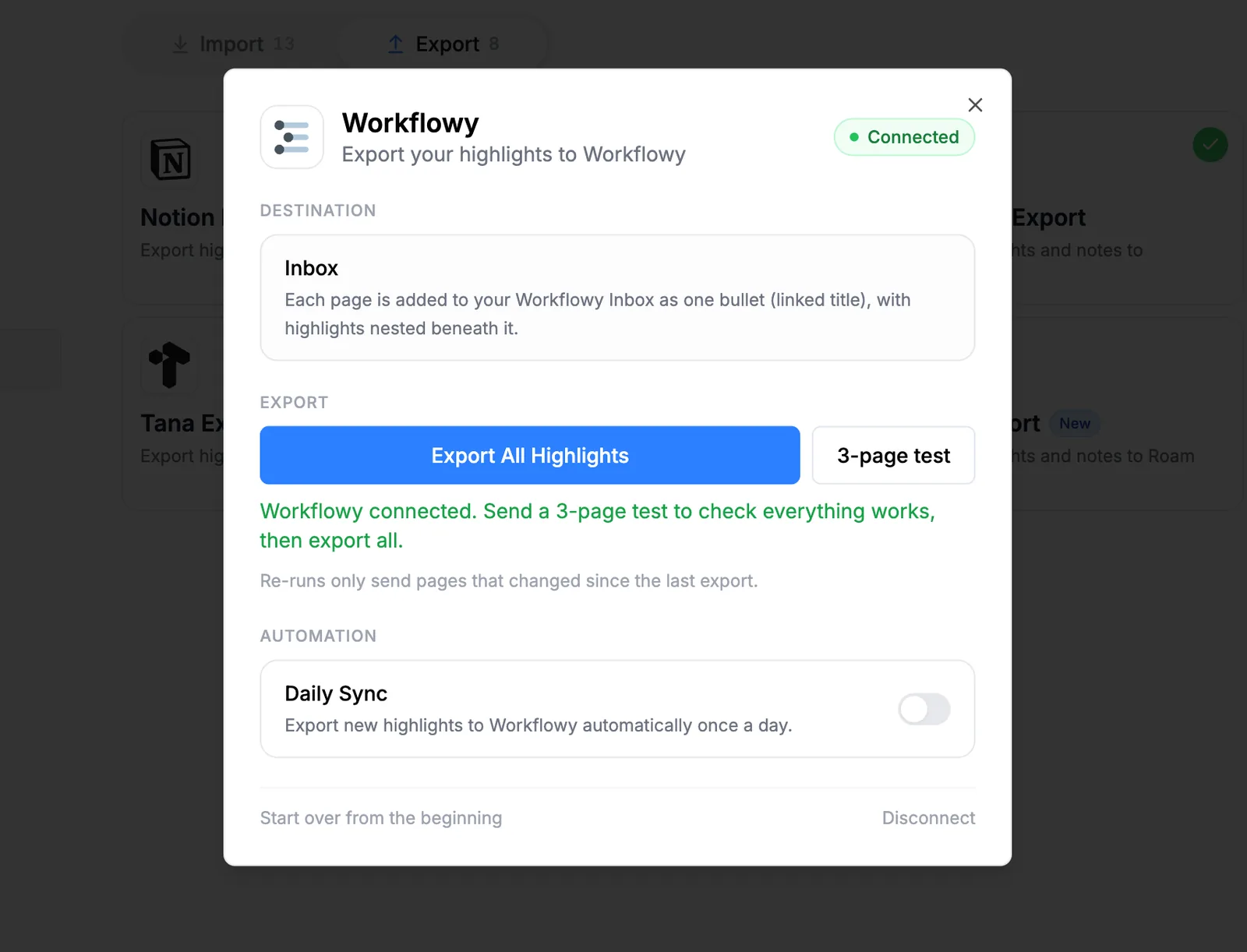
Please click 3-page test first. It sends three pages to your Workflowy Inbox so you can check that everything works. Once the test looks good, click Export All Highlights to send your whole library.
If you run the export again later, Glasp only sends the pages that changed since the last export, so you don't have to worry about duplicates.
Step 5: Find your highlights in Workflowy and turn on Daily Sync
Your exports land in your Workflowy Inbox. Each page is added as one bullet with a linked title, and your highlights are nested beneath it.
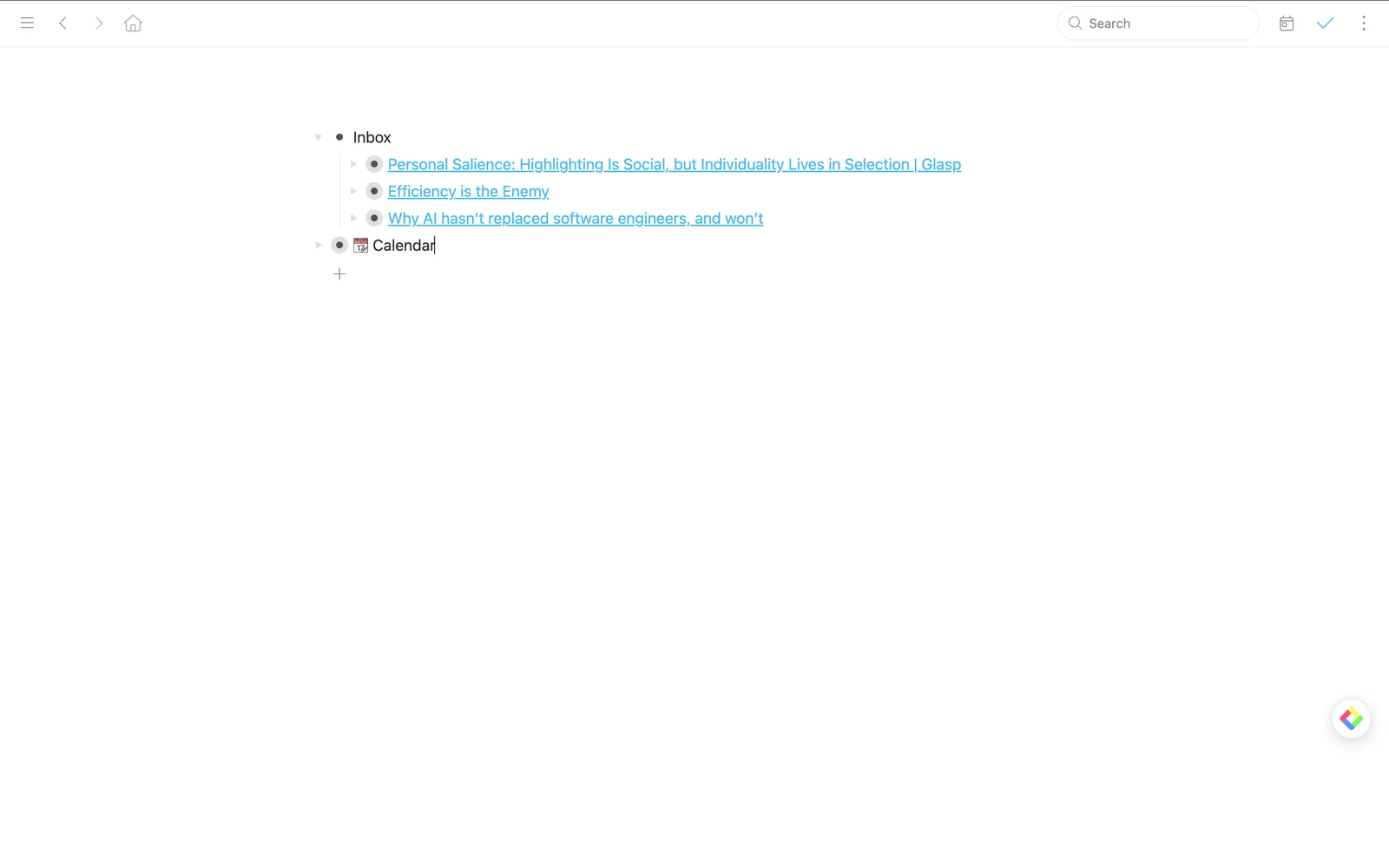
To keep things hands-free going forward, turn on the Daily Sync toggle in the Glasp modal. It exports your new highlights to Workflowy automatically once a day.
It's easy and useful, right? With the Workflowy Export integration, everything you highlight with Glasp flows into your outline, ready to be organized, tagged, and connected with the rest of your notes.
FAQs
Q. Where do I get my Workflowy API key?
Go to workflowy.com/api-key while logged in to Workflowy, and generate your key there. The link is also shown in the Workflowy Export modal on Glasp.
Q. Where do my highlights appear in Workflowy?
In your Workflowy Inbox. Each page becomes one bullet with a linked title, and your highlights are nested beneath it as child bullets.
Q. Does Glasp export to Workflowy automatically?
Yes, if you turn on the Daily Sync toggle. Glasp then exports your new highlights to Workflowy once a day. If you leave it off, you can export manually with Export All Highlights anytime.
Q. What happens if I export again? Will I get duplicates?
No. Re-runs only send the pages that changed since the last export.
Q. How do I disconnect Workflowy from Glasp?
Open the Workflowy Export modal in Settings → Integrations → Export and click Disconnect.
Q. Can Claude or ChatGPT read my Glasp highlights?
Yes. With the Glasp MCP Connector, AI assistants such as Claude, ChatGPT, and Claude Code can search and read your own highlights, notes, Kindle highlights, and AI summaries, including your YouTube summaries. The connection is read-only and private to you. See How to Connect Glasp to Claude, ChatGPT, and Claude Code (MCP Connector).
Q. Can I use Glasp on my phone?
Yes. Glasp has native apps for iPhone, iPad, and Android, and the Glasp Safari extension for iPhone and iPad comes with the iOS app. Your highlights sync between the apps, the web, and the desktop extension. See How to Use the Glasp Mobile App on iOS, iPad, and Android.
Before you leave
If you have any questions, please refer to the FAQ or contact us.
👉 FAQs
👉 X
See you next time,
Glasp team