How to Bookmark Web Content with Glasp

Sep 07, 2025
3 min read
195 views

Do you often find interesting articles, videos, or posts online but don’t have time to read them right away? With Glasp’s bookmarking feature, you can now save any web content — including articles, YouTube videos, PDFs, X (Twitter) posts, and LinkedIn posts — and revisit them later from your Glasp profile.
This makes Glasp not just a highlighter, but also a free social bookmarking tool to organize your to-read list and keep track of valuable content.
If you haven't signed up for Glasp or installed the Glasp browser extension, please do so. You can refer to this tutorial.
How to Use Glasp's Bookmarklet and Bookmark Web Content (YouTube)
Step 1: Go to the Home page or your profile page
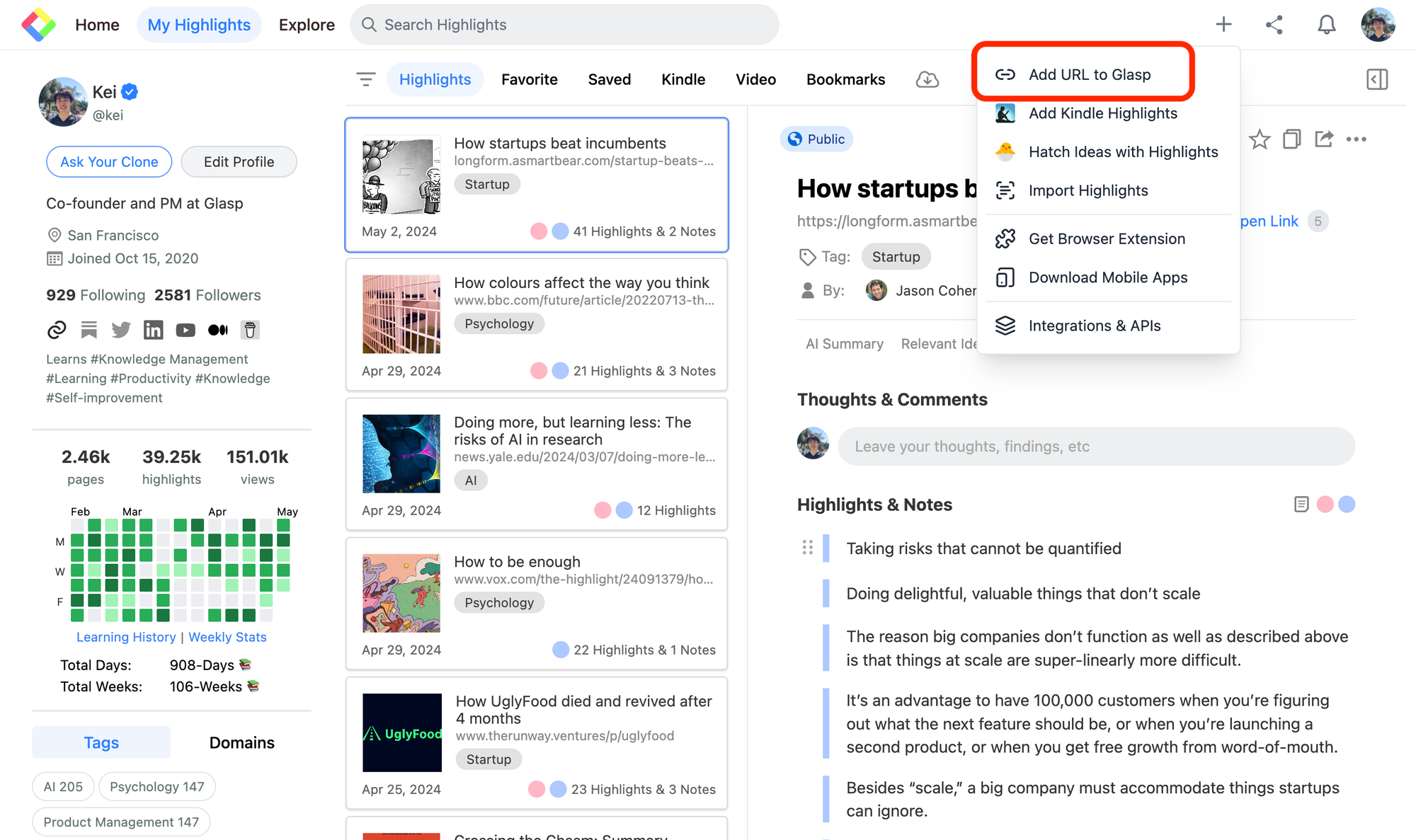
First of all, go to the Home page or your profile page, and click the + button at the top. Then, click Add URL to Glasp.
Step 2: Add a bookmarklet to the bookmark bar
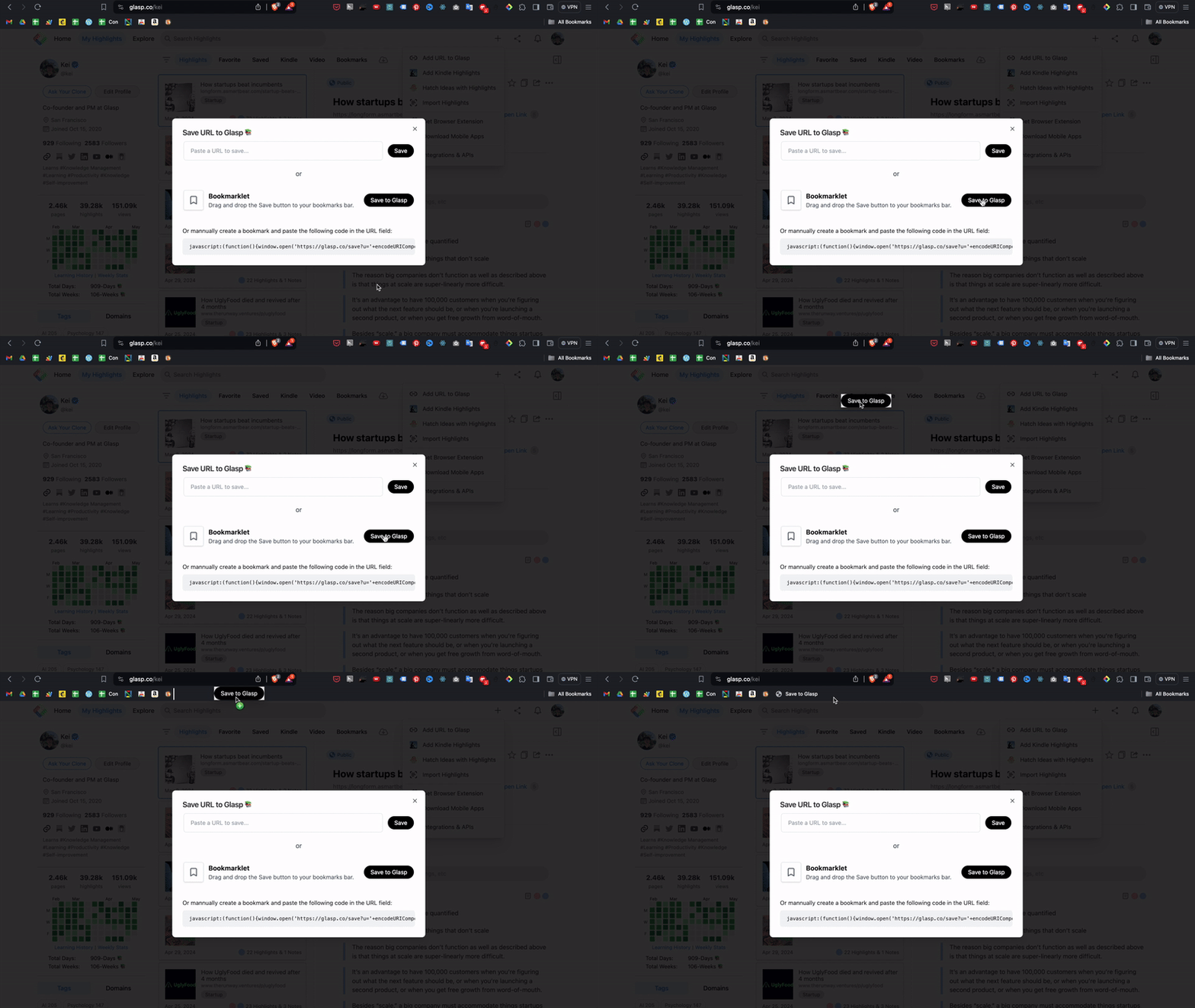
Drag Save to Glasp and move it to the bookmark bar.
Step 3: Open a web content to bookmark
Next, open any web content you'd like to save on Glasp. It can save a web article, a web-hosted PDF, a YouTube video, an X post, a LinkedIn post, etc.
Then, click Save to Glasp on the bookmark bar. It saves the opened article and opens Glasp's Bookmarks section.

On the Bookmarks section, you can see all the lists of bookmarks.
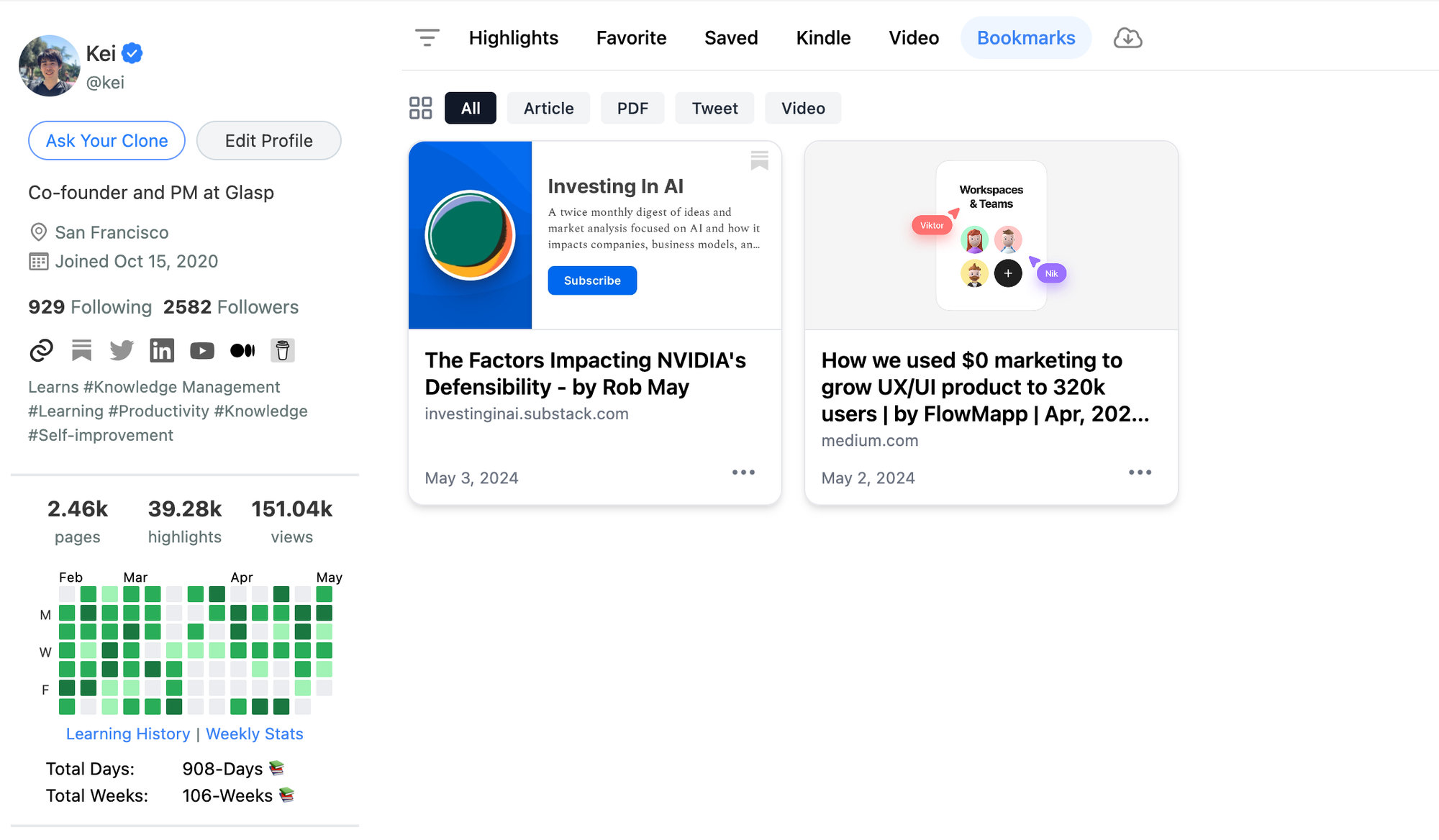
Notice: The bookmarked contents are public and visible to other users when visiting your profile page.
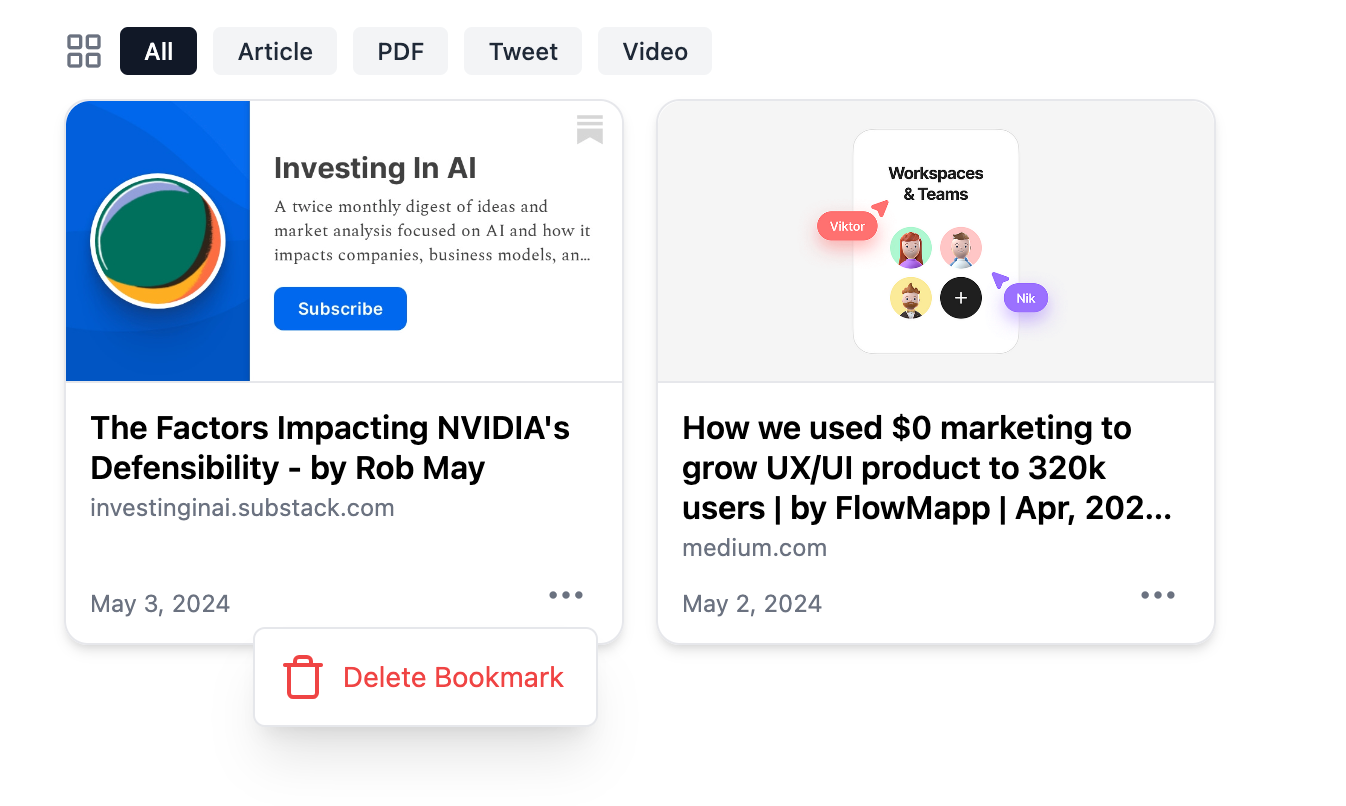
If you'd like to delete the saved bookmark, click the three dots button and Delete Bookmark.
(Optional) Step 4: Add a URL to Glasp
It's an option but you can add a URL to Glasp from the modal. Please fill in the URL you'd like to bookmark in Glasp. Click the Save button.
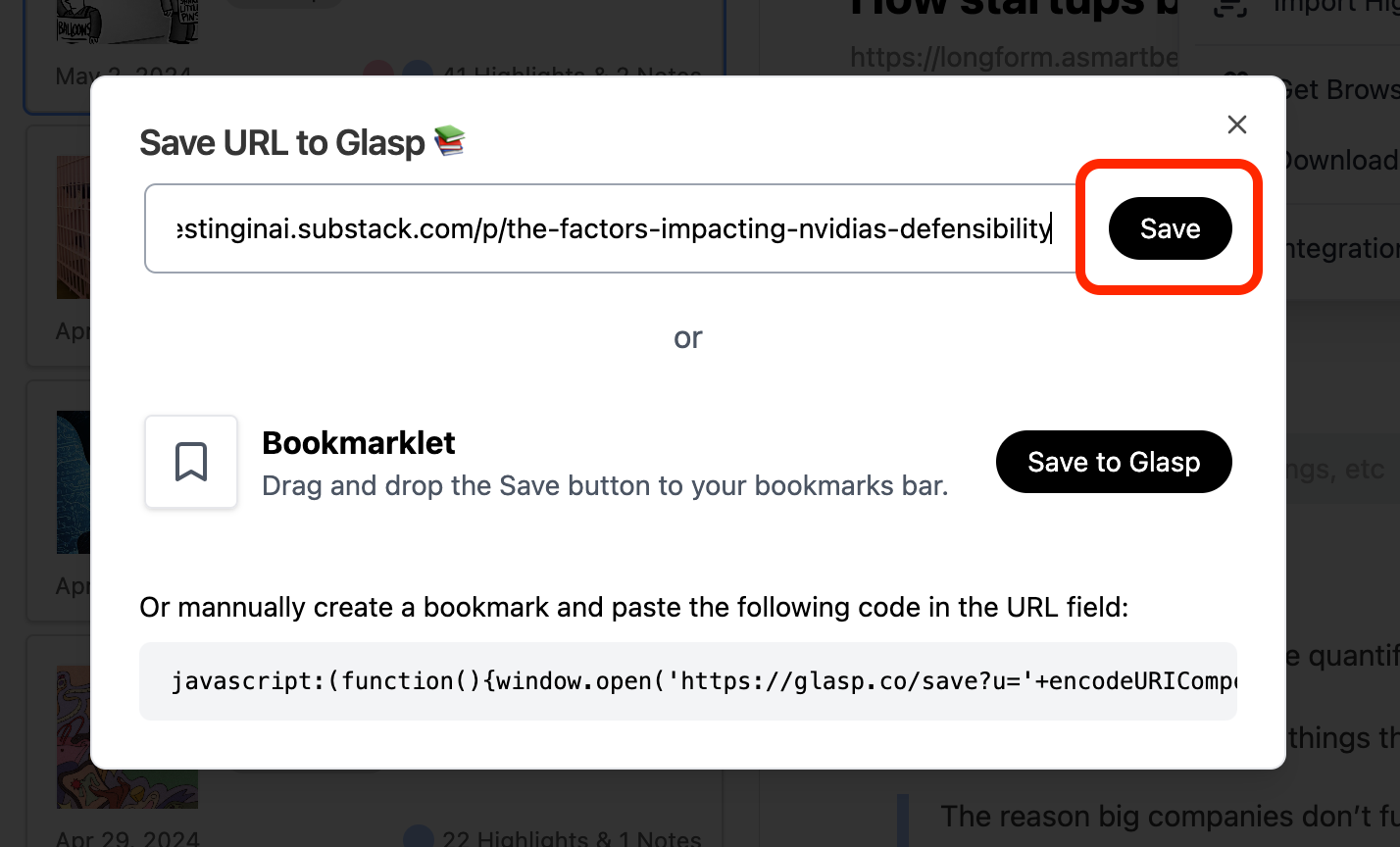
It closes the modal and saves the URL you entered.
FAQs
Q. What types of content can I bookmark with Glasp?
You can bookmark almost any web content: blog articles, web-hosted PDFs, YouTube videos, and even social media posts from X (Twitter) and LinkedIn.
Q. Are my bookmarks private or public?
Bookmarks are public by default and visible on your Glasp profile page. This allows others to discover useful content through your bookmarks.
Q. Can I delete a bookmark later?
Yes. Go to the Bookmarks section, click the three dots next to the item, and select Delete Bookmark.
Q. Can I add bookmarks manually without visiting the page?
Yes. You can use the Add URL to Glasp option from the + button on your Home page or profile page to save a bookmark directly.
Q. Do I need the Glasp browser extension to use bookmarking?
No. You can use the Save to Glasp bookmarklet by dragging it to your bookmark bar. However, the browser extension is recommended for full functionality (highlighting, exporting, etc.).
Q. Can others follow my bookmarks?
Yes. Since bookmarks are public, they appear on your profile, making it easier for others to discover and engage with the same content.
Q. Can Claude or ChatGPT read my Glasp highlights?
Yes. With the Glasp MCP Connector, AI assistants such as Claude, ChatGPT, and Claude Code can search and read your own highlights, notes, Kindle highlights, and AI summaries, including your YouTube summaries. The connection is read-only and private to you. See How to Connect Glasp to Claude, ChatGPT, and Claude Code (MCP Connector).
Q. Can I use Glasp on my phone?
Yes. Glasp has native apps for iPhone, iPad, and Android, and the Glasp Safari extension for iPhone and iPad comes with the iOS app. Your highlights sync between the apps, the web, and the desktop extension. See How to Use the Glasp Mobile App on iOS, iPad, and Android.
Before you leave
If you have any questions, please refer to the FAQ or contact us.
See you next time,
Glasp team