How to Add a Glasp Profile to LinkedIn

Sep 26, 2025
3 min read
48 views
Your LinkedIn profile is your professional identity on the internet, and adding your Glasp profile is a great way to showcase your expertise and learning journey. Glasp is a social learning log that records your highlights, notes, and insights from books, articles, PDFs, and videos. By embedding your Glasp profile on LinkedIn, you can demonstrate not only your career experience but also your continuous learning habits—making your profile more credible and attractive to peers, recruiters, and collaborators.
In this tutorial, we’ll show you how to add your Glasp profile link to LinkedIn in just a few steps.
If you haven't signed up for Glasp or installed the Glasp browser extension, please do so. You can refer to this tutorial.
Step 1: Open your LinkedIn profile page
Please visit and log in to LinkedIn. If you haven't signed up for it, please do so. If you want to use LinkedIn's basic features, you don't need to upgrade to a premium plan.
Step 2: Visit your profile page
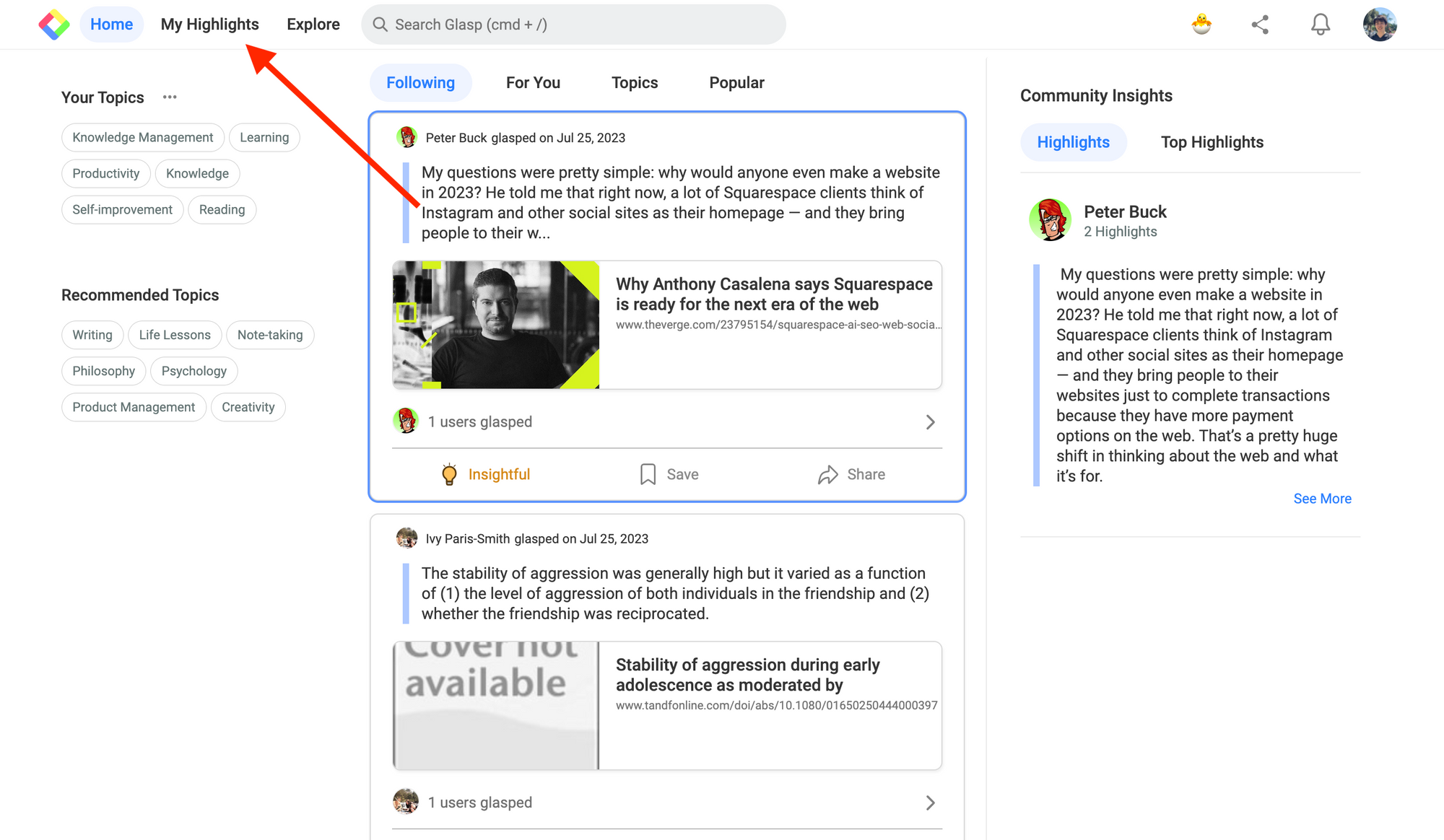
If you're on the Home feed on Glasp, please visit your profile page. You can go there by clicking Profile in the left sidebar.
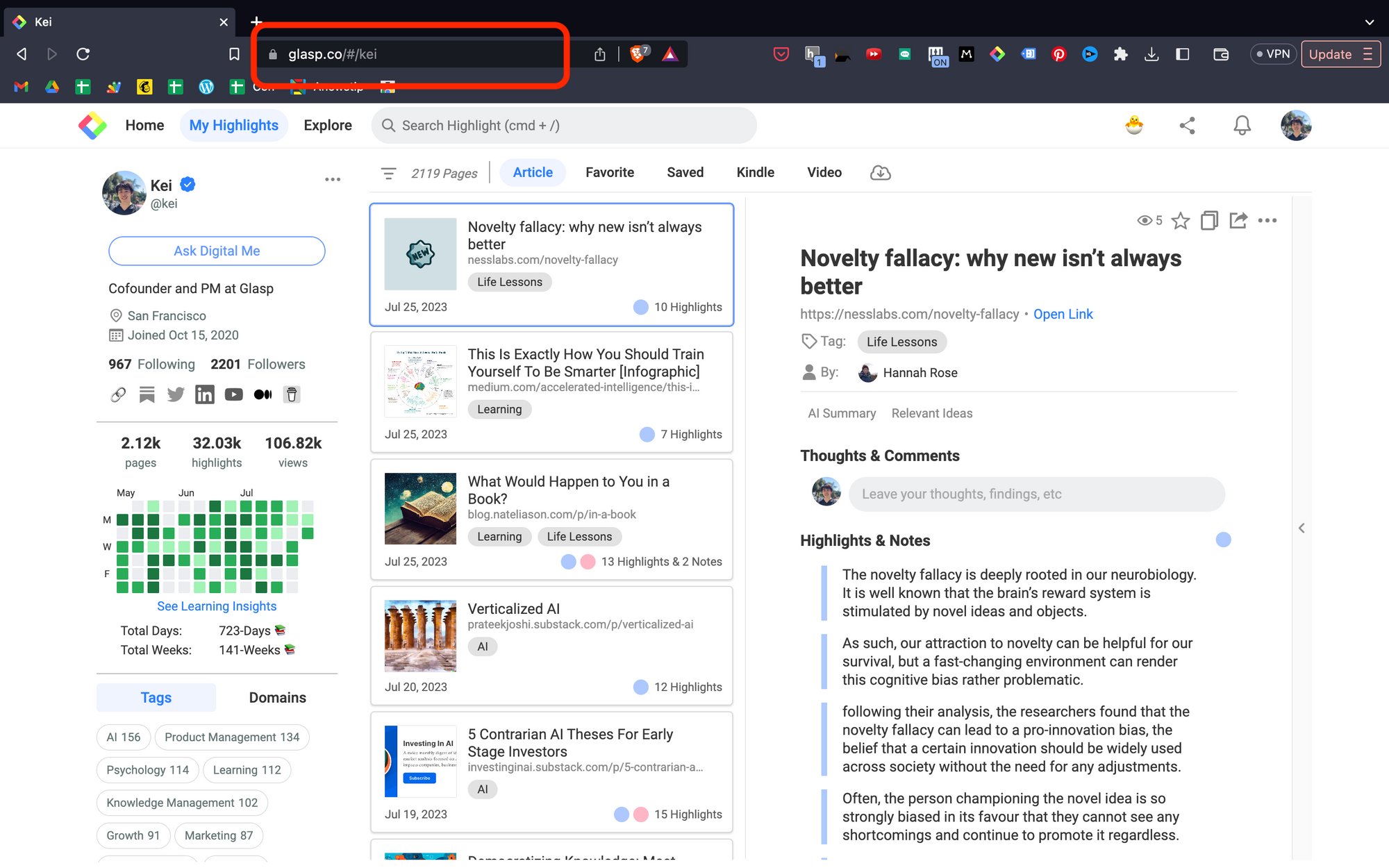
Then, you see the URL of your profile page, so please copy it.
Step 3: Add the URL to LinkedIn
If you could have successfully logged in or signed up for LinkedIn, please visit your profile page.
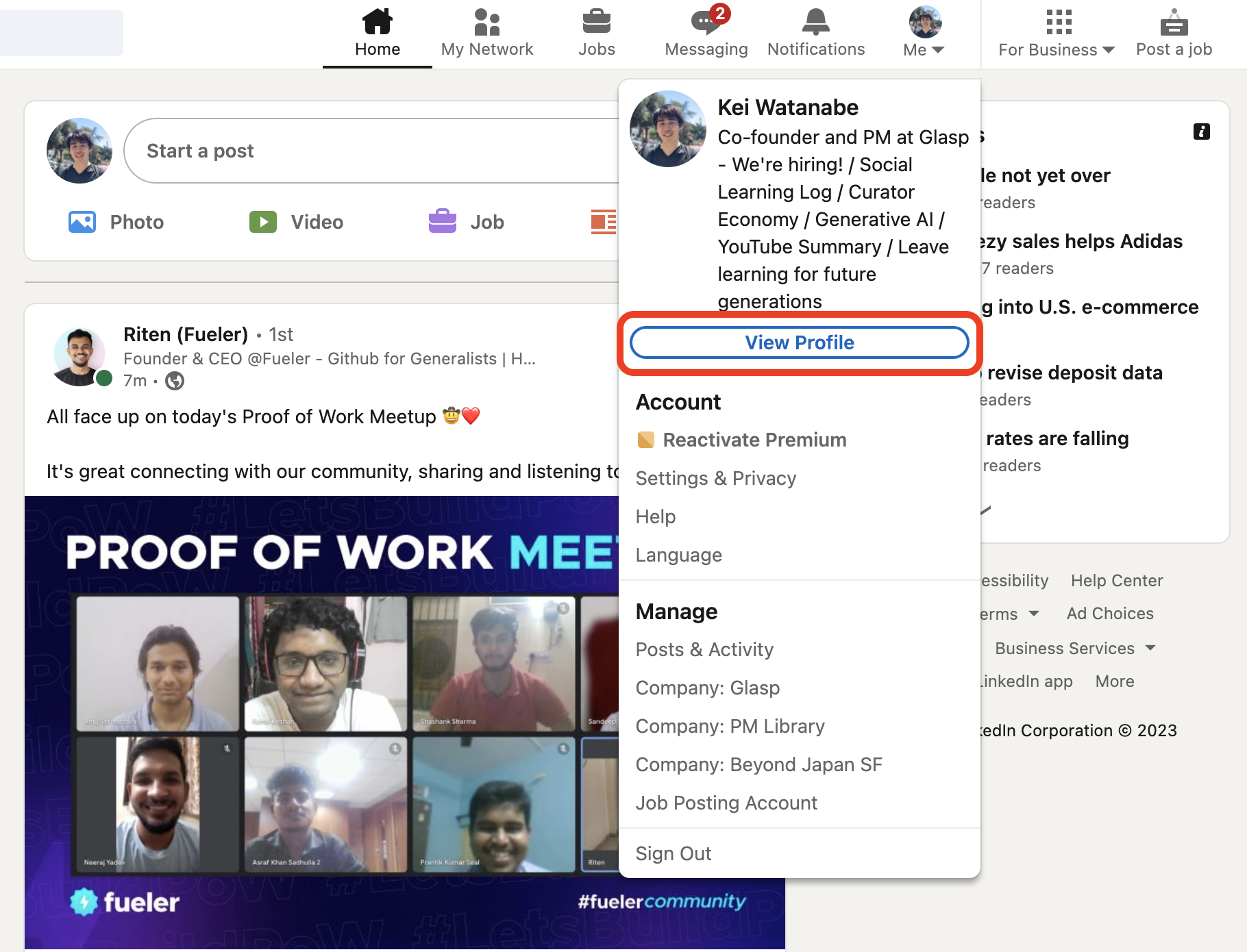
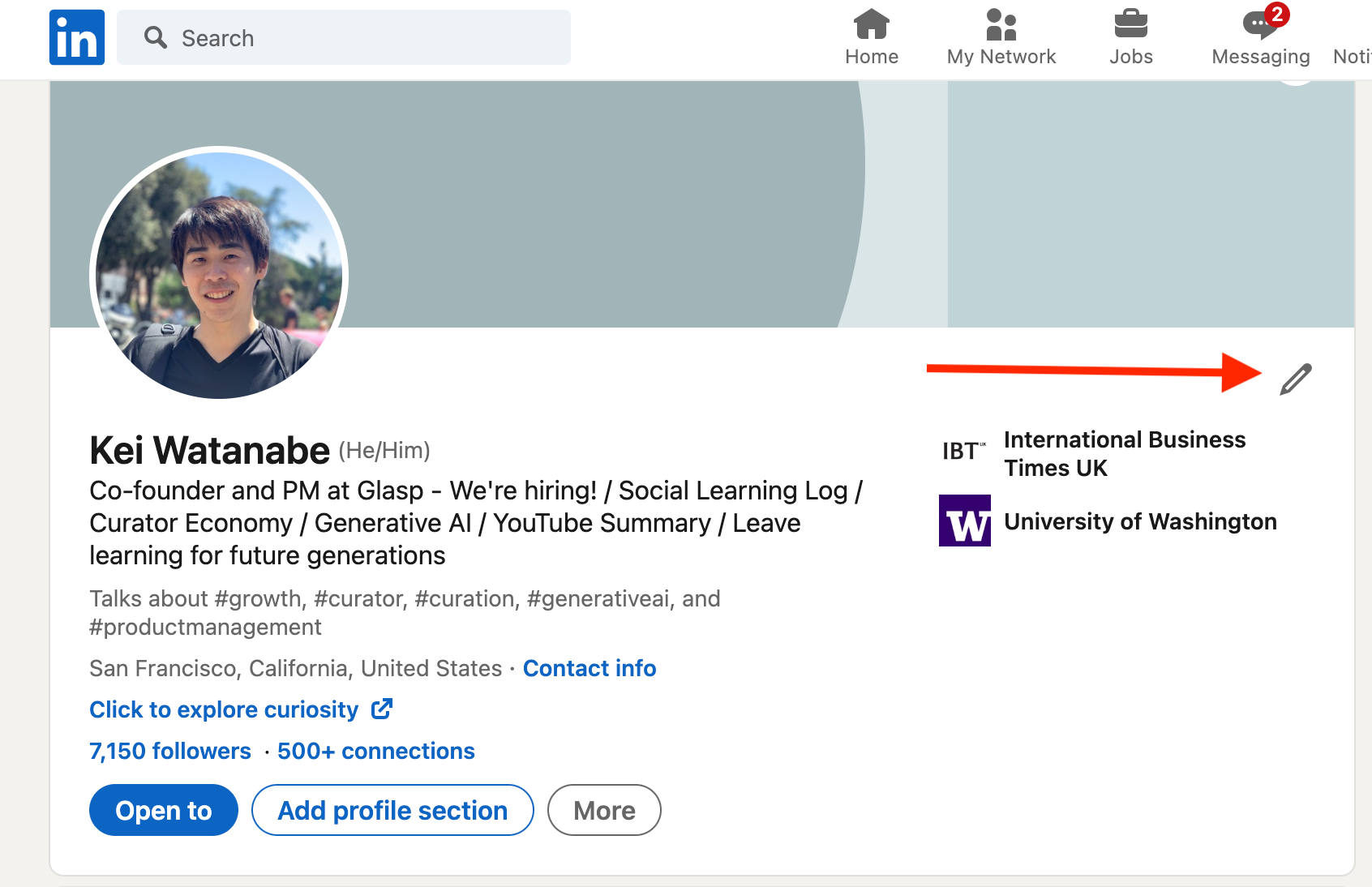
At the right of your profile page on LinkedIn, you can see a pencil icon. Please click it. You can see a modal to edit your basic information.
On the modal, scroll down to the Custom action section. It's located at the bottom of the modal. In the section, choose Link. And paste the URL to your Glasp profile page in the Link section.
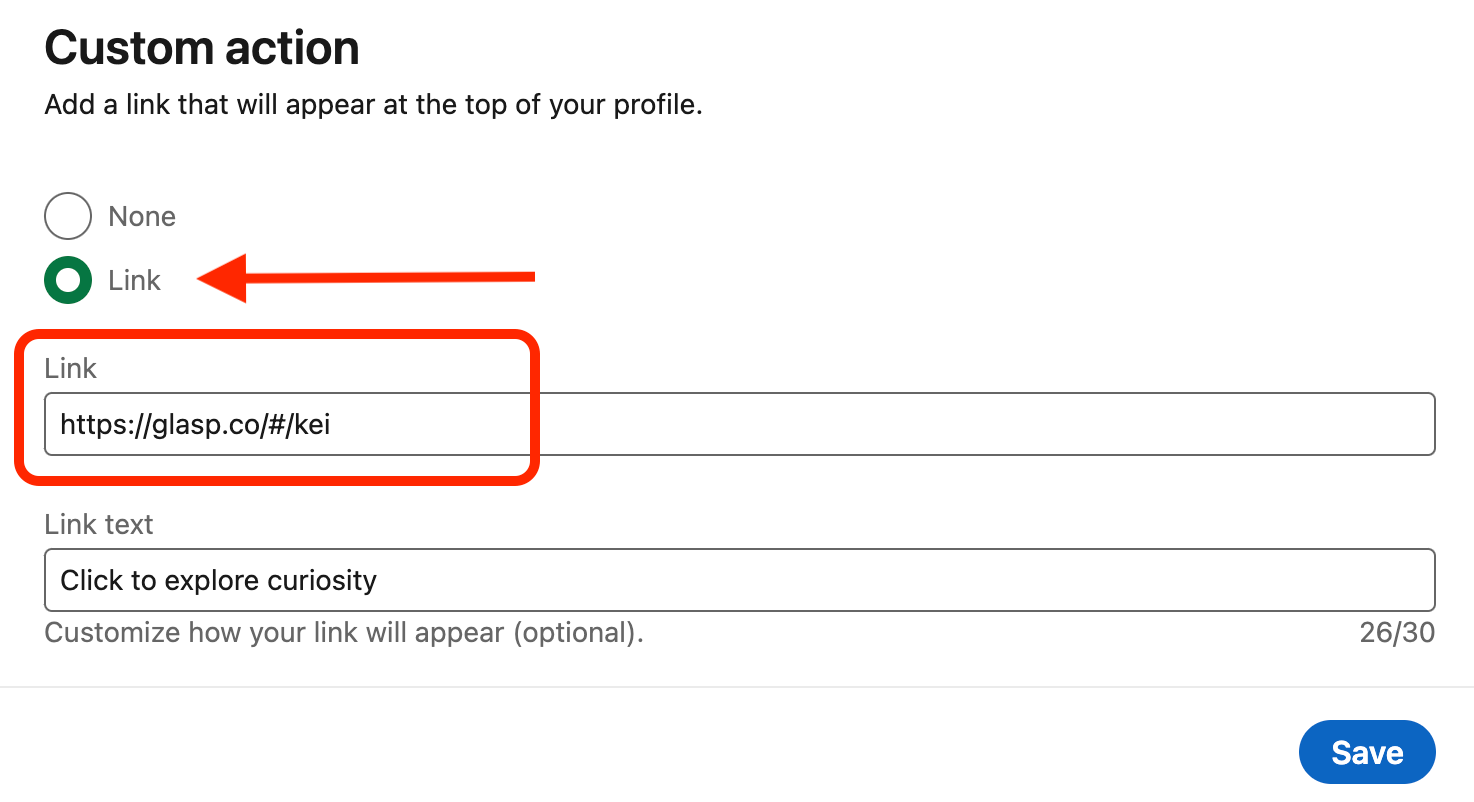
After pasting the link, make sure that you click the Save button at the bottom.
(Optional) Step 4: Edit the link text
On LinkedIn, you can customize the link text. To update it, open the Custom action section. And type the link text to update how your link will appear.
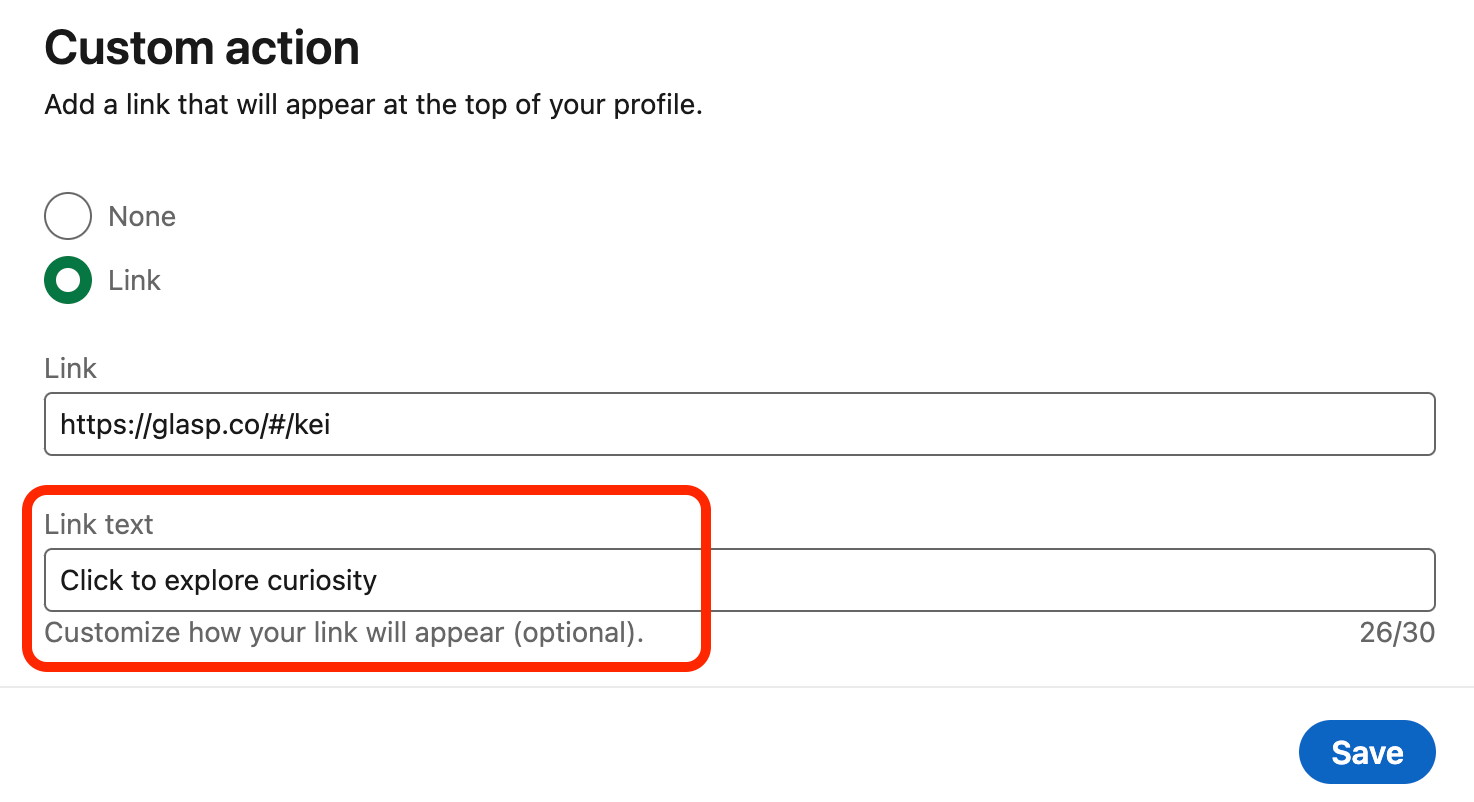
Make sure you click the Save button after updating it.
FAQs
Q. Do I need a LinkedIn Premium account to add my Glasp profile?
No. This feature works perfectly on the free LinkedIn plan.
Q. Where do I find my Glasp profile link?
Your profile link is the URL of your profile page on Glasp. Copy it directly from the browser address bar.
Q. Can I add more than one custom link on LinkedIn?
Yes. LinkedIn allows you to add multiple links in the Custom Action section of your profile.
Q. Can I change or remove my Glasp profile link later?
Absolutely. You can edit or remove the link anytime by clicking the pencil icon on your profile.
Q. Will my Glasp highlights be visible to everyone on LinkedIn?
Yes. Your Glasp profile is public by default, meaning anyone who clicks your LinkedIn link can see your highlights and notes. If you’d like more control, adjust visibility settings in Glasp.
Q. Can Claude or ChatGPT read my Glasp highlights?
Yes. With the Glasp MCP Connector, AI assistants such as Claude, ChatGPT, and Claude Code can search and read your own highlights, notes, Kindle highlights, and AI summaries, including your YouTube summaries. The connection is read-only and private to you. See How to Connect Glasp to Claude, ChatGPT, and Claude Code (MCP Connector).
Q. Can I use Glasp on my phone?
Yes. Glasp has native apps for iPhone, iPad, and Android, and the Glasp Safari extension for iPhone and iPad comes with the iOS app. Your highlights sync between the apps, the web, and the desktop extension. See How to Use the Glasp Mobile App on iOS, iPad, and Android.
Before you leave
If you have any questions, please refer to the FAQ or contact us.
👉 FAQs
👉 X
See you next time,
Glasp team