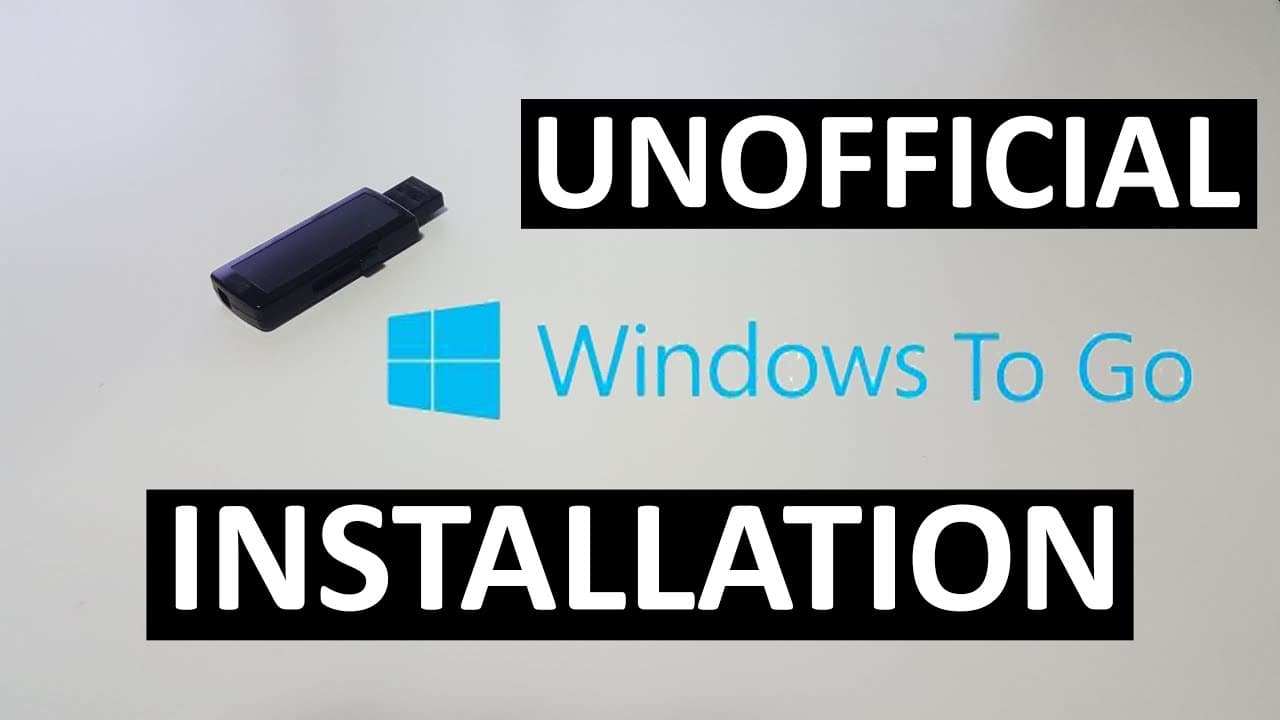
Unofficial Windows 10 To Go Installation
TL;DR
How to install a portable version of Windows 10 on a USB drive.
Transcript
what's up guys it's down here from Nova spirit Tech and today we're going to be installing a portable version of Windows 10 onto a USB Drive called windows to go officially it's only for Windows Enterprise editions but I'm going to show you a way how to do this on every edition of Windows right here right now so guys to start off we're going to nee... Read More
Key Insights
- 👤 Creating a portable Windows 10 environment can enhance productivity for users needing mobility across different computers and platforms.
- 🔉 Using ISO files from Windows Tech Bench is crucial, as the typical media creation tool does not support USB installations.
- 👤 Rufus is an essential tool for configuring USB drives to use Windows To Go, offering user-friendly options and effective results.
- 🥾 The installation process requires basic familiarity with BIOS settings to prioritize USB boot options during startup.
- 👤 Users may need to account for additional setup steps, such as activating Windows and configuring personal settings, after the initial installation.
- 🏣 The resolution issues post-installation highlight the necessity of drivers for optimal performance on various hardware setups.
- 🥹 The installation guide emphasizes data loss risks, stressing the importance of backing up existing data on the USB drive prior to the process.
Install to Summarize YouTube Videos and Get Transcripts
Explore YouTube Video Summarizer or Get YouTube Transcript Extractor
Questions & Answers
Q: What is "Windows To Go" and who is it designed for?
Windows To Go is designed to allow users to run a fully functional version of Windows from a USB drive. It provides convenience for IT professionals and users who frequently switch between different computers without losing configuration or data. It's particularly beneficial for testing or troubleshooting systems in varied environments.
Q: How do I prepare my USB drive for the Windows 10 installation?
To prepare your USB drive, you need at least a 16GB USB in NTFS format. Use the Rufus application to set up the USB drive with the Windows To Go option. Ensure that you select the correct ISO file and follow the prompts carefully, keeping in mind that all data on the drive will be erased.
Q: What should I do if my USB drive is not recognized during installation?
If your USB drive is not recognized, first, ensure that it is properly connected and functional. Check the disk management settings on your computer to see if it's listed there. You might also need to reformat the USB drive or try different USB ports. Restarting the computer can sometimes resolve detection issues as well.
Q: Can I use any edition of Windows to create this USB installation?
While "Windows To Go" is officially designed for Windows Enterprise editions, this guide shows that you can create a portable installation using any retail version of Windows, including Windows 10, 8, and 8.1, by downloading the correct ISO file and using the Rufus tool for installation.
Q: What steps can I take if I encounter resolution issues after installation?
If you experience resolution issues after installing Windows on a USB drive, this may be due to missing drivers. To resolve this, you should install the appropriate drivers for your graphics card. You can use Windows Update to find and download drivers automatically or manually download them from the manufacturer's website.
Q: Is it possible to install additional software on this Windows To Go setup?
Yes, after setting up Windows To Go, you can install additional software just like you would on a regular Windows installation. This is one of the benefits, as it allows you to carry applications and utilities with you on the portable USB drive, making it easier to troubleshoot or work on different systems.
Summary & Key Takeaways
-
This guide explains how to create a portable Windows 10 installation on a USB drive, specifically called "Windows To Go." It provides insights for using various Windows editions effectively with a step-by-step approach.
-
You’ll need a USB drive of at least 16 GB, and the guide emphasizes using a proper ISO version from Windows Tech Bench rather than media creation tools. Rufus is the recommended tool for installation.
-
The tutorial walks through the setup process, including configurations needed to ensure smooth booting from the USB drive and initial Windows settings, along with handy tips for optimizing the installation.
Read in Other Languages (beta)
Share This Summary 📚
Summarize YouTube Videos and Get Video Transcripts with 1-Click
Try YouTube Summary with ChatGPT & Claude or YouTube Transcript Generator
Explore More Summaries from Novaspirit Tech 📚




Summarize YouTube Videos and Get Video Transcripts with 1-Click
Try YouTube Summary with ChatGPT & Claude or YouTube Transcript Generator