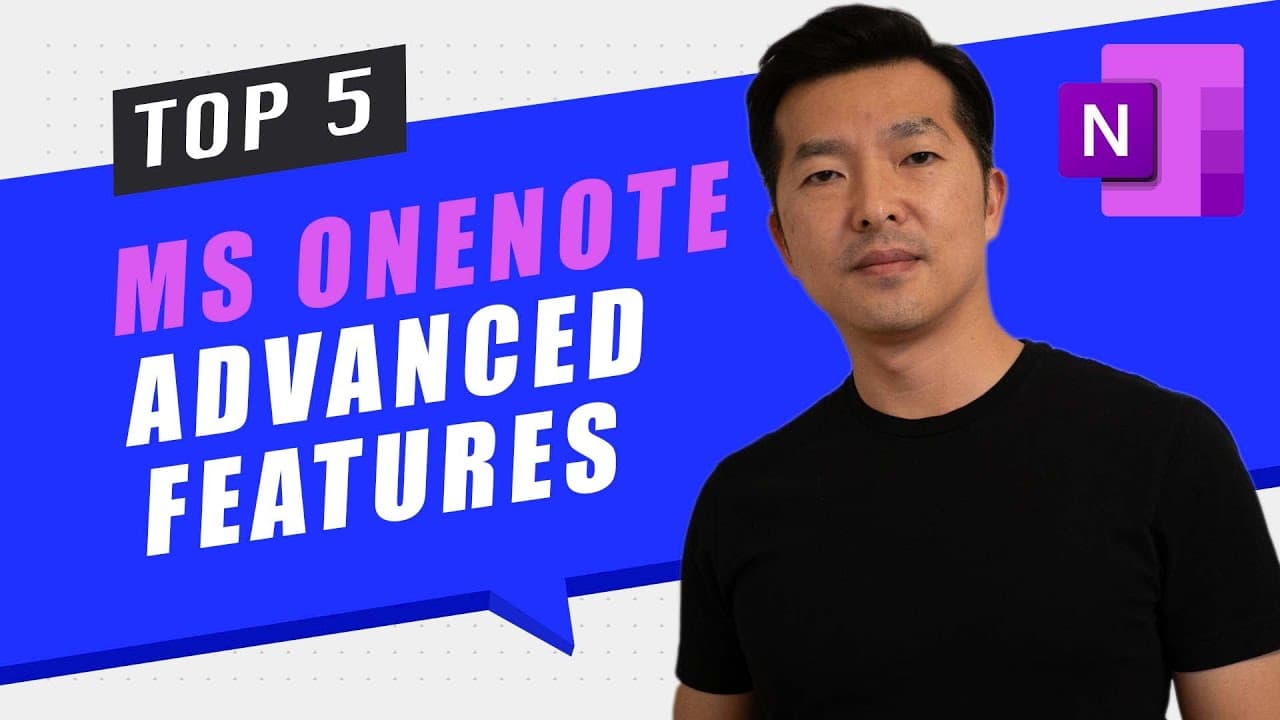
5 OneNote features and tips for power users
TL;DR
Learn about five useful features in OneNote 2016, including setting a picture as a background, linking to pages and paragraphs using double brackets, using full screen and always on top mode, using keyboard shortcuts, and utilizing templates.
Transcript
hey what's up everyone my name is andy park welcome back to this channel in this video i'll share my personal top five favorite features in onenote i'm using the 2016 version that came with microsoft office so if you're using a different version these tips may not work for you i have a time stamp in the description if you want to jump ahead so tip ... Read More
Key Insights
- 😫 Setting a picture as a background in OneNote helps with annotating content-heavy slides during meetings.
- 🍻 Using double brackets simplifies linking to pages and paragraphs for easy navigation within notebooks.
- 🛀 Full screen and always on top mode optimize the note-taking experience during meetings.
- 🤨 Learning keyboard shortcuts for tables, lists, indenting, and moving rows boosts productivity.
Install to Summarize YouTube Videos and Get Transcripts
Explore YouTube Video Summarizer or Get YouTube Transcript Extractor
Questions & Answers
Q: How do I set a picture as a background in OneNote?
To set a picture as a background in OneNote, paste the image on the page, right-click on it, and choose "Set Picture as Background." This ensures that annotations stay in sync with the image.
Q: How can I quickly navigate between pages in OneNote?
You can use double brackets around the page name to create a shortcut link to that page. Alternatively, you can right-click on a page, select "Copy Link to Page," and paste the link on another page.
Q: How do I put OneNote in full screen mode?
Click on the full screen icon in OneNote to enter full screen mode. This helps eliminate distractions and provides a clean, blank page for note-taking during meetings.
Q: Are there keyboard shortcuts available in OneNote?
Yes, there are several keyboard shortcuts in OneNote. For example, you can use tab to create tables, control period for bullet lists, and control forward slash for number lists. These shortcuts increase productivity and efficiency.
Key Insights:
- Setting a picture as a background in OneNote helps with annotating content-heavy slides during meetings.
- Using double brackets simplifies linking to pages and paragraphs for easy navigation within notebooks.
- Full screen and always on top mode optimize the note-taking experience during meetings.
- Learning keyboard shortcuts for tables, lists, indenting, and moving rows boosts productivity.
- Templates in OneNote provide predefined formats for notes or allow users to create their own custom templates.
Summary & Key Takeaways
-
Set a picture as a background in OneNote to make annotations easier, especially when taking notes on content-heavy slides during meetings.
-
Link to pages and paragraphs using double brackets for quick navigation and easy embedding of links in your notes.
-
Use full screen mode and always on top settings to minimize distractions and keep your notes visible during meetings.
-
Utilize keyboard shortcuts for efficient note organization, such as creating tables, lists, indenting, and moving rows.
-
Use templates to quickly format your notes in a desired layout or create your own custom templates.
Read in Other Languages (beta)
Share This Summary 📚
Summarize YouTube Videos and Get Video Transcripts with 1-Click
Try YouTube Summary with ChatGPT & Claude or YouTube Transcript Generator
Explore More Summaries from Andy Park 📚
Summarize YouTube Videos and Get Video Transcripts with 1-Click
Try YouTube Summary with ChatGPT & Claude or YouTube Transcript Generator