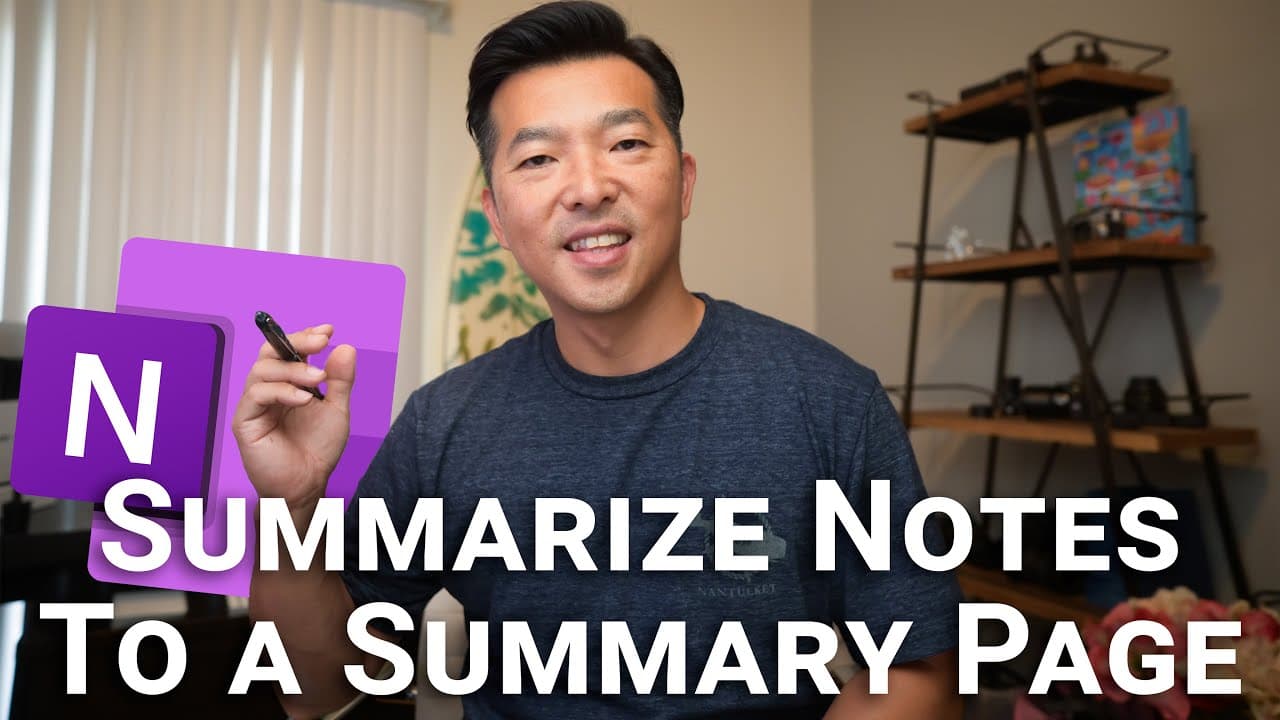
How I summarize note pages in each section to a Summary Page (OneNote)
TL;DR
Learn how to create summary pages in OneNote to quickly access important information and stay organized.
Transcript
in this video i'm going to show you how i create summary pages like this in onenote where i pull in important and relevant bits of info from my individual note pages these summary pages provide a quick overview of my projects and activities and i find it helpful to use these pages as entry points to get to the information that i need so there are t... Read More
Key Insights
- 👤 Summary pages in OneNote provide a quick overview of projects and activities, helping users stay organized.
- 💁 Maintaining summary pages ensures that only important and relevant information is reviewed, saving time and effort.
- 💁 Using links instead of duplicating information improves searching efficiency and avoids cluttering the notebook.
- 👻 Summary pages serve as a dashboard view of active projects, allowing for better management and communication with stakeholders.
- 🍻 OneNote offers various linking options, such as copying links to notebooks, sections, pages, and paragraphs, making navigation efficient.
- 👻 Using double brackets while typing allows for quick creation of links between pages without interrupting the workflow.
- 🍻 Link text can be edited to accurately describe the content being linked, improving readability and organization.
Install to Summarize YouTube Videos and Get Transcripts
Explore YouTube Video Summarizer or Get YouTube Transcript Extractor
Questions & Answers
Q: What prompted the speaker to experiment with summary pages in OneNote?
The speaker was motivated by two main reasons: to stay grounded in project objectives and scope, and to have a dashboard view of active projects for better management.
Q: How does the speaker ensure that summary pages stay updated?
The speaker updates the summary pages by pulling in new information from recent notes, avoiding the need to review all note pages. Links to specific details are used instead of copying and pasting information.
Q: Can you link pages and sections in OneNote to create a table of contents for summary pages?
Yes, you can easily link pages and sections by right-clicking on the selected object and choosing the copy link option. Multiple pages can also be linked at once using the "copy link to page" option.
Q: Can you link to external content in OneNote, such as files in Onedrive or PowerPoint presentations?
Yes, OneNote allows you to hyperlink to files saved in accessible networks or cloud storage, including Onedrive and SharePoint. Specific slides in PowerPoint presentations can also be linked for easy referencing.
Key Insights:
- Summary pages in OneNote provide a quick overview of projects and activities, helping users stay organized.
- Maintaining summary pages ensures that only important and relevant information is reviewed, saving time and effort.
- Using links instead of duplicating information improves searching efficiency and avoids cluttering the notebook.
- Summary pages serve as a dashboard view of active projects, allowing for better management and communication with stakeholders.
- OneNote offers various linking options, such as copying links to notebooks, sections, pages, and paragraphs, making navigation efficient.
- Using double brackets while typing allows for quick creation of links between pages without interrupting the workflow.
- Link text can be edited to accurately describe the content being linked, improving readability and organization.
- External content, including files and specific slides, can also be linked in OneNote for easy access and referencing.
Summary & Key Takeaways
-
The video demonstrates how to create summary pages in OneNote to provide an overview of projects and activities.
-
Summary pages contain essential details such as objectives, scope, and schedule, while the rest of the notebook is filled with various notes.
-
By maintaining up-to-date summary pages, you can easily access important information without reviewing all the other note pages.
Read in Other Languages (beta)
Share This Summary 📚
Summarize YouTube Videos and Get Video Transcripts with 1-Click
Try YouTube Summary with ChatGPT & Claude or YouTube Transcript Generator
Explore More Summaries from Andy Park 📚
Summarize YouTube Videos and Get Video Transcripts with 1-Click
Try YouTube Summary with ChatGPT & Claude or YouTube Transcript Generator