How to Use Mouse Without Borders in Microsoft PowerToys?
TL;DR
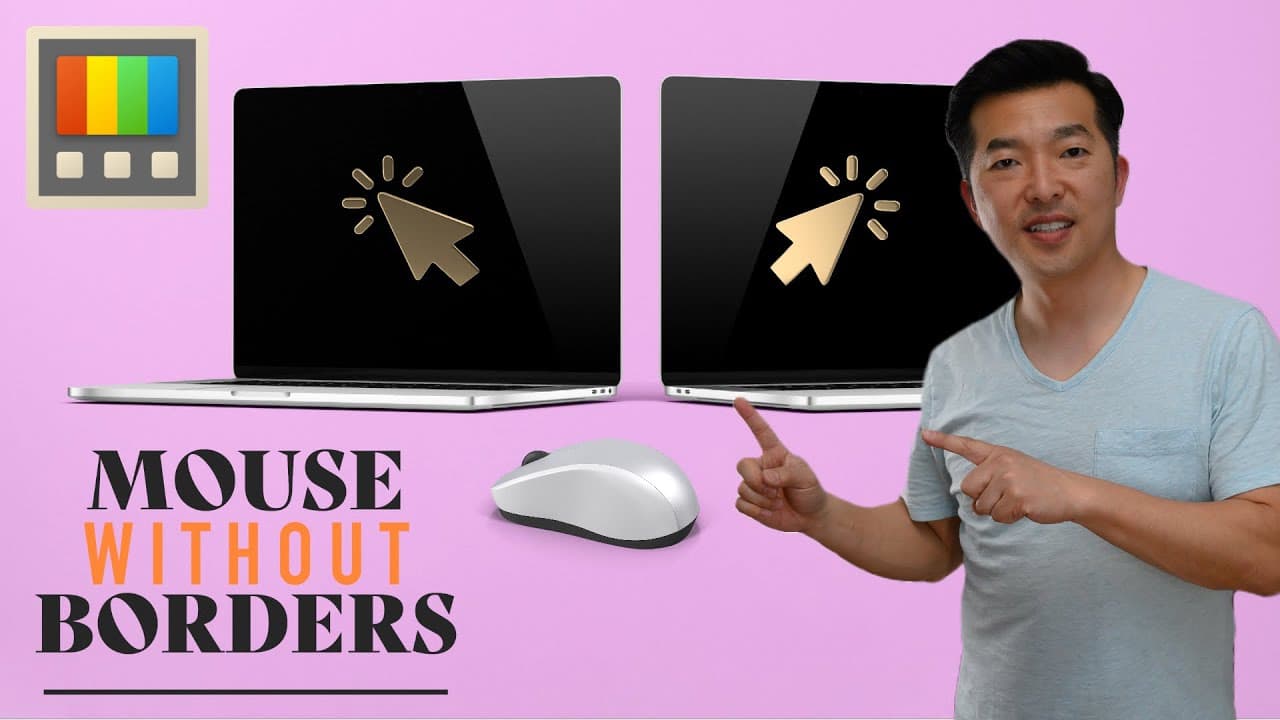
Mouse Without Borders in Microsoft PowerToys allows you to control multiple computers using one mouse and keyboard, and share clipboard and files seamlessly. To set it up, install PowerToys, enable Mouse Without Borders, generate a security key, and connect your computers using the key and their names.
Transcript
if you're a Windows user and not using Microsoft power toys you're definitely missing out in this video I'm going to walk you through the newest utility and Microsoft power toys Mouse Without Borders this lets you use just one Mouse to control multiple computers One keyboard to type across them and you can even share your clipboard and files betwee... Read More
Key Insights
- 🖱️ Mouse Without Borders, a utility within Microsoft Power Toys, allows Windows users to control multiple computers with one mouse and keyboard.
- 🚙 The utility simplifies the process of controlling and transferring files between connected computers.
- 🥶 Microsoft Power Toys provides a range of practical and useful utilities that are available for free.
- ❓ Mouse Without Borders is similar to Logitech Flow in its functionality.
- 💝 The installation process for Microsoft Power Toys involves downloading the latest version from the GitHub release page and running it as an administrator.
- 💻 The system architecture of the computer should be checked before downloading the appropriate version of Power Toys.
- 👻 Mouse Without Borders allows users to rearrange the order of the connected computers to match their physical layout.
Install to Summarize YouTube Videos and Get Transcripts
Explore YouTube Video Summarizer or Get YouTube Transcript Extractor
Questions & Answers
Q: How does Mouse Without Borders work?
Mouse Without Borders allows users to use a single mouse and keyboard to control multiple computers, enabling seamless movement and typing across them. It also facilitates the sharing of clipboard and files between the connected computers.
Q: Where can I download Microsoft Power Toys?
To download Microsoft Power Toys, you can visit the Microsoft Power Toys GitHub release page. There, you can choose the appropriate version based on your system architecture and download the executable file.
Q: Can I control more than two computers with Mouse Without Borders?
Yes, Mouse Without Borders allows you to connect and control up to four computers using a single mouse and keyboard. This feature can be particularly useful for individuals who work with multiple devices simultaneously.
Q: Why is Mouse Without Borders a useful utility?
Mouse Without Borders eliminates the need for multiple keyboards and mice, simplifying the process of working with multiple computers. It streamlines tasks such as transferring files and improves overall productivity by enabling seamless control and connectivity.
Key Insights:
- Mouse Without Borders, a utility within Microsoft Power Toys, allows Windows users to control multiple computers with one mouse and keyboard.
- The utility simplifies the process of controlling and transferring files between connected computers.
- Microsoft Power Toys provides a range of practical and useful utilities that are available for free.
- Mouse Without Borders is similar to Logitech Flow in its functionality.
- The installation process for Microsoft Power Toys involves downloading the latest version from the GitHub release page and running it as an administrator.
- The system architecture of the computer should be checked before downloading the appropriate version of Power Toys.
- Mouse Without Borders allows users to rearrange the order of the connected computers to match their physical layout.
- Mouse Without Borders supports seamless cursor movement and typing across connected computers.
Summary & Key Takeaways
-
Microsoft Power Toys' Mouse Without Borders allows Windows users to control multiple computers with one mouse and keyboard.
-
The utility also enables the sharing of clipboard and files between the connected computers.
-
Power Toys, including Mouse Without Borders, are easily accessible and user-friendly, and can greatly enhance productivity.
Read in Other Languages (beta)
Share This Summary 📚
Summarize YouTube Videos and Get Video Transcripts with 1-Click
Try YouTube Summary with ChatGPT & Claude or YouTube Transcript Generator
Explore More Summaries from Andy Park 📚
Summarize YouTube Videos and Get Video Transcripts with 1-Click
Try YouTube Summary with ChatGPT & Claude or YouTube Transcript Generator