How to Use Array Formulas in Google Sheets for Autofill
TL;DR
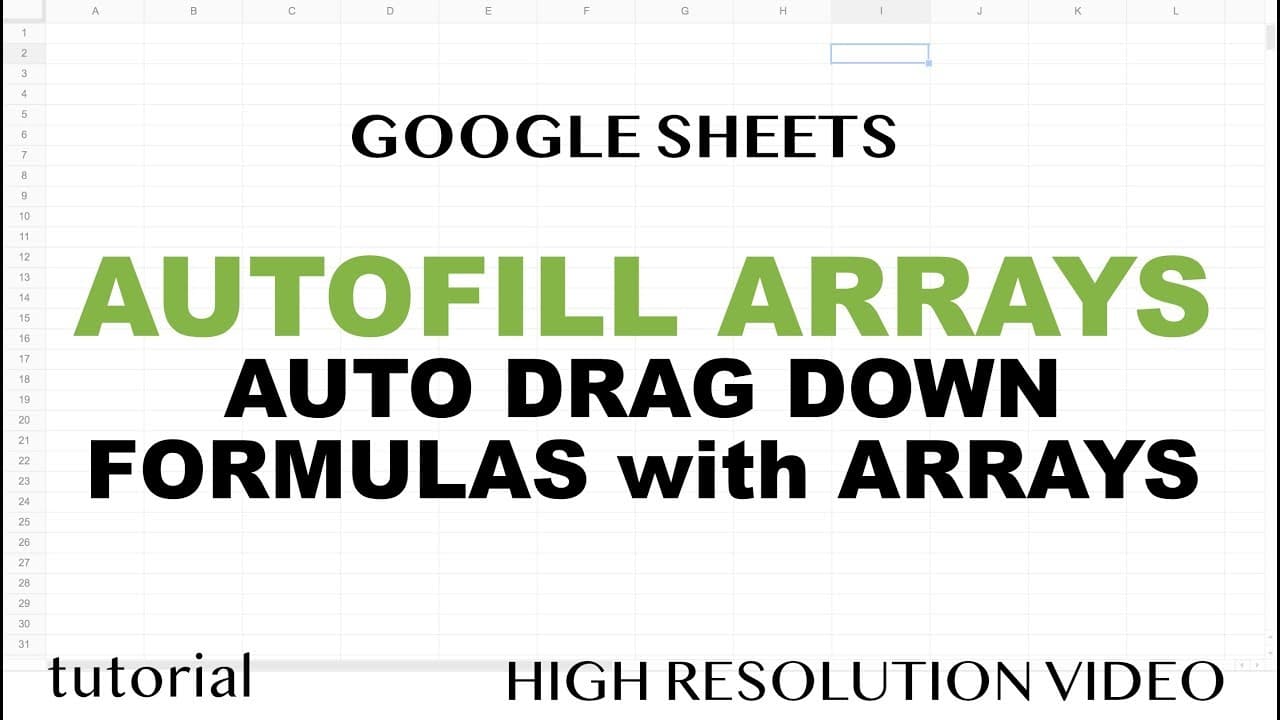
Array formulas in Google Sheets allow you to automatically fill down formulas as new data is added, eliminating the need for manual dragging. By using an IF statement within the array formula, you can prevent errors by ensuring the formula only processes cells with actual data.
Transcript
alright so in this video I'm gonna show you how to create an array formula that will give you an effect of automatically dragging down your formulas so you'll see what I mean in a second so usually when we make formulas seen our spreadsheets like in Google sheets we go here for example let's say I have sales and I have quantity maybe I want to divi... Read More
Key Insights
- 🐲 Array formulas provide an efficient solution for automatically dragging formulas in spreadsheets.
- 🎮 Using an IF statement within an array formula can control which cells the formula populates, preventing errors.
- ✅ Not all functions support arrays, so it's important to check if a function can be used in an array formula.
- ✅ By checking if a cell is blank, the formula will only update cells with data when using an array formula.
- 👶 Array formulas offer time-saving advantages by automatically updating formulas as new data is added or removed.
- 🏆 Array formulas can be used to create more sophisticated logic by combining multiple tests within the IF statement.
- 🏆 Array formulas can be tested beforehand to ensure they provide the desired results.
Install to Summarize YouTube Videos and Get Transcripts
Explore YouTube Video Summarizer or Get YouTube Transcript Extractor
Questions & Answers
Q: What is the benefit of using an array formula for automatic formula dragging?
Array formulas eliminate the need for manual formula dragging, ensuring formulas update automatically as new data is added, making spreadsheet maintenance more efficient.
Q: Can array formulas handle formulas that accept arrays as inputs?
Yes, array formulas can handle formulas that accept arrays as inputs. However, not all functions work with arrays, so it's essential to check if the function supports arrays before using them in an array formula.
Q: How can an IF statement be used to prevent errors when dragging down an array formula?
By wrapping the array formula in an IF statement that checks if a cell is blank, the formula will only populate cells with data, preventing errors caused by dividing by zero or other issues.
Q: Are there any limitations to using array formulas for automatic formula dragging?
Array formulas can only be used with functions that accept arrays as inputs. Functions that do not support arrays will not work in array formulas. Additionally, complex logical conditions may require additional steps to implement in an array formula.
Key Insights:
- Array formulas provide an efficient solution for automatically dragging formulas in spreadsheets.
- Using an IF statement within an array formula can control which cells the formula populates, preventing errors.
- Not all functions support arrays, so it's important to check if a function can be used in an array formula.
- By checking if a cell is blank, the formula will only update cells with data when using an array formula.
- Array formulas offer time-saving advantages by automatically updating formulas as new data is added or removed.
- Array formulas can be used to create more sophisticated logic by combining multiple tests within the IF statement.
- Array formulas can be tested beforehand to ensure they provide the desired results.
- Array formulas can simplify spreadsheet maintenance and improve accuracy by automating formula population.
Summary & Key Takeaways
-
Usually, when creating formulas in spreadsheets, dragging them down manually is required. Array formulas provide an automated way to achieve this.
-
By using an array formula, the entire column of values can be divided by another column, allowing the formula to automatically populate as new data is added.
-
To prevent errors when dragging down the array formula, an IF statement can be used to check if a cell is blank, ensuring the formula only populates cells with data.
Read in Other Languages (beta)
Share This Summary 📚
Summarize YouTube Videos and Get Video Transcripts with 1-Click
Try YouTube Summary with ChatGPT & Claude or YouTube Transcript Generator
Explore More Summaries from Learn Google Sheets & Excel Spreadsheets 📚


Summarize YouTube Videos and Get Video Transcripts with 1-Click
Try YouTube Summary with ChatGPT & Claude or YouTube Transcript Generator