Google Sheets onEdit Trigger - Automatically Drag Down Formulas - Apps Script
TL;DR
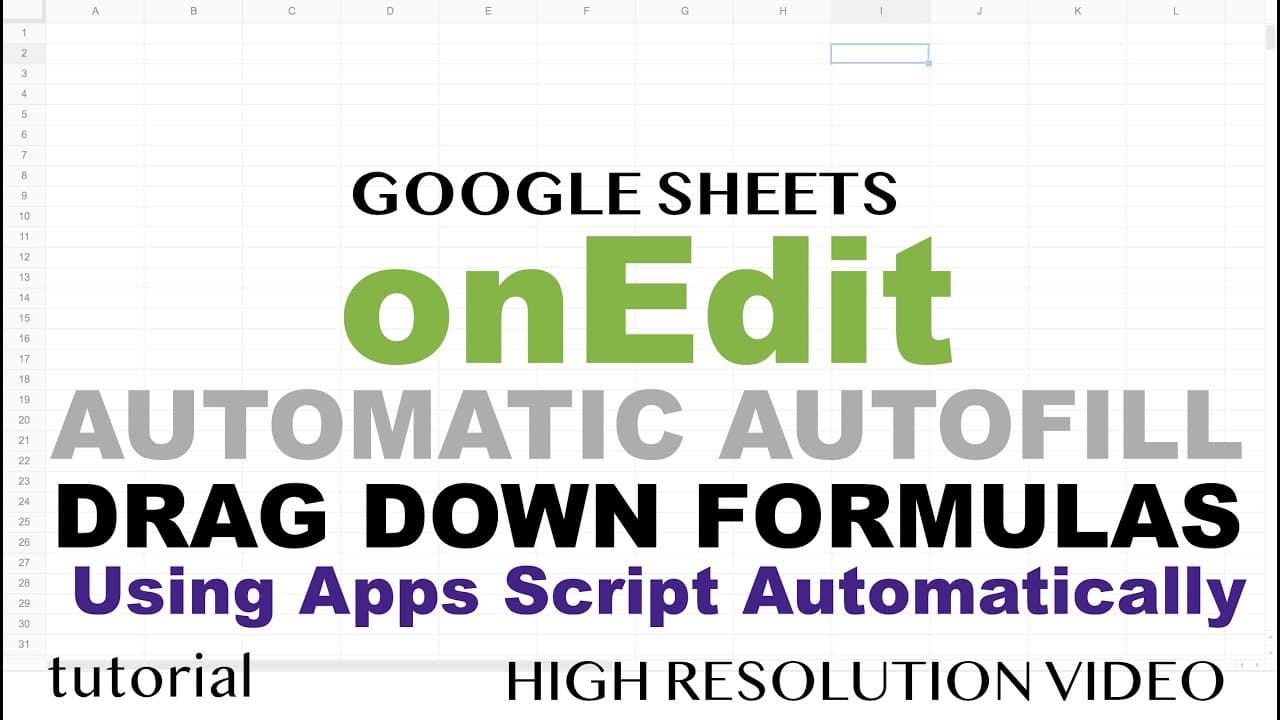
This video tutorial shows how to write a script in Google Sheets that automatically drags down formulas in a spreadsheet based on user input.
Transcript
alright so in this video I'm gonna create a script that will automatically drag down our formulas in our spreadsheet what I basically wanted to happen I want to be able to add some columns here and I want to be able to go here and create a formula like this - this does actually do - this and when I hit enter see I want this to automatically just dr... Read More
Key Insights
- 👻 Writing a script in Google Sheets allows users to automate tasks and increase efficiency in spreadsheet management.
- 💳 By utilizing triggers, such as "on edit" and "on added," scripts can be set to run automatically based on predefined conditions, saving time and effort.
- 👤 The script in the video tutorial demonstrates how to drag down formulas in a spreadsheet based on user input, making it easier to update and manage large datasets.
Install to Summarize YouTube Videos and Get Transcripts
Explore YouTube Video Summarizer or Get YouTube Transcript Extractor
Questions & Answers
Q: How does the script identify the current active cell in the spreadsheet?
The script uses the "getActiveCell()" function to retrieve the current active cell in the active sheet of the Google Sheets document.
Q: Can the script distinguish between different tabs in the Google Sheets document?
Yes, the script includes logic to check the name of the active sheet and compare it to a predefined list of tabs that the script should apply to. This allows the script to work only on specific tabs.
Q: What happens if a non-formula value is entered in the active cell?
The script includes a check to ensure that the active cell contains a formula. If the cell does not contain a formula, the script will not execute the drag-down functionality.
Q: How does the script update the dragged formulas when changes are made?
The script utilizes an "on edit" trigger, which is triggered whenever a change is made to a cell in the spreadsheet. By comparing the old value and the new value of the formula, the script determines if the formula needs to be updated and performs the necessary drag-down operation.
Key Insights:
- Writing a script in Google Sheets allows users to automate tasks and increase efficiency in spreadsheet management.
- By utilizing triggers, such as "on edit" and "on added," scripts can be set to run automatically based on predefined conditions, saving time and effort.
- The script in the video tutorial demonstrates how to drag down formulas in a spreadsheet based on user input, making it easier to update and manage large datasets.
- The script can be customized to work with specific tabs and columns, providing flexibility and control over its functionality.
Summary & Key Takeaways
-
The video demonstrates how to create a script that allows users to input formulas in a spreadsheet column and automatically drag them down to other rows.
-
The script is designed to update the dragged formulas when changes are made to the original formula or when formulas are added or removed.
-
The tutorial also shows how to add an "on added" trigger to run the script automatically whenever a formula is added to the spreadsheet.
Read in Other Languages (beta)
Share This Summary 📚
Summarize YouTube Videos and Get Video Transcripts with 1-Click
Try YouTube Summary with ChatGPT & Claude or YouTube Transcript Generator
Explore More Summaries from Learn Google Sheets & Excel Spreadsheets 📚


Summarize YouTube Videos and Get Video Transcripts with 1-Click
Try YouTube Summary with ChatGPT & Claude or YouTube Transcript Generator