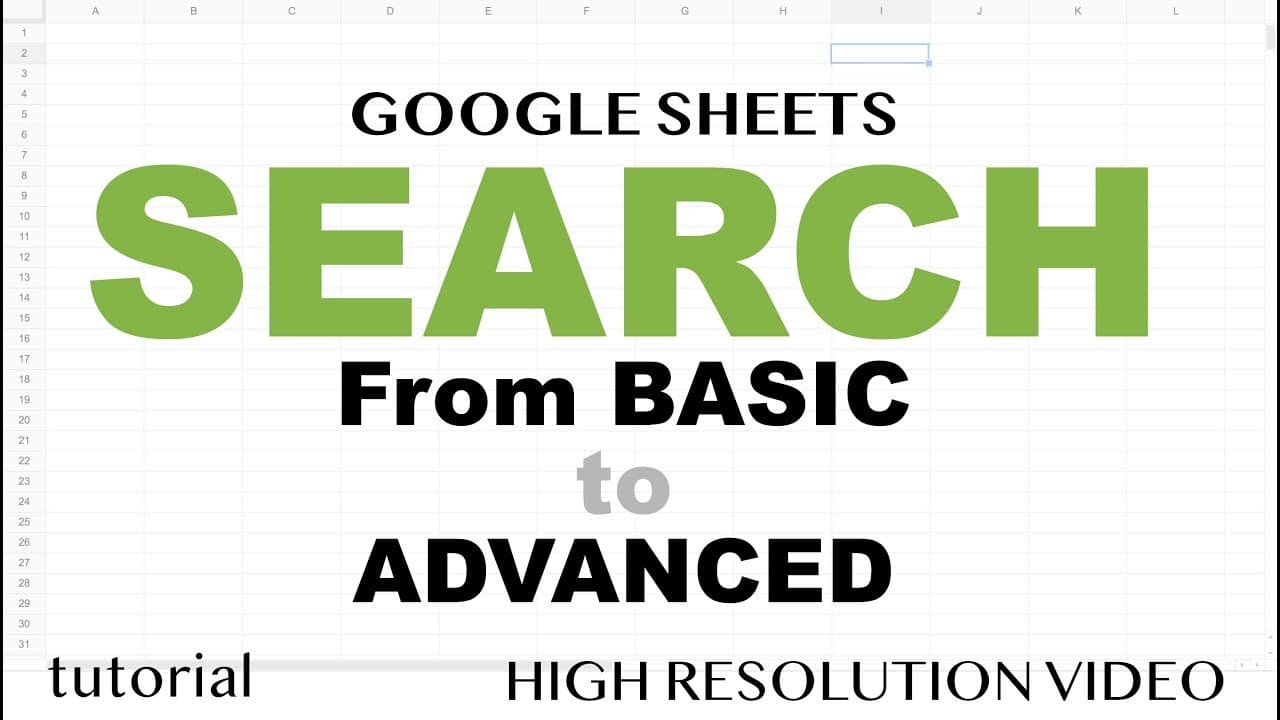
How to Search for Data in Google Sheets Using QUERY
TL;DR
To search for specific data in Google Sheets, use the QUERY function with a SELECT statement to filter results based on keywords. You can enhance usability by implementing data validation for dropdown options and ensuring case insensitivity by using the LOWER function. Additionally, apostrophes in your data should be managed by replacing them with double quotes to avoid errors.
Transcript
alright so in this video I'm gonna show you how to create search functionality in Google sheets in a few different ways if you've been using Google sheets for a while you probably already know you can just do ctrl F or command F and that will bring the search box and you can search right so like this if I search for dress that will pop up pretty mu... Read More
Key Insights
- 🆓 Google Sheets provides various ways to search for specific content, including using the ctrl F or command F shortcut and the query function.
- 👻 The query function allows for more advanced search functionality, such as filtering results based on specific criteria.
- 👨🔬 Data validation can enhance the search function by providing a user-friendly dropdown menu of options for the search terms.
- 🔡 The query function is case-sensitive by default, but the lower function can be used to make it case-insensitive.
- 🔂 Apostrophes in the data may cause issues with the query function, but these can be resolved by using double quotes instead of single quotes.
- 👨🔬 The search function can be customized to search for multiple words in any order using the like statement and wildcards.
- 👨🔬 Split and join functions can be used to dynamically generate the search statement based on user input.
Install to Summarize YouTube Videos and Get Transcripts
Explore YouTube Video Summarizer or Get YouTube Transcript Extractor
Questions & Answers
Q: How can I search for specific content in Google Sheets?
You can use the ctrl F or command F shortcut to open the search box, or you can use the query function with the select statement to search for specific words or phrases.
Q: How can I filter the search results based on a specific category in Google Sheets?
You can use the query function with the select statement and specify the category column to filter the search results accordingly.
Q: Is the search function in Google Sheets case-sensitive?
By default, the query function is case-sensitive. However, you can use the lower function to convert the text to lowercase and make the search case-insensitive.
Q: How can I make the search function more user-friendly in Google Sheets?
You can use data validation to create a dropdown menu of options for the search terms, allowing users to select from a predefined list of choices.
Key Insights:
- Google Sheets provides various ways to search for specific content, including using the ctrl F or command F shortcut and the query function.
- The query function allows for more advanced search functionality, such as filtering results based on specific criteria.
- Data validation can enhance the search function by providing a user-friendly dropdown menu of options for the search terms.
- The query function is case-sensitive by default, but the lower function can be used to make it case-insensitive.
- Apostrophes in the data may cause issues with the query function, but these can be resolved by using double quotes instead of single quotes.
- The search function can be customized to search for multiple words in any order using the like statement and wildcards.
- Split and join functions can be used to dynamically generate the search statement based on user input.
- The search function can be applied to different datasets and categories in Google Sheets to filter and retrieve specific information.
Summary & Key Takeaways
-
The video demonstrates different ways to search for specific content in Google Sheets, beyond using the ctrl F or command F shortcut.
-
The query function is utilized to search for specific words or phrases within a dataset and filter the results accordingly.
-
Data validation is implemented to make the search function more user-friendly and provide a dropdown menu of options.
Read in Other Languages (beta)
Share This Summary 📚
Summarize YouTube Videos and Get Video Transcripts with 1-Click
Try YouTube Summary with ChatGPT & Claude or YouTube Transcript Generator
Explore More Summaries from Learn Google Sheets & Excel Spreadsheets 📚

Summarize YouTube Videos and Get Video Transcripts with 1-Click
Try YouTube Summary with ChatGPT & Claude or YouTube Transcript Generator