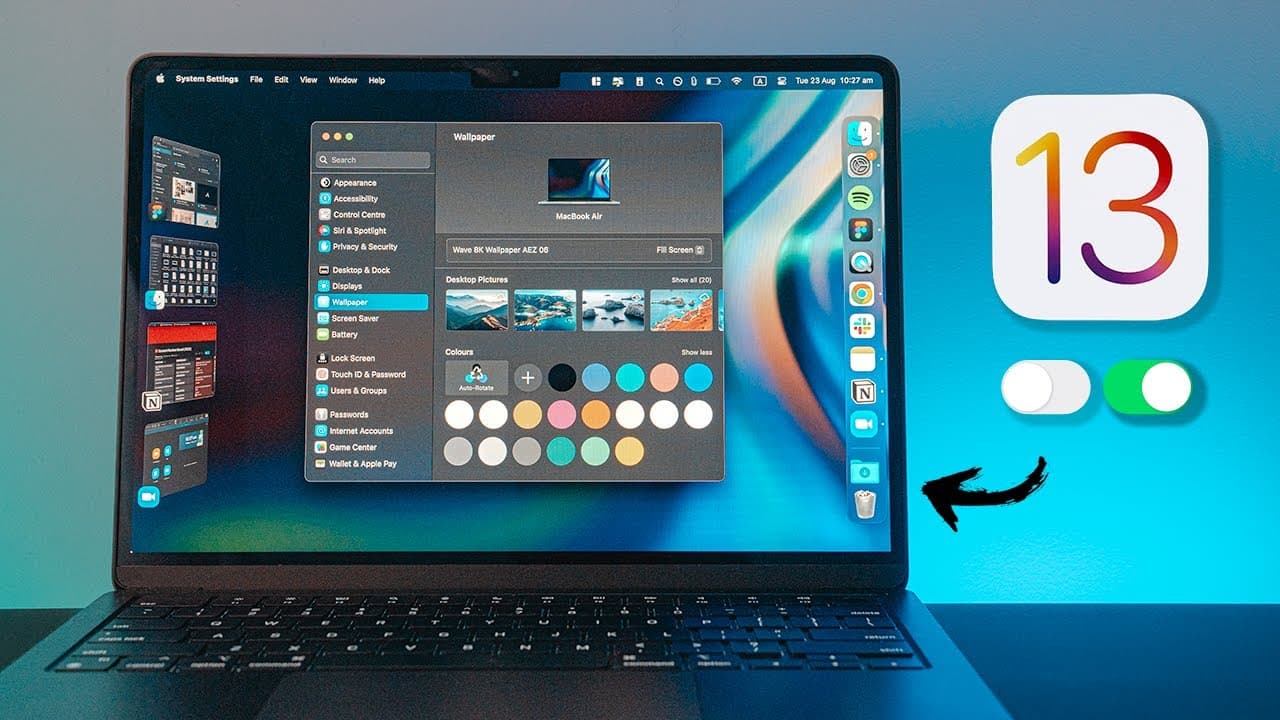
macOS Ventura – 14 Settings You NEED to Change on Launch
TL;DR
Upgrade to Mac OS Ventura and change important settings for improved security, privacy, productivity, and gaming.
Transcript
Hey friends, Andrew here - hope you're well ! You guys seem to quite enjoy the previous iOS 16 settings video, so today I've come up with a list of 14 settings you want to change right away once you upgrade your Mac operating system to Ventura. I've been testing ventura on the new M2 Air here over the last couple weeks and ventura is prob... Read More
Key Insights
- 😬 Mac OS Ventura introduces significant changes and new features, including a transformed System Settings interface reminiscent of iOS settings.
- 🔒 The Rapid Security Response feature ensures automatic security updates without system restarts, enhancing Mac's security.
- 😀 The enhanced Hide My Email feature protects users' privacy by shielding their email addresses when interacting with third-party apps.
- 😫 Spotlight in Mac OS Ventura now includes quick action functions like setting timers and displaying images directly from albums and search engines.
- 👨🔬 Customizing Spotlight settings allows users to optimize the search function by choosing relevant search areas and excluding irrelevant ones.
- 💦 The new Ambient Sounds feature enables access to pleasant background sounds, enhancing productivity and relaxation while working.
- 😀 The Photos app in Mac OS Ventura introduces the Memories feature, allowing users to relive special moments through collated photos.
- 👤 The appearance of Font Book has been transformed, offering a better user interface and the ability to download additional official fonts from Apple.
- 😀 Stage Manager, a new feature in Mac OS Ventura, allows for easy app and window management in a visually appealing design.
- 🤙 Live Captions enhance accessibility by generating real-time captions during various activities, including FaceTime calls.
- 😀 The updated Weather app in Mac OS Ventura offers advanced notification settings for severe weather and precipitation events.
- 💨 Smart Folders in the Finder provide a convenient way to automatically organize files based on specific criteria, saving time and improving efficiency.
- 📁 Syncing important folders with iCloud Drive ensures accessibility and data backup across multiple devices.
- 🥶 The new Duplicate Photos folder helps users locate and manage duplicate photos in their libraries, freeing up storage space.
- ↩️ Personal preferences regarding trackpad scrolling can be customized by turning off the natural scrolling feature.
Install to Summarize YouTube Videos and Get Transcripts
Explore YouTube Video Summarizer or Get YouTube Transcript Extractor
Questions & Answers
Q: How do I enable the Rapid Security Response feature in Mac OS Ventura?
To enable Rapid Security Response, go to System Settings (formerly System Preferences), click General, then navigate to Software Update. Scroll down to find "Install Security Responses and System Files" and ensure it is enabled for automatic security updates.
Q: Can I hide my email in third-party apps on Mac OS Ventura?
Yes, you can now hide your email in third-party apps as well. To do so, access System Settings, click your Apple ID, go to iCloud, scroll down to "Hide My Email," and follow the prompts to set it up.
Q: How can I customize Spotlight settings in Mac OS Ventura?
Open System Settings, go to Siri and Spotlight, then click on Spotlight. Here, you can enable/disable specific areas for Spotlight to search, optimizing its performance. You can also manage privacy settings for Spotlight to prevent specific folders from appearing in search results.
Q: What are the new ambient sounds available in Mac OS Ventura, and how can I access them?
Mac OS Ventura offers various ambient sounds such as ocean, dark noise, bright noise, and stream. To access them, open System Settings, go to Accessibility, Audio, and choose your preferred background sound. You can also add the sounds to Control Center for quick access.
Key Insights:
- Mac OS Ventura introduces significant changes and new features, including a transformed System Settings interface reminiscent of iOS settings.
- The Rapid Security Response feature ensures automatic security updates without system restarts, enhancing Mac's security.
- The enhanced Hide My Email feature protects users' privacy by shielding their email addresses when interacting with third-party apps.
- Spotlight in Mac OS Ventura now includes quick action functions like setting timers and displaying images directly from albums and search engines.
- Customizing Spotlight settings allows users to optimize the search function by choosing relevant search areas and excluding irrelevant ones.
- The new Ambient Sounds feature enables access to pleasant background sounds, enhancing productivity and relaxation while working.
- The Photos app in Mac OS Ventura introduces the Memories feature, allowing users to relive special moments through collated photos.
- The appearance of Font Book has been transformed, offering a better user interface and the ability to download additional official fonts from Apple.
- Stage Manager, a new feature in Mac OS Ventura, allows for easy app and window management in a visually appealing design.
- Live Captions enhance accessibility by generating real-time captions during various activities, including FaceTime calls.
- The updated Weather app in Mac OS Ventura offers advanced notification settings for severe weather and precipitation events.
- Smart Folders in the Finder provide a convenient way to automatically organize files based on specific criteria, saving time and improving efficiency.
- Syncing important folders with iCloud Drive ensures accessibility and data backup across multiple devices.
- The new Duplicate Photos folder helps users locate and manage duplicate photos in their libraries, freeing up storage space.
- Personal preferences regarding trackpad scrolling can be customized by turning off the natural scrolling feature.
- Mac OS Ventura allows users to pair Nintendo controllers via Bluetooth, expanding gaming options on Mac computers.
Summary & Key Takeaways
-
Enable the new Rapid Security Response feature in Mac OS Ventura for automatic security updates without system restarts.
-
Utilize the improved Hide My Email feature to protect your identity and privacy in both Apple and third-party apps.
-
Customize Spotlight settings to optimize search functionality by enabling/disabling relevant areas and folders.
Read in Other Languages (beta)
Share This Summary 📚
Summarize YouTube Videos and Get Video Transcripts with 1-Click
Try YouTube Summary with ChatGPT & Claude or YouTube Transcript Generator
Explore More Summaries from Andrew Ethan Zeng 📚


Summarize YouTube Videos and Get Video Transcripts with 1-Click
Try YouTube Summary with ChatGPT & Claude or YouTube Transcript Generator