How-to: Deploy Your Agentive Agent to Facebook Messenger
TL;DR
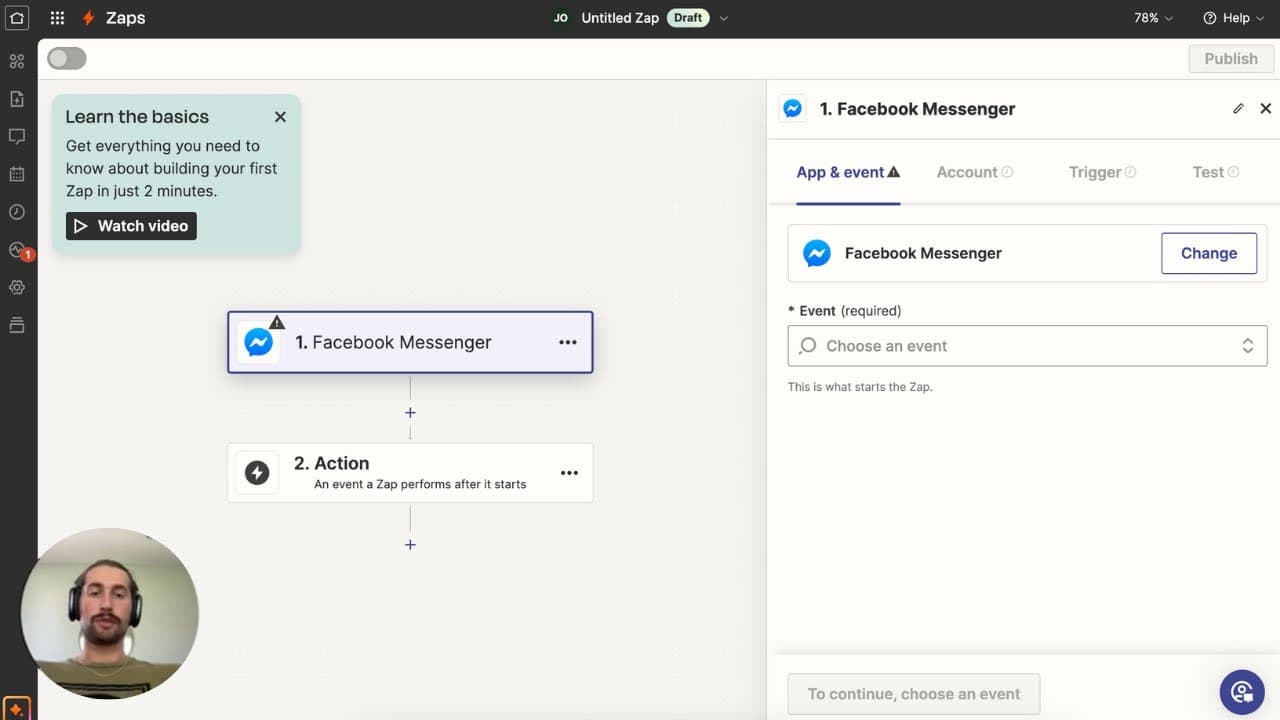
Learn to deploy an Agentive assistant to Facebook Messenger using Zapier.
Transcript
hey guys uh here's a tutorial on how to deploy an agent of assistant uh to a Facebook page uh so that you can automatically respond uh to messages that are sent to that Facebook page um so your first step is you're going to want to download so um once you have a published assistant you're going to go to deploy you're... Read More
Key Insights
- The tutorial guides users through deploying an Agentive assistant to a Facebook page, enabling automated responses to messages.
- It begins with downloading a JSON file of a Zapier template, essential for deploying the assistant.
- Users must import the downloaded JSON file into Zapier, which sets up the necessary zaps for deployment.
- The tutorial emphasizes the importance of being logged into the correct Facebook account linked to the desired page.
- Creating a table in Zapier to track session IDs is a crucial step, involving setting up four specific columns.
- The tutorial details how to configure API calls to the Agentive API, including setting up session creation and message endpoints.
- Users must replace placeholders with their actual API keys and Assistant IDs to ensure proper functionality.
- Testing each step is encouraged to verify the setup, ensuring that messages are correctly sent and received through Facebook Messenger.
Install to Summarize YouTube Videos and Get Transcripts
Explore YouTube Video Summarizer or Get YouTube Transcript Extractor
Questions & Answers
Q: How do you start deploying an Agentive assistant to Facebook Messenger?
To start deploying an Agentive assistant to Facebook Messenger, you first need to download a JSON file of a Zapier template. This file is crucial as it contains the necessary configurations to deploy the assistant. Once downloaded, you import this JSON file into Zapier, which sets up the zaps required for the deployment process.
Q: What is the importance of being logged into the correct Facebook account?
Being logged into the correct Facebook account is essential because the account must be linked to the Facebook page where you want to deploy the assistant. This ensures that the automated responses are correctly sent and received on the designated page. If logged into the wrong account, the deployment will not function as intended.
Q: How do you set up a table in Zapier for tracking session IDs?
Setting up a table in Zapier involves creating a blank table and naming it. You then need to configure four specific columns: PID, timestamp, message, and session ID. These columns are essential for tracking different session IDs, ensuring that the communication between the assistant and Facebook Messenger is seamless and organized.
Q: What configurations are necessary for the Agentive API calls?
For the Agentive API calls, you need to configure the session creation and message endpoints. This involves setting up a POST event for session creation and ensuring that the session ID and message are correctly passed. Users must replace placeholders with their actual API keys and Assistant IDs to ensure the API calls are functional.
Q: Why is it important to test each step during the setup?
Testing each step during the setup is crucial to verify that all configurations are correct and that the deployment functions as expected. By testing, users can identify and resolve any issues early in the process, ensuring that messages are correctly sent and received through Facebook Messenger without errors.
Q: What should you do if no Facebook pages appear during setup?
If no Facebook pages appear during setup, it indicates that no pages are linked to the logged-in Facebook account. In this case, you need to create a new Facebook page or ensure that an existing page is properly linked to the account. Refreshing the page list in Zapier should then display the newly created or linked pages.
Q: How do you ensure the correct integration of the API key and Assistant ID?
To ensure the correct integration of the API key and Assistant ID, users must copy these values from the Agentive platform and paste them into the designated fields within the Zapier setup. This step is crucial for the successful execution of API calls, as incorrect values will lead to failed deployments.
Q: What is the final step in the deployment process?
The final step in the deployment process involves ensuring that the Facebook account and page used in the setup are consistent throughout the configuration. Users must verify that all settings are correct and perform a final test to confirm that the assistant is successfully deployed and operational on the chosen Facebook page.
Summary & Key Takeaways
-
This tutorial provides a step-by-step guide on deploying an Agentive assistant to a Facebook page using Zapier. It includes downloading a JSON template, importing it into Zapier, and setting up necessary configurations for automated message responses.
-
Users are instructed to create and configure a table in Zapier to track session IDs, ensuring seamless communication between the assistant and Facebook Messenger. The tutorial emphasizes logging into the correct Facebook account linked to the page.
-
The tutorial covers configuring API calls to the Agentive API, focusing on session creation and message endpoints. Users must replace placeholders with actual API keys and Assistant IDs and are encouraged to test each step for successful deployment.
Read in Other Languages (beta)
Share This Summary 📚
Summarize YouTube Videos and Get Video Transcripts with 1-Click
Try YouTube Summary with ChatGPT & Claude or YouTube Transcript Generator
Explore More Summaries from Morningside AI 📚


Summarize YouTube Videos and Get Video Transcripts with 1-Click
Try YouTube Summary with ChatGPT & Claude or YouTube Transcript Generator