Become a Reminders PRO with this iPhone Tutorial!
TL;DR
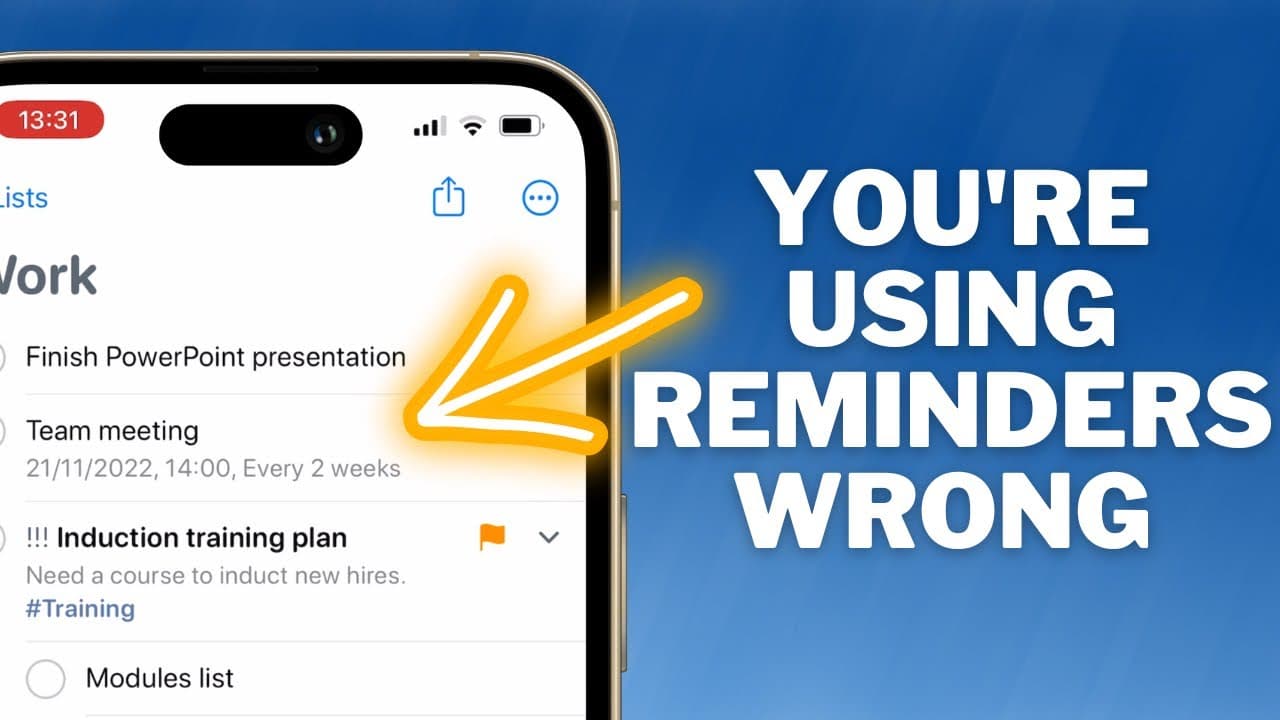
Learn how to navigate and utilize the updated features of the Reminders app on iOS 16 to maximize your productivity.
Transcript
I made a video earlier this year where I listed 10 tips to help you get more from the reminders app on your iPhone but the app has seen some major improvements in the latest version of iOS making it more capable than ever before and with that in mind I thought now was as good a time as ever to make a full tutorial video for it in this video I'll sh... Read More
Key Insights
- 📱 The latest version of the Reminders app on iOS has seen major improvements, making it more capable than before.
- 🐦 The home screen of the Reminders app is slightly more complicated compared to other to-do apps, but it is easy to navigate once you understand its layout.
- 🔵 The blue upgrade button in the app is a one-time button press that unlocks new features in the latest version of Reminders.
- 🗒️ The "My Lists" section allows users to create lists and group them together for better organization.
- 🔔 Reminders are date and time-sensitive tasks that require you to be reminded of them, while to-do items are tasks that don't necessarily require reminders.
- 📝 Creating a basic reminder involves adding a title, notes, date, and time. Users can make use of Siri to add reminders to their lists.
- 🔄 Shared lists are a new feature in iOS 16, allowing users to share their lists with others and make real-time updates collaboratively.
- 🏷️ Tags and groups can help in organizing reminders in a more efficient manner. Users can also pin important lists and use smart lists for filtering reminders based on specific criteria.
Install to Summarize YouTube Videos and Get Transcripts
Explore YouTube Video Summarizer or Get YouTube Transcript Extractor
Questions & Answers
Q: What are the two main types of items you can create in the Reminders app?
The two main types of items in the Reminders app are reminders (with specific date and time) and to-do items (without set reminders).
Q: How can you share a list with someone else using the Reminders app?
To share a list, tap the share button and choose the sharing options, such as allowing others to add people and selecting the method of sharing the access link (e.g., iMessage).
Q: How can you use Siri to add reminders or to-do items?
To add a reminder, say "remind me to" followed by the details, and to add a to-do item, say "add [item name] to my [list name]."
Q: What are some advanced features in the Reminders app?
Some advanced features include adding links from Safari or emails, creating smart lists to filter reminders, using widgets on the home screen, and syncing the app across multiple devices.
Q: How can you organize your reminders using tags and priorities?
You can create tags to categorize your reminders and use priority levels to mark high-priority items. These features help in organizing and searching for specific reminders.
Q: Can you create reminders directly from Safari or emails?
Yes, you can use the share function in Safari or tap on a date or time in emails to create reminders with links to the respective web page or email.
Q: Which other devices can you use the Reminders app on?
The Reminders app is available on iPhone, iPad, Mac, and Apple Watch, allowing seamless synchronization of reminders across all devices.
Summary & Key Takeaways
-
The latest version of the iOS Reminders app has seen significant improvements and offers new features that enhance its functionality.
-
Reminders can be categorized into two types: reminders that require a specific date and time, and to-do items that don't have set reminders.
-
The app allows users to create reminders, add details, set priorities, assign tags, create shared lists, use Siri integration, and more.
Read in Other Languages (beta)
Share This Summary 📚
Summarize YouTube Videos and Get Video Transcripts with 1-Click
Try YouTube Summary with ChatGPT & Claude or YouTube Transcript Generator
Explore More Summaries from Proper Honest Tech 📚
Summarize YouTube Videos and Get Video Transcripts with 1-Click
Try YouTube Summary with ChatGPT & Claude or YouTube Transcript Generator