10 Mac Tips I Wish I Knew Years Ago!
TL;DR
In this video, the narrator shares 10 lesser-known features and shortcuts on Mac computers, including multiple desktops, app switching, text selection, file management, Spotlight search, and more.
Transcript
in this video i'm going to share with you 10 things that you can do on your mac computer that you probably didn't know about whether that's a macbook air a macbook pro or a desktop like an imac or the new mac studio stick with me until the end of this video i reckon there are going to be some tips in here that you weren't aware of okay let's get in... Read More
Key Insights
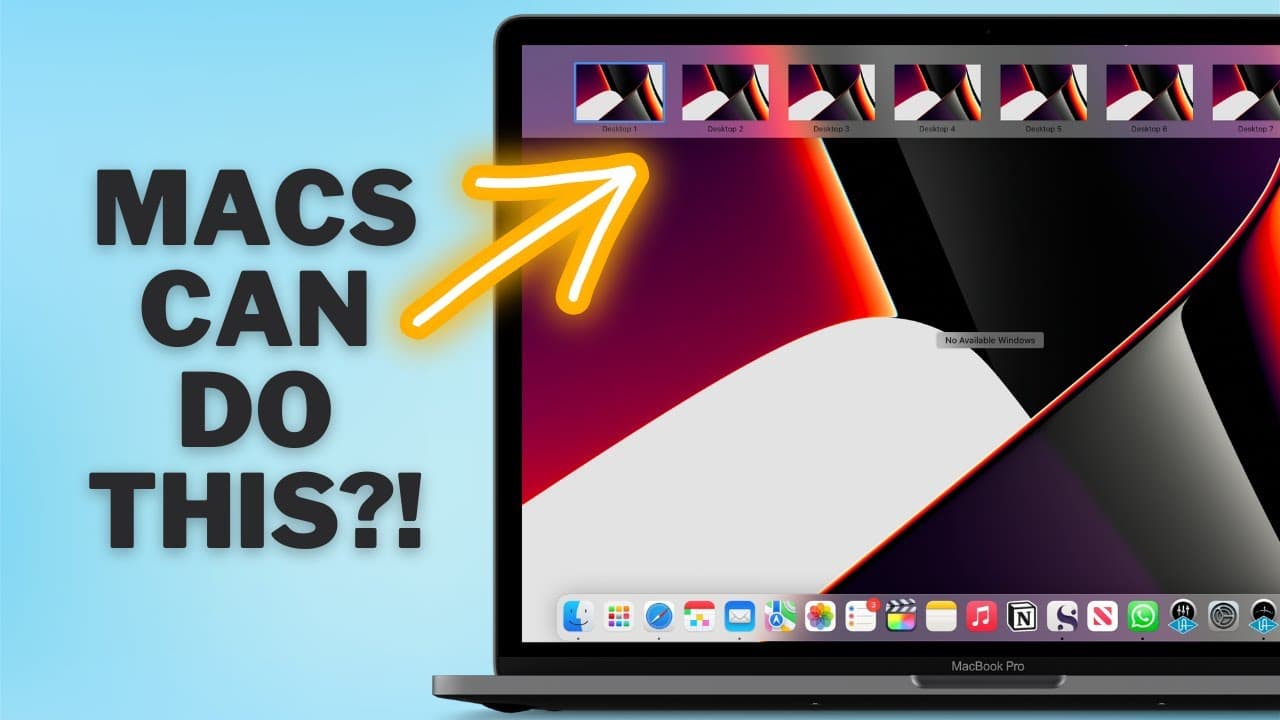
- 🖥️ You can have multiple desktops on your Mac, known as spaces, which allow you to have different applications open in each space and easily switch between them.
- 🔒 Press and hold the command key on your keyboard and tap the tab key to switch between open apps on your Mac.
- 🔐 Pressing the command key along with the up or down arrow key allows you to quickly move to the beginning or the end of a line of text on your Mac.
- 🔍 Spotlight search on your Mac is a powerful tool that allows you to quickly search for and access apps, files, folders, and even perform conversions and look up definitions.
- 📂 Use the spotlight search function to find specific files and then press command + r to open the folder where the file is located. ⌚ You can unlock your Mac using your Apple Watch by enabling the "use your Apple Watch to unlock apps and your Mac" feature in the Security and Privacy settings.
- 📋 To quickly move files on your Mac, use the command + option + v shortcut to paste and delete the original file instead of using the traditional copy and paste method.
- 👍 Consider subscribing to the YouTube channel for more useful Mac tips and tricks in future videos.
Install to Summarize YouTube Videos and Get Transcripts
Explore YouTube Video Summarizer or Get YouTube Transcript Extractor
Questions & Answers
Q: How can users create multiple desktops and switch between them on a Mac?
To create multiple desktops (called Spaces), users can enter Mission Control by tapping the F3 button and creating a new desktop. They can switch between desktops by using the same F3 button and clicking on the desired desktop.
Q: What is a useful keyboard shortcut for switching between open apps on a Mac?
Pressing and holding the Command key and tapping the Tab key allows users to switch between open apps. They can also press Shift + Tab to move in the opposite direction through the open apps.
Q: How can users quickly close all instances of a specific app on a Mac?
By holding the Option key and clicking the close button on an app window, users can close all instances of that app without closing the application itself.
Q: How can users navigate through text more efficiently on a Mac?
By pressing and holding the Option key while using the arrow keys, users can move one word at a time instead of one letter at a time. Pressing and holding the Command key with the up or down arrow key moves the cursor to the beginning or end of the line.
Q: How can Mac users easily reply to an email with a downloaded document attached?
Users can highlight the document, click on the Share button, and select "Reply to [person's name]" to open an email with the document attached, ready for a reply.
Q: What is the Spotlight search function on a Mac, and how can it be useful?
Spotlight search is a powerful tool on a Mac that allows users to quickly find and open apps, search for files, perform conversions, track flights, and more. Users can access it by pressing Command + Spacebar.
Q: How can Mac users view a specific file in its folder using Spotlight search?
After finding the file in Spotlight search, users can press Command + R on the keyboard to open the relevant folder and view the file in its folder.
Q: Can a Mac be unlocked with an Apple Watch?
Yes, users can unlock their Mac with their Apple Watch by enabling the "Use your Apple Watch to unlock apps and your Mac" option in the Security & Privacy settings. As long as the Apple Watch is unlocked and worn on the wrist, it will automatically unlock the Mac without needing a password.
Summary & Key Takeaways
-
Mac users can utilize Spaces to have multiple desktops and switch between them easily.
-
A keyboard shortcut allows users to switch between open apps quickly and efficiently.
-
Advanced text editing and selection options make navigating and reviewing large documents much easier.
Read in Other Languages (beta)
Share This Summary 📚
Summarize YouTube Videos and Get Video Transcripts with 1-Click
Try YouTube Summary with ChatGPT & Claude or YouTube Transcript Generator
Explore More Summaries from Proper Honest Tech 📚
Summarize YouTube Videos and Get Video Transcripts with 1-Click
Try YouTube Summary with ChatGPT & Claude or YouTube Transcript Generator