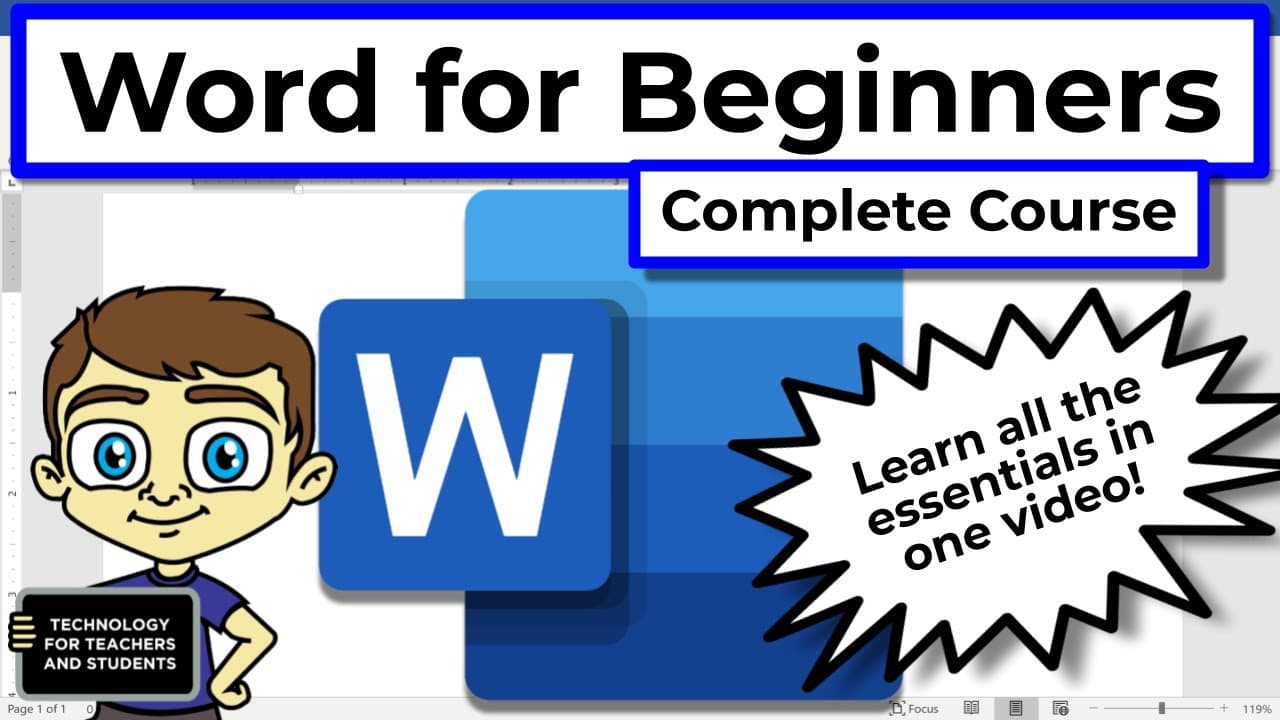
Microsoft Word for Beginners - The Complete Course
TL;DR
Comprehensive guide to mastering Microsoft Word for beginners.
Transcript
Read and summarize the transcript of this video on Glasp Reader (beta).
Key Insights
- Microsoft Word's layout consists of tabs, ribbons, groups, and launch buttons that help users navigate and utilize various features effectively.
- Creating and saving documents in Word involves understanding the 'Save' and 'Save As' functions, which help manage document versions and storage locations.
- Editing existing documents is facilitated by tools like the scroll bar, keyboard shortcuts, and undo/redo functions, enhancing user efficiency.
- Text selection and editing are simplified through features like double-click to select words, triple-click for paragraphs, and keyboard shortcuts for cut, copy, and paste.
- Formatting options in Word allow users to change font styles, sizes, colors, and paragraph settings, including line spacing and indentation.
- Tables can be created, formatted, and converted to and from text, providing a structured way to present data within documents.
- Page layout modifications such as orientation, size, margins, and adding headers, footers, and page numbers help customize document appearance.
- The review tab offers powerful tools like the editor, spell check, and thesaurus, aiding in error correction and enhancing document quality.
Install to Summarize YouTube Videos and Get Transcripts
Explore YouTube Video Summarizer or Get YouTube Transcript Extractor
Questions & Answers
Q: How does the ribbon in Microsoft Word function?
The ribbon in Microsoft Word is a central feature of the interface, consisting of tabs like Home, Insert, and Design. Each tab contains groups of related commands and tools, such as fonts, paragraphs, and styles. When a tab is selected, the ribbon changes to display the relevant tools, facilitating easy access to Word's features.
Q: What are 'launch buttons' in Microsoft Word?
Launch buttons, officially known as dialog launchers, are small buttons found in some groups on the ribbon. They open additional options and features that cannot fit in the ribbon's limited space. For example, the font group on the Home ribbon includes a launch button that opens a dialog box with advanced font options and text effects.
Q: How can you create and save a new Word document?
To create a new Word document, you can start from the welcome screen by selecting a blank document or a template. Once content is added, it's crucial to save the document using 'Save As' to specify a name and location. Subsequent changes can be saved using 'Save,' which updates the existing file with new information.
Q: What is the purpose of the 'Find and Replace' feature?
The 'Find and Replace' feature in Microsoft Word is a powerful tool for quickly locating specific text within a document and replacing it with new text. This is particularly useful for making widespread changes across large documents, such as updating a character's name in a manuscript or correcting repeated errors, saving significant time and effort.
Q: How do you format paragraphs in Microsoft Word?
Paragraph formatting in Microsoft Word involves adjusting settings like alignment, indentation, line spacing, and borders. These options are accessible via the Home ribbon's paragraph group or the paragraph settings launch button, which opens a dialog box for more detailed adjustments. This allows users to customize the appearance and structure of their text for better readability and presentation.
Q: How can tables be managed in Word documents?
Tables in Microsoft Word can be inserted via the Insert tab, allowing users to specify the number of rows and columns. Once created, tables can be formatted using the Table Design and Layout tabs, which offer options for styling, adding borders, and adjusting cell sizes. Tables can also be converted to text and vice versa, providing flexibility in how data is presented.
Q: What tools are available in the Review tab?
The Review tab in Microsoft Word offers tools to enhance document quality and correctness. The editor provides spelling, grammar, and style suggestions, while the thesaurus offers synonyms for better word choice. Other features include word count statistics and options for tracking changes, making the Review tab essential for producing polished and professional documents.
Q: What are the options for printing and publishing Word documents?
Microsoft Word provides several printing and publishing options. Users can print documents directly to a connected printer or save them as PDFs for digital distribution. The File tab's print section allows for selecting printers, adjusting print settings, and specifying page ranges. Word also supports exporting documents to different file types or sharing them via email or OneDrive.
Summary & Key Takeaways
-
This video is a complete beginner's guide to Microsoft Word, covering essential features from the layout to advanced editing tools. It explains how to navigate the interface, create and save documents, and utilize formatting options to enhance document presentation.
-
Users learn to open and edit existing documents, using functions like cut, copy, paste, and find and replace to efficiently manage and update text. The course also covers creating and editing tables, which helps organize data effectively within Word documents.
-
The tutorial explores page layout customization, including orientation, margins, and headers and footers. It also delves into review tools like spell check and thesaurus, and concludes with printing and publishing options, ensuring users can produce professional-quality documents.
Read in Other Languages (beta)
Share This Summary 📚
Summarize YouTube Videos and Get Video Transcripts with 1-Click
Try YouTube Summary with ChatGPT & Claude or YouTube Transcript Generator
Explore More Summaries from Technology for Teachers and Students 📚
Summarize YouTube Videos and Get Video Transcripts with 1-Click
Try YouTube Summary with ChatGPT & Claude or YouTube Transcript Generator