How to Import Highlights from Weava into Glasp

Sep 20, 2025
4 min read
37 views

If you’ve been using Weava to highlight articles, you might be looking for a way to import your Weava highlights and notes into Glasp. Many users want to preserve their learning history and seamlessly continue their workflow in Glasp without losing past annotations.
In this tutorial, we’ll show you step by step how to export your highlights from Weava and import them into Glasp.
If you haven't signed up for Glasp or installed the Glasp browser extension, please do so. You can refer to this tutorial.
👉 Related: How to Import Highlights from Hypothesis into Glasp
Step 1: Download highlights from Weava
Open and log in to Weava. Then, open a folder you want to import into.
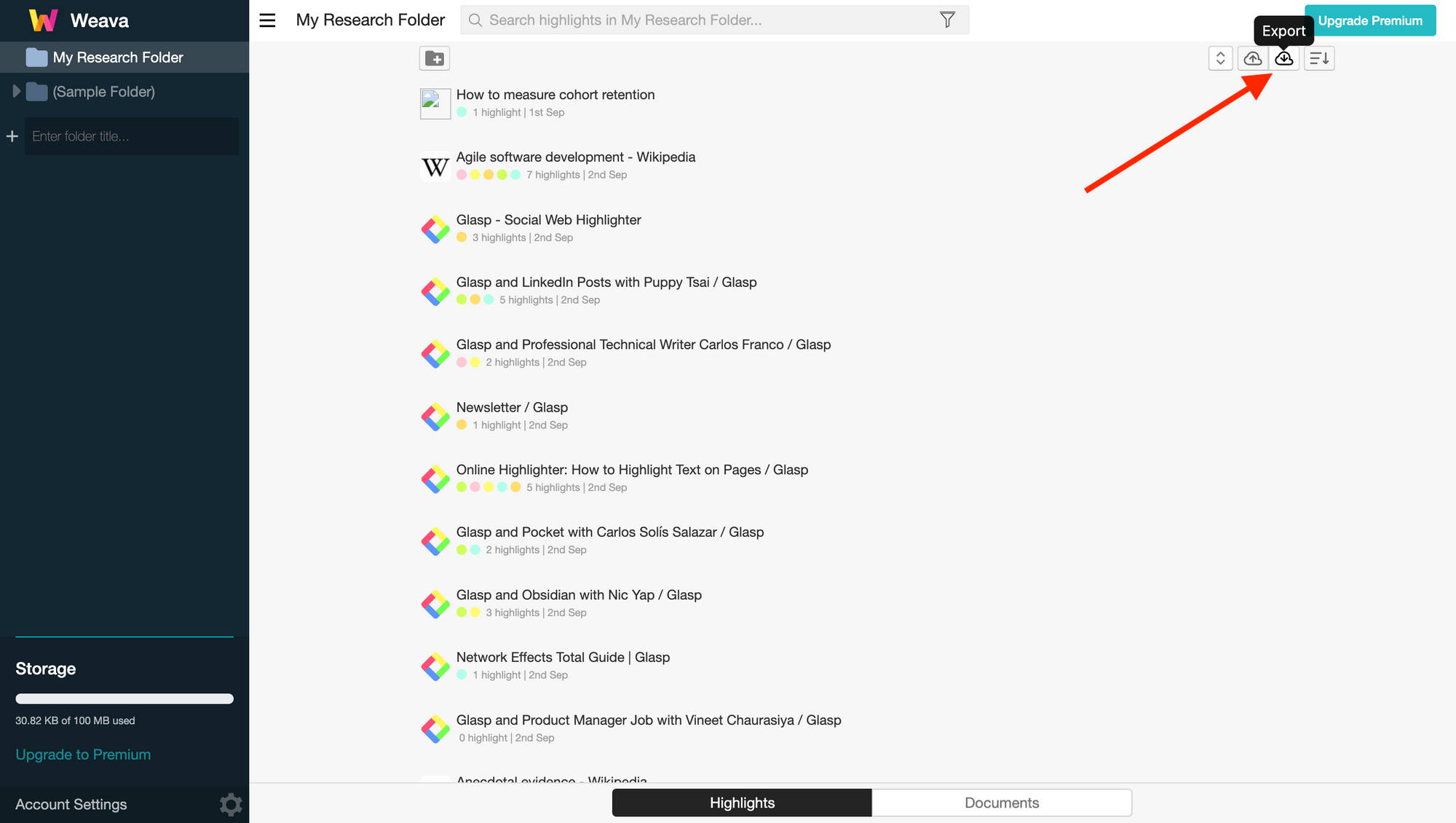
At the top right of the page on Weava, you see the export icon. So, please click it.
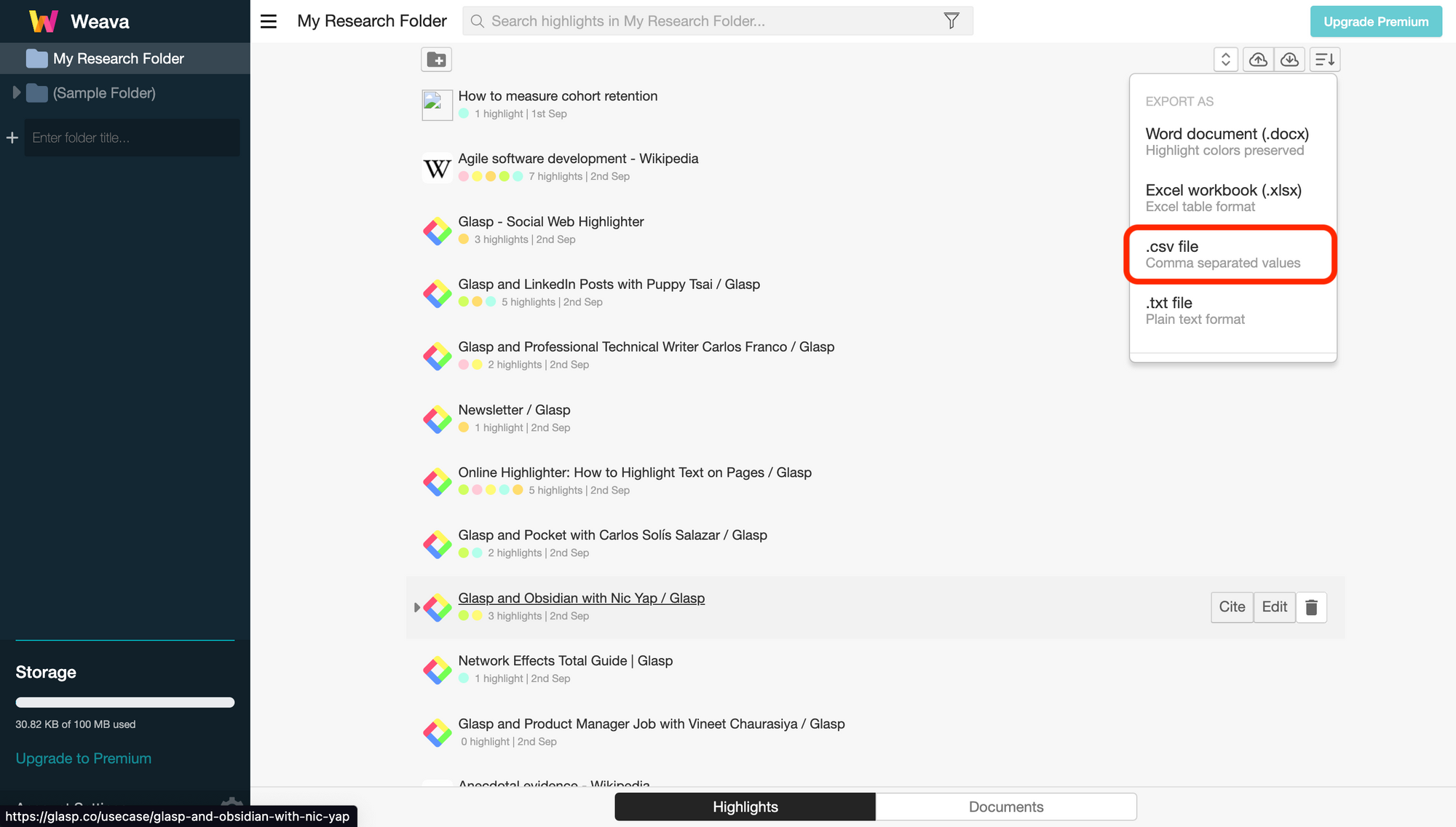
In the modal, there is an option of a .csv file. Please choose it and download the file.
Step 2: Import highlights into Glasp
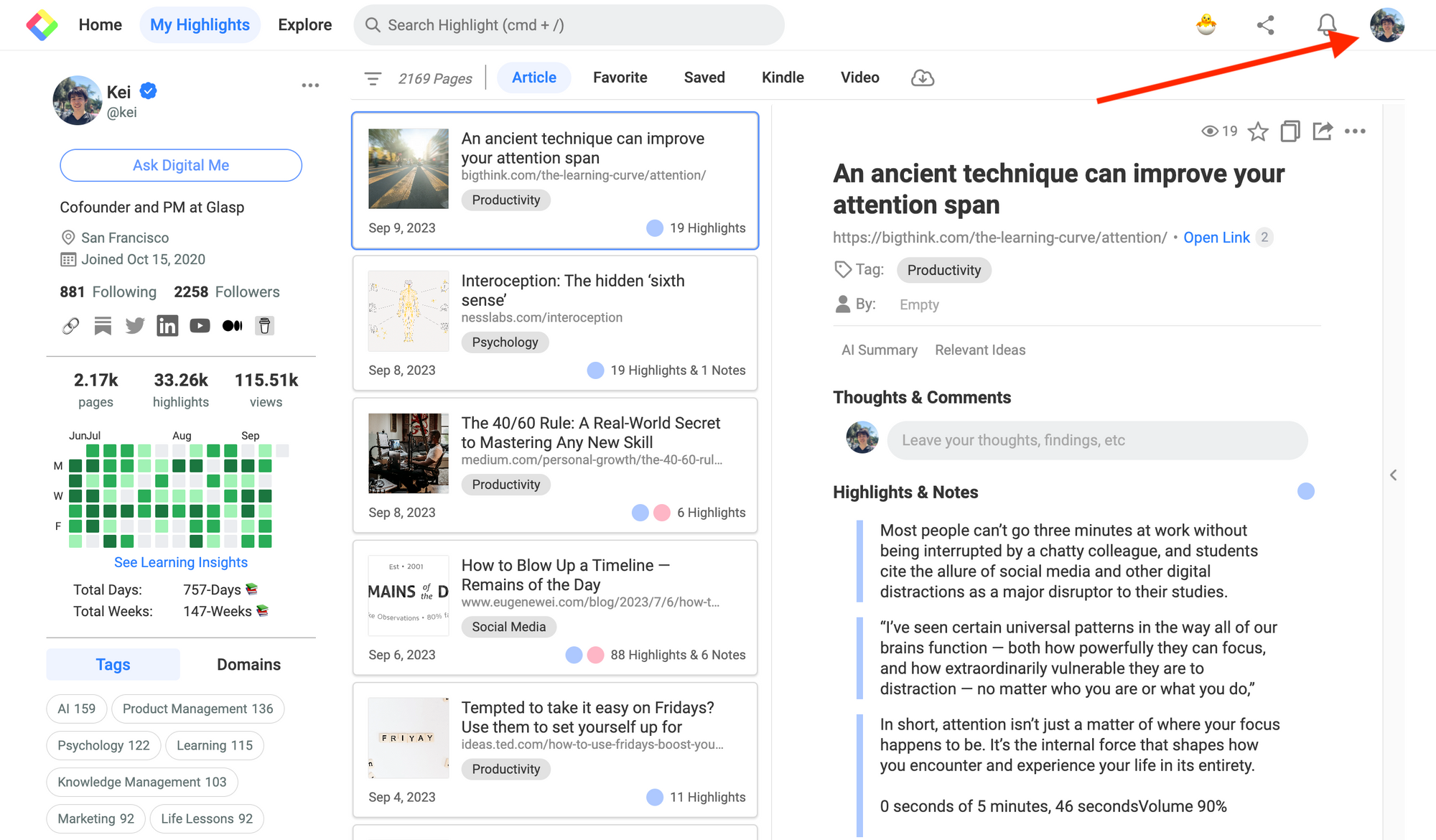
Click your profile icon at the top right.
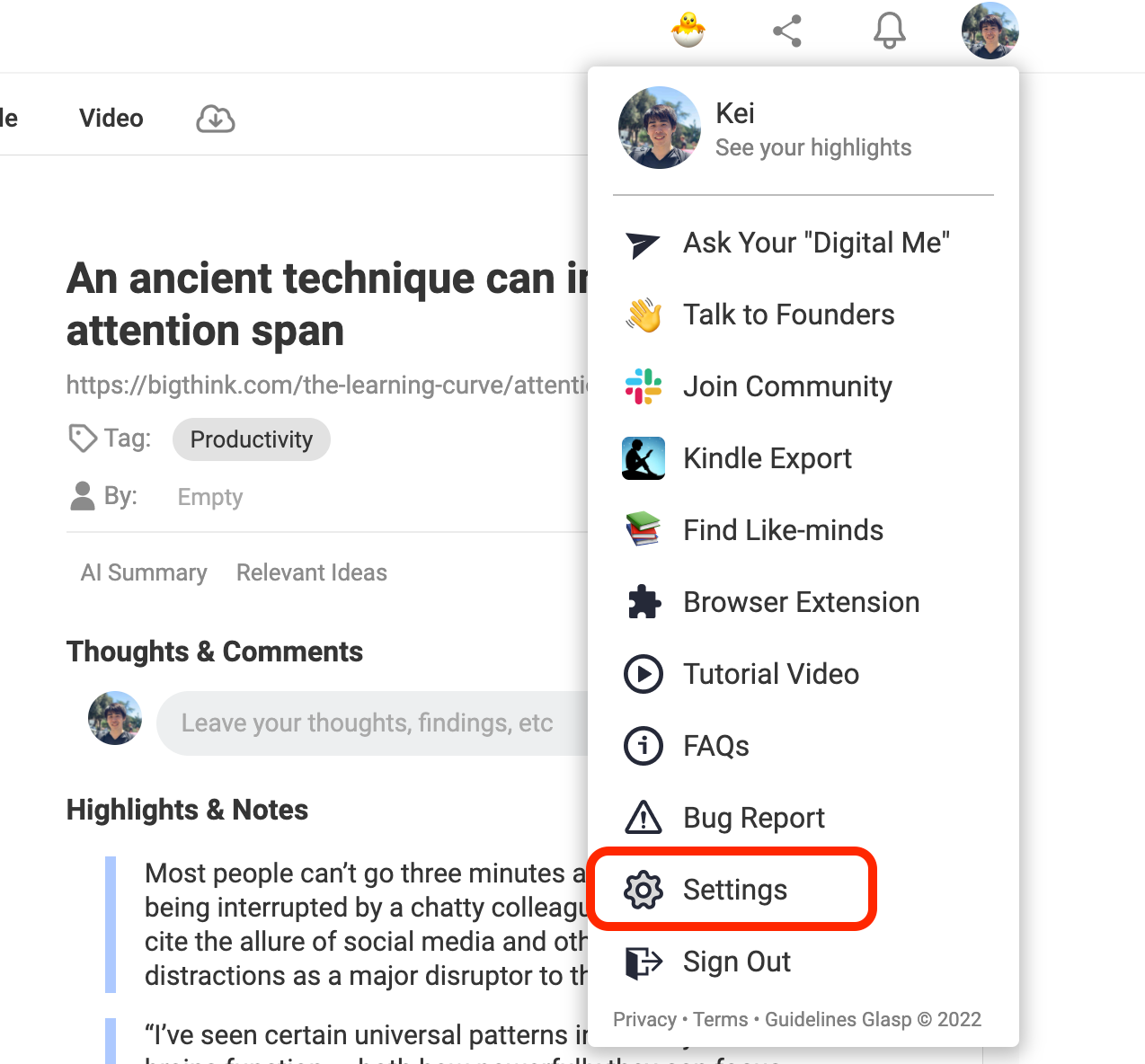
It opens a modal, so please click the Settings section.
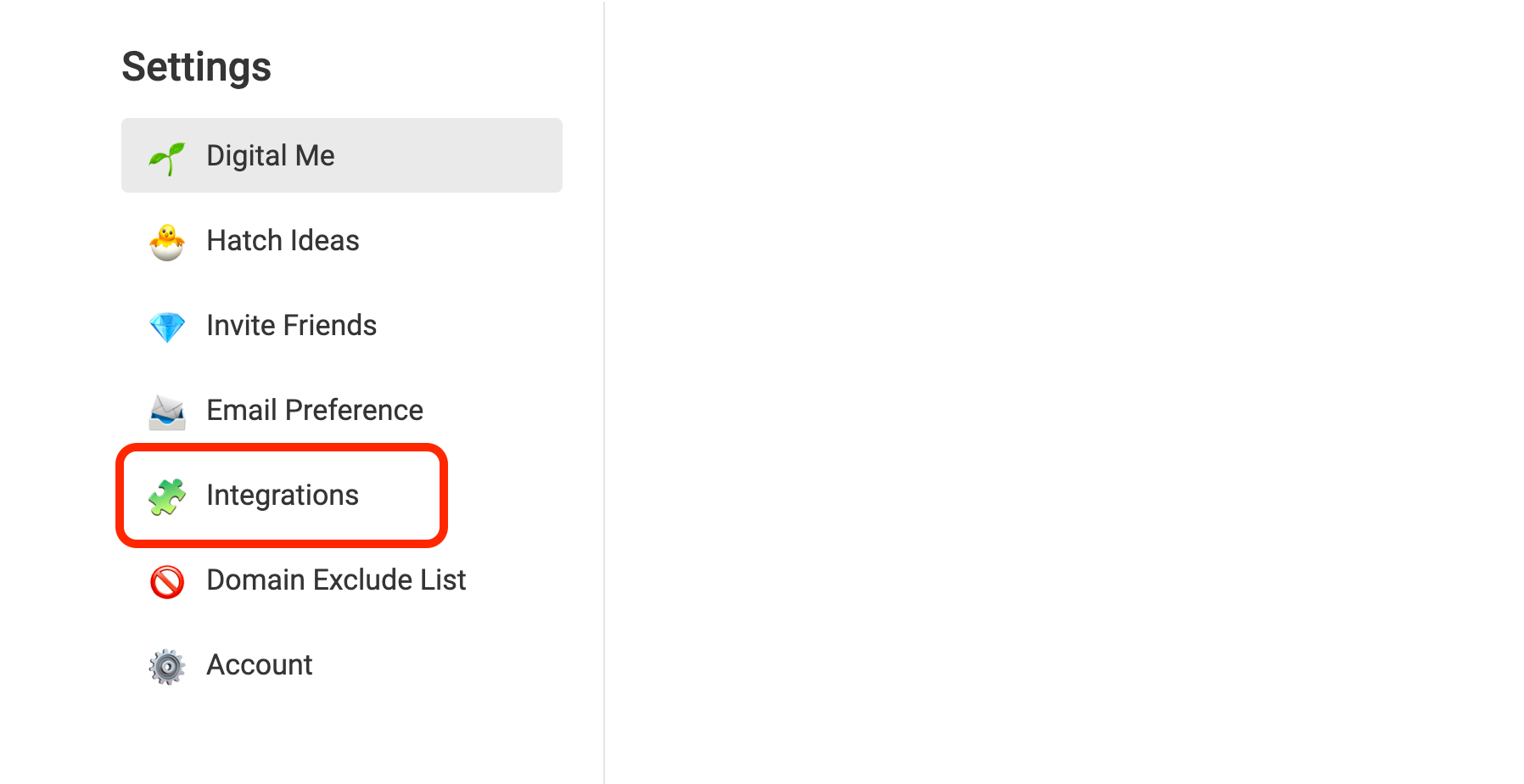
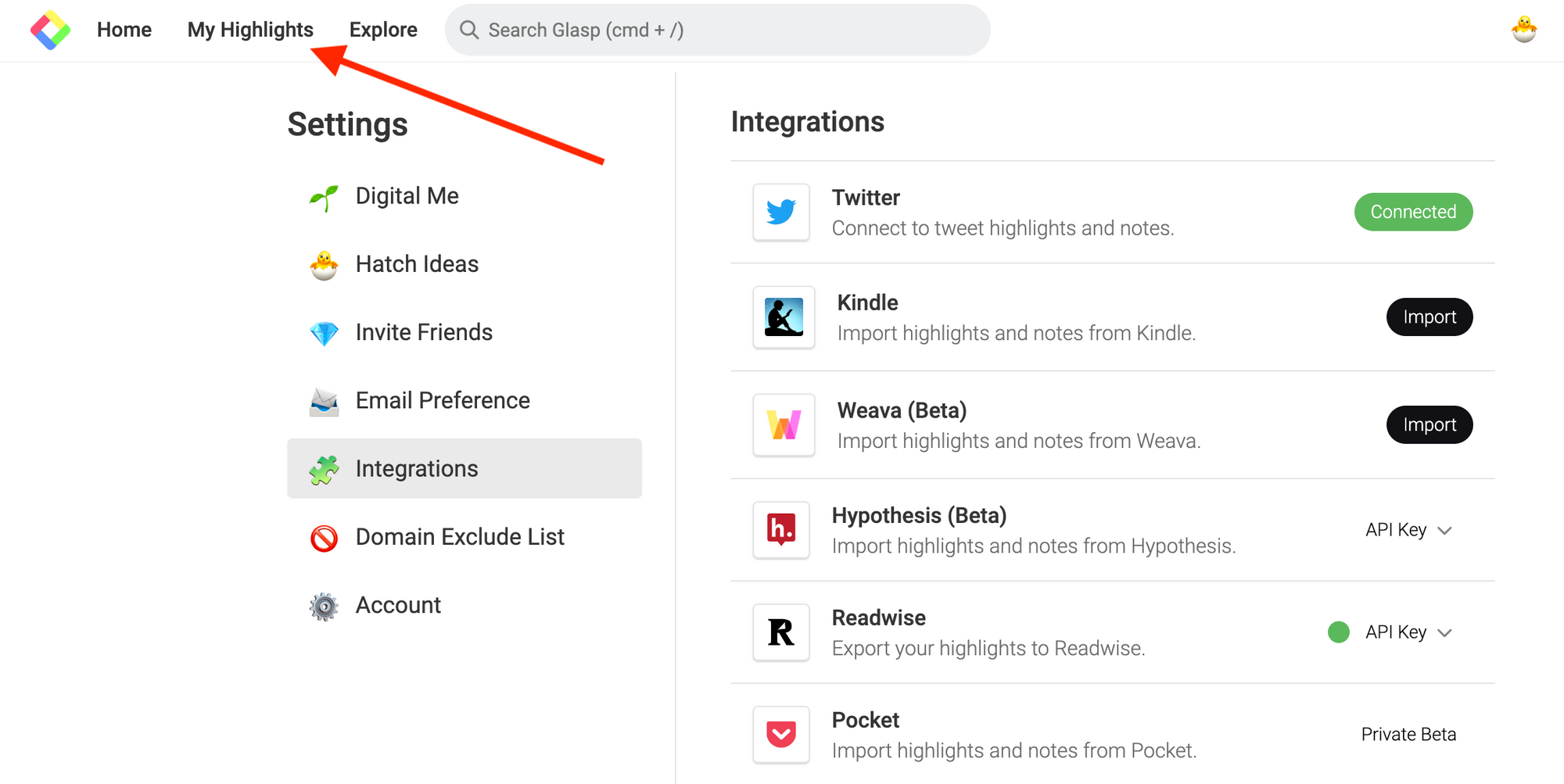
On the Settings page, you can see Integrations. So, please click it and go to the section.
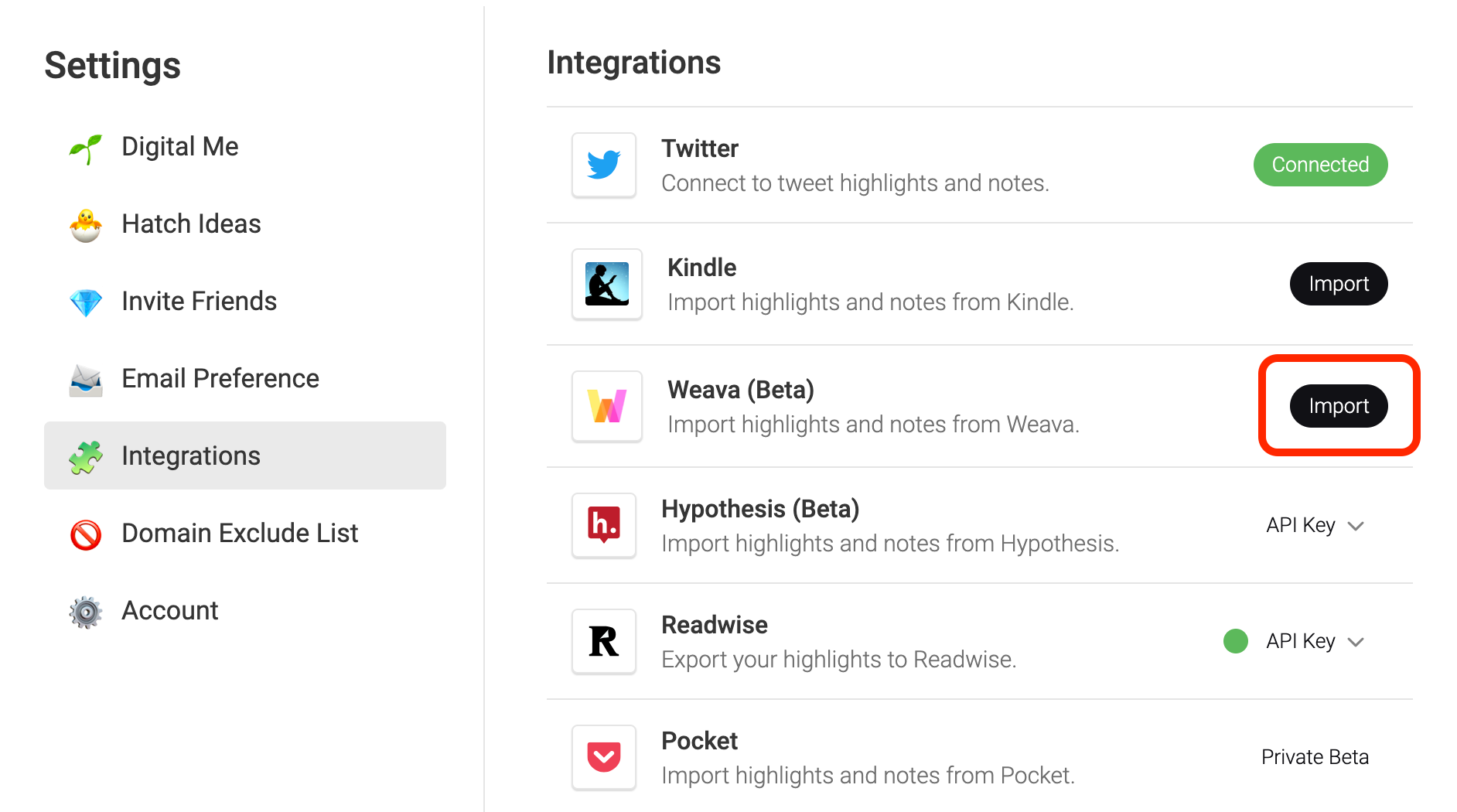
In the Integrations section, you can find Weava and an Import button. Please click the button.
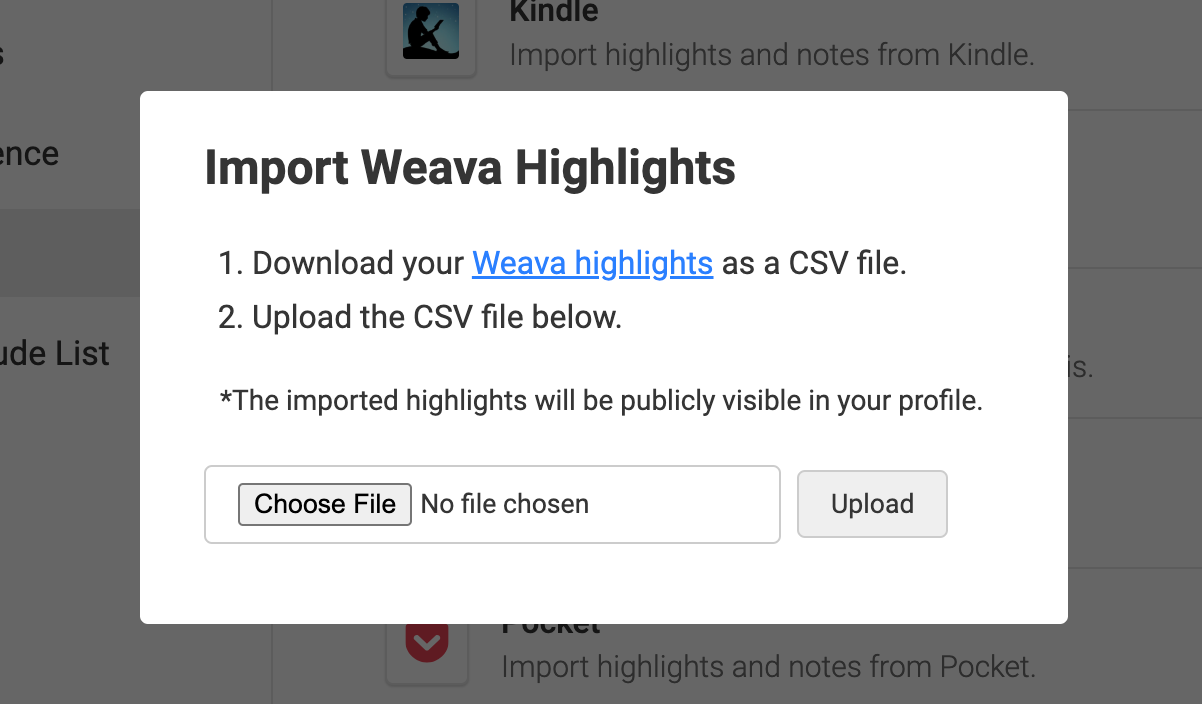
Then, please click Choose File and upload the exported CSV file. After that, click the Upload button. Please notice that the imported highlights are publicly viewable to any users. So, if you don't want them to be visible, please delete the highlights before importing.
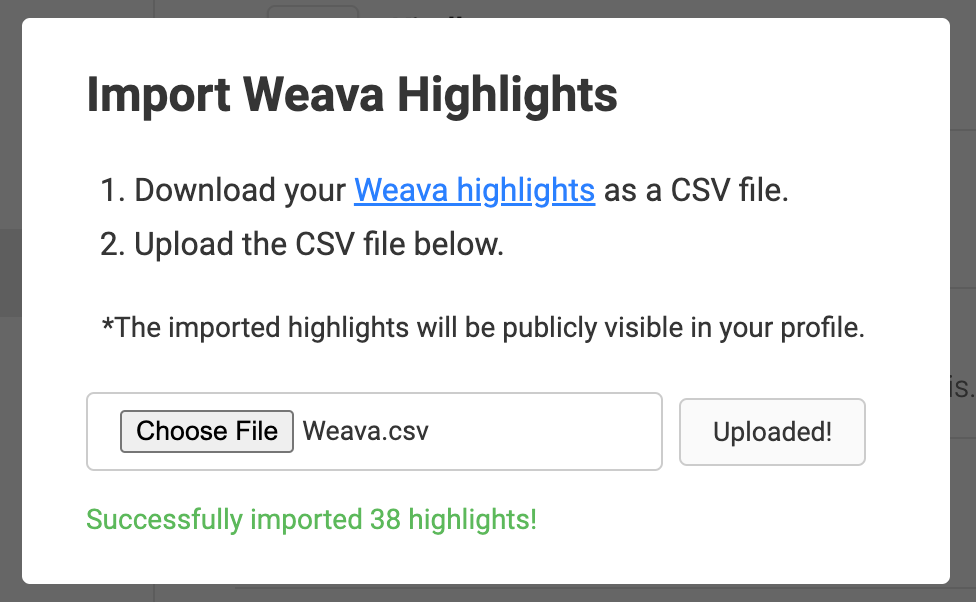
If you successfully imported the highlights, you can see a message like "Successfully imported ~~ highlights!"
Step 3: View the imported highlights
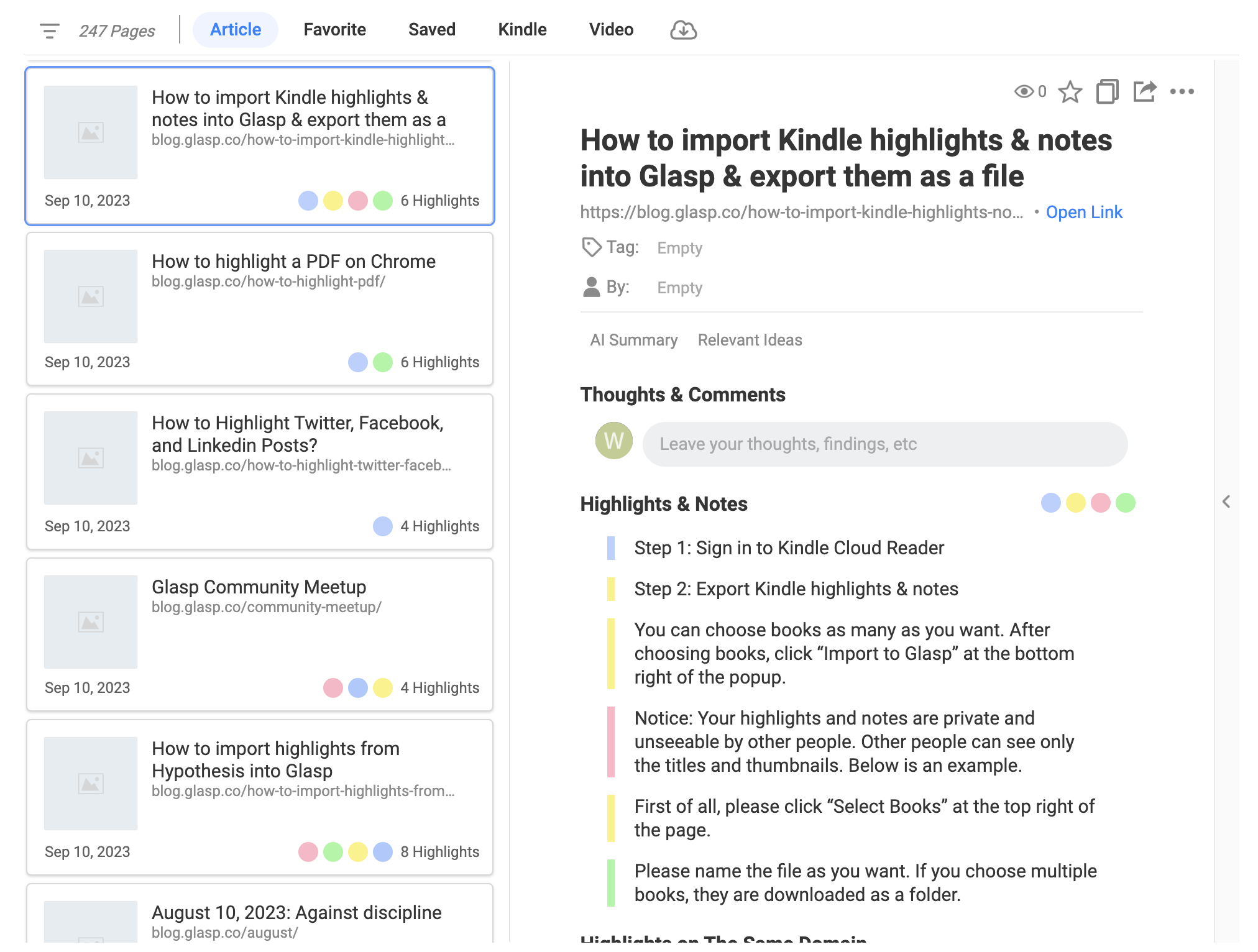
To see the imported highlights, go to your profile page.
On your profile page, you can see the imported highlights. The order of highlights is chronological. The date of the imported highlights on Glasp is the same as the date you highlighted on Weava.
You can add category tags, notes, an author, and a page comment to the imported articles.
(Optional) Step 4: Delete highlights
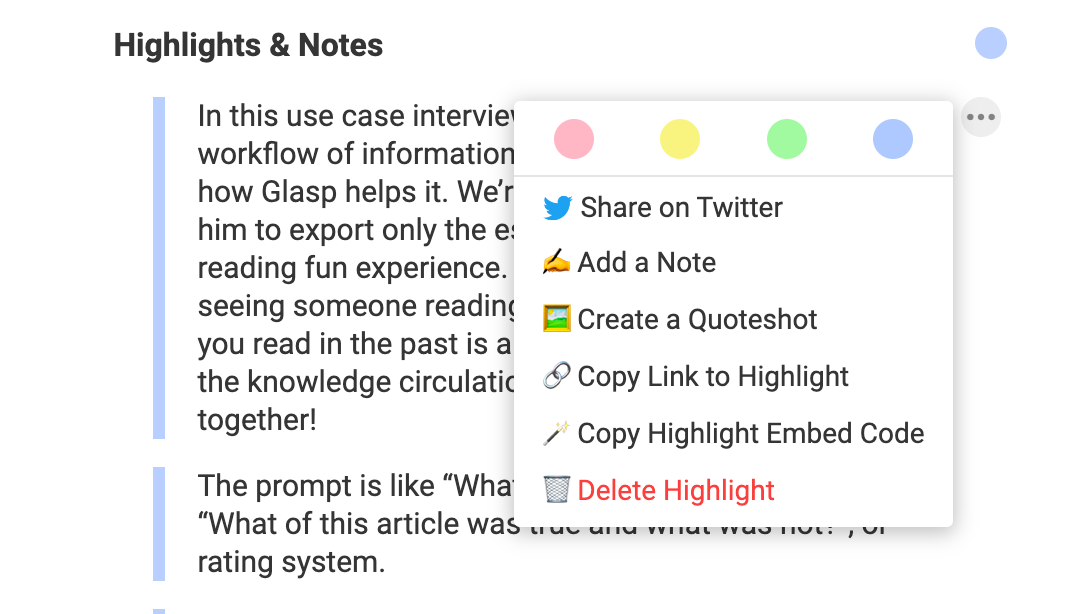
If you'd like to delete a highlight, please click the three dots next to the highlight, and click Delete Highlight.
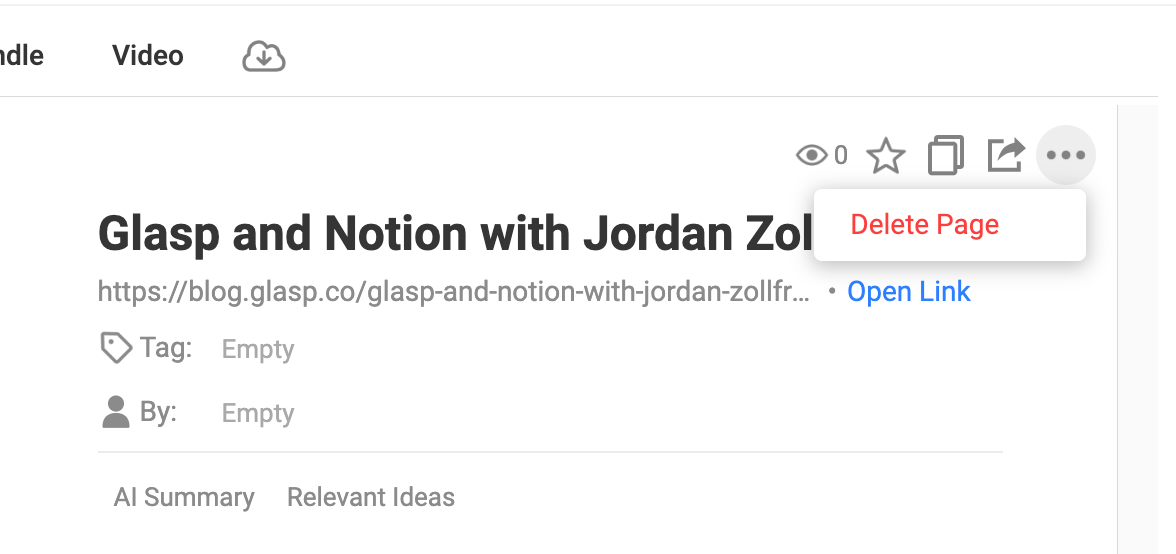
If you'd like to delete the whole article, please click the three dots at the top right and click Delete Page.
This import function is not automated, so if you highlight with Weava and would like to sync to Glasp, please click the Sync Now button on the Integrations page.
Note: Please notice that the imported highlights are shown on Glasp, but not on the original article. So, if you open the link and go to the article, you can see the highlights on the sidebar, but you cannot see them over the sentences.
Note: When you highlight an article with Glasp, and then try to import the same article's highlights from Weava, the overlapped highlights are not imported into Glasp. It is to avoid duplication.
Note: Glasp doesn't import highlights on PDF documents. We detect the highlights on the PDF and remove them from the importing highlights list. It's because PDFs include confidential information. And we'd like to avoid potential issues.
FAQs
Q. Can I import all my Weava highlights at once?
Yes. You can export highlights as a CSV file from Weava and upload it into Glasp.
Q. Are PDF highlights imported from Weava into Glasp?
No. For privacy reasons, Glasp does not import PDF highlights from Weava. Only web highlights and notes are imported.
Q. Are my imported Weava highlights public or private?
By default, imported highlights are publicly viewable on your Glasp profile. If you prefer to keep them private, delete sensitive highlights before importing.
Q. Will the dates of my highlights remain the same?
Yes. Imported highlights in Glasp keep the original highlight dates from Weava.
Q. What happens if I import the same article I already highlighted in Glasp?
Duplicate highlights are not imported to avoid overlap. Only unique highlights are transferred.
Q. Is the import automated?
No. The Weava → Glasp import is manual. You’ll need to repeat the import if you add new highlights in Weava.
Q. Can I edit or tag my imported highlights?
Yes. After import, you can add category tags, notes, and authors inside Glasp just like with regular highlights.
Q. Is this feature free?
Yes. Importing Weava highlights into Glasp is free.
Q. Can Claude or ChatGPT read my Glasp highlights?
Yes. With the Glasp MCP Connector, AI assistants such as Claude, ChatGPT, and Claude Code can search and read your own highlights, notes, Kindle highlights, and AI summaries, including your YouTube summaries. The connection is read-only and private to you. See How to Connect Glasp to Claude, ChatGPT, and Claude Code (MCP Connector).
Q. Can I use Glasp on my phone?
Yes. Glasp has native apps for iPhone, iPad, and Android, and the Glasp Safari extension for iPhone and iPad comes with the iOS app. Your highlights sync between the apps, the web, and the desktop extension. See How to Use the Glasp Mobile App on iOS, iPad, and Android.
Before you leave
If you have any questions, please refer to the FAQ or contact us.
👉 FAQs
👉 X
See you next time,
Glasp team