How to Import Highlights from Hypothesis into Glasp

Sep 08, 2025
5 min read
87 views

Do you use Hypothesis to annotate articles and now want to transfer those highlights into Glasp? Many users have requested this feature, and Glasp now makes it easy to import Hypothesis highlights and notes directly into your Glasp profile.
This tutorial will guide you step by step on how to connect Hypothesis with Glasp, sync your annotations, and manage them for long-term learning and sharing.
If you haven't signed up for Glasp or installed the Glasp browser extension, please do so. You can refer to this tutorial.
How to Import Highlights from Hypothesis into Glasp (YouTube)
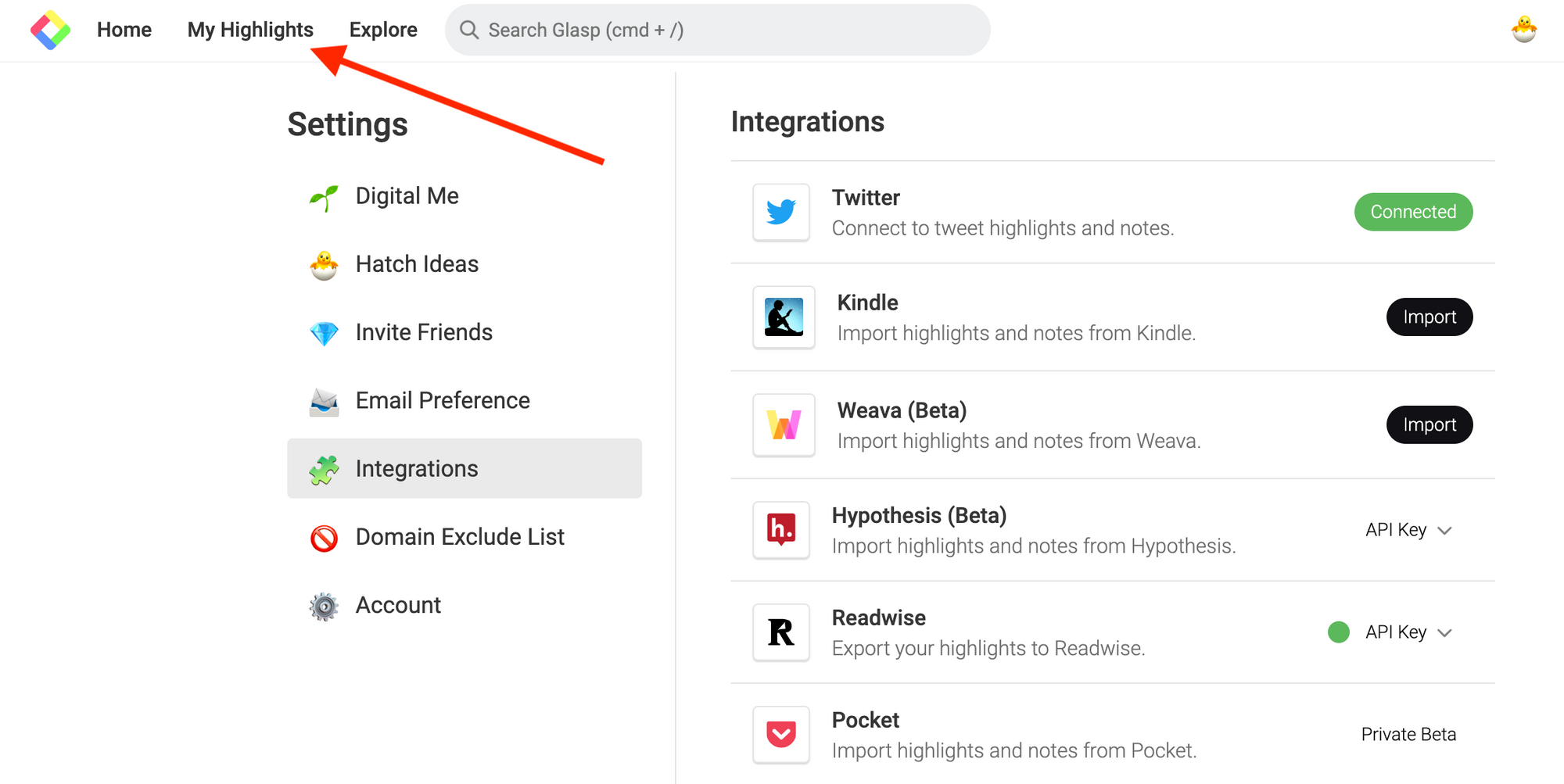
Step 1: Go to the Settings page
Click your profile icon at the top right.
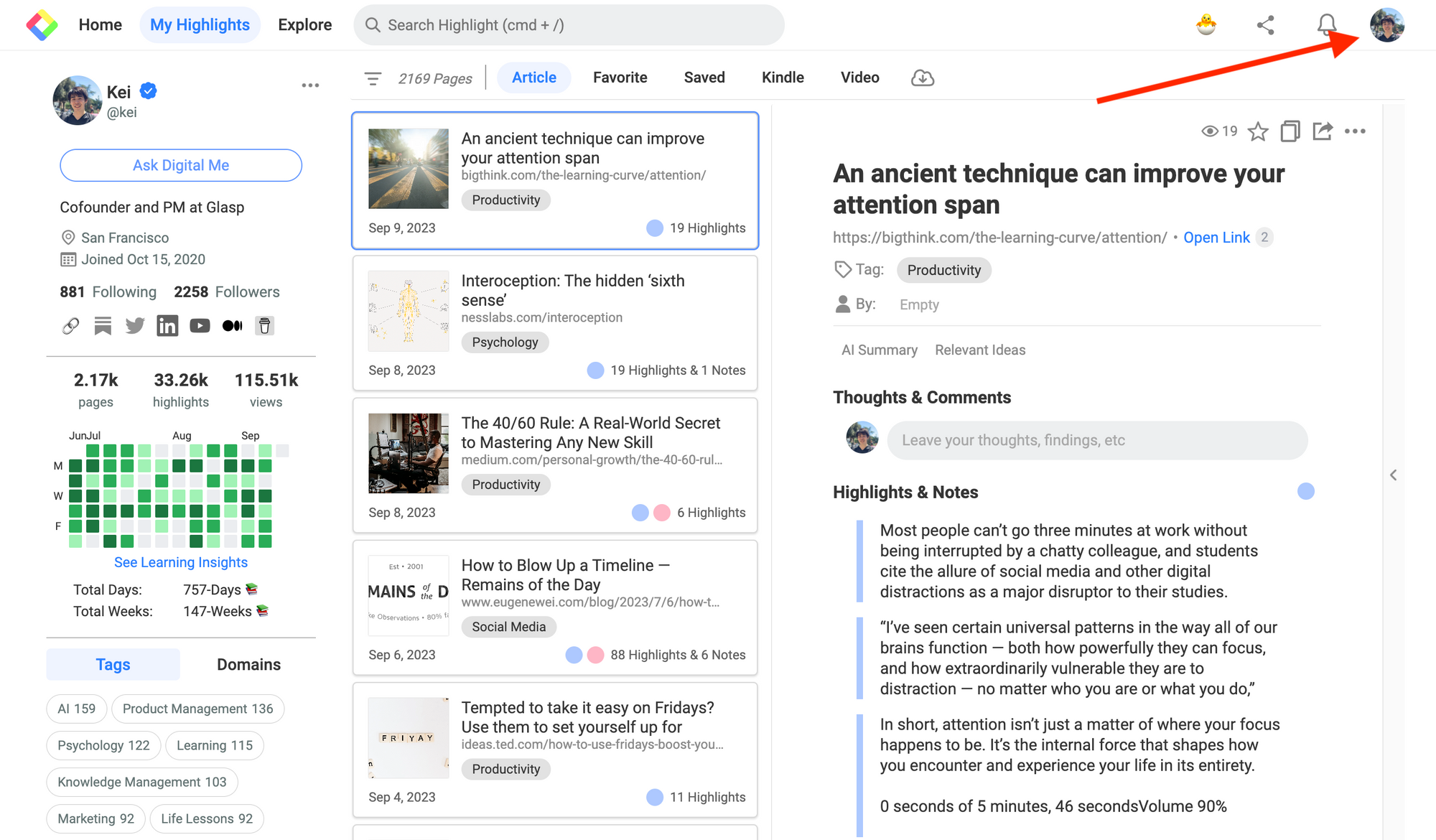
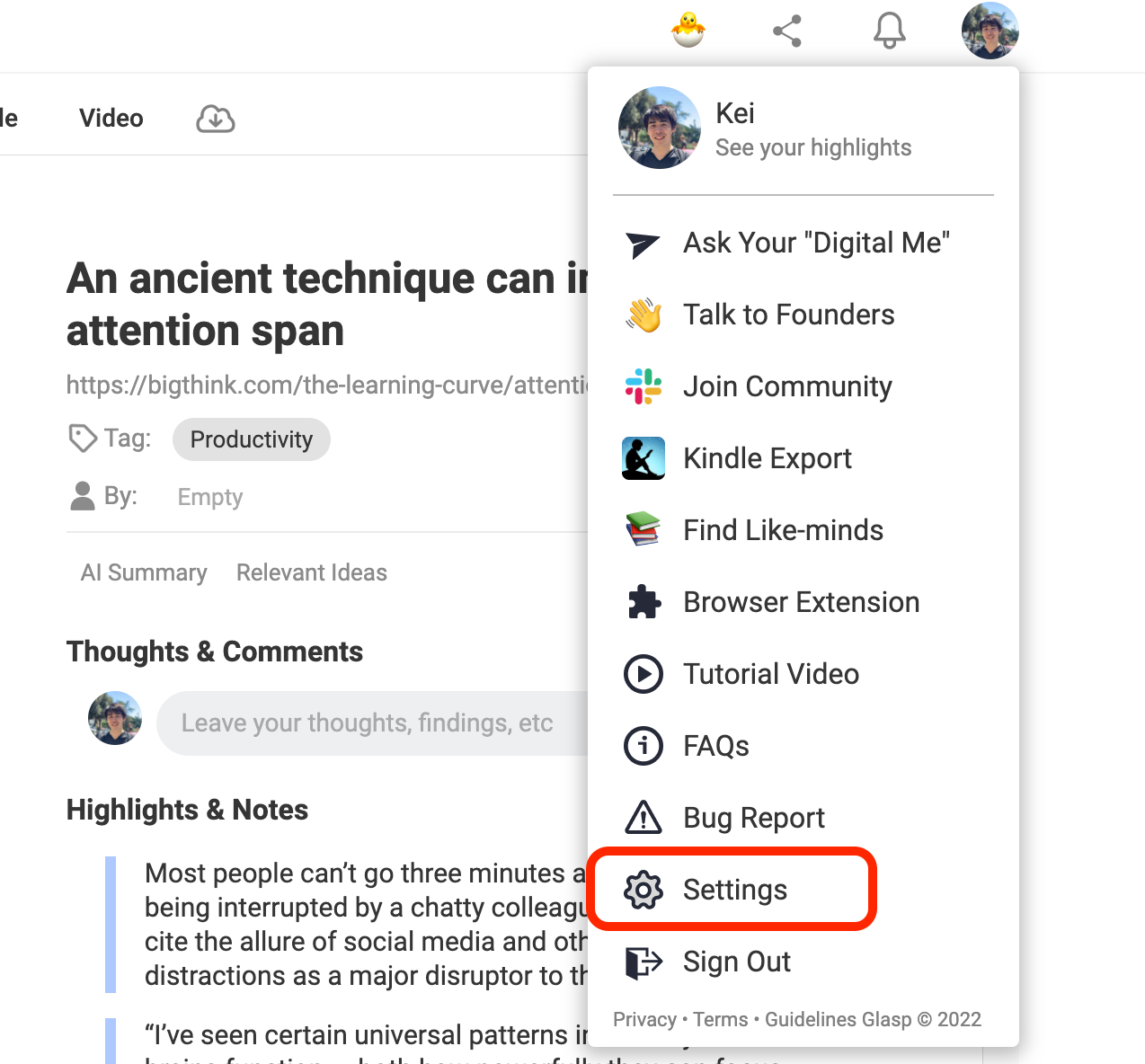
It opens a modal, so please click the Settings section.
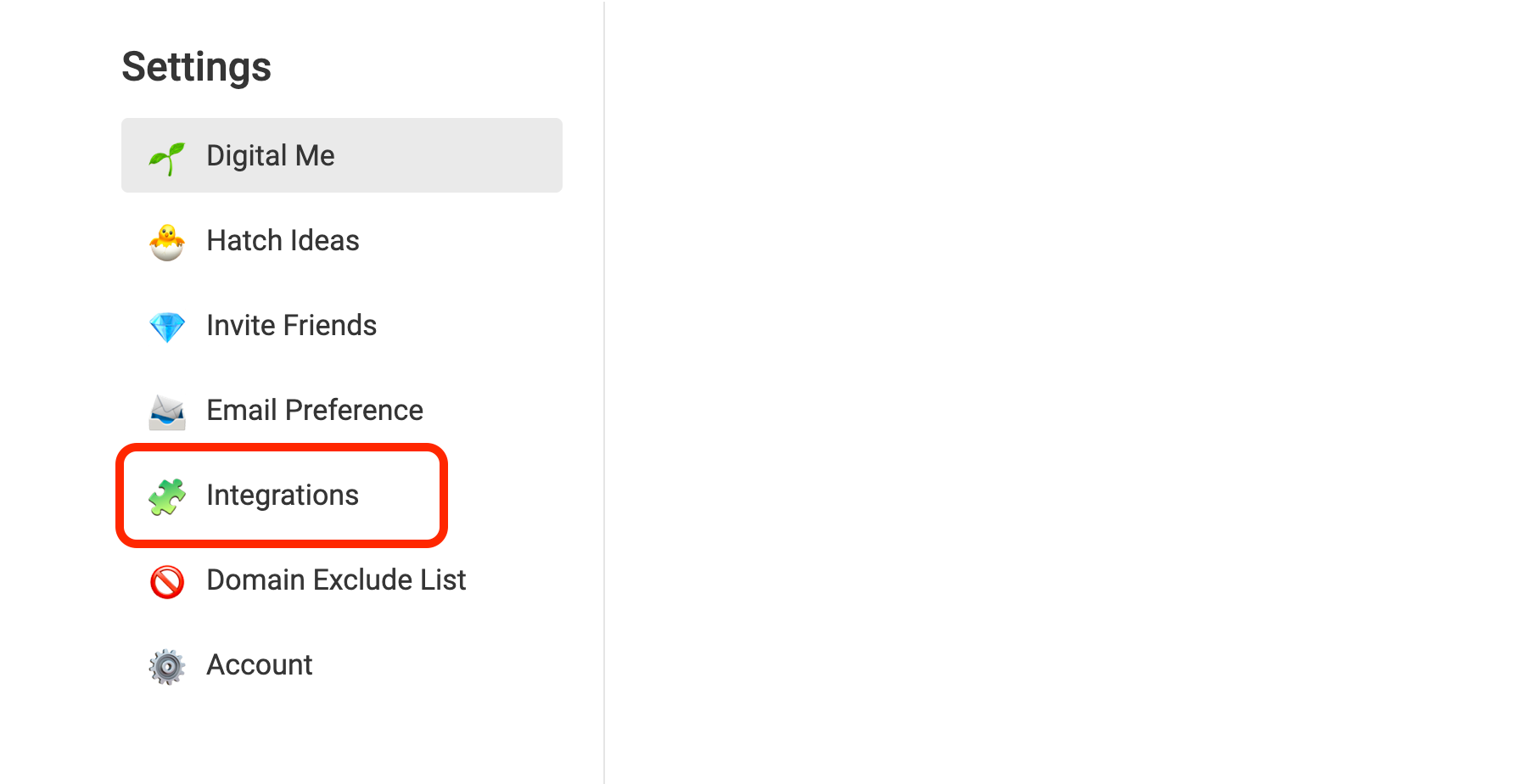
On the Settings page, you can see Integrations. So, please click it and go to the section.
In the Integrations section, you can find Hypothesis. Please click the Sync Now button. It opens the Connect with Hypothesis modal.
Step 2: Get Hypothesis's API token
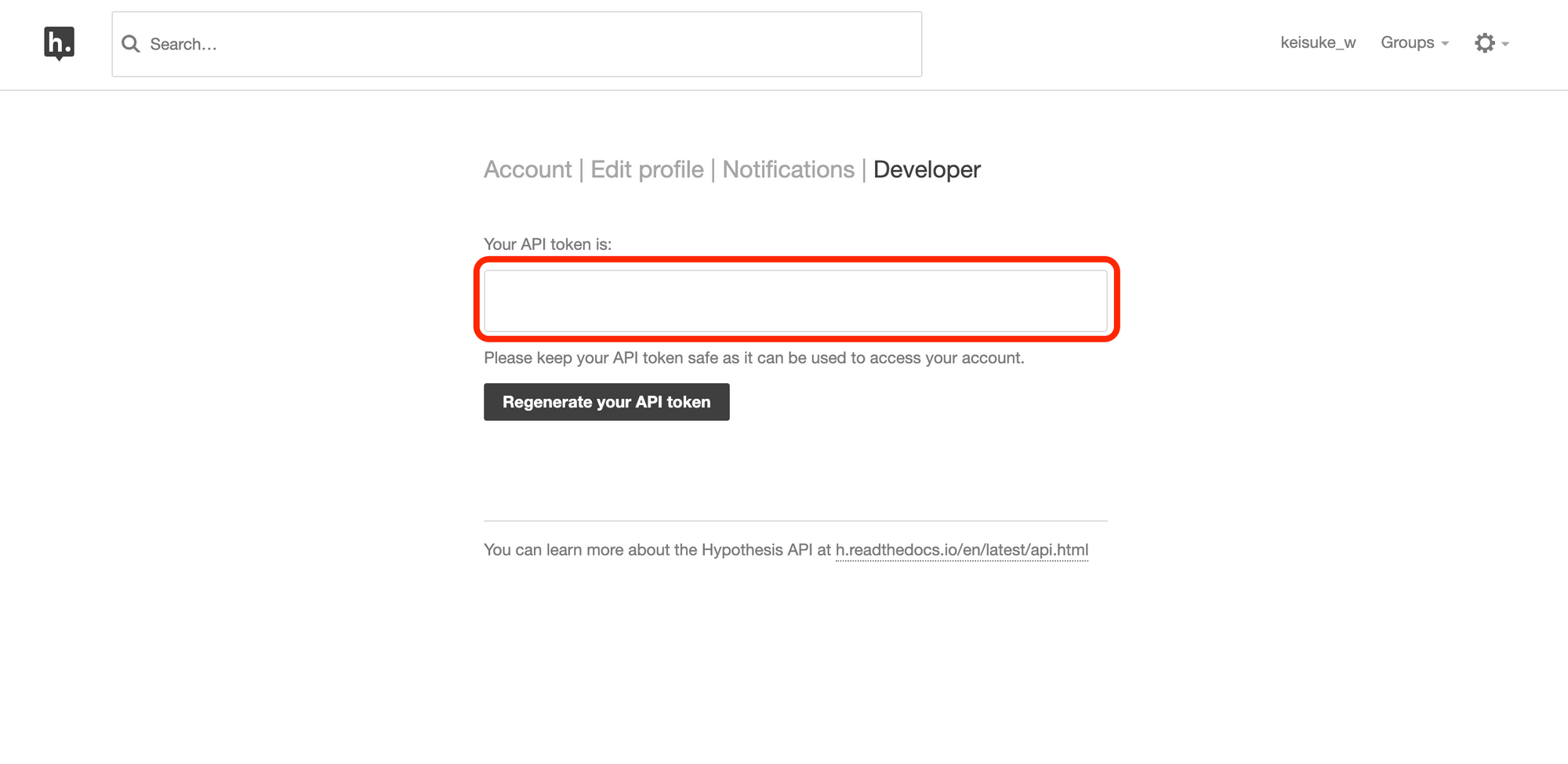
In this step, you need to find and input Hypothesis's API token. In the Connect with Hypothesis modal, you can see a text link, Hypothesis API token, so please click it. It opens Hypothesis's Developer page.
If you are asked to log in to Hypothesis, please do so.
On this page, you can find the API token. So, copy it. Please don't share the API token anywhere.
After you copied the API token, go back to Glasp and paste it into the Hypothesis API Token field. Then, click the Save API Token button.
Step 3: Import Hypothesis's highlights
After you save the API token, Glasp automatically starts syncing your highlights from Hypothesis. Once connected, Glasp also syncs new highlights automatically once a day. If you'd like to sync immediately, please click the Sync Now button on the Hypothesis card anytime.
Note: The imported highlight color and visibility are set to your default settings. You can update them on the Highlight Settings page.
Step 4: View the imported highlights
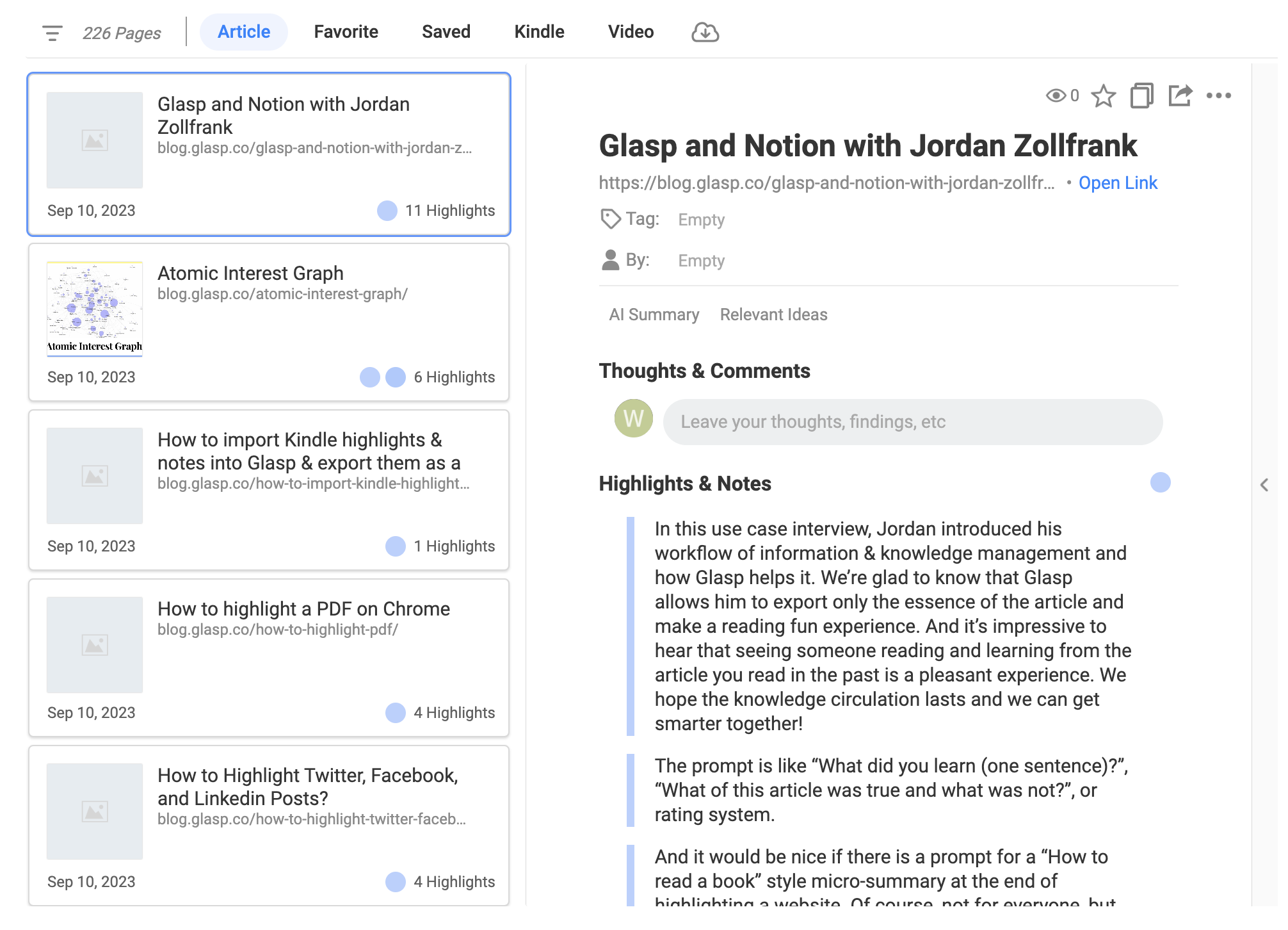
To see the imported highlights, please go to your profile page. You can access it by clicking Profile in the left sidebar.
On your profile page, you can see the imported highlights. The order of highlights is chronological. The date of the imported highlights on Glasp is the same as the date you highlighted on Hypothesis.
You can add category tags, notes, an author, and a page comment to the imported articles.
(Optional) Step 5: Delete highlights
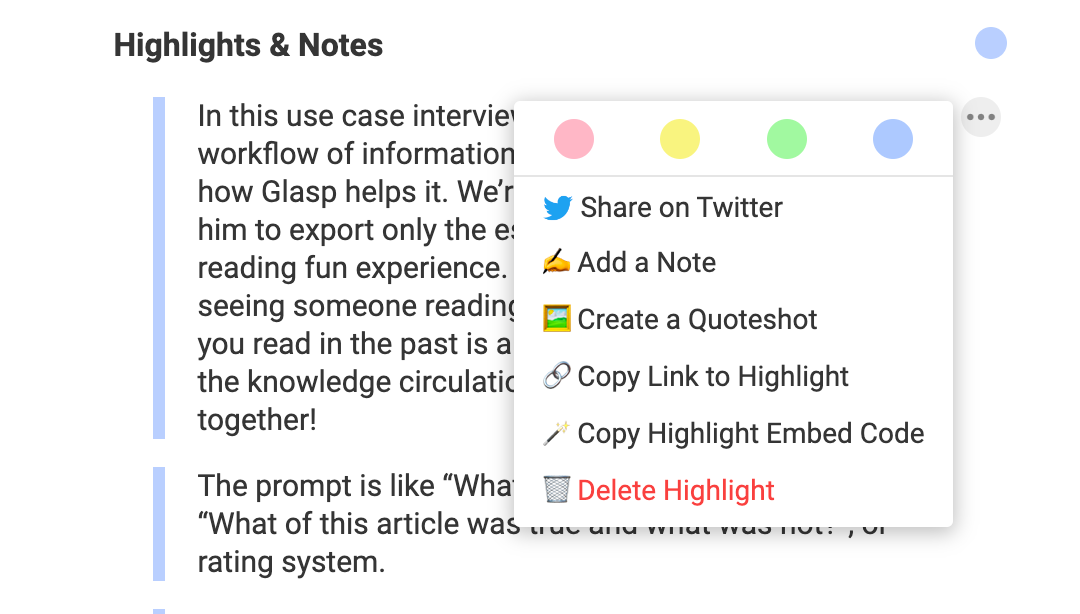
If you'd like to delete a highlight, please click the three dots next to the highlight, and click Delete Highlight.
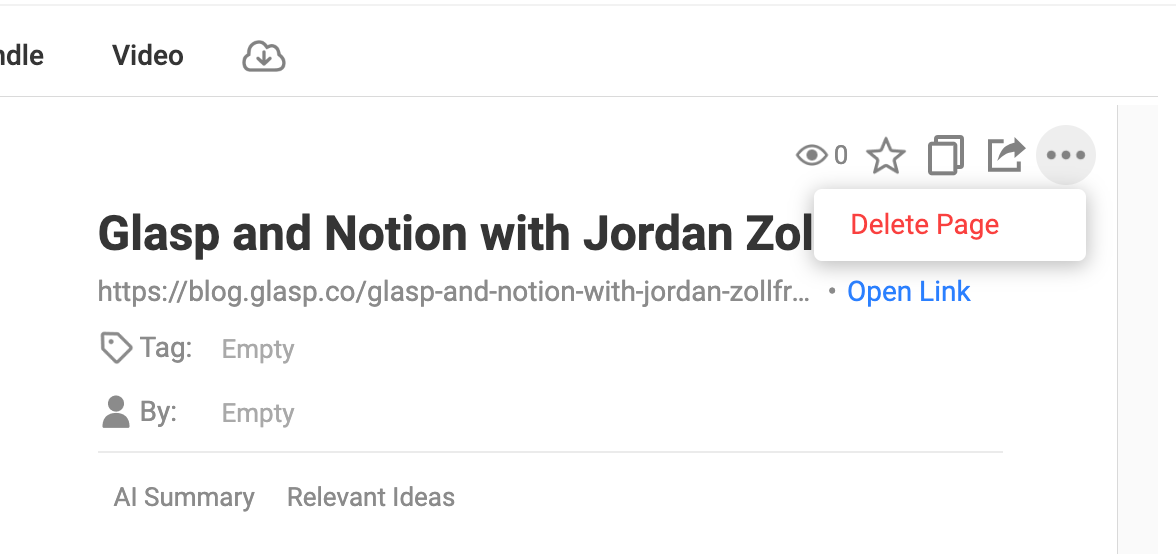
If you'd like to delete the whole article, please click the three dots at the top right and click Delete Page.
Glasp automatically syncs your Hypothesis highlights once a day. If you'd like to sync immediately, please click the Sync Now button on the Integrations page.
Note: Please notice that the imported highlights are shown on Glasp, but not on the original article. So, if you open the link and go to the article, you can see the highlights on the sidebar, but you cannot see them over the sentences.
Note: When you highlight an article with Glasp, and then try to import the same article's highlights from Hypothesis, the overlapped highlights are not imported into Glasp. It is to avoid duplication.
FAQs
Q. Do I need a Hypothesis account to import highlights into Glasp?
Yes. You’ll need to log in to your Hypothesis account and obtain your personal API token to connect with Glasp.
Q. Are imported Hypothesis highlights public or private on Glasp?
The visibility of imported highlights follows your default highlight settings. You can update the default visibility on the Highlight Settings page.
Q. Can I choose how my Hypothesis highlights appear in Glasp?
Imported highlights use your default highlight color, which you can change on the Highlight Settings page. After import, you can also add tags, notes, authors, and page comments.
Q. Do imported highlights show up on the original article?
No. Imported highlights are visible in your Glasp profile sidebar but will not appear over the text of the original article itself.
Q. What happens if I already highlighted the same article in Glasp?
If you try to import highlights from Hypothesis for an article you’ve already highlighted in Glasp, duplicate highlights will be skipped automatically.
Q. Can I automatically sync Hypothesis highlights with Glasp?
Yes. Once connected, Glasp syncs your Hypothesis highlights once a day automatically. You can also trigger a manual sync anytime from Settings → Integrations → Sync Now.
Q. Can I delete Hypothesis highlights after importing?
Yes. You can delete individual highlights or entire articles from your Glasp profile at any time.
Q. Can Claude or ChatGPT read my Glasp highlights?
Yes. With the Glasp MCP Connector, AI assistants such as Claude, ChatGPT, and Claude Code can search and read your own highlights, notes, Kindle highlights, and AI summaries, including your YouTube summaries. The connection is read-only and private to you. See How to Connect Glasp to Claude, ChatGPT, and Claude Code (MCP Connector).
Q. Can I use Glasp on my phone?
Yes. Glasp has native apps for iPhone, iPad, and Android, and the Glasp Safari extension for iPhone and iPad comes with the iOS app. Your highlights sync between the apps, the web, and the desktop extension. See How to Use the Glasp Mobile App on iOS, iPad, and Android.
Before you leave
If you have any questions, please refer to the FAQ or contact us.
👉 FAQs
👉 X
See you next time,
Glasp team