How to Get YouTube Transcripts on Android with Glasp

Aug 28, 2025
5 min read
1211 views
Looking for a quick way to get YouTube transcripts on Android? With the Glasp Android app, you can instantly view, copy, and save the full transcript of any YouTube video — right from your phone. This makes it easier to:
Capture key insights from tutorials and lectures
Highlight important video moments
Copy transcripts for research, study notes, or summaries
Share transcripts with teammates or classmates
In this tutorial, we'll show you step by step how to get YouTube transcripts on Android using Glasp.
👉 Video guide: How to Get YouTube Transcripts on Android with Glasp (YouTube)
Step 1: Install the Glasp Android app
Please open the link below and install the Glasp Android app.
👉 Glasp: Highlight the Internet
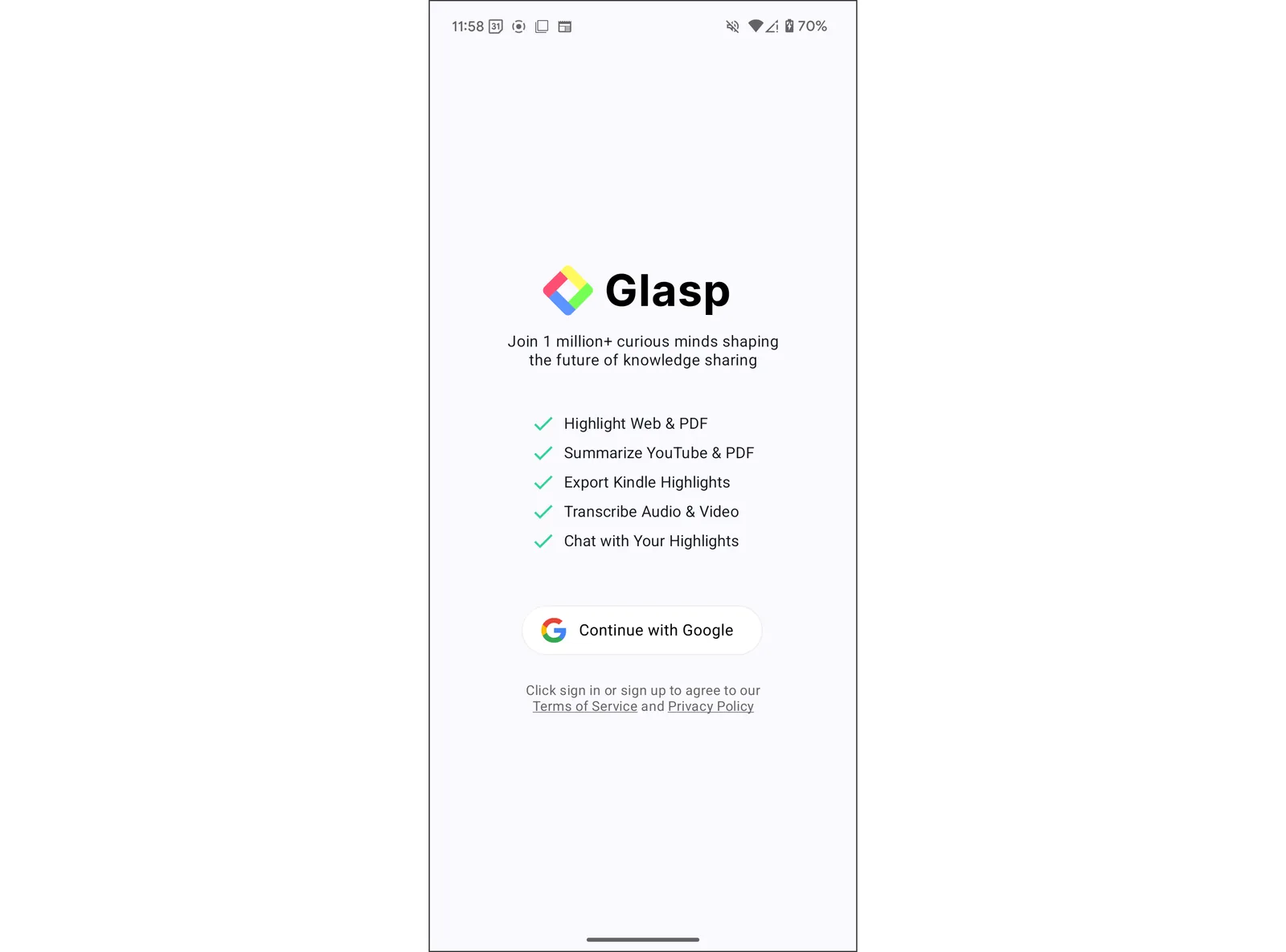
Step 2: Sign up or log in to the Glasp account
After installation of the Glasp Android app, please click and open it.
If you're new to Glasp, please sign up for Glasp. You can sign up with Google.
If you already have a Glasp account, please log in to Glasp with the same account you used to sign up for Glasp. If you're unsure which account you used to sign up previously, please check your email inbox and search for 'Glasp'. You should find the email address from us.
If you're asked to sign in to your Google account, please do so.
Step 3: Open a YouTube Video Inside the Glasp App
Open the Glasp app and tap "Feed" in the bottom navigation bar. Add the YouTube channel you want to follow, then tap the video you want to get the transcript from. You can also find any video on YouTube with the search bar at the top.
For more details on adding channels and finding videos, please see this tutorial.
👉 How to Summarize YouTube Videos with the Glasp iOS & Android App
Step 4: Get the YouTube Transcript
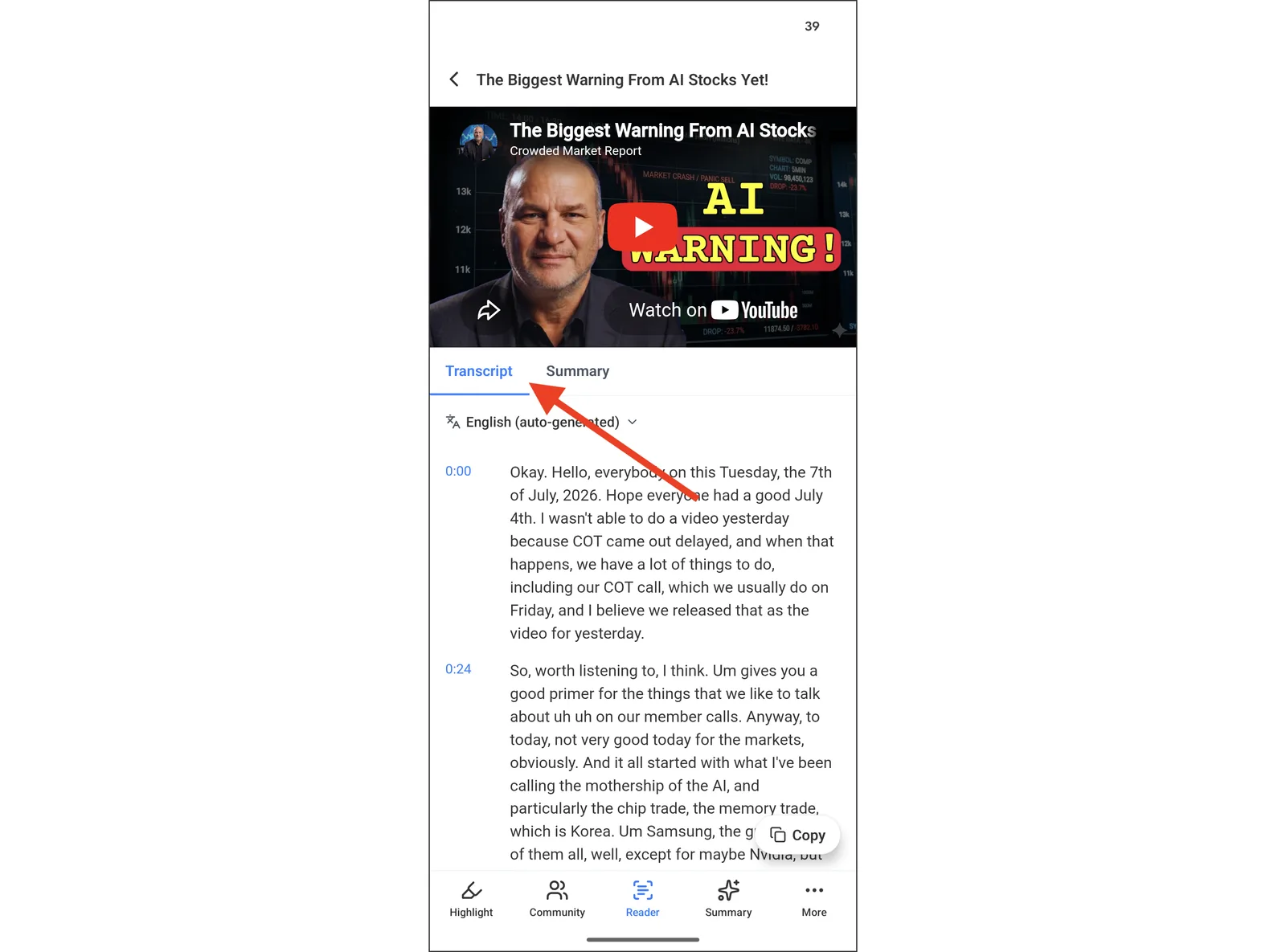
With the video open in Glasp, tap "Summary" in the bottom toolbar. Then switch to the "Transcript" tab to read the full transcript, and copy it from there.
Step 5: Paste the YouTube Transcript
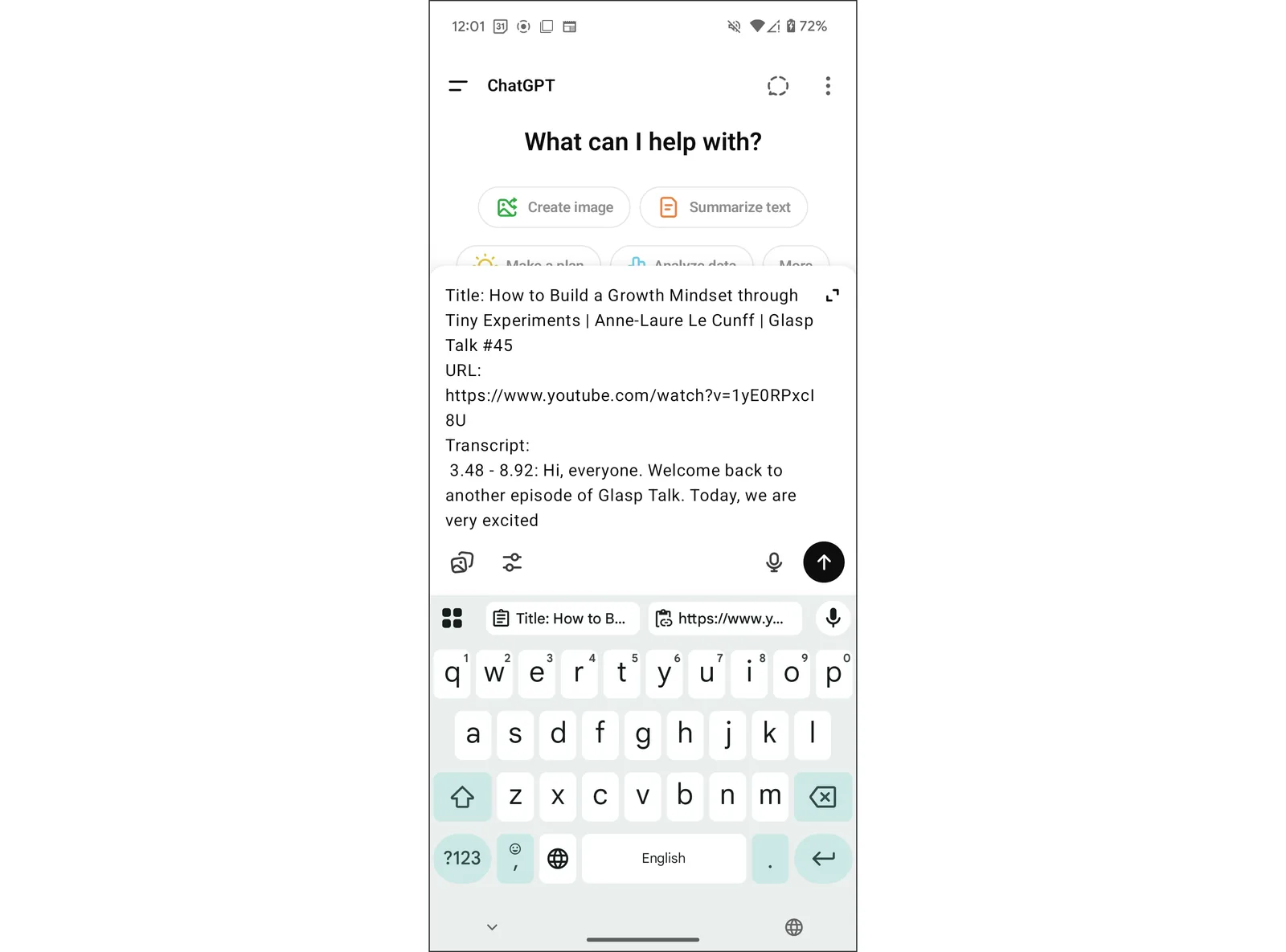
You can paste the copied transcript anywhere. In this tutorial, we use ChatGPT as an example. After pasting, you can put a prompt like "Summarize the transcript."
Alternative: Get the Transcript from the YouTube App
You can also get the transcript by sharing a video from the YouTube app to Glasp.
Open the video you want to get the transcript from in the YouTube app. Then, click the Share button.
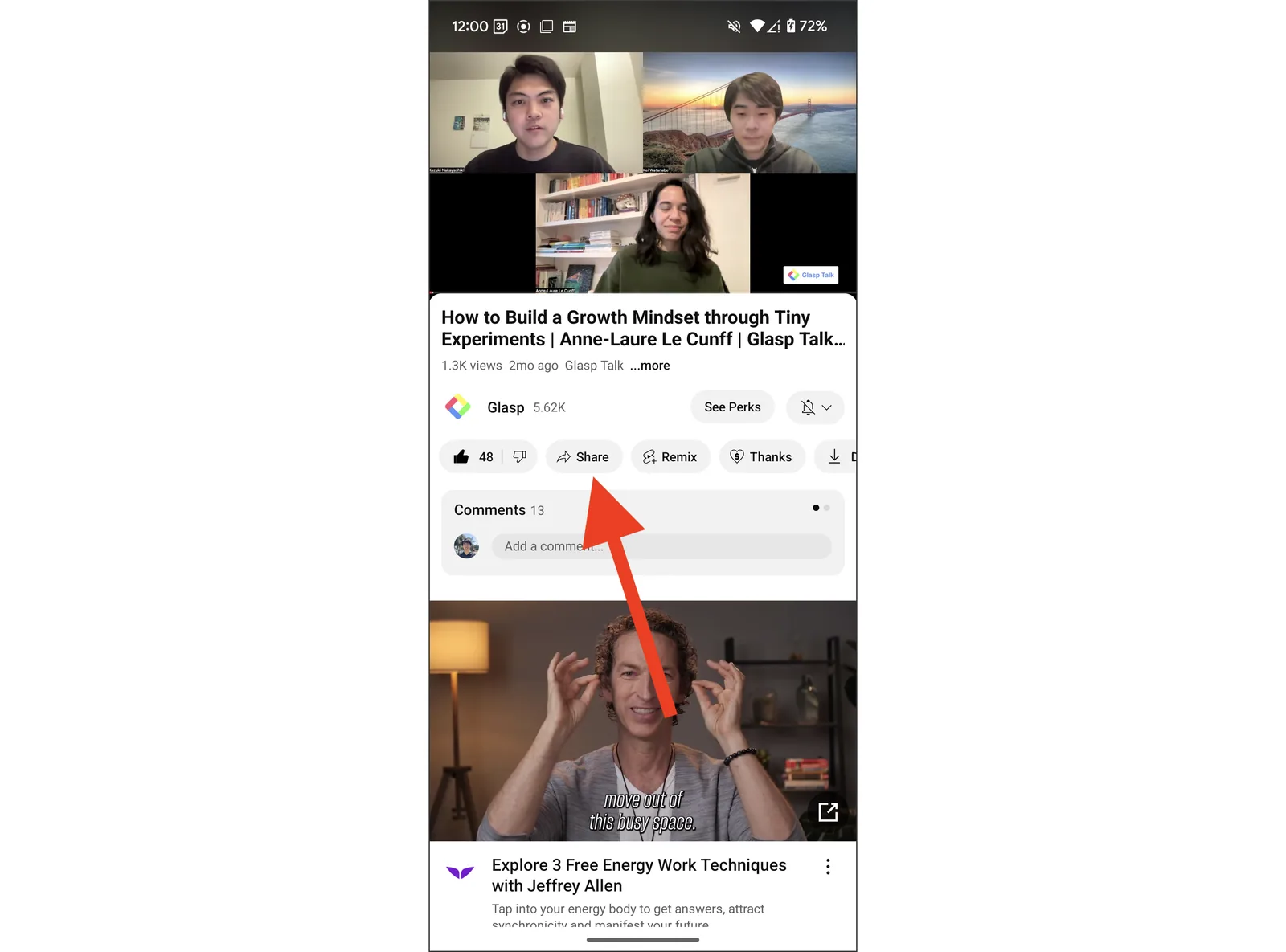
If you can see the Glasp icon, please click it. If you cannot see it, click More.
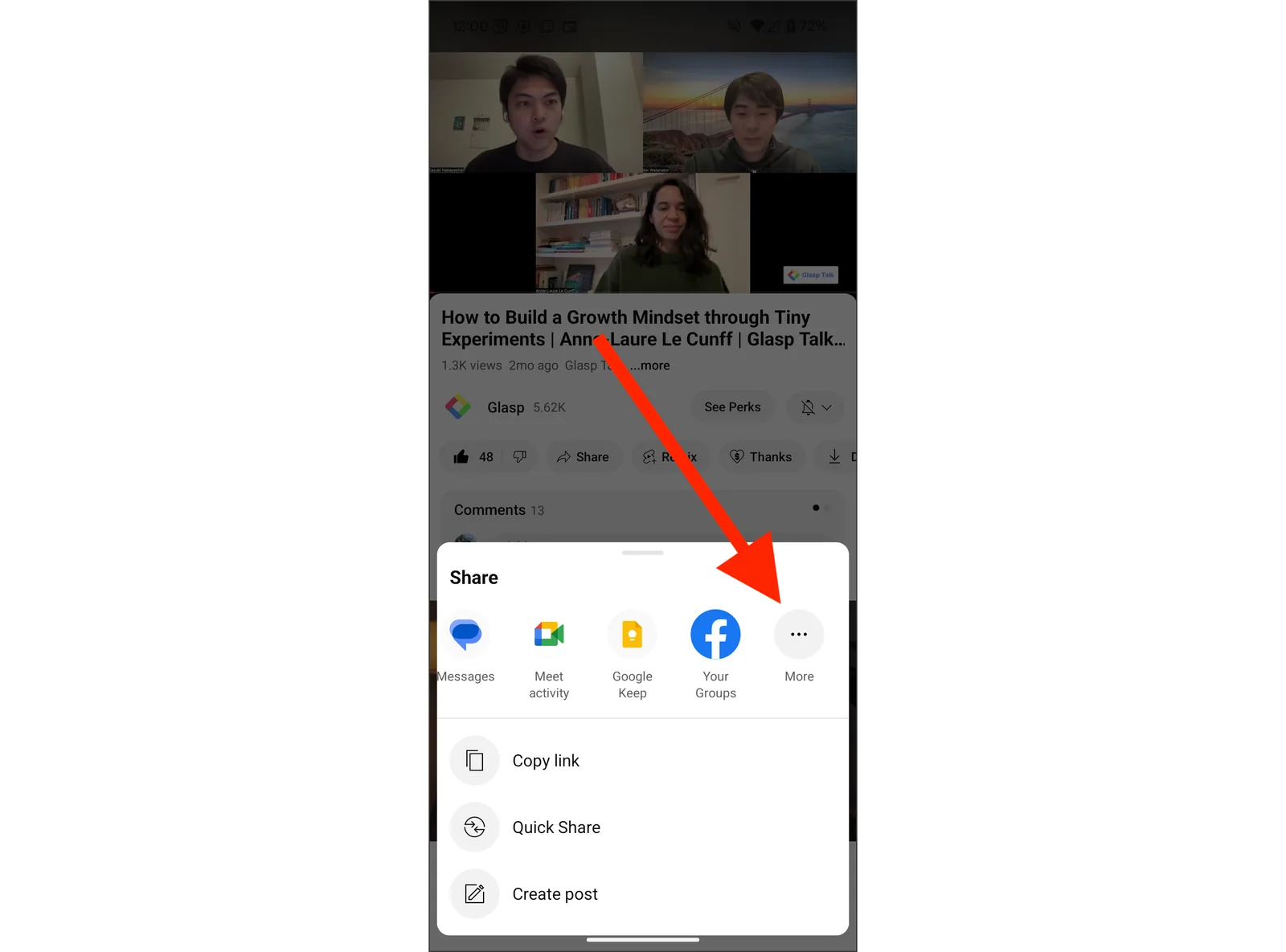
If you can see the Glasp app, please click it.
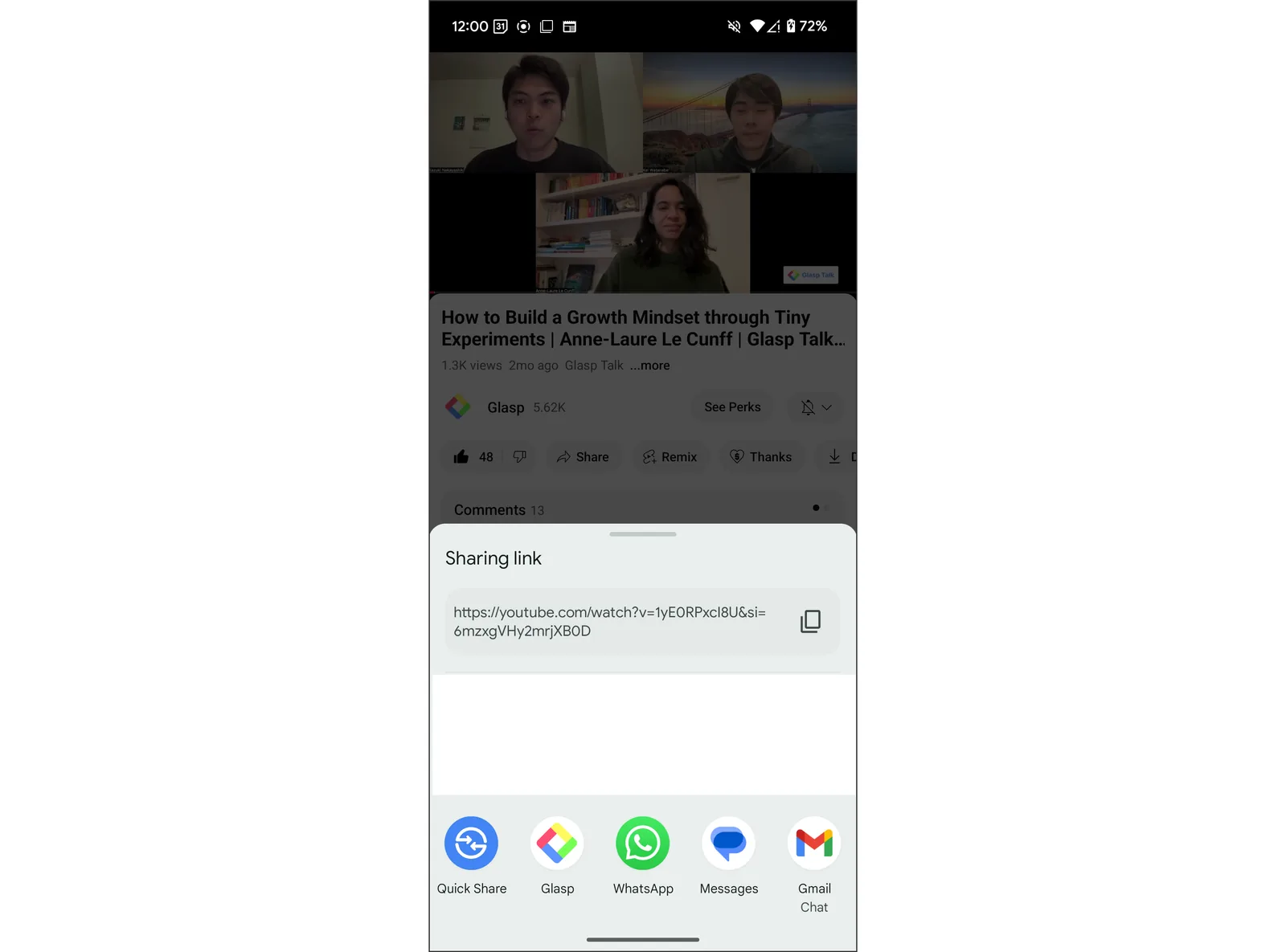
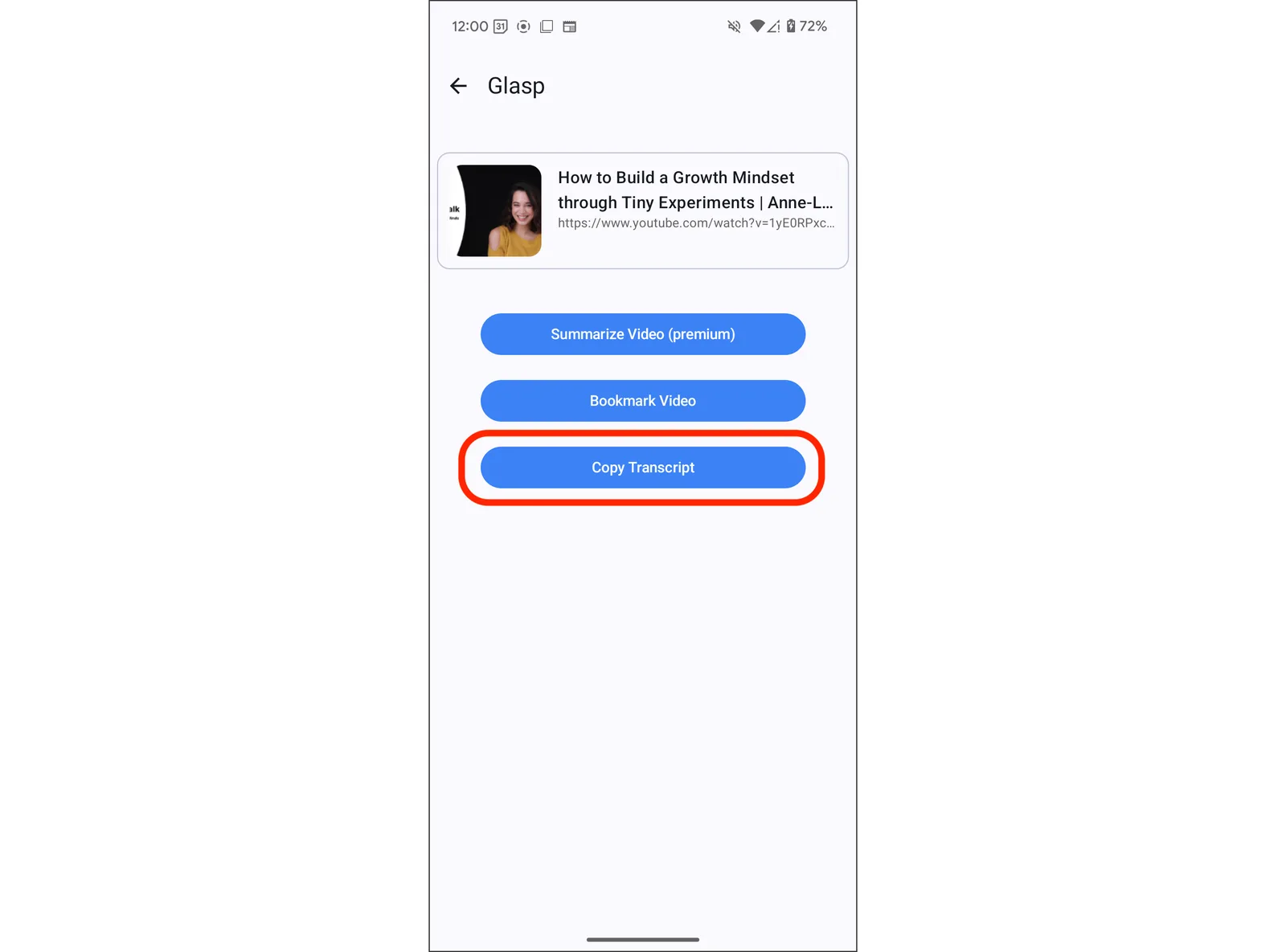
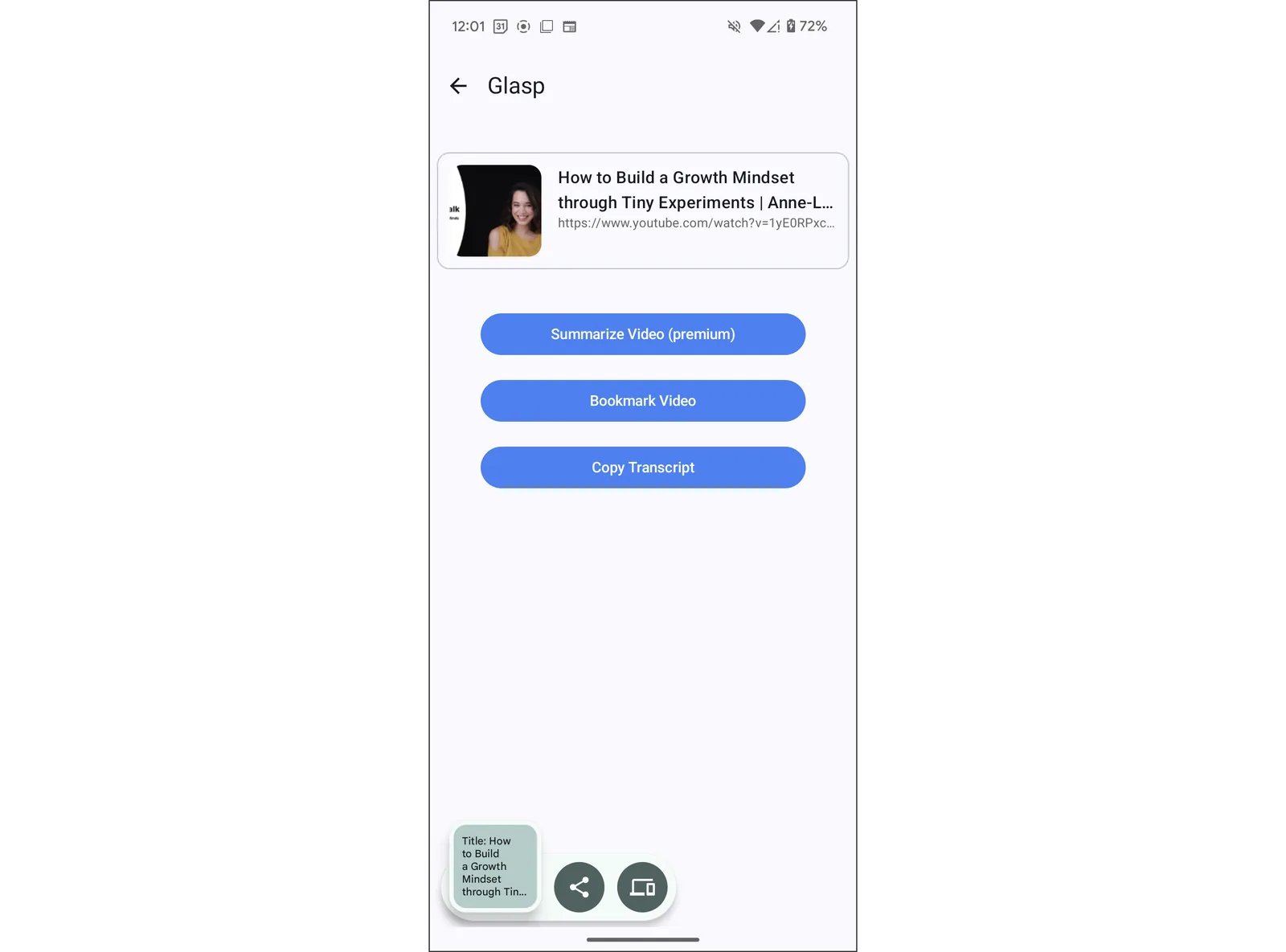
It opens a modal that summarizes the video, allows you to bookmark the video, and copies the transcript. So, click Copy Video Transcript.
If you can see a modal saying Copied Successfully, the transcript is saved in the clipboard.
It's easy-peasy, right? With the YouTube transcript feature, you can discover key insights in a YouTube video on your Android phone.
If you'd like to summarize YouTube videos on Android, please see this tutorial.
👉 How to Summarize YouTube Videos with the Glasp iOS & Android App
FAQs
Q. Do I need a Glasp account to get YouTube transcripts?
Yes. You'll need to sign up (free) or log in to your existing Glasp account to use the transcript feature.
Q. Does Glasp work with all YouTube videos?
Glasp works with videos that have transcripts available. Some videos (e.g., music videos or new uploads) may not yet have transcripts generated.
Q. Where is the transcript saved after I copy it?
When you copy the transcript, it is saved to your clipboard. You can paste it into any app (ChatGPT, Notion, Google Docs, Notes, etc.).
Q. Can I highlight YouTube transcripts on Android?
Yes. You can now highlight a video's transcript right inside the Glasp Android app, with tap-to-seek timestamps. Your highlights sync to your Glasp profile, the web, and the browser extension. For more, see How to Highlight YouTube Transcript.
Q. Can I summarize a YouTube transcript with Glasp?
Yes. You can summarize videos directly inside the Glasp app on both Android and iOS: open the video and tap "Summary" in the bottom toolbar. You can also copy the transcript and paste it into ChatGPT or other AI tools with a prompt like "Summarize this transcript."
Q. Is this feature free to use?
Yes. The YouTube transcript feature on Android is 100% free with the Glasp app.
Q. Does Glasp work on iOS as well?
Yes. Glasp supports both Android and iOS. For iPhone and iPad, see this tutorial:
How to Get YouTube Transcripts on iPhone with Glasp
Q. Can Claude or ChatGPT read my Glasp highlights?
Yes. With the Glasp MCP Connector, AI assistants such as Claude, ChatGPT, and Claude Code can search and read your own highlights, notes, Kindle highlights, and AI summaries, including your YouTube summaries. The connection is read-only and private to you. See How to Connect Glasp to Claude, ChatGPT, and Claude Code (MCP Connector).
Q. Where are my YouTube summaries saved?
When you are signed in, the YouTube summaries you create are saved to your Glasp profile under the Summaries tab, so you can review all of them later. You can also get them through the Glasp API, and AI assistants such as Claude and ChatGPT can read them through the Glasp MCP Connector.
Before you leave
If you have any questions, please refer to the FAQ or contact us.
See you next time,
Glasp team