How To Save and Search for Chat History with ChatGPT

Sep 21, 2025
3 min read
647 views

Managing past conversations in ChatGPT can be frustrating — you often lose valuable insights and end up asking the same questions again. If you’ve ever wondered “How can I save and search ChatGPT chat history?”, the solution is here.
With Glasp, a free web highlighter tool, you can save ChatGPT conversations, organize them with tags, and search past chats anytime. Instead of losing track of useful prompts or answers, Glasp helps you build a personal knowledge base directly from your ChatGPT sessions.
In this tutorial, we’ll show you step by step how to save, organize, and retrieve ChatGPT chat history easily using Glasp.
If you haven't signed up for Glasp or installed the Glasp browser extension, please do so. You can refer to this tutorial.
Step 1: Install the Glasp Chrome extension
Glasp is a browser extension, so please install it. It's available on Chrome, Brave, Microsoft Edge, Safari, and Firefox.
👉 Glasp — Chrome Web Store (Chrome, Brave, Microsoft Edge)
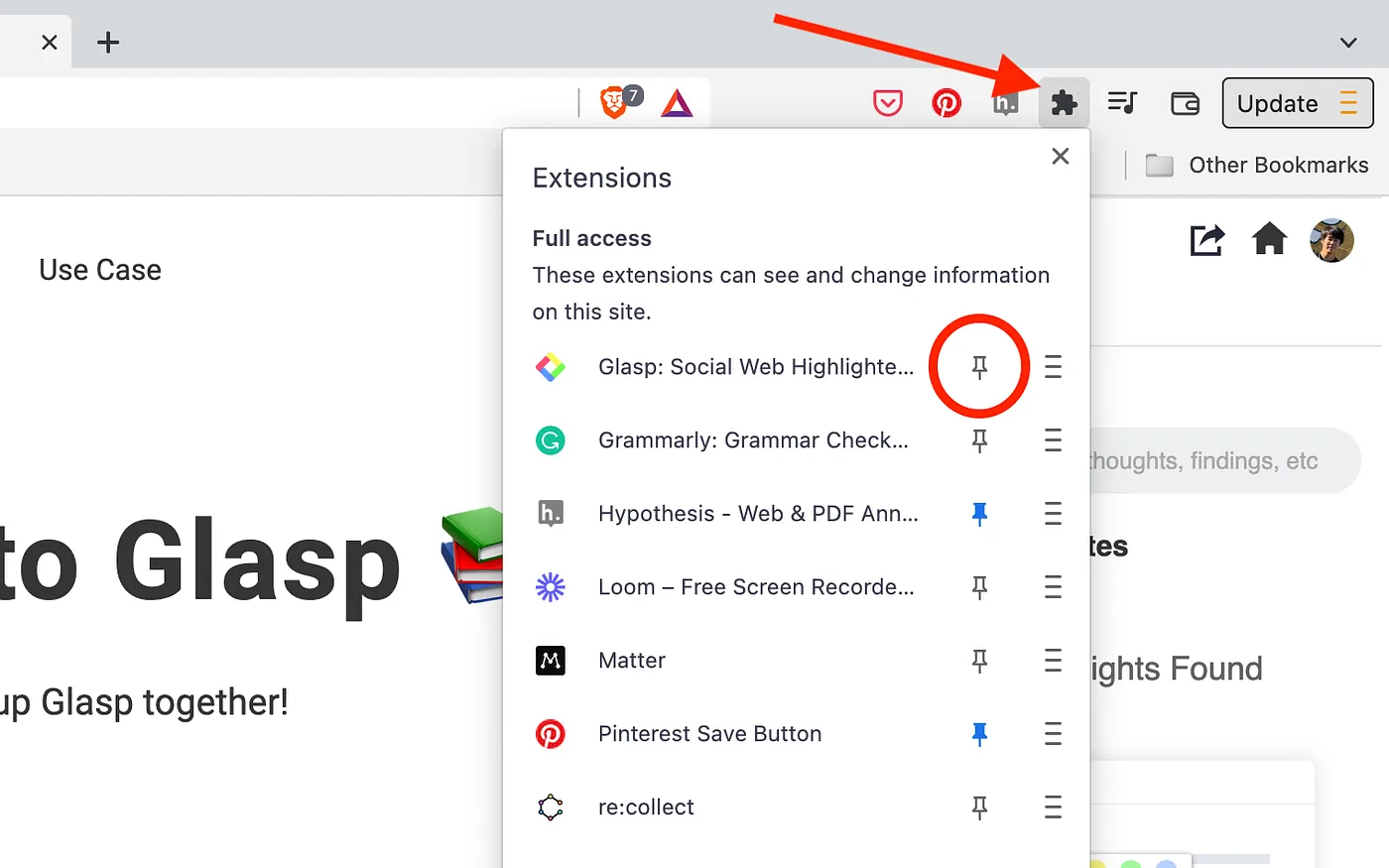
After you install the extension, make sure you pin it on the toolbar. It makes it easier to open the Glasp on the sidebar.
Step 2: Sign up for Glasp
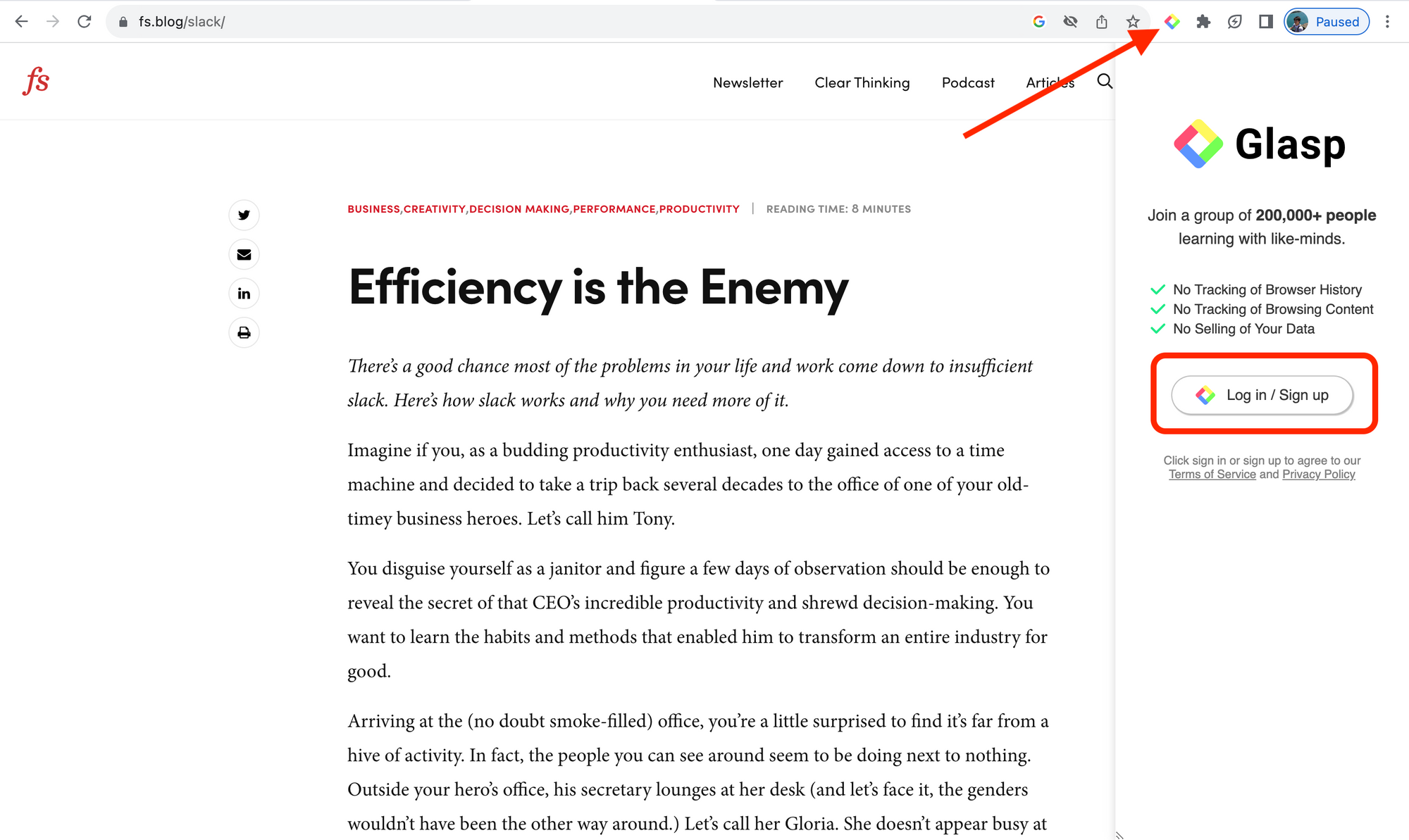
As Glasp has a profile page, you need to create an account. Click the Glasp icon on the toolbar to open the sidebar. Then, click Log in / Sign up on the sidebar.
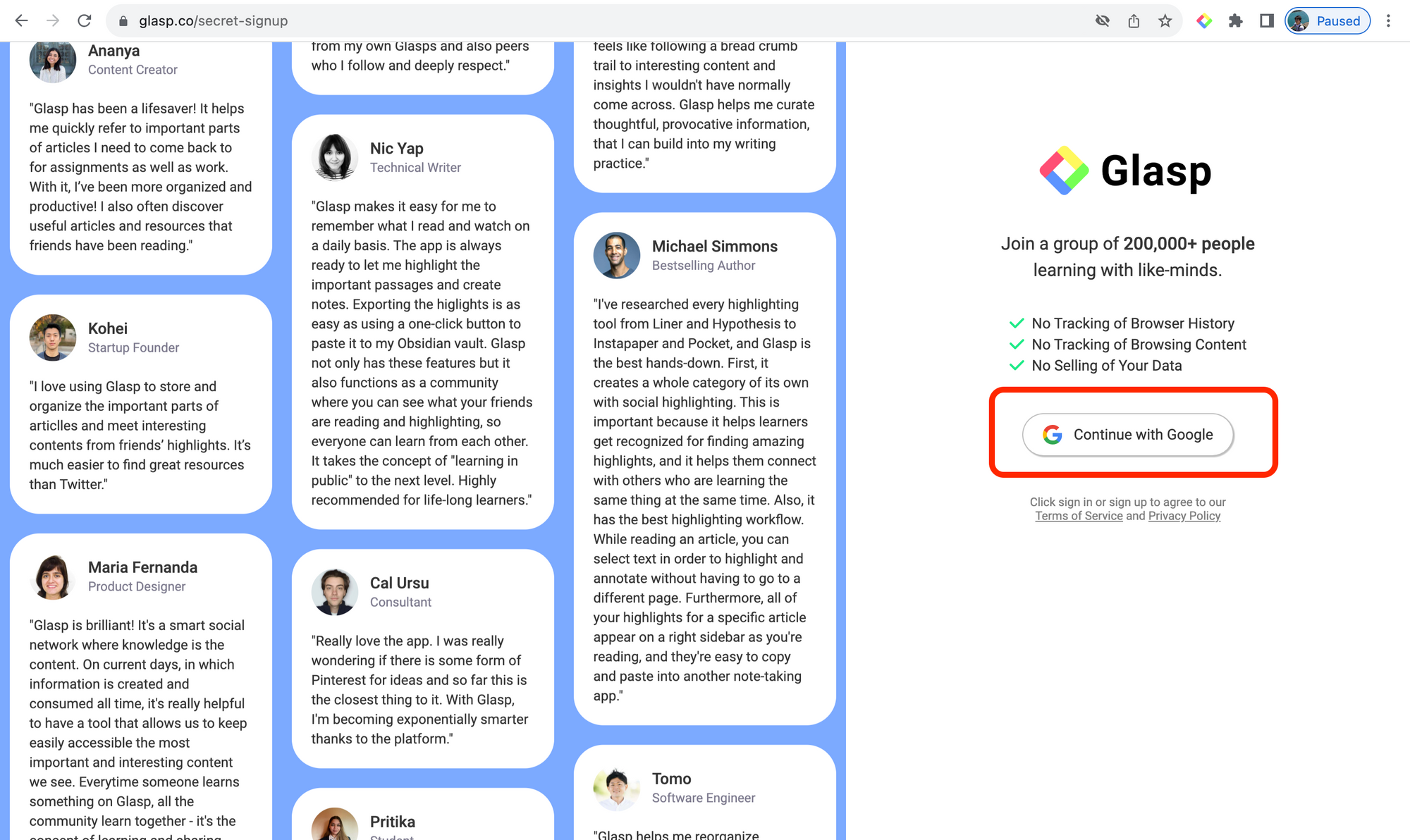
Then, click Continue with Google.
Step 3: Open ChatGPT
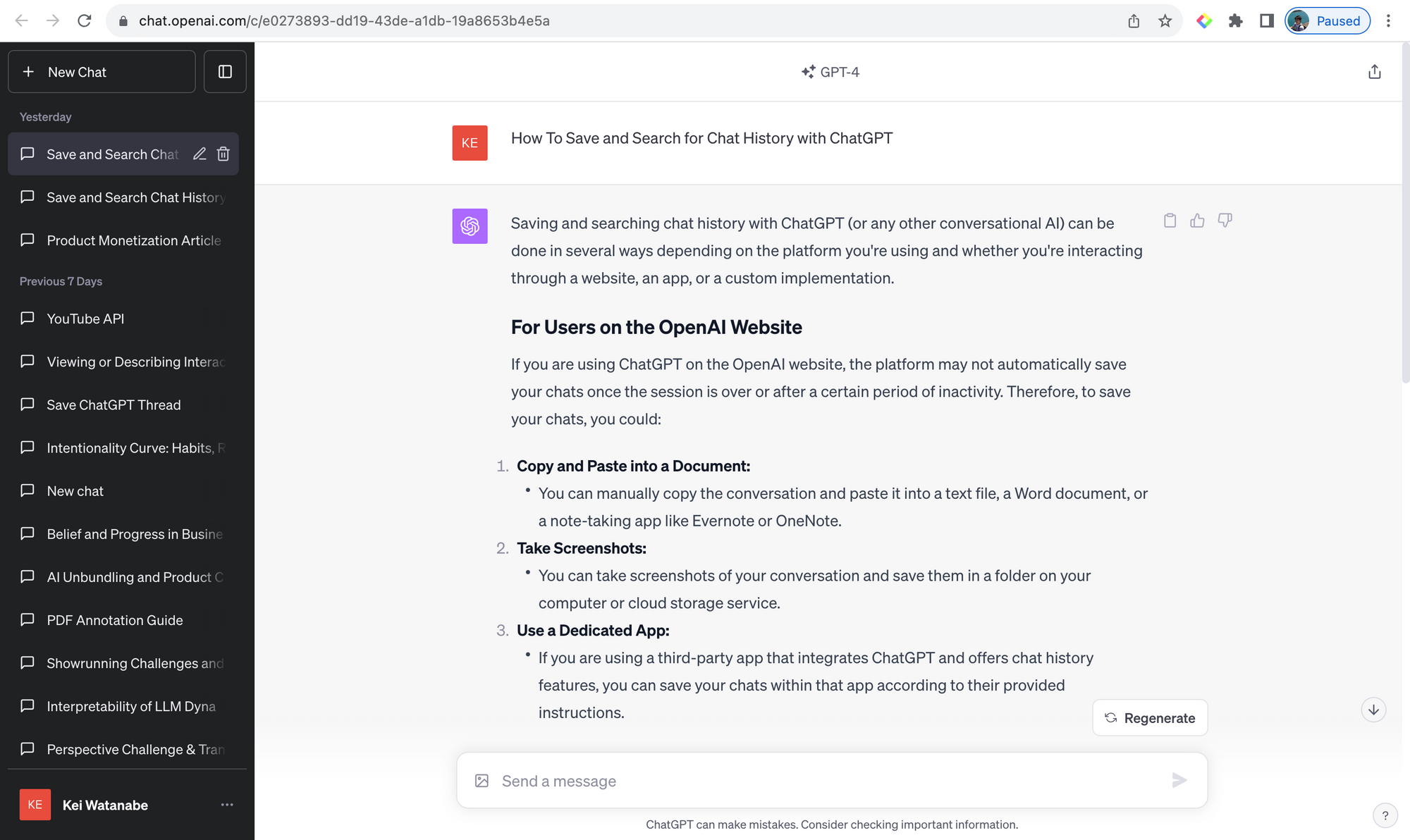
Open ChatGPT and type any prompts.
Step 4: Highlight chat history with Glasp
Make sure that you install the Glasp Chrome extension. Also, ensure that you are seeing a unique URL on ChatGPT. Select any sentence on ChatGPT. You can see a color palette showing up, so please click any color on the palette.
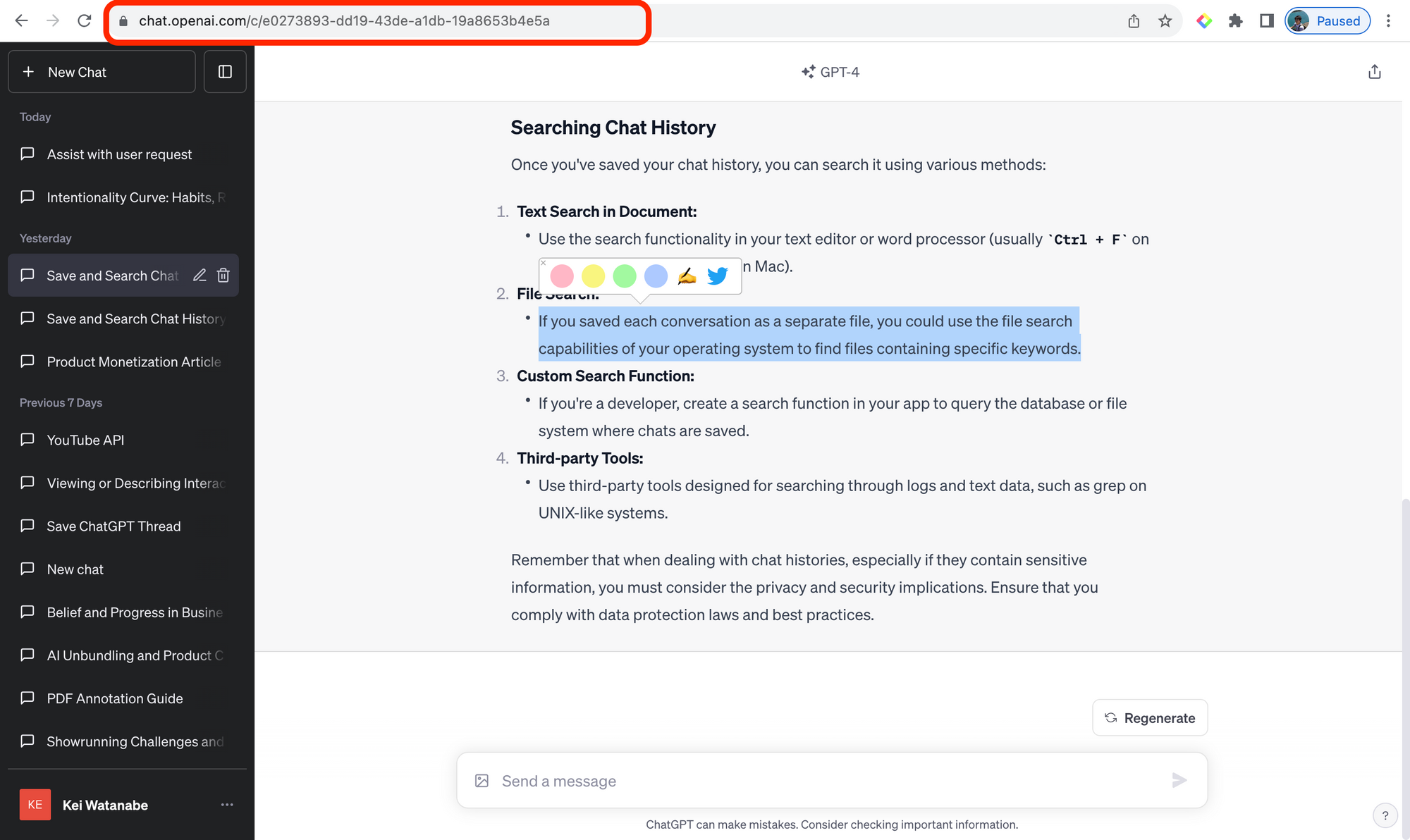
If you open the Glasp sidebar by clicking the Glasp icon on the toolbar, you can see your highlights on the sidebar.
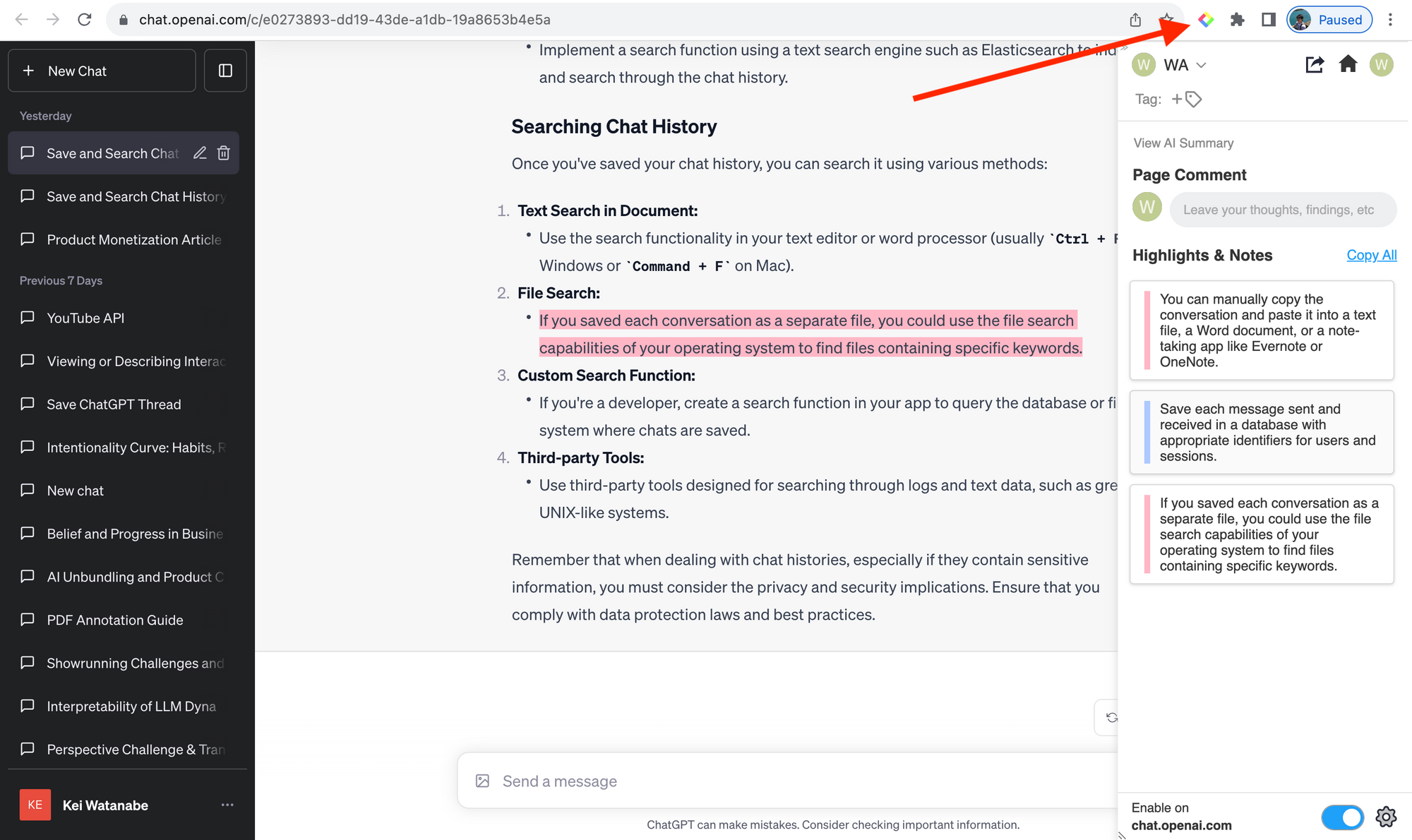
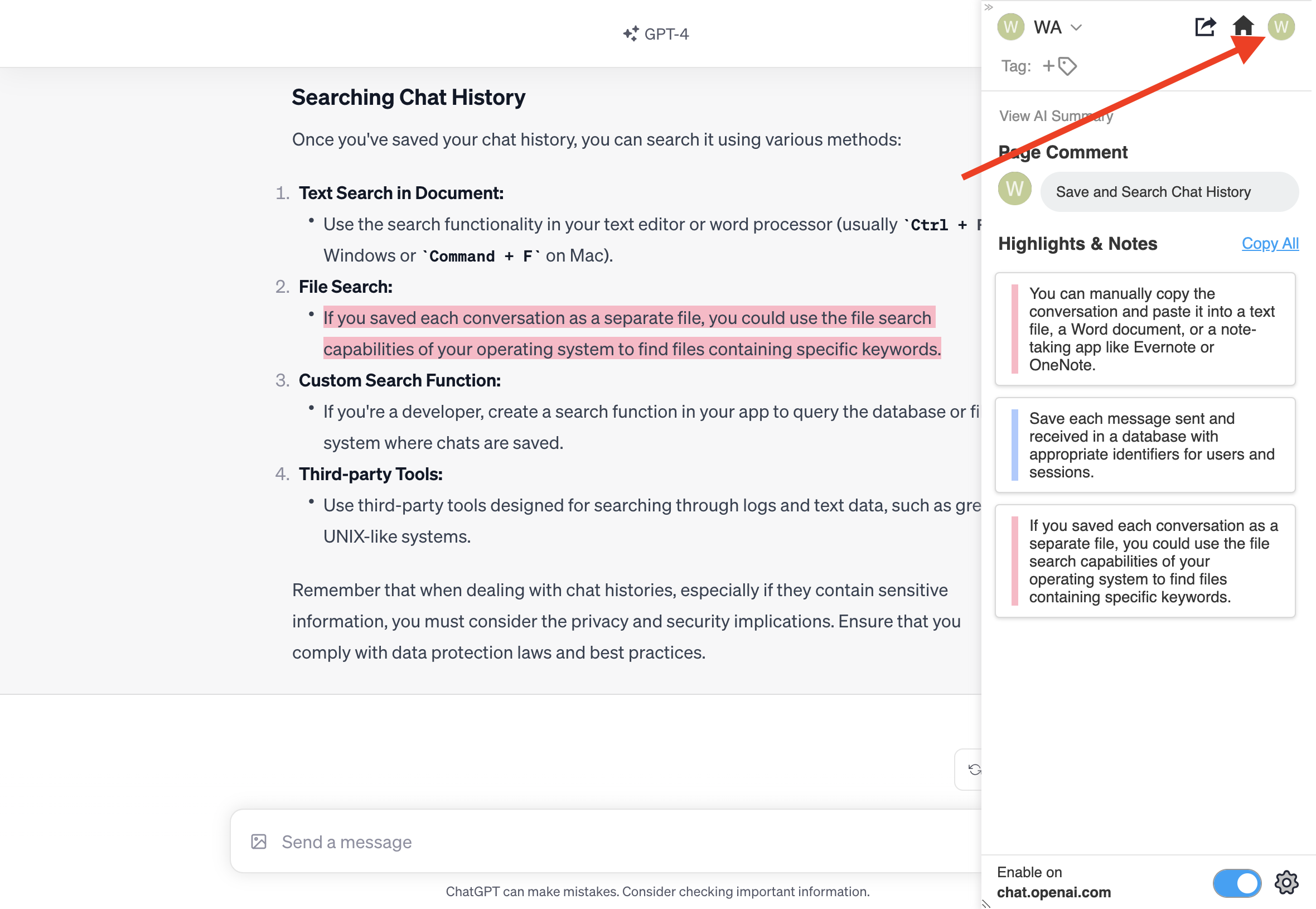
Step 5: Go to your profile page
Please click your profile icon in the sidebar at the top right. It takes you to your profile page.
You can see all the past highlights on this page. If you'd like to add a category tag to each chat history for ease of organization, you can do it by typing any term in the Tag section.
You can search for the past chat history by typing the search term in the Search Highlight section at the top.
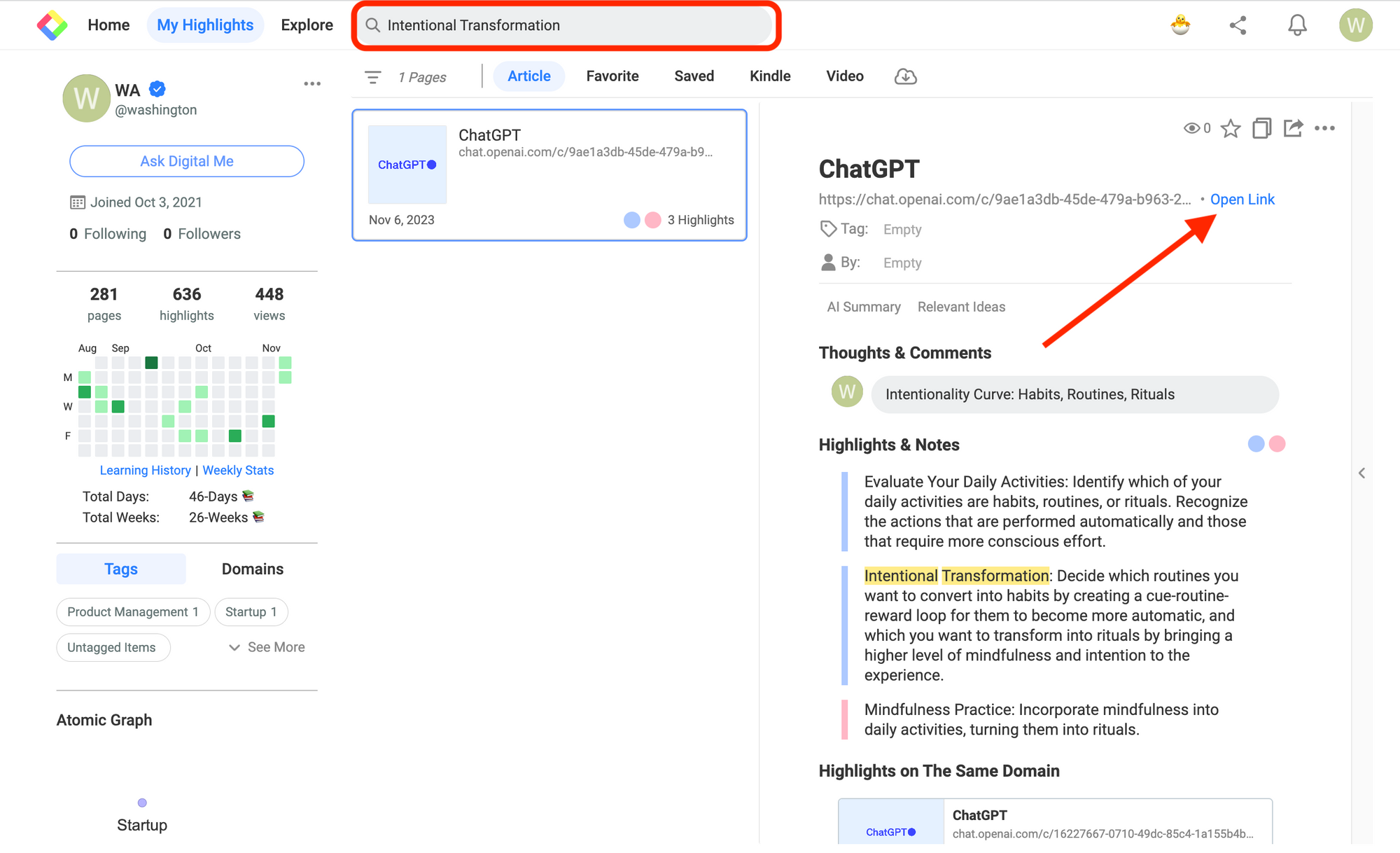
If you click the Open Link text button, you can open this chat history on ChatGPT. It keeps your highlights showing on ChatGPT.
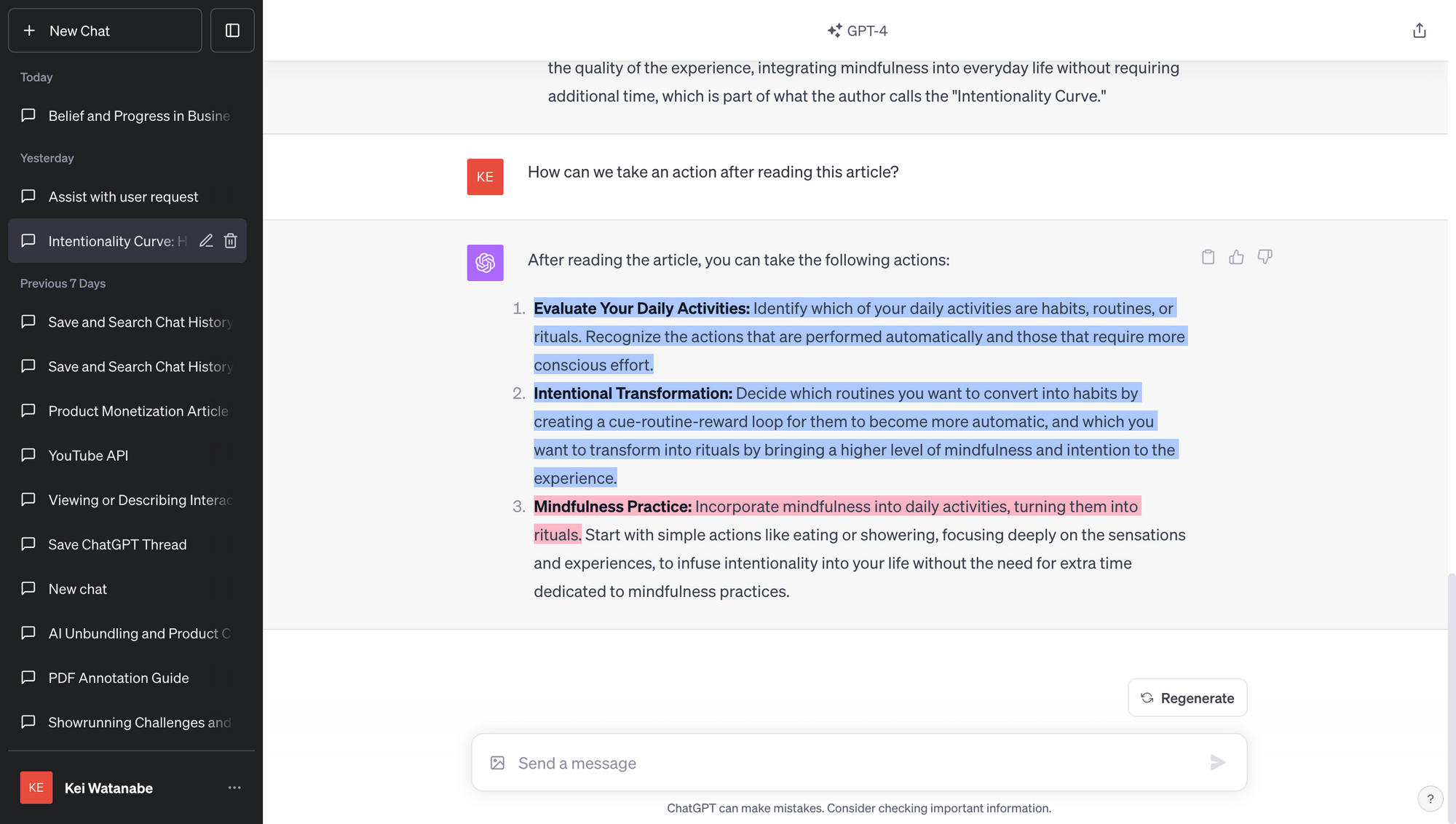
With this feature, you can keep and search for what you asked to ChatGPT. Losing past prompts and chat history is one of the issues current ChatGPT has, but you can solve it with Glasp.
FAQs
Q. Can I save ChatGPT conversations automatically with Glasp?
Currently, you highlight the parts you want to save manually with the Glasp extension. This gives you control over what’s worth keeping.
Q. Is there a way to search across all my past ChatGPT conversations?
Yes. Once saved with Glasp, your chat highlights are searchable on your profile page, making it easy to find any past answer by keyword.
Q. Can I organize my ChatGPT highlights by topic?
Absolutely. You can add tags to each saved chat highlight, helping you group prompts and responses by subject (e.g., productivity, coding, marketing).
Q. Are my saved ChatGPT highlights public or private?
It’s all private, no one can see your chat history with ChatGPT.
Q. Can I open the original ChatGPT chat from my Glasp highlights?
Yes. Each highlight links back to the original ChatGPT conversation, so you can revisit the exact context anytime.
Before you leave
If you have any questions, please refer to the FAQ or contact us.
👉 FAQs
👉 X
See you next time,
Glasp team