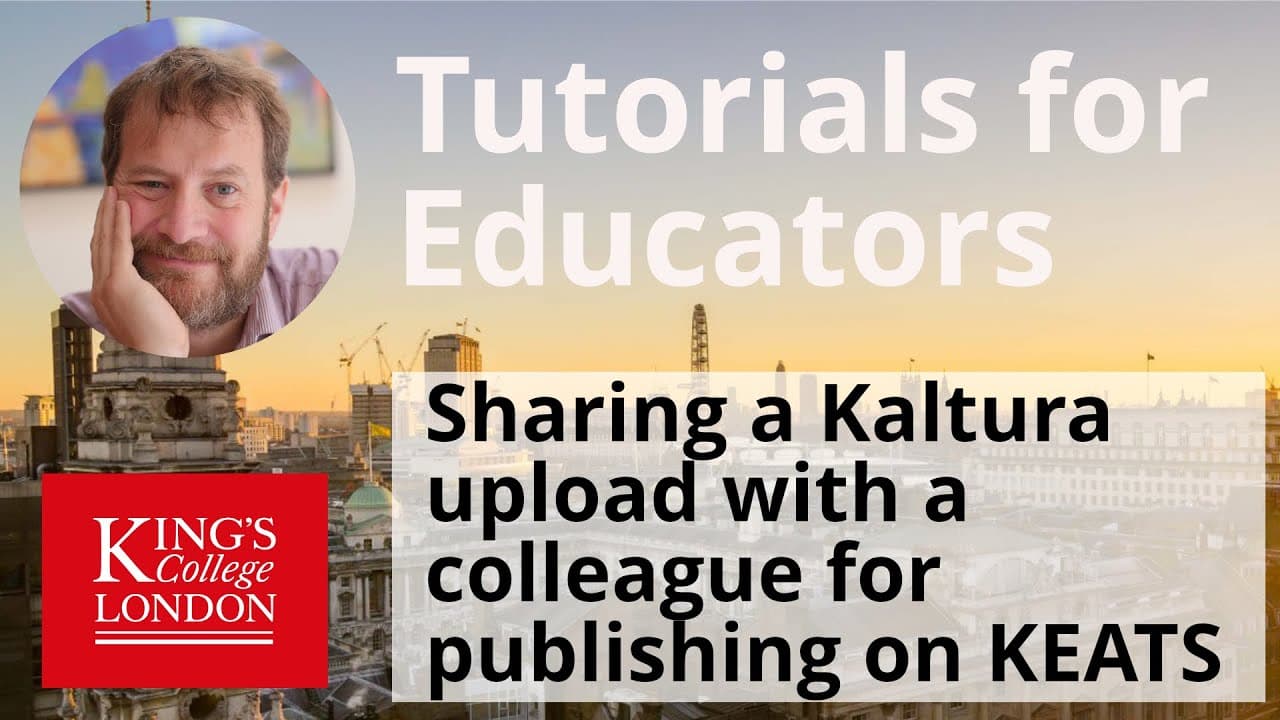
Allowing another user to edit, view or publish media you have uploaded to Kaltura/My Media
TL;DR
Learn how to share and collaborate on Kaltura uploads with colleagues to edit, publish, or review content easily.
Transcript
hello i'm james clark from the department of physiology at king's college london and in this short tutorial i'm going to show you how you can share one of your uploads from the kaltura or my media site with other colleagues so they are able to then publish edit or review those documents if you have uploaded a video to your kaltura site you may not ... Read More
Key Insights
- 👻 Collaboration on Kaltura allows for seamless sharing and editing of video content.
- 👷 Assigning permissions like co-editor, co-publisher, or co-viewer offers flexibility in collaborative work.
- 📟 Sharing Kaltura uploads with colleagues simplifies the process of publishing content on Keats pages.
- ❓ Kaltura collaboration feature streamlines teamwork and content management.
- 👤 Easy steps guide users on how to add collaborators and assign permissions on Kaltura.
- 🎮 Empowering colleagues to collaborate on Kaltura videos enhances workflow efficiency.
- 🎮 Editing permissions in Kaltura allow for control over who can make changes to video content.
Install to Summarize YouTube Videos and Get Transcripts
Explore YouTube Video Summarizer or Get YouTube Transcript Extractor
Questions & Answers
Q: How can you share a Kaltura video with a colleague?
To share a Kaltura video with a colleague, click on the collaboration button, add the colleague's name or Kings ID, and assign permissions like co-publisher, co-editor, or co-viewer.
Q: What permissions can you assign to a collaborator on Kaltura?
You can assign permissions like co-publisher, co-editor, or co-viewer to a collaborator on Kaltura, allowing them to publish, edit, or view the video content accordingly.
Q: Can you change the permissions for a collaborator on Kaltura?
Yes, you can change the permissions for a collaborator on Kaltura by clicking on the pen icon next to their name, adjusting the permissions, and saving the changes accordingly.
Q: How can you remove a collaborator's access to a Kaltura video?
To remove a collaborator's access to a Kaltura video, click on the cross button next to their name in the collaboration window, which will revoke their permissions to edit, publish, or view the content.
Summary & Key Takeaways
-
Sharing Kaltura uploads with colleagues allows for easy editing, publishing, or reviewing of content.
-
Collaboration function in Kaltura allows you to add collaborators and assign permissions like co-editor, co-publisher, or co-viewer.
-
By following simple steps, you can empower colleagues to work on and publish your Kaltura videos on Keats pages.
Read in Other Languages (beta)
Share This Summary 📚
Summarize YouTube Videos and Get Video Transcripts with 1-Click
Try YouTube Summary with ChatGPT & Claude or YouTube Transcript Generator
Explore More Summaries from Dory Video 📚


Summarize YouTube Videos and Get Video Transcripts with 1-Click
Try YouTube Summary with ChatGPT & Claude or YouTube Transcript Generator