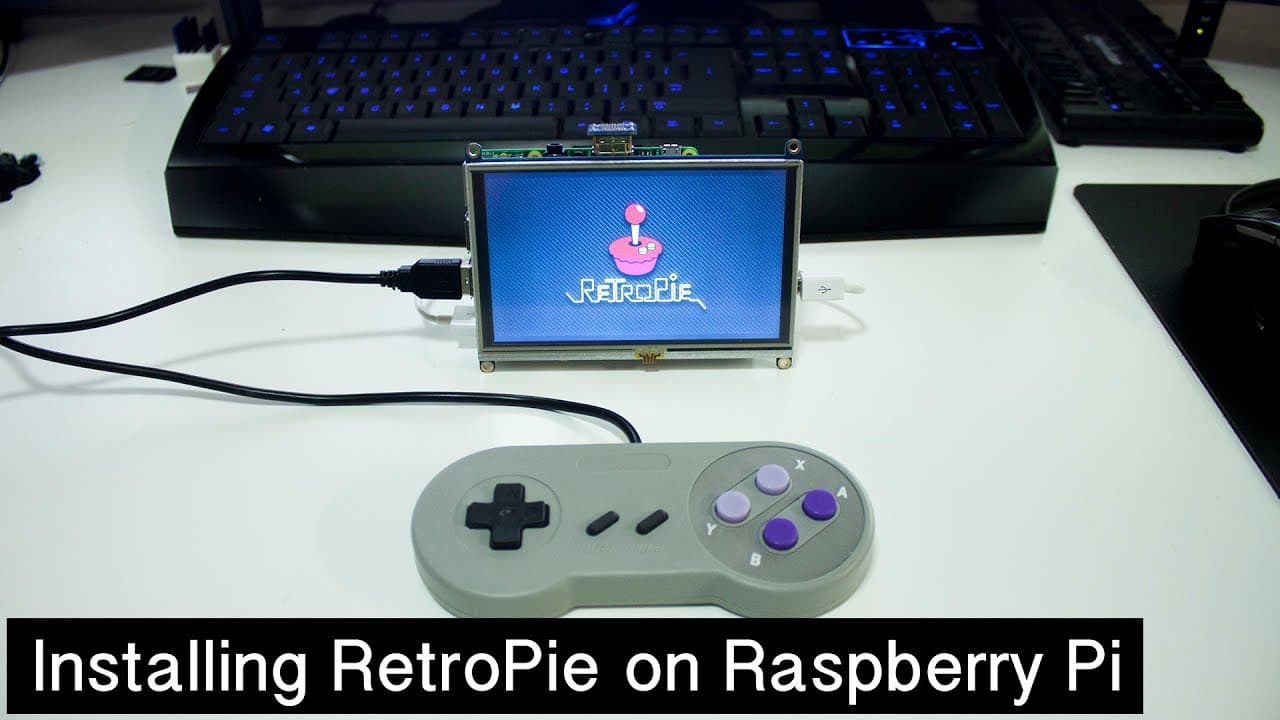
How to install RetroPie on Raspberry Pi
TL;DR
A comprehensive guide to setting up RetroPie on Raspberry Pi for classic gaming.
Transcript
hey guys what's going on down here from Nova spirit Tech and today we are going to be doing the most requested video on my channel which is going retro we're going to be getting a Raspberry Pi to play Super Nintendo or NES or n64 PlayStation using an image called retro pie so let's get started so before we begin I'm actually going to be installing ... Read More
Key Insights
- 📼 The video provides an extensive overview on setting up RetroPie on a Raspberry Pi 3, maximizing accessibility for users interested in retro gaming.
- ☠️ It highlights the importance of having the right software tools, such as Win32DiskImager for Windows or ApplePi Baker for Mac, for installing the RetroPie image onto an SD card.
- 🫥 The presenter mentions the frustrations that novice users may experience with complex command-line setups, assuring them that the guide focuses on straightforward methods.
- 👾 By showcasing Mega Man X as a classic game, the presenter connects with viewers who may have shared experiences with retro games, enhancing viewer engagement.
- 😤 The video offers practical tips on file management for ROMs, either through USB or network methods, ensuring that viewers can choose their preferred approach.
- 👾 The guide emphasizes the convenience of RetroPie in bringing together multiple gaming platforms, catering to diverse retro gaming interests.
- 💬 Viewers are encouraged to engage with the content by leaving questions in the comments section, promoting community interaction and support.
Install to Summarize YouTube Videos and Get Transcripts
Explore YouTube Video Summarizer or Get YouTube Transcript Extractor
Questions & Answers
Q: What is RetroPie and what gaming systems does it support?
RetroPie is a software package that allows users to emulate classic gaming systems on devices like the Raspberry Pi. It supports a variety of systems, including Super Nintendo, NES, N64, and PlayStation. This flexibility enables gamers to enjoy nostalgic titles from multiple consoles in one convenient platform.
Q: Why is using a USB thumb drive recommended over network methods for loading ROMs?
A USB thumb drive is recommended because it simplifies the process of transferring ROMs to the RetroPie setup. It eliminates potential connectivity issues or complications that might arise with network methods. Additionally, using USB ensures a faster and more efficient way to load the necessary game files onto the Raspberry Pi.
Q: How do you connect the Raspberry Pi to Wi-Fi, according to the guide?
To connect the Raspberry Pi to Wi-Fi, you navigate to the RetroPie setup menu, select the Wi-Fi option, and enter your network's SSID and password using a keyboard. The setup will then display an IP address, which can be recorded for further actions like accessing the file system from a computer.
Q: What steps are needed to configure the game controller after installing RetroPie?
After the initial boot of RetroPie, users must configure their game controller by pressing buttons to map the controls. Instructions guide users to navigate through input options, where they can assign buttons for actions like start, select, and directions. If certain buttons aren’t available, they can be held for two seconds to unassign them.
Summary & Key Takeaways
-
The video provides a step-by-step guide on how to install RetroPie on a Raspberry Pi 3 to play classic games like Super Nintendo, NES, and PlayStation.
-
It emphasizes using a USB thumb drive for easier ROM loading and explains the necessary software and tools required for the setup process.
-
The presenter also shares tips on controller configuration, network setup, and highlights his favorite game, Mega Man X, for viewers who may be new to retro gaming.
Read in Other Languages (beta)
Share This Summary 📚
Summarize YouTube Videos and Get Video Transcripts with 1-Click
Try YouTube Summary with ChatGPT & Claude or YouTube Transcript Generator
Explore More Summaries from Novaspirit Tech 📚





Summarize YouTube Videos and Get Video Transcripts with 1-Click
Try YouTube Summary with ChatGPT & Claude or YouTube Transcript Generator