How to Copy PDF Text to Google Docs Without Extra Breaks
TL;DR
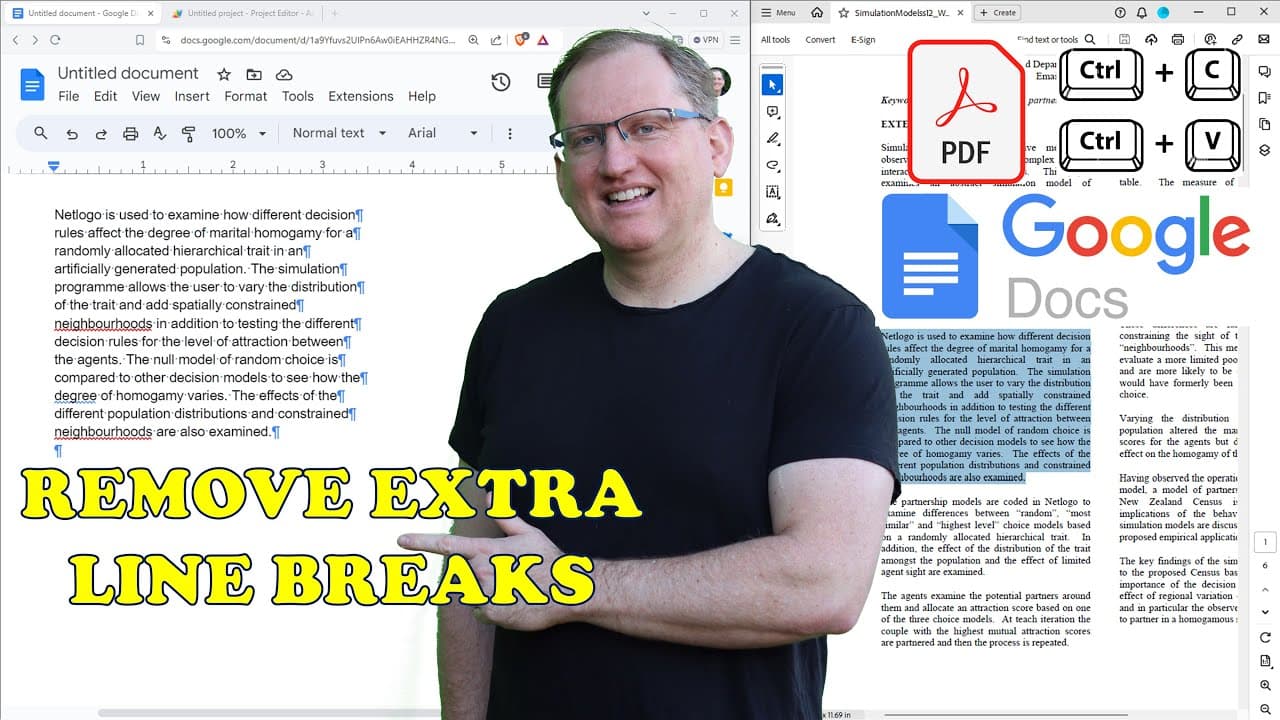
To copy text from a PDF to Google Docs without unwanted line breaks, use the Find and Replace feature with regular expressions. Replace new line characters with spaces, and mark paragraph breaks with a unique symbol before using a script to replace those symbols with proper line breaks. This method streamlines formatting for better document presentation.
Transcript
hey friends welcome back to the channel one of my most popular videos is not about AI or statistics or research it's about copying from PDF into word and dealing with those annoying Carriage returns or new lines that appear recently someone commented on that video asking if I could do the same for Google Docs so let's jump in here we have our PDF w... Read More
Key Insights
- 💁 Copying text from PDF files to Google Docs can introduce unwanted carriage returns, complicating document formatting.
- 👤 Utilizing the "Show nonprinting characters" feature assists users in identifying formatting issues stemming from PDF formatting.
- 😑 Implementing regular expressions in the Find and Replace function allows for precise manipulation of text formatting errors.
- 💁 Establishing markers to signify paragraph breaks facilitates easier text management during formatting corrections.
- 🤝 Automating text adjustments with Google Apps Script can save significant time and enhance workflow for users dealing with lengthy documents.
- 💁 Properly managing document formatting is imperative in maintaining a professional appearance for research papers and presentations.
- 📜 Awareness and skills in text editing can significantly improve document quality and readability for various audiences.
Install to Summarize YouTube Videos and Get Transcripts
Explore YouTube Video Summarizer or Get YouTube Transcript Extractor
Questions & Answers
Q: What common issue arises when copying text from PDF files to Google Docs?
A frequent problem encountered is the presence of numerous unwanted carriage returns or new lines that disrupt the text formatting. These arise from the PDF's original formatting, causing copied text to appear misaligned and messy in Google Docs. Recognizing and addressing these issues can enhance the overall readability and structure of the document.
Q: How can users identify non-printing characters in Google Docs?
Users can identify non-printing characters by selecting "View" and then clicking on "Show nonprinting characters." This option reveals various formatting annotations, including spaces, tabs, and carriage returns that can help diagnose copying issues. By understanding what characters are causing formatting problems, users can take necessary steps to correct them.
Q: What is the significance of using regular expressions in the Find and Replace feature?
Regular expressions allow users to perform more advanced searches than standard text matching. By enabling "Use regular expressions," users can find specific character patterns, such as multiple carriage returns, and replace them efficiently. This significantly simplifies the process of cleaning up text copied from PDFs, saving time and reducing manual errors.
Q: Can you explain the process of replacing carriage returns with a marker before adjusting paragraph breaks?
First, the user replaces single carriage returns with a unique symbol, like "XXX," to indicate paragraph breaks. By doing this before removing single line breaks, users can ensure they don't inadvertently lose paragraph formatting. Once identified, users can easily replace the marker with the desired number of carriage returns or line breaks to maintain proper spacing.
Q: What is the role of an Apps Script in this process?
The Apps Script allows users to automate the replacement of markers with appropriate line breaks in Google Docs. By writing a simple script, users can quickly modify large documents without manually searching and replacing characters. This automated process makes handling lengthy text much more manageable and efficient for users.
Q: How can one deal with extra new lines or spaces after using the Find and Replace tool?
After using Find and Replace, one should review the document for any remaining double spaces or unwanted new lines. If encountered, additional rounds of Find and Replace can be conducted to eliminate these issues. Users should be cautious not to create additional formatting problems during this process and double-check their formatting after editing.
Q: Why is it important to manage text formatting accurately when transferring from PDF to Google Docs?
Proper text formatting ensures the finished document is professional, readable, and aligned with the intended structure. In academic or research contexts, clarity and organization of information are crucial, and poorly formatted text can obscure content and hinder comprehension, making effective formatting an essential skill for users.
Summary & Key Takeaways
-
Many users face issues when copying text from PDF files to Google Docs, specifically encountering unwanted carriage returns or new lines.
-
A solution involves using the Find and Replace function with regular expressions to eliminate these extra characters and correctly format paragraphs.
-
Users can further streamline the process by creating a simple script in Google Docs to automate the replacement of markers with paragraph breaks.
Read in Other Languages (beta)
Share This Summary 📚
Summarize YouTube Videos and Get Video Transcripts with 1-Click
Try YouTube Summary with ChatGPT & Claude or YouTube Transcript Generator
Explore More Summaries from Dr Lyndon Walker 📚



Summarize YouTube Videos and Get Video Transcripts with 1-Click
Try YouTube Summary with ChatGPT & Claude or YouTube Transcript Generator