How To Edit Videos in Canva For Beginners (Step-by-Step)
TL;DR
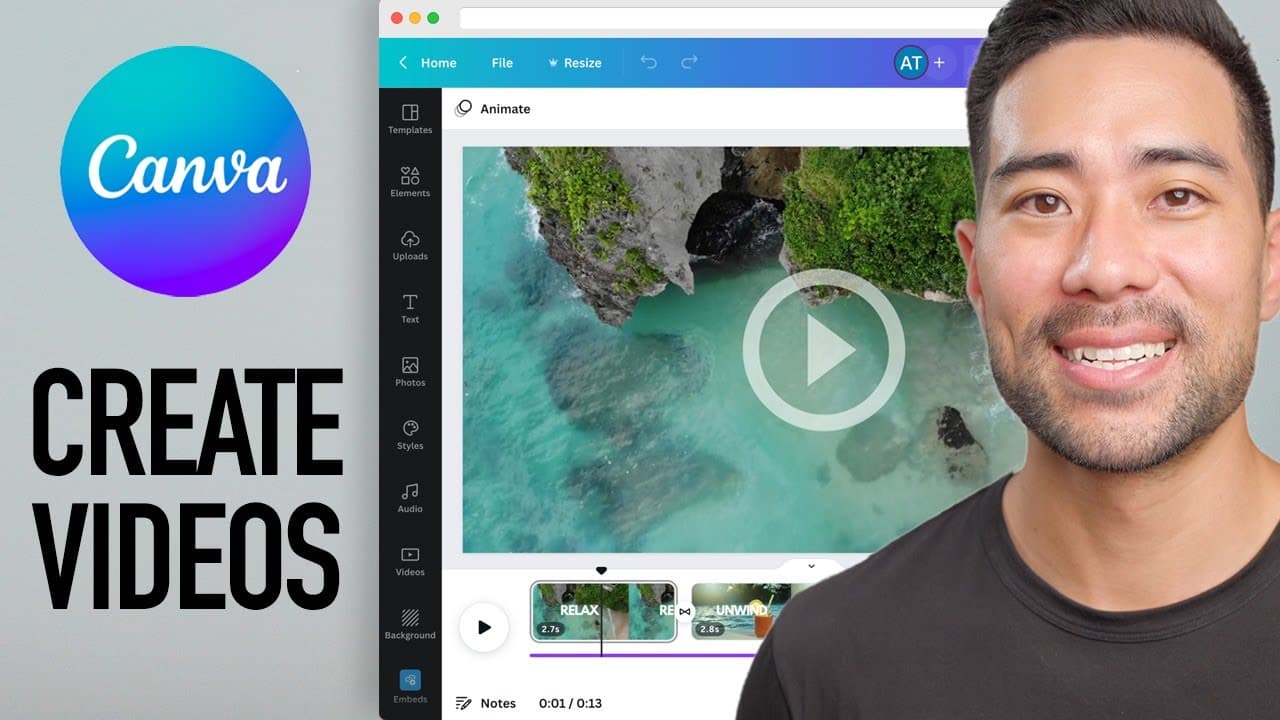
Learn how to edit and create various types of videos using Canva's video editor, including intro videos, product demos, video ads, and presentations.
Transcript
hey it's Aurelius happy doing well did you know with canva you can edit and create videos right inside its designer well in this video I want to teach you the ins and outs of it so that you can master the basics and know how to create all types of videos such as intro videos product demos video ads presentations or whatever it is you're wanting to ... Read More
Key Insights
- 🎮 Canva's video editor is a user-friendly tool that allows for easy editing and creation of videos.
- 🎮 Users can start by creating a new video canvas and then upload their own video clips or choose from Canva's stock footage library.
- 💇 The editor offers features like cutting clips, adding text and effects, and even incorporating music tracks to enhance the videos.
- 🎮 While Canva's video editor has limitations compared to more advanced editing software, it is a great option for simple video editing needs.
- 🎮 Canva's video editor is particularly useful for creating promotional videos, demonstrations, and presentations.
- 👤 Users with a Canva Pro account have access to additional features and resources, including premium stock footage and audio tracks.
- 🎮 Canva's video editor also allows users to adjust the length and speed of their videos, as well as add transitions between clips.
Install to Summarize YouTube Videos and Get Transcripts
Explore YouTube Video Summarizer or Get YouTube Transcript Extractor
Questions & Answers
Q: What is Canva's video editor?
Canva's video editor is a tool that enables users to edit and create videos directly within Canva's design interface.
Q: What types of videos can I create with Canva's video editor?
Canva's video editor allows you to create a wide range of videos, such as intro videos, product demos, video ads, and presentations.
Q: How do I start using Canva's video editor?
Start by creating a new video canvas by clicking on the videos tab and selecting a blank video template. From there, you can upload your own video clips or use Canva's stock footage library.
Q: Can I add text and effects to my videos in Canva?
Yes, you can add text and effects to your videos in Canva's video editor. You can customize the text, adjust its position, and apply various animations to make it more engaging.
Key Insights:
- Canva's video editor is a user-friendly tool that allows for easy editing and creation of videos.
- Users can start by creating a new video canvas and then upload their own video clips or choose from Canva's stock footage library.
- The editor offers features like cutting clips, adding text and effects, and even incorporating music tracks to enhance the videos.
- While Canva's video editor has limitations compared to more advanced editing software, it is a great option for simple video editing needs.
- Canva's video editor is particularly useful for creating promotional videos, demonstrations, and presentations.
- Users with a Canva Pro account have access to additional features and resources, including premium stock footage and audio tracks.
- Canva's video editor also allows users to adjust the length and speed of their videos, as well as add transitions between clips.
- With the ability to edit and create videos directly within Canva, users can save time by not needing to switch between multiple software tools.
Summary & Key Takeaways
-
Canva's video editor allows users to edit and create videos right within its designer interface.
-
To start, create a new video canvas by clicking on videos and then selecting a blank video template.
-
Upload your own video clips or choose from Canva's stock footage library. Adjust the clips, cut them, and add text or effects to customize your video.
Read in Other Languages (beta)
Share This Summary 📚
Summarize YouTube Videos and Get Video Transcripts with 1-Click
Try YouTube Summary with ChatGPT & Claude or YouTube Transcript Generator
Explore More Summaries from Aurelius Tjin 📚

Summarize YouTube Videos and Get Video Transcripts with 1-Click
Try YouTube Summary with ChatGPT & Claude or YouTube Transcript Generator