Low End Tech - Raspberry Pi 2 VPN Server easy way
TL;DR
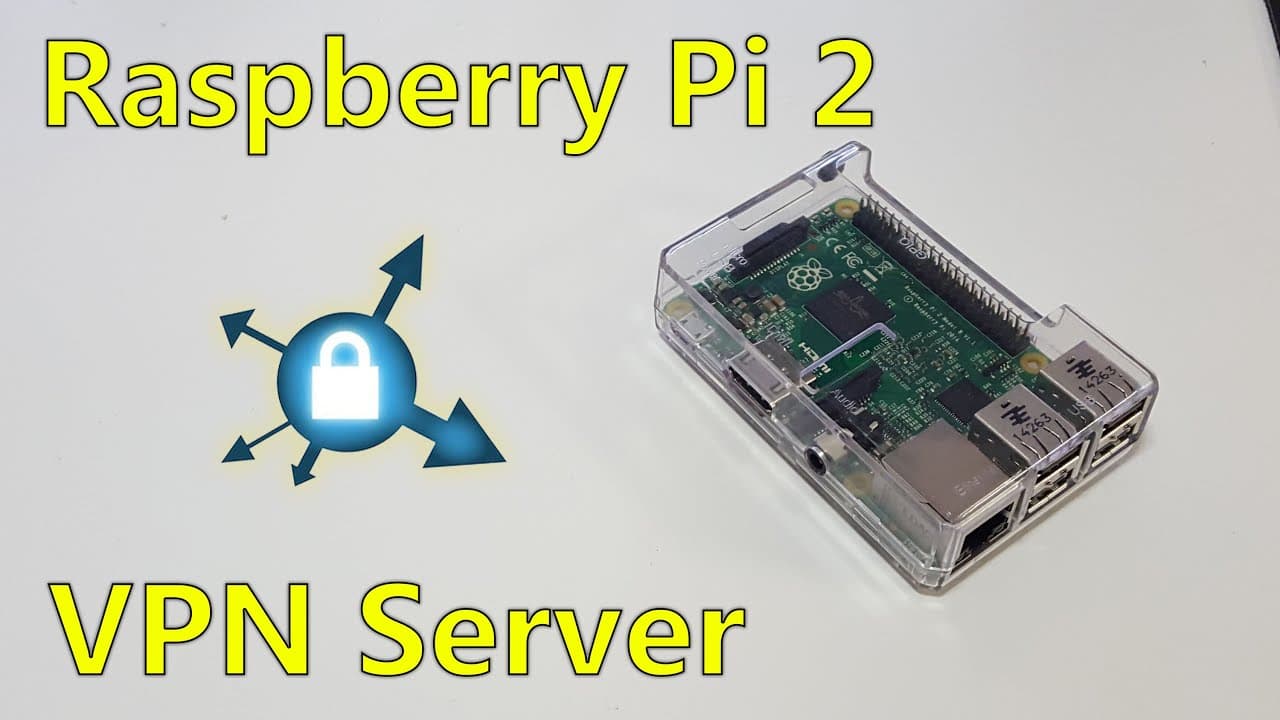
This guide explains how to set up a VPN server on a Raspberry Pi.
Transcript
hey YouTube what's going on it's down here from the always fear and today we're going to be installing VPN service in your Raspberry Pi now what you can't stands for its Virtual Private Network what it does it actually sounds like the name it's a virtual private network now this allows you to connect to this network virtually and use its services i... Read More
Key Insights
- 😫 Setting up a VPN on a Raspberry Pi allows remote access to home networks securely from anywhere in the world.
- 👤 Raspbian OS is preferred for its compatibility and ease of use in Raspberry Pi projects, making setup simpler for users.
- 😘 PPTP is chosen for its simplicity in installation but should be used with caution due to lower security standards compared to other VPN types.
- ❓ Identifying the correct IP address is essential for establishing remote connections and proper VPN functionality.
- 🚙 Port forwarding is necessary for permitting external connections to your Raspberry Pi, requiring router configuration for traffic routing.
- 🫥 Command-line proficiency is crucial when managing Raspberry Pi and VPN installations, as many operations rely on terminal commands.
- 💦 Understanding network protocols is important for optimizing VPN performance and ensuring functions like internet access through a VPN connection work effectively.
Install to Summarize YouTube Videos and Get Transcripts
Explore YouTube Video Summarizer or Get YouTube Transcript Extractor
Questions & Answers
Q: What is a VPN and why would I need one?
A VPN, or Virtual Private Network, provides a secure and encrypted connection over a less secure network, such as the Internet. It allows users to access files, remote desktops, and services securely from any location, making it ideal for accessing home networks or maintaining privacy online.
Q: What operating system is recommended for the Raspberry Pi in this tutorial?
The tutorial recommends using Raspbian as the operating system for the Raspberry Pi. Raspbian is a Debian-based OS optimized for the Raspberry Pi hardware, providing a user-friendly environment and compatibility with various applications.
Q: How can I connect to the VPN after installation?
To connect to the VPN after installation, you can set up a new connection in Windows by right-clicking the network icon, selecting 'Set up a new connection,' then 'Connect to a workplace,' and entering the VPN details, including the IP address and your authentication credentials.
Q: What are the security considerations of using PPTP for VPN?
While PPTP is easier to set up and has broader device compatibility, it is considered less secure than alternatives like OpenVPN. Users must weigh convenience against security needs, particularly if sensitive data is being transmitted through the VPN.
Q: How can I forward ports on my router for VPN?
To forward ports on your router for VPN, you typically need to access your router's settings via a web browser. Look for the port forwarding section and enter the necessary port number (1723 for PPTP) and the local IP address of your Raspberry Pi to enable external connections.
Q: What is the purpose of installing Win32 Disk Imager?
Win32 Disk Imager is needed to transfer the Raspbian operating system image onto an SD card that the Raspberry Pi will use to boot. This program ensures the image is properly written, allowing the Raspberry Pi to function correctly.
Q: What is the function of the command 'sudo apt-get update'?
The command 'sudo apt-get update' is used to refresh the list of available packages and their versions on the system. It retrieves the latest information from the repositories, ensuring that the installation of any new software will be up-to-date.
Q: Why should I avoid using hard-coded credentials in VPN configuration files?
Using hard-coded credentials in VPN configuration files poses security risks as anyone with access to those files can view the sensitive information. It is advisable to implement secure methods, such as encrypting sensitive data or using more secure authentication mechanisms.
Summary & Key Takeaways
-
The tutorial walks through the process of installing a VPN service on a Raspberry Pi using Raspbian OS and PPTP.
-
It discusses the steps to update the system, install required software, and configure the VPN settings for remote access.
-
The video also covers how to connect to the VPN from a Windows computer, including necessary port forwarding configurations.
Read in Other Languages (beta)
Share This Summary 📚
Summarize YouTube Videos and Get Video Transcripts with 1-Click
Try YouTube Summary with ChatGPT & Claude or YouTube Transcript Generator
Explore More Summaries from Novaspirit Tech 📚






Summarize YouTube Videos and Get Video Transcripts with 1-Click
Try YouTube Summary with ChatGPT & Claude or YouTube Transcript Generator