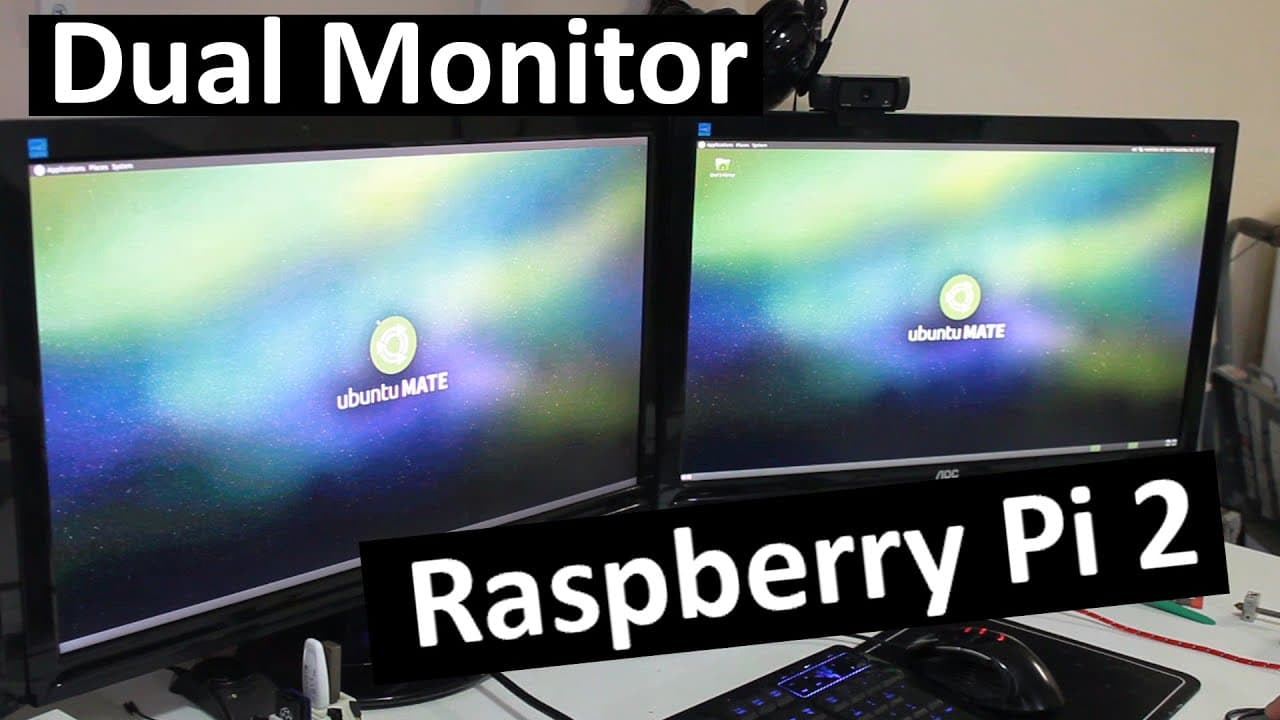
How to Set Up Dual Monitors on Raspberry Pi with Ubuntu MATE
TL;DR
To set up dual monitors on a Raspberry Pi using Ubuntu MATE, install essential packages like 'git' and 'BC', then compile the Linux kernel with necessary configurations for dual-display support. Modify the Xorg configuration file to specify monitor settings and reboot the device to activate the setup.
Transcript
hey guys what's going on it's down here from Nova spirit Tech and if you see my previous videos on installing Ubuntu mate on the Raspberry Pi one of the things that was missing from a desktop installation is a multi-monitor setup so today we're going to be compiling some kernels loading up some modules and getting multi-monitor setup for our Raspbe... Read More
Key Insights
- 🔨 Installing important development tools like 'git' and 'BC' is essential before starting kernel compilation.
- 💯 Compiling the kernel on a Raspberry Pi 4 is expedited due to its improved quad-core architecture.
- 📁 Understanding and configuring the Xorg config file is necessary for successfully implementing a dual-monitor setup.
- 🪛 Ensuring compatibility between drivers used for different monitors can prevent technical issues during setup.
- 🫵 Community interaction encourages content creation, demonstrating the importance of viewer engagement for content creators.
- 👀 Performance expectations, including watching out for limited color depth on monitors, should be communicated to users.
- 🛟 The video serves as a resource not just for the immediate task but as a reference for future projects or configurations.
Install to Summarize YouTube Videos and Get Transcripts
Explore YouTube Video Summarizer or Get YouTube Transcript Extractor
Questions & Answers
Q: What hardware or devices do I need for a multi-monitor setup on Raspberry Pi?
To set up a multi-monitor configuration on Raspberry Pi, you will need an additional output source, such as a display link adapter. These adapters are affordable and versatile, allowing connections to various devices, including computers and Macs. Ensuring you have the right cables and adapters is crucial for a successful setup.
Q: What software installations are necessary before configuring the dual monitors on Raspberry Pi?
Prior to configuring dual monitors, essential software packages must be installed, including 'git' for version control and 'BC' for calculating benchmarks during kernel compilation. Additionally, installing the necessary libraries for graphics support, such as 'lib and curse,' is required to manage the kernel configuration effectively.
Q: How long does it take to compile the kernel for the multi-monitor setup?
Compiling the kernel for dual-monitor support on a Raspberry Pi may take significantly less time compared to older models. On the Raspberry Pi 4, it can take about an hour with four cores, whereas earlier models could take four hours. This efficiency is due to the improved hardware capabilities of the newer Raspberry Pi versions.
Q: Why is it important to configure the Xorg config file?
The Xorg config file identifies the connected monitors and type of drivers used. Proper configuration allows the system to recognize that dual monitors are present, enabling seamless operation between them. Without this, the system may only recognize one monitor or fail to utilize the display link adapter properly.
Q: What changes need to be made to the module blacklist for display link?
To enable the use of the display link driver, you must edit the module blacklist file by commenting out the line that blacklists the display link frame buffer. This action ensures that your system can utilize the display link and properly integrate it into the multi-monitor setup.
Q: What performance issues might arise with a dual-monitor setup on Raspberry Pi?
When using a dual-monitor setup with a display link, one common issue is reduced color depth, particularly the display link monitor running at 16-bit color instead of 24-bit. This difference can affect visual quality and performance, especially during intensive graphical applications, which is something to be mindful of.
Summary & Key Takeaways
-
The video guides viewers through compiling a kernel for Ubuntu MATE on Raspberry Pi to enable multi-monitor setup, focusing on necessary software installations and configurations.
-
Step-by-step instructions include using display links, modifying the Xorg configuration file, and compiling the Linux source for the dual-screen feature.
-
Tips are given on performance expectations during kernel compilation, mentions potential issues with different drivers, and encourages community interaction for future content ideas.
Read in Other Languages (beta)
Share This Summary 📚
Summarize YouTube Videos and Get Video Transcripts with 1-Click
Try YouTube Summary with ChatGPT & Claude or YouTube Transcript Generator
Explore More Summaries from Novaspirit Tech 📚





Summarize YouTube Videos and Get Video Transcripts with 1-Click
Try YouTube Summary with ChatGPT & Claude or YouTube Transcript Generator