How to Install and Use the Retro Common Desktop Environment
TL;DR
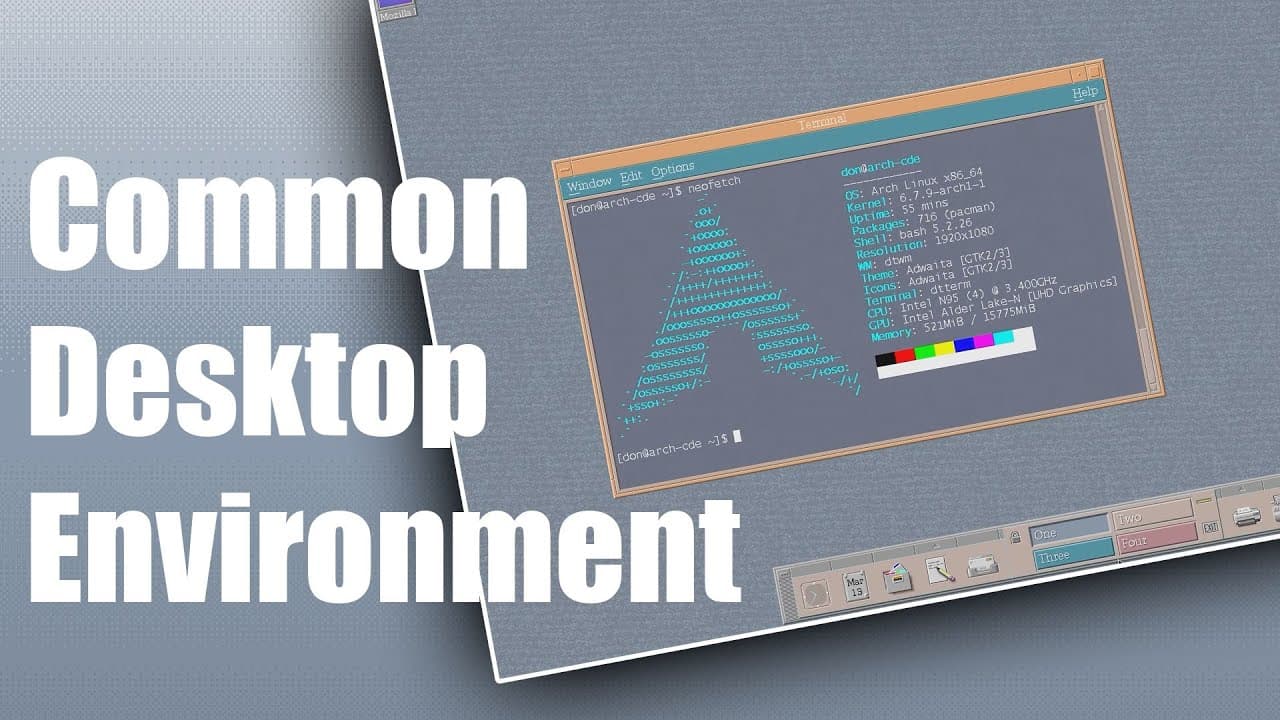
To install the Common Desktop Environment (CDE) on Arch Linux, compile it from source, ensuring you have the necessary dependencies. Despite its retro appearance, CDE supports modern applications like Firefox but requires manual configuration through terminal commands for tasks such as network settings and application installation.
Transcript
so today I'm going to be showing you guys a desktop environment that is so retro it's beautiful so let's check it out now this desktop environment is actually called common desktop environment and something you do have to compile and I am using this off an arch base so I did compile everything through Aur and it works properly well now it doesn't i... Read More
Key Insights
- 👾 The Common Desktop Environment (CDE) provides a retro aesthetic reminiscent of 1990s operating systems.
- 👤 Users must compile CDE from source, which requires familiarity with terminal operations and dependency management.
- 👻 Despite its outdated look, CDE supports modern applications like Firefox, allowing for contemporary usage.
- 👤 Limited graphical settings in CDE mean users must execute many configurations via terminal commands, reflecting a more traditional computing experience.
- 🖤 CDE lacks a comprehensive task viewer and modern UI conveniences, which may frustrate new users expecting contemporary desktop functionalities.
- 👤 Users can customize certain aspects like color schemes and fonts, but changes require session restarts, which can be inconvenient.
- 💻 The desktop style promotes a hands-on approach to computing that experienced users may find nostalgic and refreshing.
Install to Summarize YouTube Videos and Get Transcripts
Explore YouTube Video Summarizer or Get YouTube Transcript Extractor
Questions & Answers
Q: What is the Common Desktop Environment (CDE)?
The Common Desktop Environment (CDE) is a graphical user interface modeled from classic systems of the past, specifically designed to provide a nostalgic user experience reminiscent of old operating systems from the '90s. It combines retro aesthetics with modern capabilities, allowing for the installation of contemporary applications while preserving the old-school look.
Q: How do you install CDE on an Arch Linux system?
To install CDE on an Arch Linux system, users need to compile it from source using the Arch User Repository (AUR). This involves accessing the terminal, installing necessary dependencies, and following build instructions found on platforms such as SourceForge. It's a hands-on process that not every user may be comfortable with, requiring familiarity with terminal commands.
Q: What are some limitations of using CDE?
CDE presents several limitations, such as a lack of configuration settings through a graphical interface. Users must set network configurations, audio settings, and resolutions using terminal commands. Additionally, not all modern applications may integrate seamlessly into the desktop environment, potentially leading to frustrations when attempting to use missing features or functionalities.
Q: Can you run modern applications on CDE?
Yes, CDE allows users to run modern applications even though the desktop environment itself appears retro. For example, applications like Firefox and LibreOffice can be installed and operated within CDE, offering a contemporary browsing and productivity experience, although the integration may not be as polished as in more modern desktop environments.
Q: How does the desktop environment manage minimized applications?
CDE manages minimized applications through desktop icons that appear whenever a window is minimized. This contrasts modern desktop environments that may feature a taskbar for active applications. Users may find it cumbersome as they must rearrange windows to access minimized apps since there is no dedicated task viewer.
Q: What kind of user experience does CDE offer?
CDE delivers a unique user experience that blends nostalgia with current software capabilities. The environment is simple yet can be limiting in its configurability. Users who appreciate retro design will enjoy the aesthetic, but they must also be comfortable working in a more manual, command-line oriented manner, especially for configurations.
Summary & Key Takeaways
-
The video showcases the Common Desktop Environment (CDE), a retro-looking interface reminiscent of the '90s, running on an Arch Linux base.
-
Users must compile CDE and manually manage applications; the desktop features modern apps despite its vintage aesthetics, creating a unique user experience.
-
The presenter explains the limited configuration options and the reliance on terminal commands for tasks like network setup, emphasizing the blend of nostalgia and functionality.
Read in Other Languages (beta)
Share This Summary 📚
Summarize YouTube Videos and Get Video Transcripts with 1-Click
Try YouTube Summary with ChatGPT & Claude or YouTube Transcript Generator
Explore More Summaries from Novaspirit Tech 📚





Summarize YouTube Videos and Get Video Transcripts with 1-Click
Try YouTube Summary with ChatGPT & Claude or YouTube Transcript Generator