Mac Tips & Tricks You Need to Know
TL;DR
Learn helpful tips and tricks for maximizing your Mac and Mac OS experience, including customizing the dock, utilizing the menu bar, managing windows, using Spotlight, and more.
Transcript
this video is all about tips and tricks for using the mac and Mac OS this video is sponsored by drafts let's get into it let's start by talking about the dock you can move the dock to different sides this can be done by right-clicking on the dock break or going into settings I prefer mine on the left side when moving the cursor along the dock there... Read More
Key Insights
- 📁 Customizing the dock: You can adjust the appearance and behavior of the dock by moving it, changing its magnification effect, scaling it, and even hiding it. Adding folders and customizing their behavior is also possible.
- 🤢 Menu bar features: The menu bar offers access to the notification center, widgets, and control center, allowing you to control various settings and even utilize screen mirroring with Apple TV.
- 💻 Organizing the desktop: You can manage the appearance and organization of your desktop by selecting which devices appear, setting a default folder, adjusting labels, using stacks, and even importing files from your iOS device.
- 🪟 Effective window management: Maximizing windows, utilizing spaces, using third-party apps for snapping, and leveraging full screen and split view modes can greatly enhance window management.
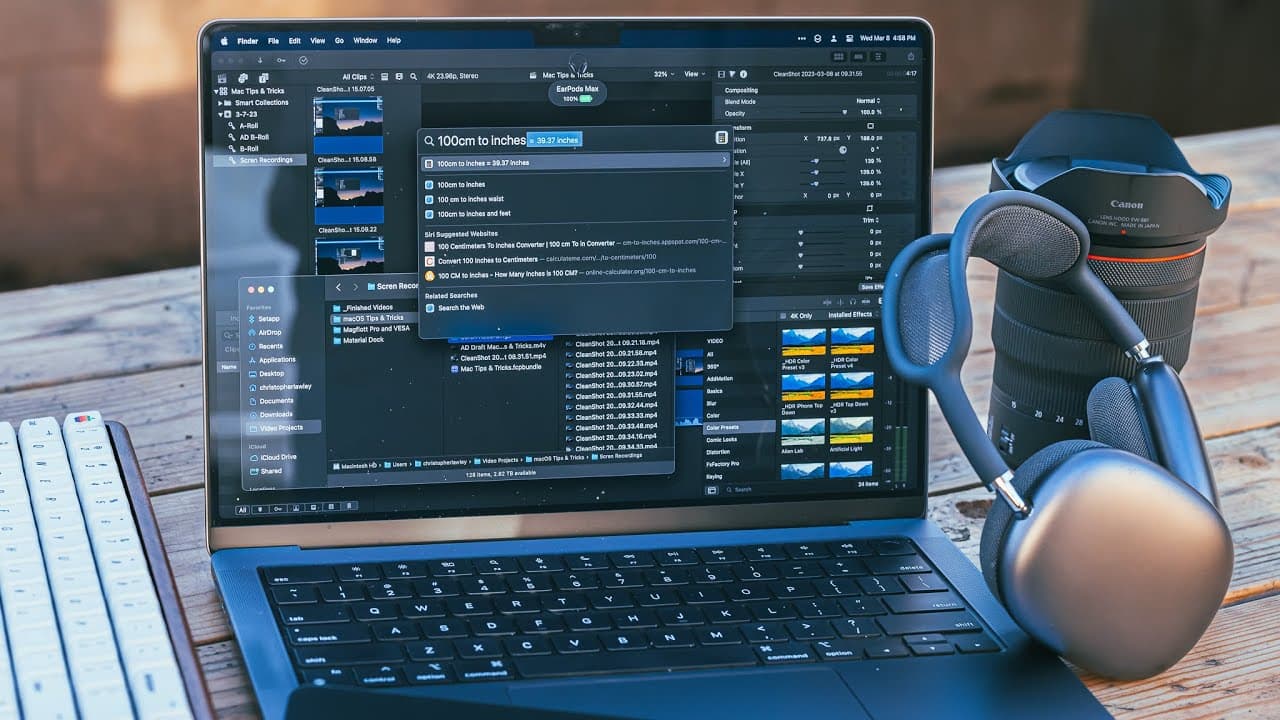
- 📂 Spotlight for quick access: Spotlight is a powerful tool for quickly launching applications, opening files, finding emails, running shortcuts, searching for images, starting timers, calculating, and more.
- 📁 Finder tips: Quick Look allows instant previewing of files, modifying the Finder layout and view options can enhance navigation, tags can be used for organizing files, and Tab support makes navigating Finder easier.
- 🈸 System settings and customization: Explore settings related to Siri, hot corners, keyboard shortcuts, dictation, power saving, Apple Watch integration, default application settings, and built-in apps like QuickTime and Preview.
- 😀 Shortcuts and automation: Learn about running shortcuts from the menu bar, assigning keyboard shortcuts to app actions, using shortcuts in Finder and Services menu, and utilizing shortcuts for recording and camera usage.
Install to Summarize YouTube Videos and Get Transcripts
Explore YouTube Video Summarizer or Get YouTube Transcript Extractor
Questions & Answers
Q: How can I customize the appearance and behavior of my Mac's dock?
To customize the dock, you can move it to different sides, adjust the magnification effect, change the scale, and even hide it. You can also add folders from Finder and customize their preview mode and appearance inside the folders.
Q: What can I do with the menu bar on my Mac?
The menu bar allows you to access the notification center, widgets, and control center. You can enable or disable Wi-Fi, Bluetooth, and other settings, control brightness and volume levels, and even use screen mirroring with Apple TV.
Q: How can I keep my Mac's desktop organized?
You can select which drives and storage devices appear on your desktop, set a default folder for new Finder windows, adjust the position and size of item labels, and use stacks to group similar files together. You can also import files from your iPad or iPhone directly to your desktop.
Q: How can I effectively manage windows on my Mac?
You can maximize windows to make them full screen, utilize spaces to organize different groups of windows, use third-party apps for snapping windows to specific positions, and take advantage of full screen and split view modes for distraction-free working.
Key Insights:
- Customizing the dock: You can adjust the appearance and behavior of the dock by moving it, changing its magnification effect, scaling it, and even hiding it. Adding folders and customizing their behavior is also possible.
- Menu bar features: The menu bar offers access to the notification center, widgets, and control center, allowing you to control various settings and even utilize screen mirroring with Apple TV.
- Organizing the desktop: You can manage the appearance and organization of your desktop by selecting which devices appear, setting a default folder, adjusting labels, using stacks, and even importing files from your iOS device.
- Effective window management: Maximizing windows, utilizing spaces, using third-party apps for snapping, and leveraging full screen and split view modes can greatly enhance window management.
- Spotlight for quick access: Spotlight is a powerful tool for quickly launching applications, opening files, finding emails, running shortcuts, searching for images, starting timers, calculating, and more.
- Finder tips: Quick Look allows instant previewing of files, modifying the Finder layout and view options can enhance navigation, tags can be used for organizing files, and Tab support makes navigating Finder easier.
- System settings and customization: Explore settings related to Siri, hot corners, keyboard shortcuts, dictation, power saving, Apple Watch integration, default application settings, and built-in apps like QuickTime and Preview.
- Shortcuts and automation: Learn about running shortcuts from the menu bar, assigning keyboard shortcuts to app actions, using shortcuts in Finder and Services menu, and utilizing shortcuts for recording and camera usage.
Overall, these tips and tricks offer valuable insights into maximizing your Mac and Mac OS experience, from customization options to efficient window and file management techniques.
Summary & Key Takeaways
-
Customize your dock by moving it to different sides, adjusting its magnification effect, changing its scale, and even hiding it. You can also add folders from Finder to the dock and customize their behavior.
-
Explore the menu bar and its features, such as accessing the notification center and widgets, controlling settings like Wi-Fi and brightness, and utilizing screen mirroring with Apple TV.
-
Keep your desktop organized by selecting which drives and storage devices appear, setting a default folder, adjusting the position and size of item labels, and using stacks to group similar files together.
-
Manage windows effectively by maximizing them, utilizing spaces to organize different groups of windows, using third-party apps for window snapping, and taking advantage of full screen and split view modes.
Read in Other Languages (beta)
Share This Summary 📚
Summarize YouTube Videos and Get Video Transcripts with 1-Click
Try YouTube Summary with ChatGPT & Claude or YouTube Transcript Generator
Explore More Summaries from Christopher Lawley 📚
Summarize YouTube Videos and Get Video Transcripts with 1-Click
Try YouTube Summary with ChatGPT & Claude or YouTube Transcript Generator