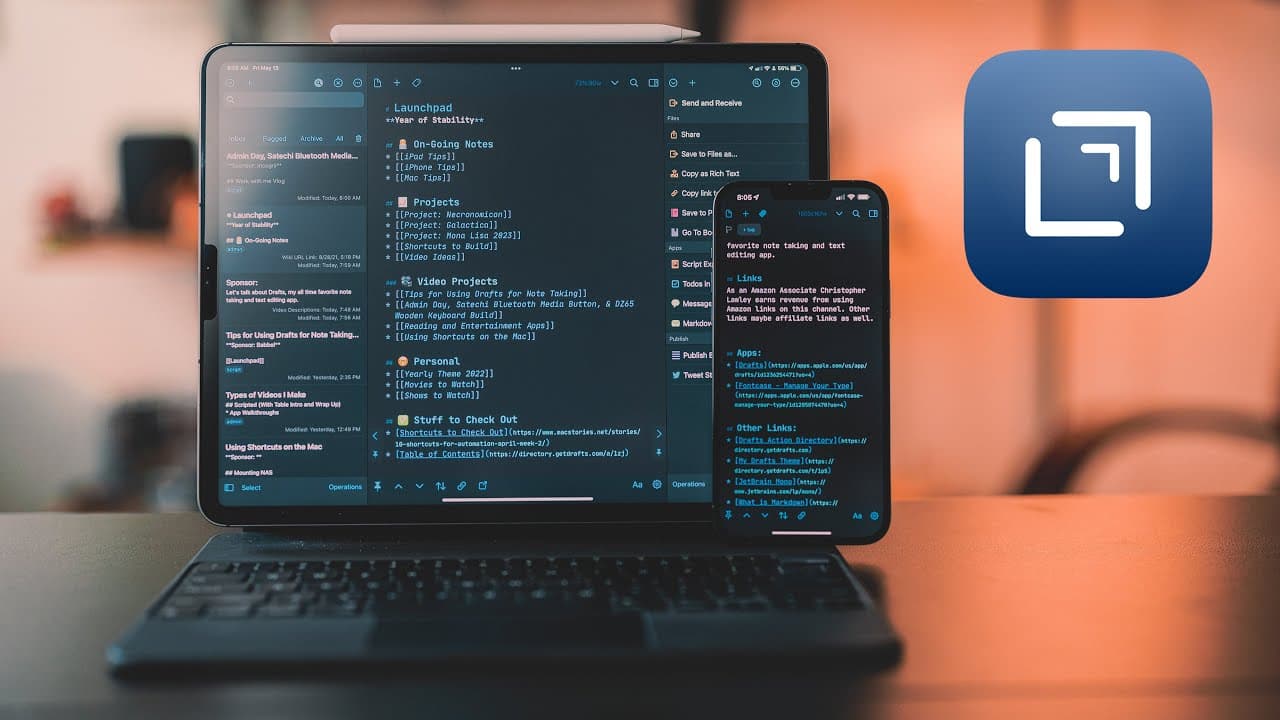
Drafts Tips & Tricks: The Best Note Taking App
TL;DR
Learn how to optimize your use of the Drafts app for quick and efficient writing, automation, and organization.
Transcript
i use the app drafts for all of my writing whether i'm just like taking notes for a meeting or doing some research or writing down like a little text snippet for something i need to save for later or writing a script for a video i do all of my writing in drafts and i've been doing this for years now and over that time i've come up with a ton of tip... Read More
Key Insights
- 📝 Drafts app is quick and easy to use, making it perfect for capturing notes on the go, without the need for extensive organization features.
- 🤖 Drafts has powerful automation support, including built-in actions and compatibility with shortcuts, allowing for efficient and customized workflows.
- 📚 Babel is a language learning app that provides short and interactive lessons, making it suitable for hands-on learners who want to speak a new language.
- 🌍 The narrator's goal is to visit Italy and is using Babel to learn Italian, aiming to speak the language fluently within a few weeks.
- 🖋️ Markdown is a useful tool for quick and formatted plain text writing; it can be exported as rich text or PDFs without formatting issues.
- 🎨 Custom themes and fonts, such as Dark Knight and JetBrains Mono, can be used to personalize the writing experience in Drafts.
- 🔗 Drafts allows users to link different drafts together, creating a convenient way to navigate between related notes or projects. ⏰ Drafts provides quick access to writing with automatic new draft creation, but this feature can be disabled on specific devices, like the iPad, for more focused work.
- 🗃️ Drafts offers tagging and workspaces for organization, allowing users to filter drafts based on specific criteria and quickly find the information they need.
- 🔍 The search feature in Drafts, accessed through the shortcut Command+Shift+F or by pulling down the note section, provides an alternative way to locate specific drafts.
- 🗑️ Drafts offers both archiving and deleting options, with archive for important notes and delete for temporary or one-off snippets.
- 📝 Scribble on the iPad allows users to handwrite notes in Drafts using the Apple Pencil, offering a convenient way to write and convert handwriting to text.
- 🔄 Drafts' version history feature saves different versions of a draft, allowing users to restore previous versions in case of mistakes or lost work.
- 🔢 The "Arrange" feature in Drafts breaks a draft into sections that can be rearranged easily, helping with organization and structuring of text.
- 👁️ Previewing drafts in rich text format can be done by tapping a button, providing a formatted view of the markdown text.
- 🔗 Enabling links makes URLs within drafts selectable, allowing for easy navigation to external websites or apps.
- 🔁 Actions and automation in Drafts are powerful tools for manipulating text, running JavaScript, and integrating with shortcuts, providing customization and efficiency.
- 🤝 The Drafts community and the action directory offer access to user-created actions that can be downloaded and modified to suit individual needs.
- 💡 Drafts has been instrumental in the narrator's personal and professional life, offering an efficient note-taking tool for various purposes.
Install to Summarize YouTube Videos and Get Transcripts
Explore YouTube Video Summarizer or Get YouTube Transcript Extractor
Questions & Answers
Q: How does writing in Markdown format benefit users when using the Drafts app?
Writing in Markdown allows for quick and easy formatting of plain text, making it fast to write and transfer text between different applications without worrying about formatting issues. It also enables the exporting of text as rich text or PDFs, ensuring that the formatting is preserved.
Q: Can you explain how to customize the appearance of drafts and the fonts used?
Drafts offers the ability to customize the appearance through custom themes, which can be downloaded from the Drafts Action Directory. Users can also install third-party fonts using apps like Font Case. By selecting a specific theme and font, users can tailor the app's appearance to their preferences.
Q: What is the benefit of using the linking feature in Drafts?
The linking feature allows users to create clickable links between different drafts, similar to applications like Obsidian and Craft. This is particularly useful for creating a dashboard-like document that organizes different projects or notes in one place. By leveraging this feature, users can easily navigate between drafts and have a comprehensive overview of their work.
Q: How does the quick-entry feature in Drafts make it convenient for users?
Drafts has a quick-entry feature that automatically opens a new draft if the app hasn't been opened in the last 60 seconds. This enables users to quickly jot down ideas or notes while on the go, without the need to navigate through menus or folders. It provides a seamless and efficient writing experience.
Q: What options does Drafts provide for organizing notes?
Drafts offers a tagging system and workspaces for organizing notes. Tags can be associated with different workspaces, acting as filters to display drafts relevant to specific projects or categories. The inbox serves as a catch-all area for untagged drafts. Users can also use the search feature or the spotlight command to quickly find specific drafts.
Q: How does the Archiving and Deleting feature work in Drafts?
Drafts provides both an archive and trash folder. The archive folder is suitable for storing important notes or documents that might be referenced in the future, while the trash folder is used for permanently deleting text snippets or temporary information. This allows users to maintain a clean and organized workspace.
Q: What additional features and capabilities does Drafts offer?
Drafts includes features such as Scribble, which allows for handwriting recognition and conversion to text on compatible devices like the iPad. The app also offers version history, enabling users to review and restore previous versions of their drafts. The arrange feature allows for easy reordering of sections within a draft, providing flexibility in structuring content.
Q: How can users automate tasks and actions within the Drafts app?
Drafts offers an extensive library of actions that can be used to automate tasks and manipulate text. These actions can be customized to suit individual needs and can be integrated with shortcuts for even more advanced automation options. Users can explore the Drafts Action Directory to discover and download actions created by the community.
Summary & Key Takeaways
-
Drafts is a quick and easy app for capturing and saving text, making it ideal for on-the-go note-taking.
-
The app offers powerful automation features, including built-in actions and integration with shortcuts, to streamline your writing process.
-
Custom theme options and font selection allow for personalization, while features like linking drafts and version history enhance organization and productivity.
Read in Other Languages (beta)
Share This Summary 📚
Summarize YouTube Videos and Get Video Transcripts with 1-Click
Try YouTube Summary with ChatGPT & Claude or YouTube Transcript Generator
Explore More Summaries from Christopher Lawley 📚

Summarize YouTube Videos and Get Video Transcripts with 1-Click
Try YouTube Summary with ChatGPT & Claude or YouTube Transcript Generator