How To Insert Rows and Columns In Excel
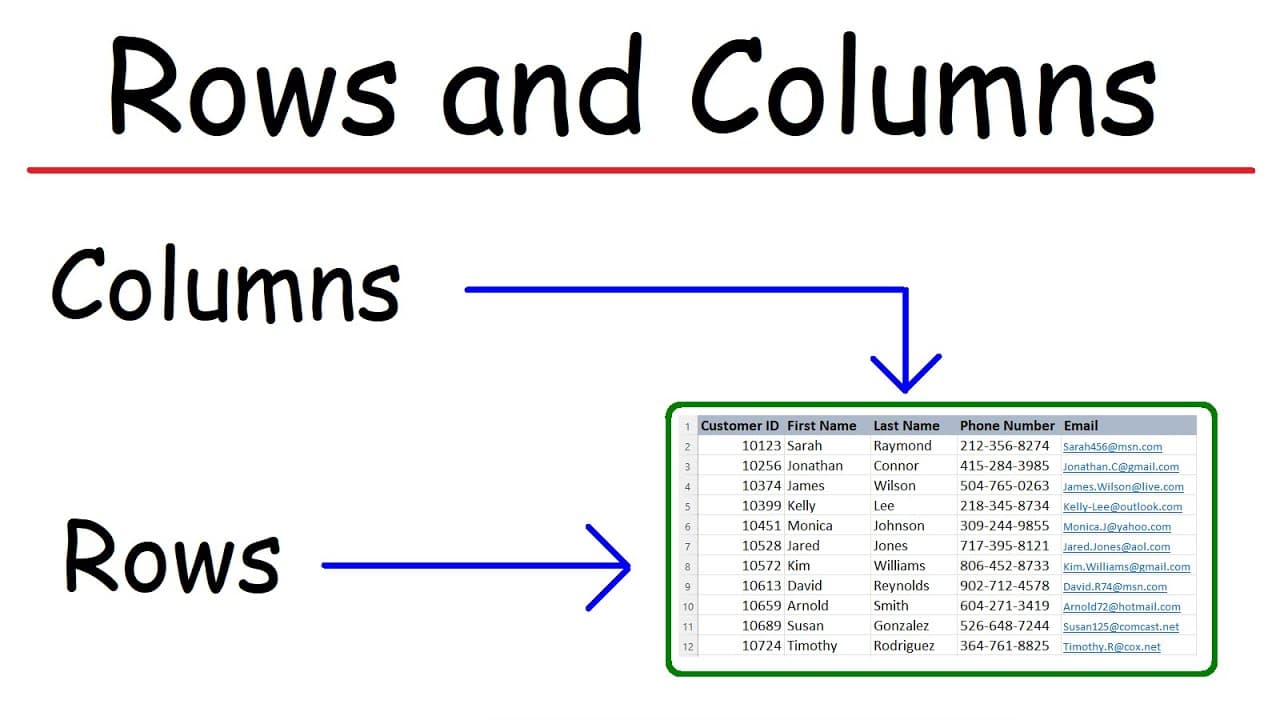
TL;DR
This video explains how to insert rows and columns in Excel, as well as how to move data from one column to another.
Transcript
in this video we're going to talk about how to insert rows and columns in Excel so there's two ways you can do this let's say if you want to insert a row to the left of column C you can highlight column C go to the Home tab click insert and then insert sheet columns this will add a column to the left now let's undo that another way in which you can... Read More
Key Insights
- ↗️ There are two methods to insert rows/columns in Excel: using the Home tab or right-clicking on a cell.
- 🤨 Multiple rows/columns can be inserted simultaneously by selecting the desired number and using either method.
- ⏫ Rows and columns can be adjusted in size by dragging the boundary line or double-clicking it.
- 🤨 Simultaneous adjustment of multiple rows/columns can be achieved by selecting them all before resizing.
- 😒 To move data from one column to another, use the cut and insert functions.
- ↔️ When moving a column, account for the lost column on the left by moving it one unit to the right.
- 💇 It is possible to move multiple columns at once by selecting and cutting them, then inserting them in the desired location.
Install to Summarize YouTube Videos and Get Transcripts
Explore YouTube Video Summarizer or Get YouTube Transcript Extractor
Questions & Answers
Q: How can I insert a row/column in Excel using the Home tab?
To insert a row, highlight the desired column, go to the Home tab, click "insert," and choose "insert sheet rows." For columns, follow the same steps but select "insert sheet columns."
Q: Can I insert a row/column by right-clicking on a cell?
Yes, simply right-click on the selected cell and choose "insert." This will insert a row above the selected row or a column to the left of the selected column.
Q: How can I insert multiple rows/columns simultaneously in Excel?
Highlight the desired number of rows or columns, then either click "insert" in the Home tab or right-click and select "insert." The specified number of rows or columns will be added accordingly.
Q: How do I adjust the size of rows and columns in Excel?
To manually adjust the size, drag the boundary line between columns or rows. To automatically adjust, double-click on the boundary line. Multiple rows or columns can be adjusted simultaneously by selecting them all before resizing.
Summary & Key Takeaways
-
There are two ways to insert a row or column in Excel: either through the Home tab and clicking "insert," or by right-clicking on a selected cell and choosing "insert."
-
To insert multiple rows or columns, select the desired number and use the same methods mentioned above.
-
Rows and columns in Excel can be adjusted in size by dragging the mouse or double-clicking the boundary line. Multiple rows or columns can be adjusted simultaneously.
Read in Other Languages (beta)
Share This Summary 📚
Summarize YouTube Videos and Get Video Transcripts with 1-Click
Try YouTube Summary with ChatGPT & Claude or YouTube Transcript Generator
Explore More Summaries from The Organic Chemistry Tutor 📚






Summarize YouTube Videos and Get Video Transcripts with 1-Click
Try YouTube Summary with ChatGPT & Claude or YouTube Transcript Generator