How To Make a Bar Graph In Excel - VERY EASY!
TL;DR
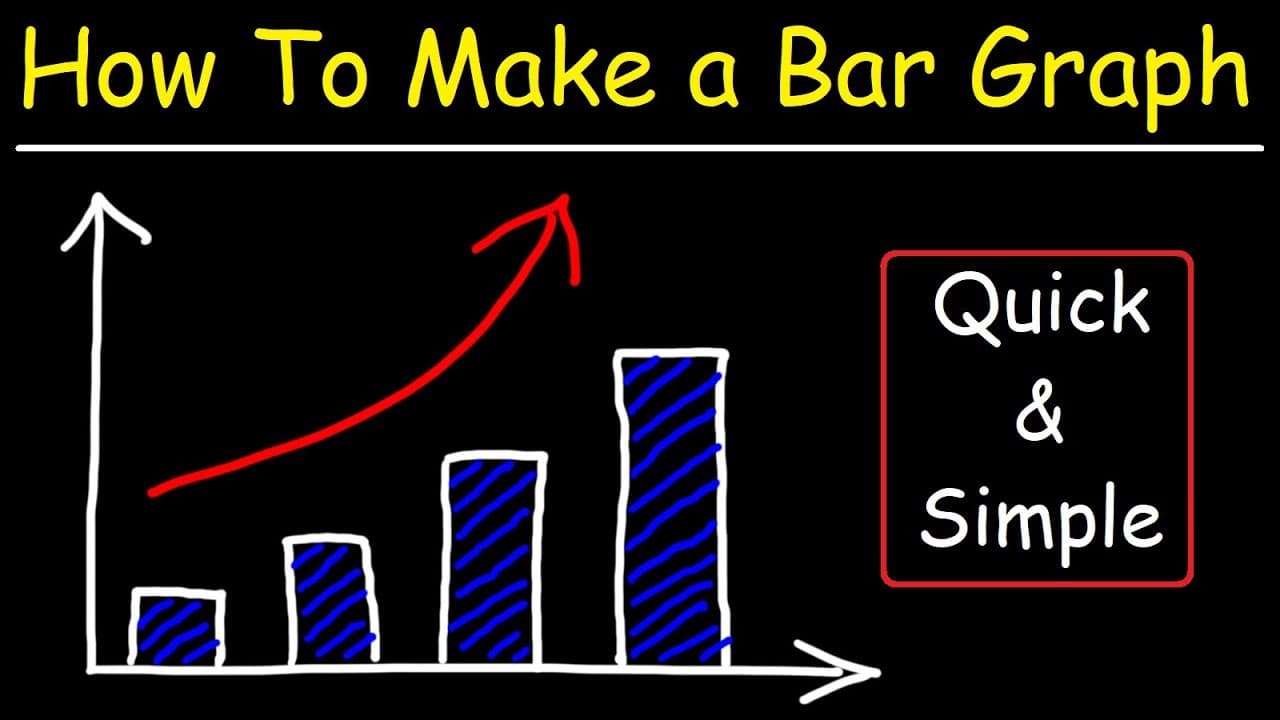
This video tutorial demonstrates how to create a bar graph in Excel, including adding data, customizing the graph, and exploring various options for color, style, and layout.
Transcript
in this video we're going to talk about how to make a simple bar graph in excel so first let's uh expand the width of this column and let's do the same thing here so the first column on the left will be used for the data in the x-axis so i'm going to make this the month and on our y-axis it will be the sales for that month now let's use the first s... Read More
Key Insights
- ❣️ Expanding columns and selecting axes: Before creating a bar graph, make sure to expand the columns for data and choose suitable data for the x and y axes.
- 🉐 Choosing graph type and customization: Excel provides various options for bar graph types and customization, including changing styles, colors, and layouts.
- 🉐 Additional editing options: You can further personalize your bar graph by adjusting text size, adding or removing elements like axes, titles, data labels, and legends.
- 🧡 Exploring color options: If the default color options are not sufficient, you can access a wider range of colors by using the Colors tab in the Page Layout section.
- 🉐 Play around with options: Experimenting with different settings and options in Excel allows for creating unique and customized bar graphs.
- 🉐 Focus on data: Remember to enter accurate and relevant data for your bar graph to represent the desired information effectively.
- 🤢 Use appropriate titles: Adding appropriate titles to your bar graph, such as for the x and y axes, as well as a main title, helps provide context and clarity.
Install to Summarize YouTube Videos and Get Transcripts
Explore YouTube Video Summarizer or Get YouTube Transcript Extractor
Questions & Answers
Q: What should the first column on the left be used for in the bar graph?
The first column on the left should be used for the data on the x-axis, such as the months in this example.
Q: How can I choose and customize a bar graph in Excel?
After selecting the data, go to the Insert tab and click on the bar graph icon. Choose between different types of bar graphs, such as 2D column or 3D. You can also customize the graph's appearance using options like chart styles and colors.
Q: Can I add or remove elements like axes, titles, data labels, and legends in the bar graph?
Yes, you can add or remove axes, axes titles, data labels, and legends by selecting the chart and exploring the chart elements options. Customize their position and appearance according to your preferences.
Q: How can I use different colors for my bar graph?
Excel offers a range of colors to choose from. You can select different colors from the Chart Styles options or go to the Page Layout tab and explore the Colors tab to find more color options for your bar graph.
Summary & Key Takeaways
-
The video explains how to make a bar graph in Excel, starting with expanding columns for data input and selecting the x and y axes.
-
It provides an example of recording sales data for six months and demonstrates how to choose a bar graph type and customize its appearance.
-
The tutorial also covers additional editing options like changing colors, adding axes titles, adjusting text size, and including elements like legends and data labels.
Read in Other Languages (beta)
Share This Summary 📚
Summarize YouTube Videos and Get Video Transcripts with 1-Click
Try YouTube Summary with ChatGPT & Claude or YouTube Transcript Generator
Explore More Summaries from The Organic Chemistry Tutor 📚





Summarize YouTube Videos and Get Video Transcripts with 1-Click
Try YouTube Summary with ChatGPT & Claude or YouTube Transcript Generator