How to Insert and Format Table Captions in Word
TL;DR
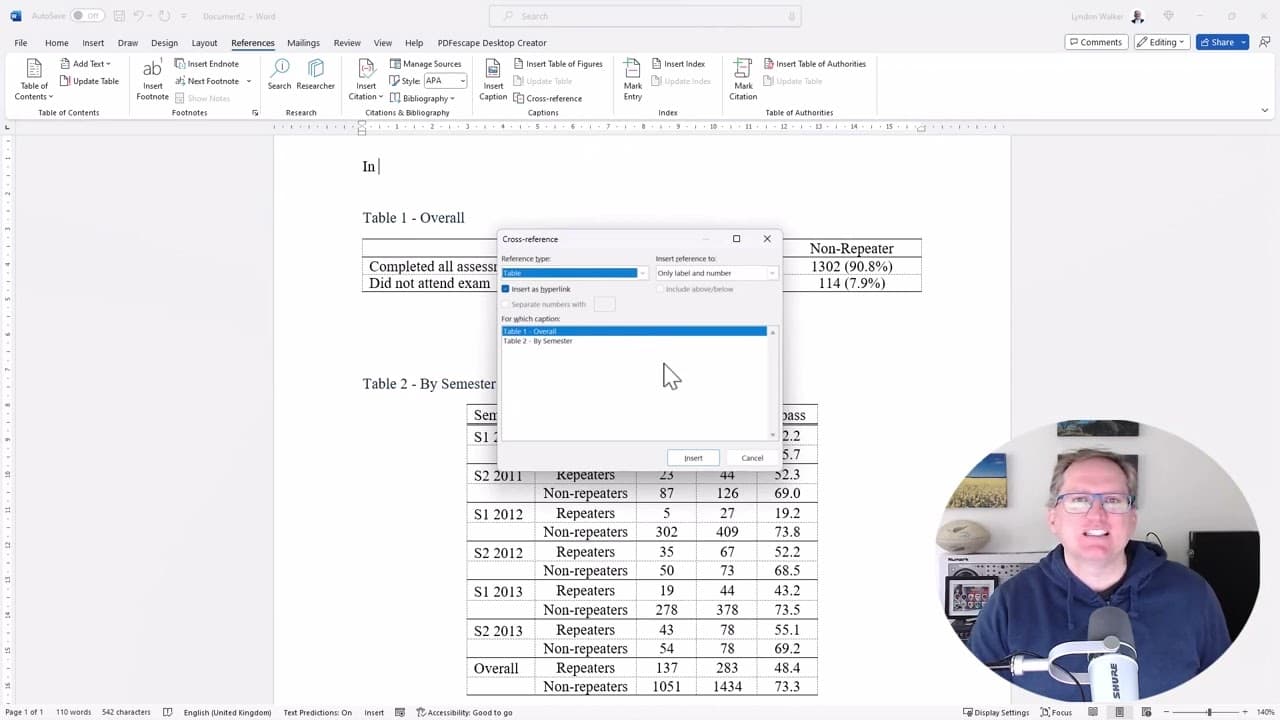
To insert and format table captions in Word, right-click on the table and select 'Insert Caption' to add labels, including optional chapter numbers. Use the 'Cross-reference' feature to link to table numbers dynamically, ensuring they update automatically when tables are moved. Creating a table of figures also helps organize multiple tables and figures for better document navigation.
Transcript
hi friends welcome back to the channel in this video we are going to look at how to apply labels to tables in word and how to use those to be able to reference them in the text and have the table numbers shift as you move things around in word we also be showing you how to add a extra table of contents just for tables everything we're looking at he... Read More
Key Insights
- ✍️ Labeling tables in Word streamlines the referencing process, particularly useful for academic writing and lengthy reports.
- 💁 Users can customize captions with various formatting options to enhance the presentation and readability of their documents.
- 😵 Cross-referencing ensures dynamic updates, eliminating the need for manual adjustments and minimizing errors.
- 🚰 The creation of a table of figures complements documents with multiple tables and figures, enhancing navigability.
- 🧘 Utilizing the fields feature helps in managing variable elements that depend on their position within the document.
- 🌥️ Automating table updates is crucial for maintaining document integrity, especially when revising large texts like theses.
- 👻 Formatting options, including placement above or below the table, allow for flexibility according to document style preferences.
Install to Summarize YouTube Videos and Get Transcripts
Explore YouTube Video Summarizer or Get YouTube Transcript Extractor
Questions & Answers
Q: What is the main purpose of labeling tables in Word?
Labeling tables in Word enhances document organization by allowing users to create references within the text. It helps in maintaining an easily navigable structure, especially in lengthy documents, ensuring that table numbers automatically update when tables are moved, which boosts productivity and clarity.
Q: How do you insert a caption for a table?
To insert a caption for a table, right-click on the top left of the table and select "Insert Caption." A dialog box appears where you can customize the label, title, and position of the caption (above or below the table), allowing for tailored organization within the document.
Q: Can you include chapter numbers in table labels?
Yes, when inserting captions, you have the option to include chapter numbers. If your document is structured by chapters, tick the box for including chapter numbers; this will format the table numbering to reflect the chapter hierarchy, such as 1.1, 1.2 for Chapter 1 and so on.
Q: What feature allows for automatic updates of table labels?
The referencing feature, particularly the use of cross-reference in the References tab, allows for automatic updates of table labels. When tables are moved or new tables are added, numbers adjust automatically, ensuring consistent and accurate referencing throughout the document.
Summary & Key Takeaways
-
The video demonstrates how to insert and format labels for tables in Microsoft Word, allowing easy referencing within the text.
-
Users can include chapter numbers in table labels if required, with options to adjust formatting and placement of captions.
-
Readers will also learn how to create a table of figures for tables and figures, simplifying document updates and organization.
Read in Other Languages (beta)
Share This Summary 📚
Summarize YouTube Videos and Get Video Transcripts with 1-Click
Try YouTube Summary with ChatGPT & Claude or YouTube Transcript Generator
Explore More Summaries from Dr Lyndon Walker 📚





Summarize YouTube Videos and Get Video Transcripts with 1-Click
Try YouTube Summary with ChatGPT & Claude or YouTube Transcript Generator