Edit an Awesome Video on Your iPhone
TL;DR
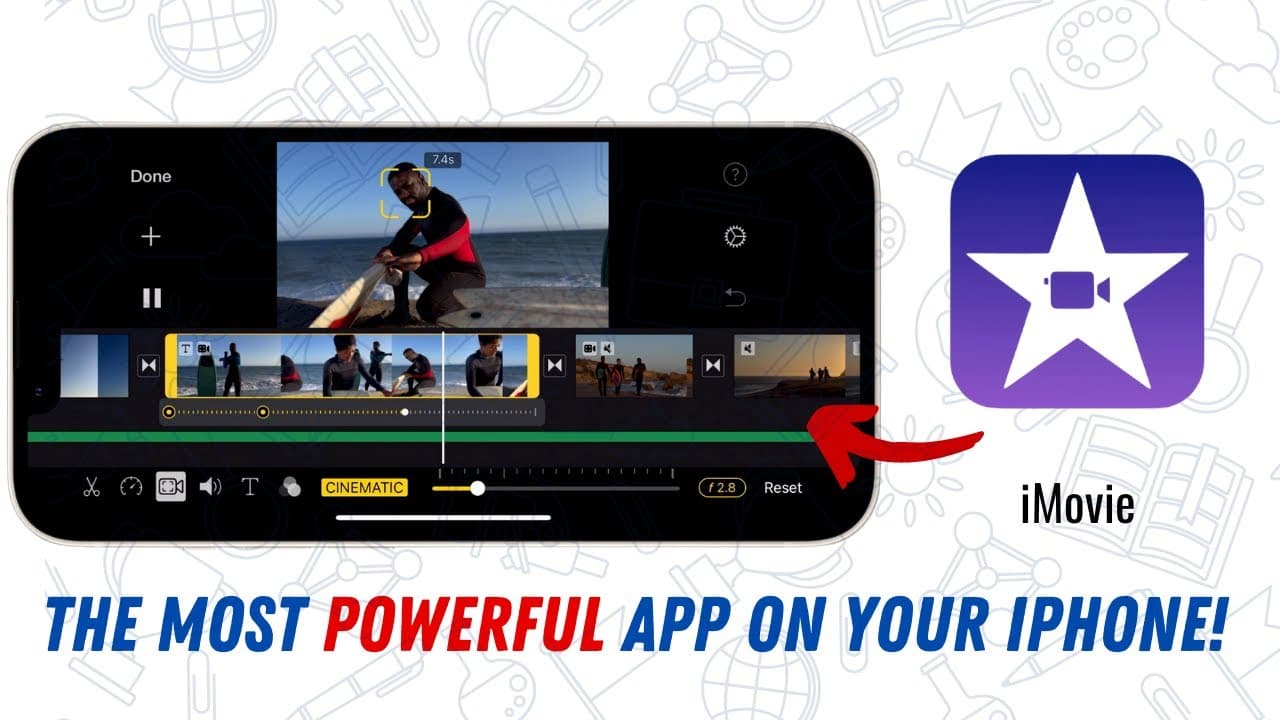
Learn how to edit videos using the native iMovie app on your iPhone, avoiding the need to download and pay for third-party video editing apps.
Transcript
so check this out i've got about five or six different videos that i'd like to use to create a commercial for my soccer camp now what some people will do if they're in this situation is go in the app store and download the first video editing app that comes up you end up having to pay for an app or maybe you get an editor that leaves a really bad w... Read More
Key Insights
- 😀 iPhone users can edit videos without downloading additional apps by using the built-in iMovie app.
- 👻 iMovie allows users to select video clips, trim them, rearrange the order, and add transitions for a smooth flow.
- 🎮 Advanced editing features in iMovie include adding text, voiceover, and background music to enhance the video.
- 😀 The app's user-friendly interface makes it an ideal choice for beginners, although it may have limitations for more advanced video editing needs.
- 😀 Utilizing iMovie can save users both time and money by avoiding the need to purchase third-party video editing apps.
- 😀 The app provides options for precise trimming through reverse pinch zooming and splitting longer clips to remove unwanted sections.
- 🎮 Adding text, voiceover, transitions, and background music can enhance the overall quality and impact of the edited video.
Install to Summarize YouTube Videos and Get Transcripts
Explore YouTube Video Summarizer or Get YouTube Transcript Extractor
Questions & Answers
Q: How can iPhone users edit videos without downloading third-party apps?
iPhone users can utilize the native iMovie app to edit videos, eliminating the need to download and pay for additional apps.
Q: What are the steps to create a new movie project in iMovie?
To start a new movie project in iMovie, open the app, tap the plus button, and choose "Movie." Then select the video clips you want to use and tap "Create Movie."
Q: How can you trim video clips in iMovie?
In iMovie, you can trim video clips by tapping the clip and using the trim tool. Adjust the handles at the beginning and end to shorten the clip, or perform a reverse pinch to zoom in for more precise trimming.
Q: Can you add text, voiceover, and background music to your video in iMovie?
Yes, in iMovie, you can add text by tapping on the clip, selecting the text option, and customizing the text's appearance. You can also record a voiceover and add background music from the available soundtracks.
Summary & Key Takeaways
-
Many people download video editing apps from the app store, but iPhone users can take advantage of the native iMovie app for editing videos.
-
To start editing in iMovie, open the app and create a new movie project. Select the video clips you want to use and tap "Create Movie."
-
Use the trim tool to shorten clips or split longer clips to remove unnecessary sections. Rearrange clips, add transitions, and adjust sound levels. You can also add text, voiceover, and background music.
Read in Other Languages (beta)
Share This Summary 📚
Summarize YouTube Videos and Get Video Transcripts with 1-Click
Try YouTube Summary with ChatGPT & Claude or YouTube Transcript Generator
Explore More Summaries from EdTech Hustle 📚



![Keynote: Remove The Background of Any Photo [Using Instant Alpha] thumbnail](/_next/image?url=https%3A%2F%2Fi.ytimg.com%2Fvi%2F0Ji-uTffzJE%2Fhqdefault.jpg&w=750&q=75)
Summarize YouTube Videos and Get Video Transcripts with 1-Click
Try YouTube Summary with ChatGPT & Claude or YouTube Transcript Generator