Update Glasp Extension Settings

Oct 27, 2026
1 min read
0 views
For Glasp Extension Users:
Click the Glasp icon on your browser (on the right top)
Click "Update Settings" on the sidebar
You can update the settings as you want 🤗
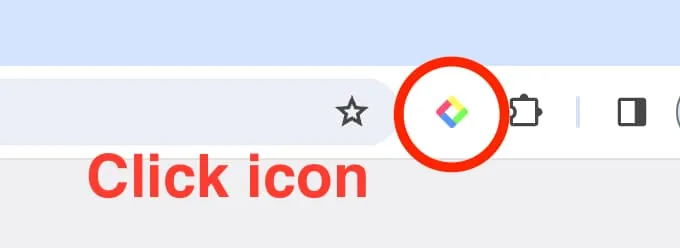
Step 1: Click the Glasp Browser icon on your browser (on the right top)
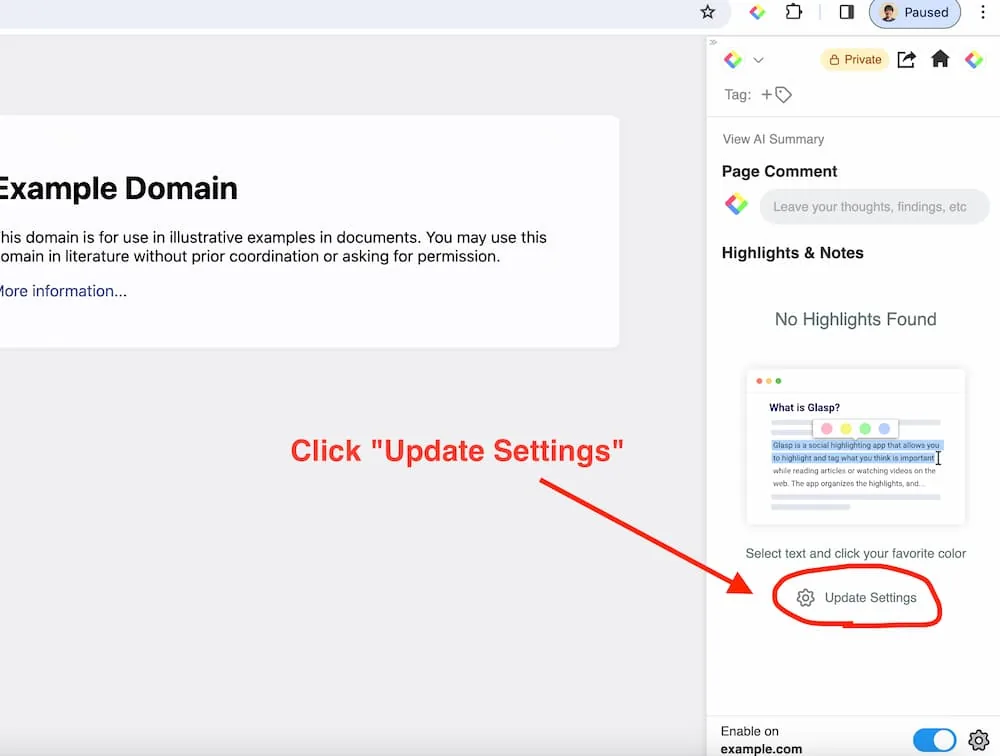
Step 2: Click "Update Settings" on the sidebar
For YouTube Summary Users
Click the YouTube Summary icon on your browser (on the right top)
You can update the settings as you want 🤗
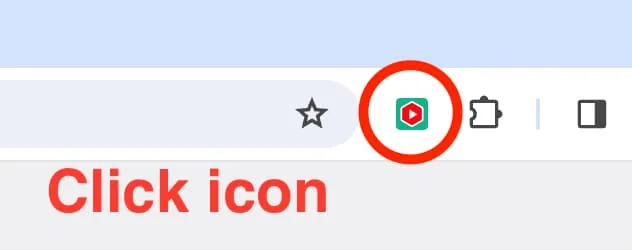
Step 1: Click the YouTube Summary icon on your browser (on the right top)
Extension Settings Navigations
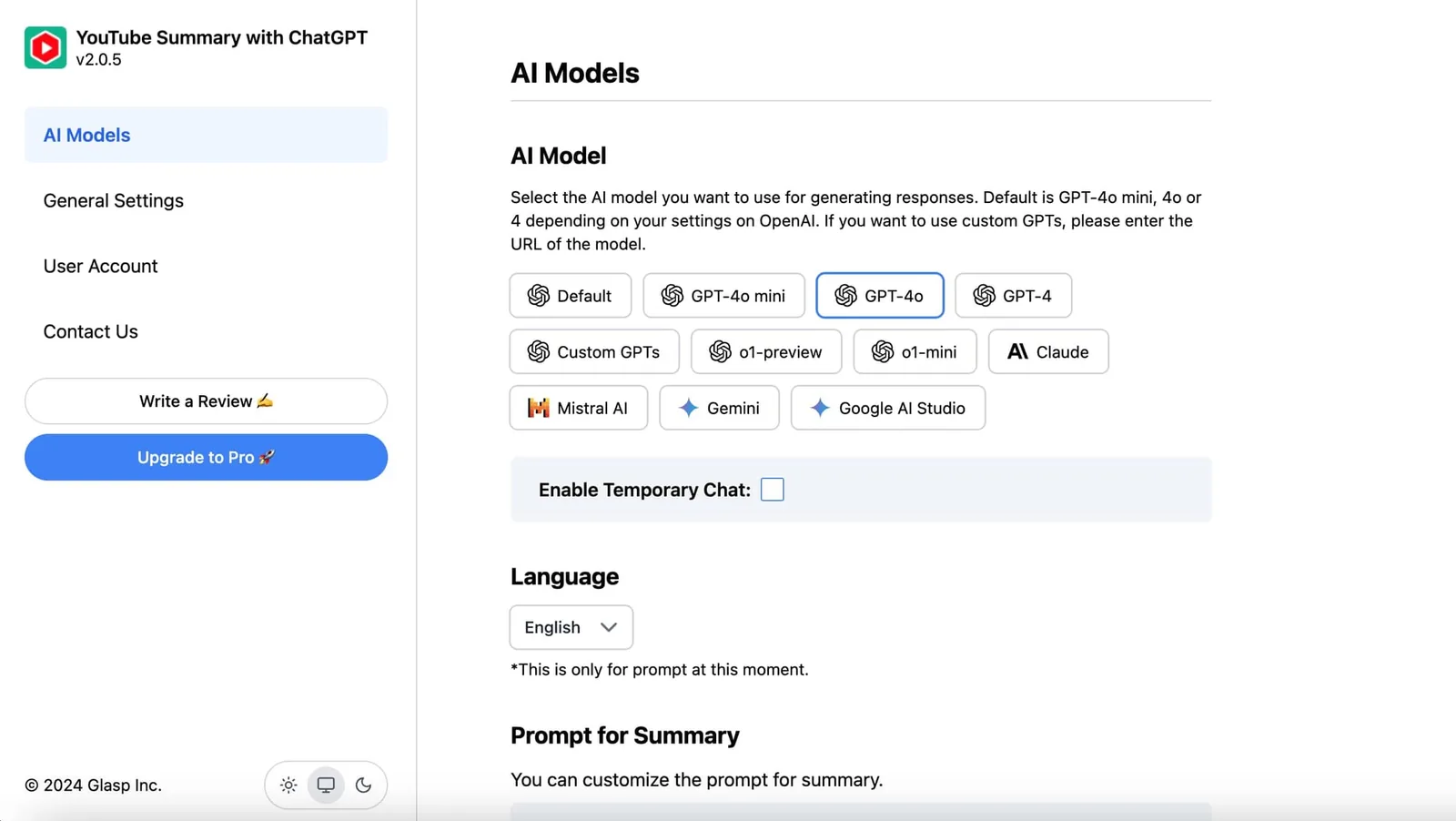
AI Models:
You can choose AI models you want to use here
Also, you can select your favorite language
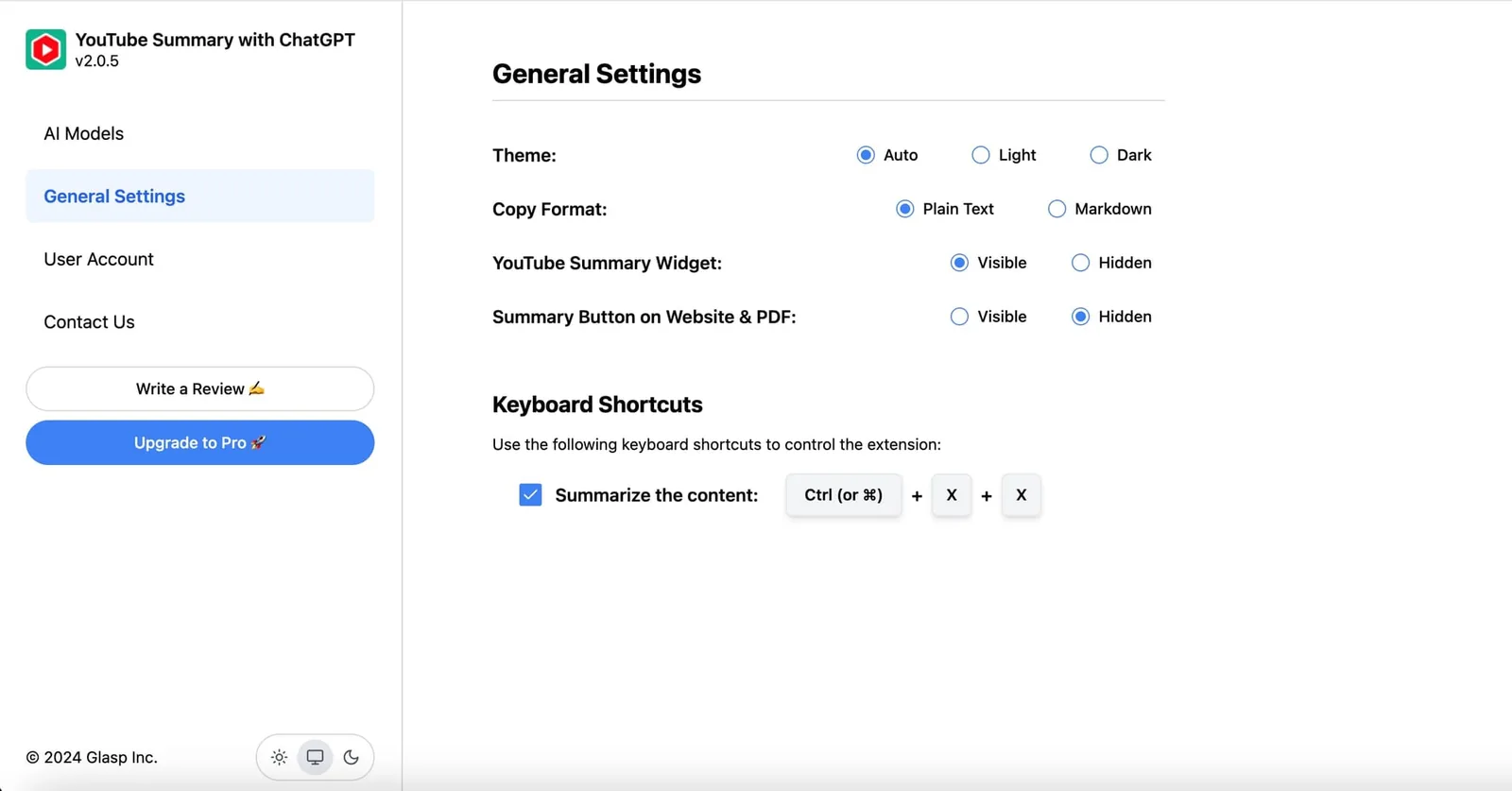
General Settings
You can update the theme, copy format, widget visibility, etc.
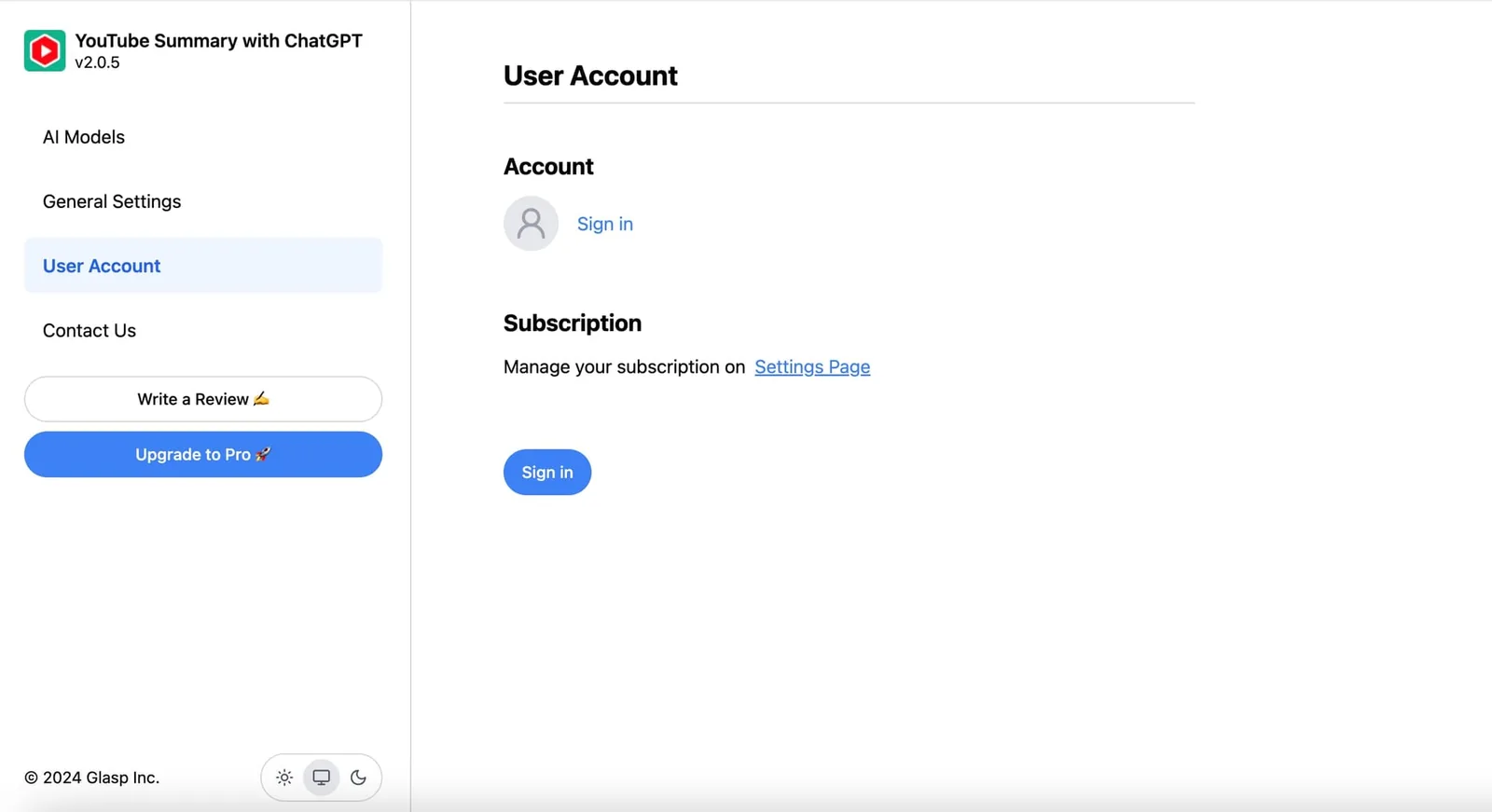
User Account
Please sign into your account if you haven't signed in yet.
Hope this instruction helps you find the version of your Chrome Extension you're using.