How to Use the Glasp Chrome Extension in Incognito Mode

Jan 19, 2026
3 min read
77 views
Glasp’s Chrome extension can also be used in Incognito mode (also known as Private mode or Secret mode). However, because of Chrome’s privacy settings, extensions are disabled by default in Incognito mode, so you’ll need to enable it manually first.
In this tutorial, we’ll show you exactly how to use the Glasp Chrome extension in Incognito mode (Private mode / Secret mode) step by step.
If you'd like to see the tutorial in video, please click the link below.
How to Use the Glasp Chrome Extension in Incognito Mode
Step 1: Click "Extensions" on the tool bar
Make sure you’ve installed the Glasp Chrome extension in your browser (Chrome, Brave, Edge, Opera, etc.).
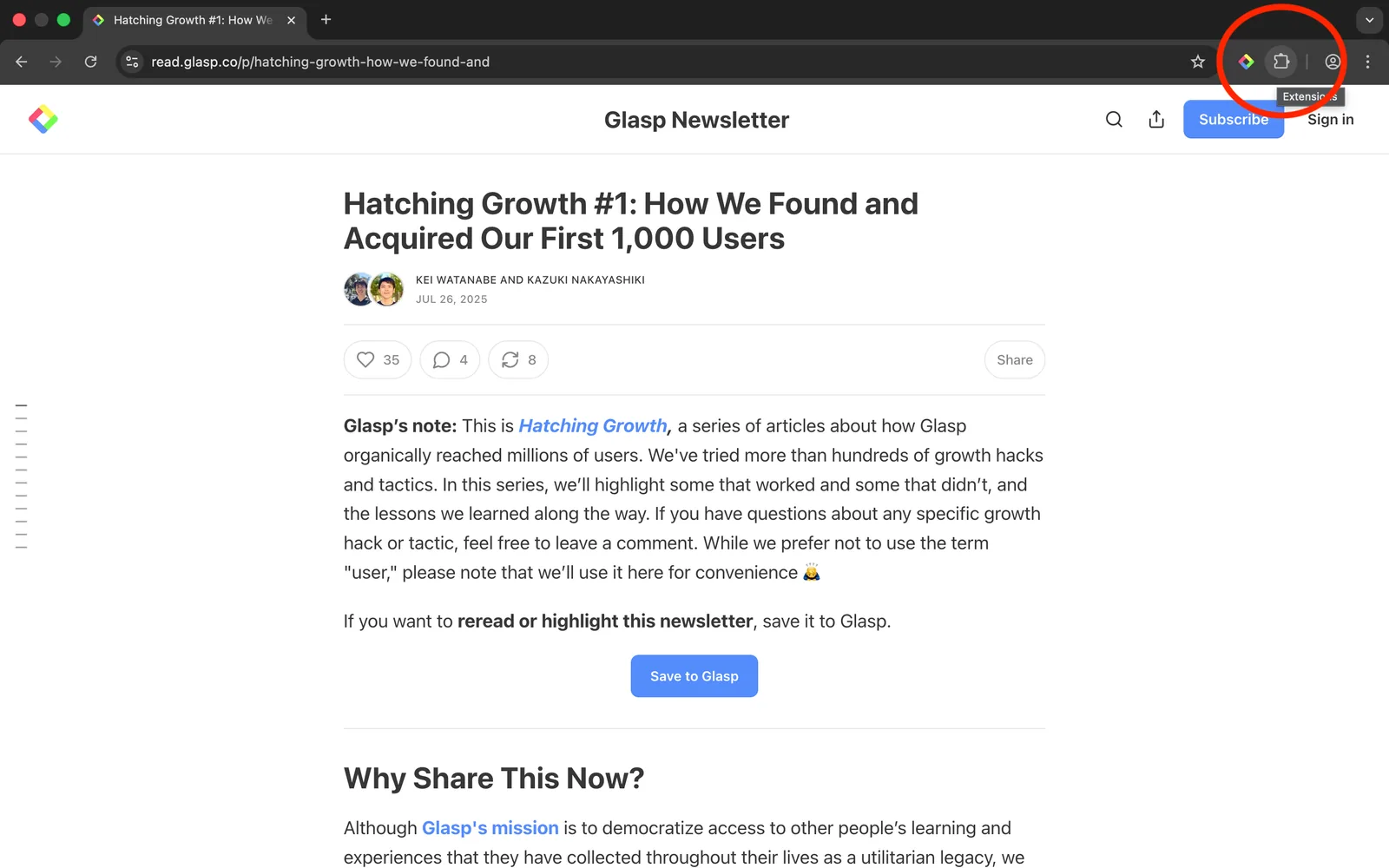
Click the Extensions icon in the top-right corner of your browser.
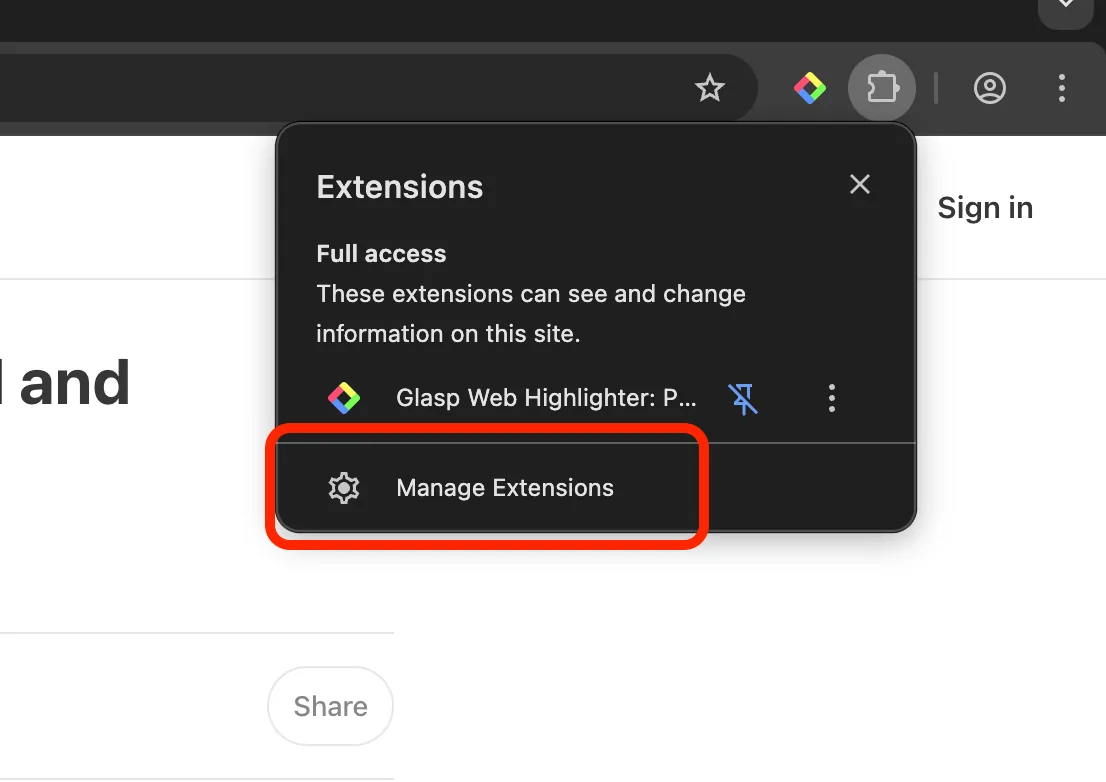
A menu will appear, click Manage extensions.
Step 2: Allow Glasp in Incognito Mode
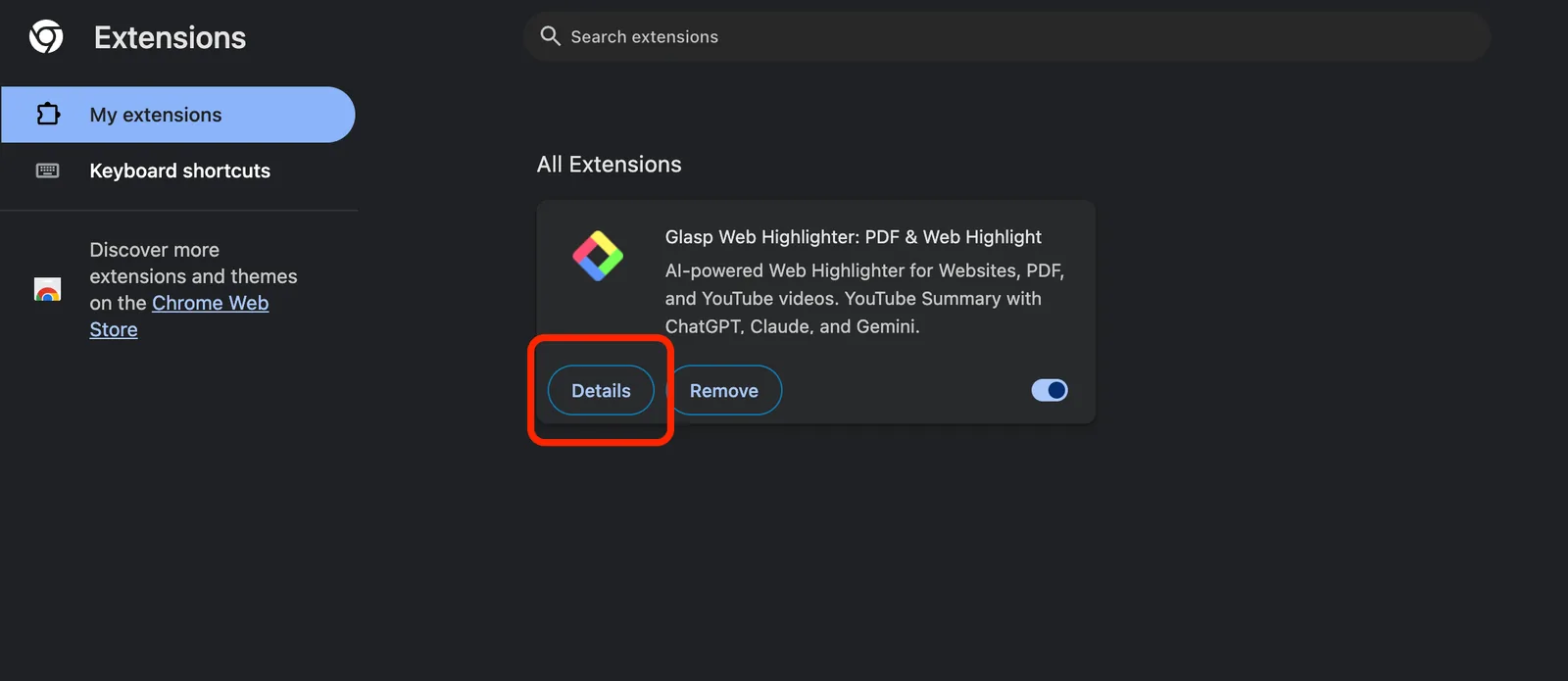
This will open the Extensions page. Find Glasp and click Details.
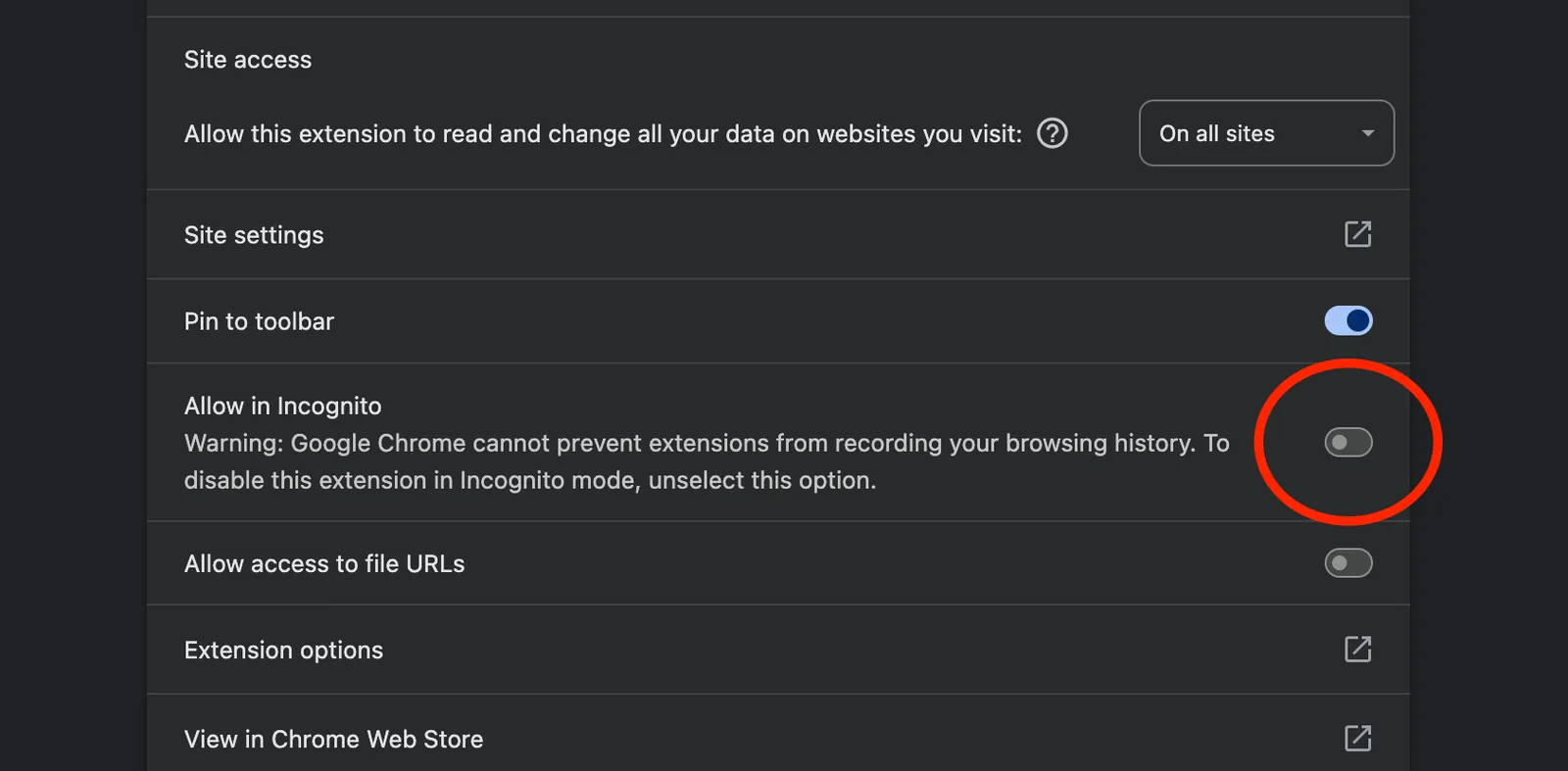
This will take you to the Details page. Scroll down to Allow in Incognito, then turn on the toggle.
Step 3: Refresh the page and highlight text
Open a web page in Incognito mode, then refresh the page.
Then select the text you want to highlight.

If you can’t highlight text, make sure you’re signed in to Glasp.
FAQ
Can I use the Glasp Chrome extension in Incognito mode (Private mode / Secret mode)?
Yes. You can use Glasp in Incognito mode, but you need to enable “Allow in Incognito” in your Chrome extension settings.
Why doesn’t Glasp work in Incognito mode?
By default, Chrome disables extensions in Incognito mode for privacy reasons. Turn on “Allow in Incognito” for Glasp to use it.
Where can I find the “Allow in Incognito” setting?
Go to Extensions → Manage extensions → Glasp → Details, then scroll down and enable “Allow in Incognito.”
Do I need to refresh the page after enabling “Allow in Incognito”?
Yes. After turning it on, refresh the page (or reopen the Incognito tab) so Glasp can load properly.
Glasp still doesn’t appear after enabling it. What should I do?
Make sure you’re signed in to Glasp, then refresh the page again. If it still doesn’t work, try closing and reopening the Incognito window.
Is it safe to use Glasp in Incognito mode?
Incognito mode prevents Chrome from saving local browsing history on your device, but Glasp may still save highlights to your Glasp account if you’re signed in and using the extension.
Will Glasp automatically turn on in Incognito mode next time?
Yes. Once you enable “Allow in Incognito,” Glasp will remain available in Incognito mode unless you turn it off.
Can I use Glasp in Incognito mode on other browsers like Brave or Edge?
Yes. Brave and Edge are Chromium-based browsers, so the steps are very similar. Look for the same setting: “Allow in Incognito.”
Why does Chrome disable extensions in Incognito mode by default?
Chrome does this to protect privacy and reduce the risk of extensions tracking activity in private browsing sessions unless the user explicitly allows it.
Does Incognito mode prevent Glasp from syncing highlights?
No. If you’re signed in, your highlights can still sync to your Glasp account even when using Incognito mode.
Can Claude or ChatGPT read my Glasp highlights?
Yes. With the Glasp MCP Connector, AI assistants such as Claude, ChatGPT, and Claude Code can search and read your own highlights, notes, Kindle highlights, and AI summaries, including your YouTube summaries. The connection is read-only and private to you. See How to Connect Glasp to Claude, ChatGPT, and Claude Code (MCP Connector).
Can I use Glasp on my phone?
Yes. Glasp has native apps for iPhone, iPad, and Android, and the Glasp Safari extension for iPhone and iPad comes with the iOS app. Your highlights sync between the apps, the web, and the desktop extension. See How to Use the Glasp Mobile App on iOS, iPad, and Android.
Before you leave
If you have any questions, please refer to the FAQ or contact us.
👉 FAQs
👉 X
See you next time,
Glasp team