How to Update Extension Settings

Oct 27, 2026
1 min read
7 views
For Glasp Extension Users:
Click the Glasp icon on your browser (on the right top)
Click "Update Settings" on the sidebar
You can update the settings as you want 🤗
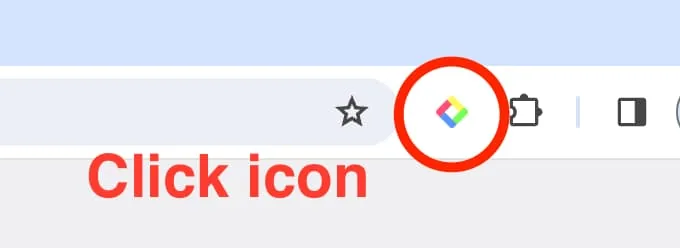
Step 1: Click the Glasp Browser icon on your browser (on the right top)
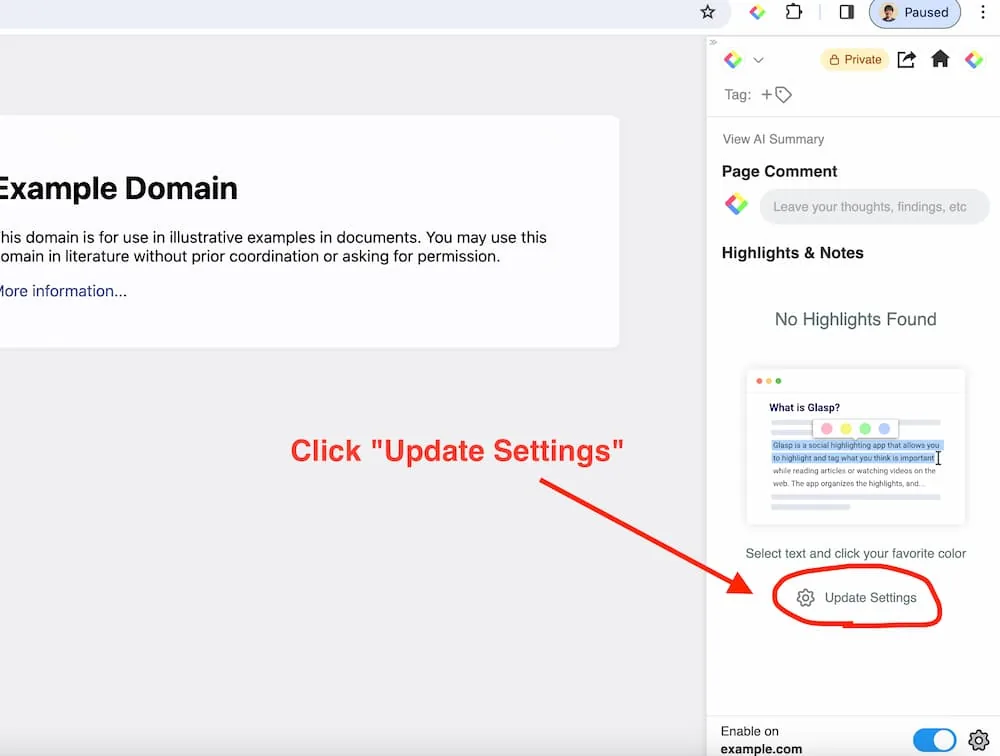
Step 2: Click "Update Settings" on the sidebar
For YouTube Summary Users
Click the YouTube Summary icon on your browser (on the right top)
You can update the settings as you want 🤗
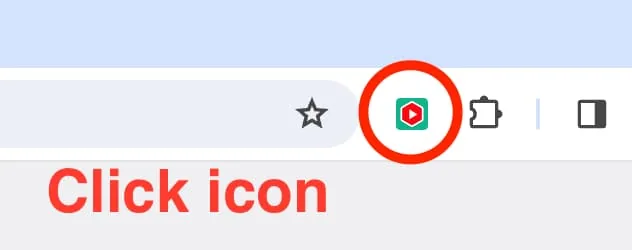
Step 1: Click the YouTube Summary icon on your browser (on the right top)
Hope this instruction helps you find the version of your Chrome Extension you're using.
Comments
Add a comment