How to Transcribe an iPhone Voice Memo with Glasp

Sep 18, 2025
4 min read
62 views
Have you ever recorded a meeting or interview on your iPhone, only to find yourself replaying the same voice memo again and again to catch important details? Voice Memos are convenient for recording on the go, but reviewing long audio files can quickly become time-consuming.
Wouldn’t it be easier if you could skim the content in text, search for key moments, and highlight what matters most? With Glasp, you can easily transcribe your iPhone Voice Memos into clear, readable text—making it much faster to review, organize, and reuse your recordings.
In this tutorial, we’ll show you step by step how to transcribe an iPhone Voice Memo with Glasp, so you can turn raw audio into searchable notes, summaries, or knowledge you can revisit anytime.
How to Transcribe an iPhone Voice Memo with Glasp (YouTube)
Step 1: Select iPhone Voice Memo Recording
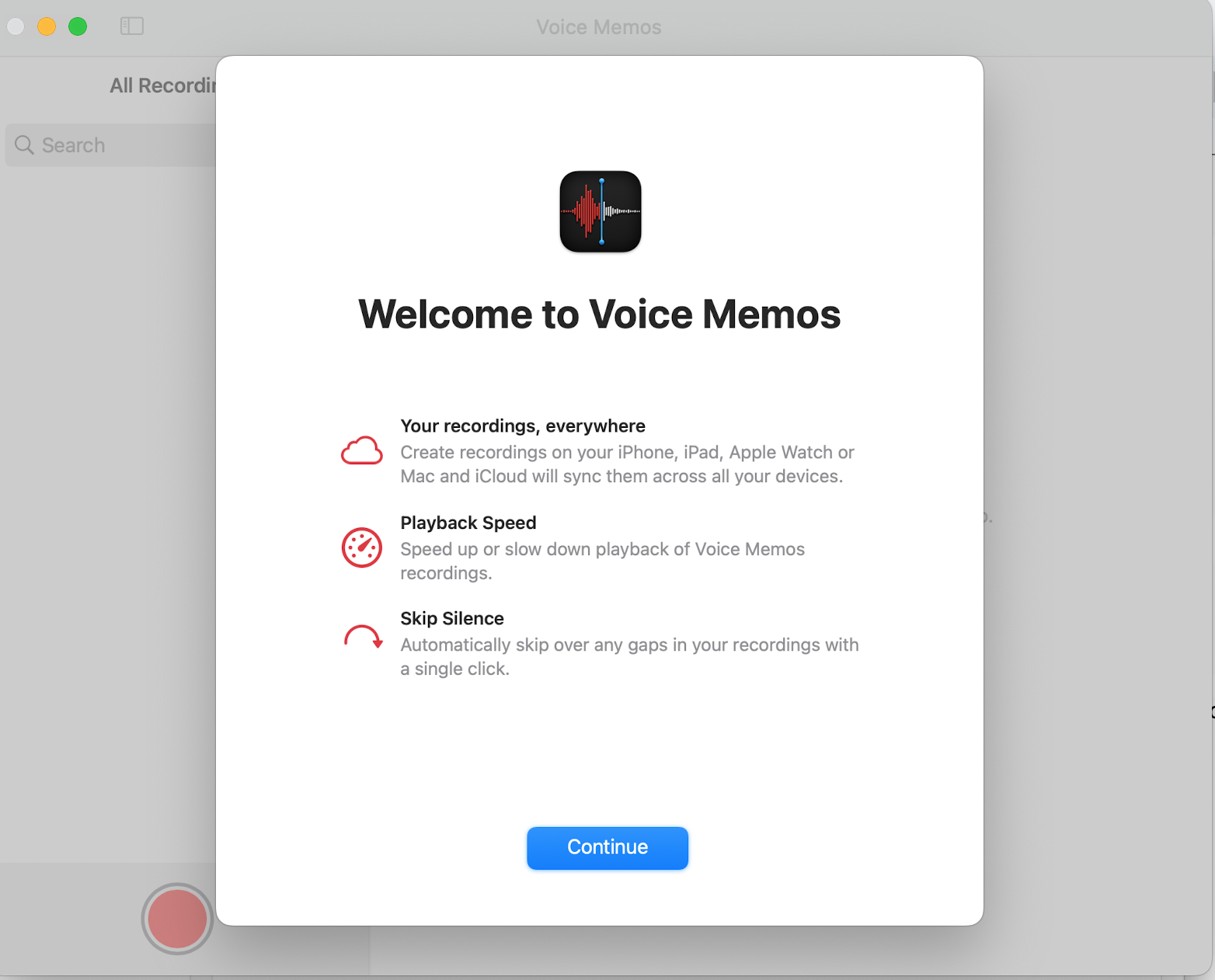
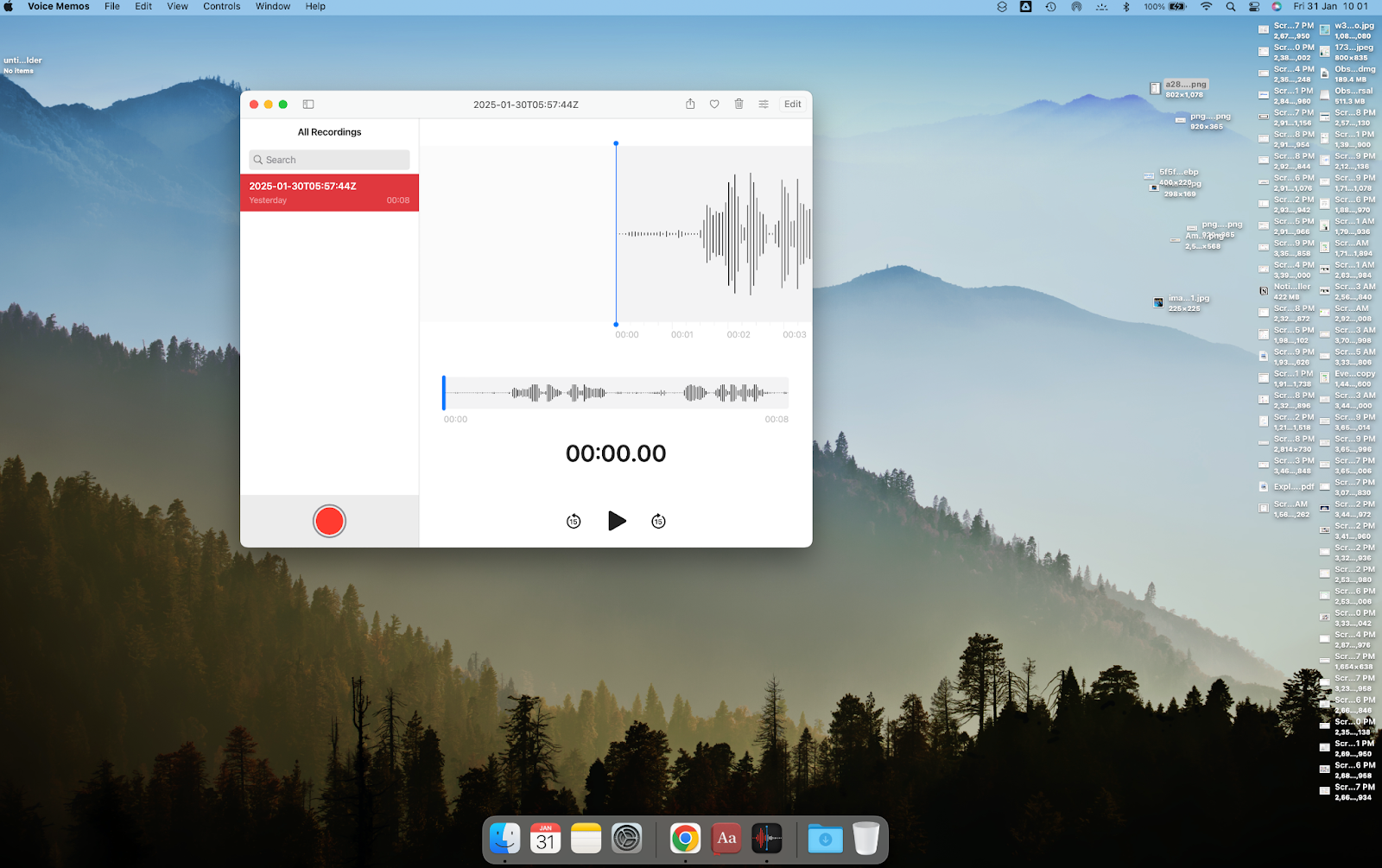
If you have an iCloud account, your iPhone recordings will automatically appear in your desktop Voice Memo app. Save the audio file on your desktop or in a folder.
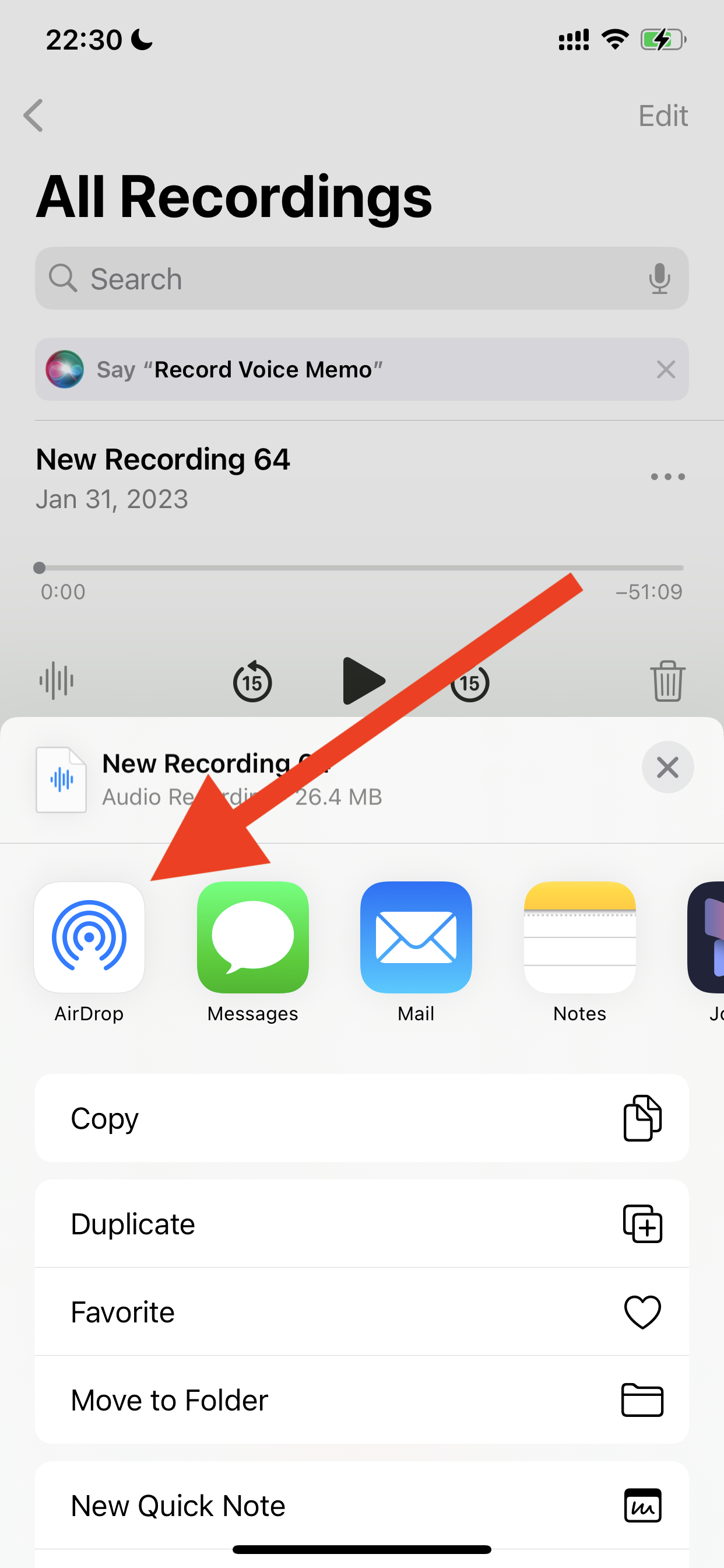
If you have a recording file only on mobile devices, please share it on a desktop. You can easily send it with AirDrop.
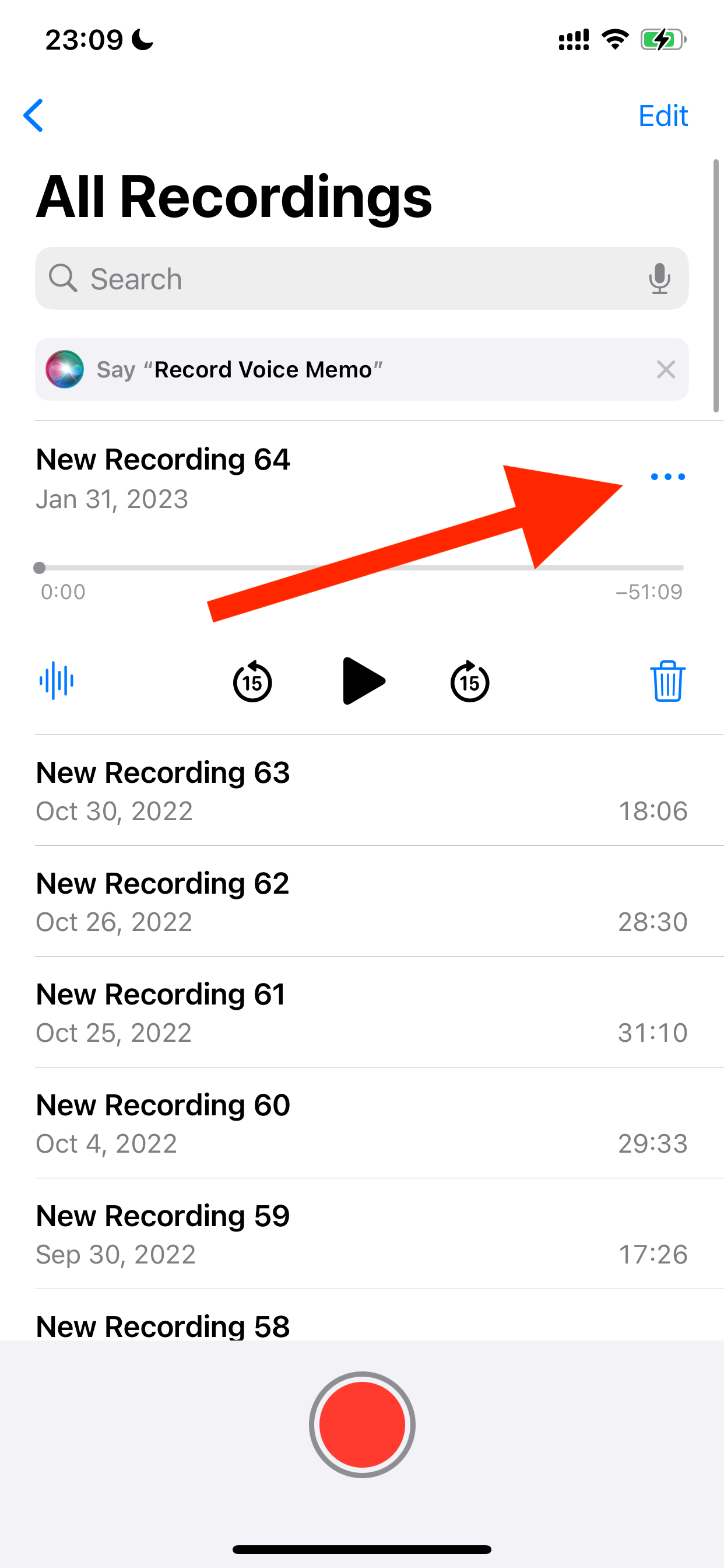
After clicking AirDrop, select your desktop as the destination.
Step 2: Sign up for Glasp
Select a browser to use: Google Chrome, Brave, Safari, Microsoft Edge, Firefox, etc.
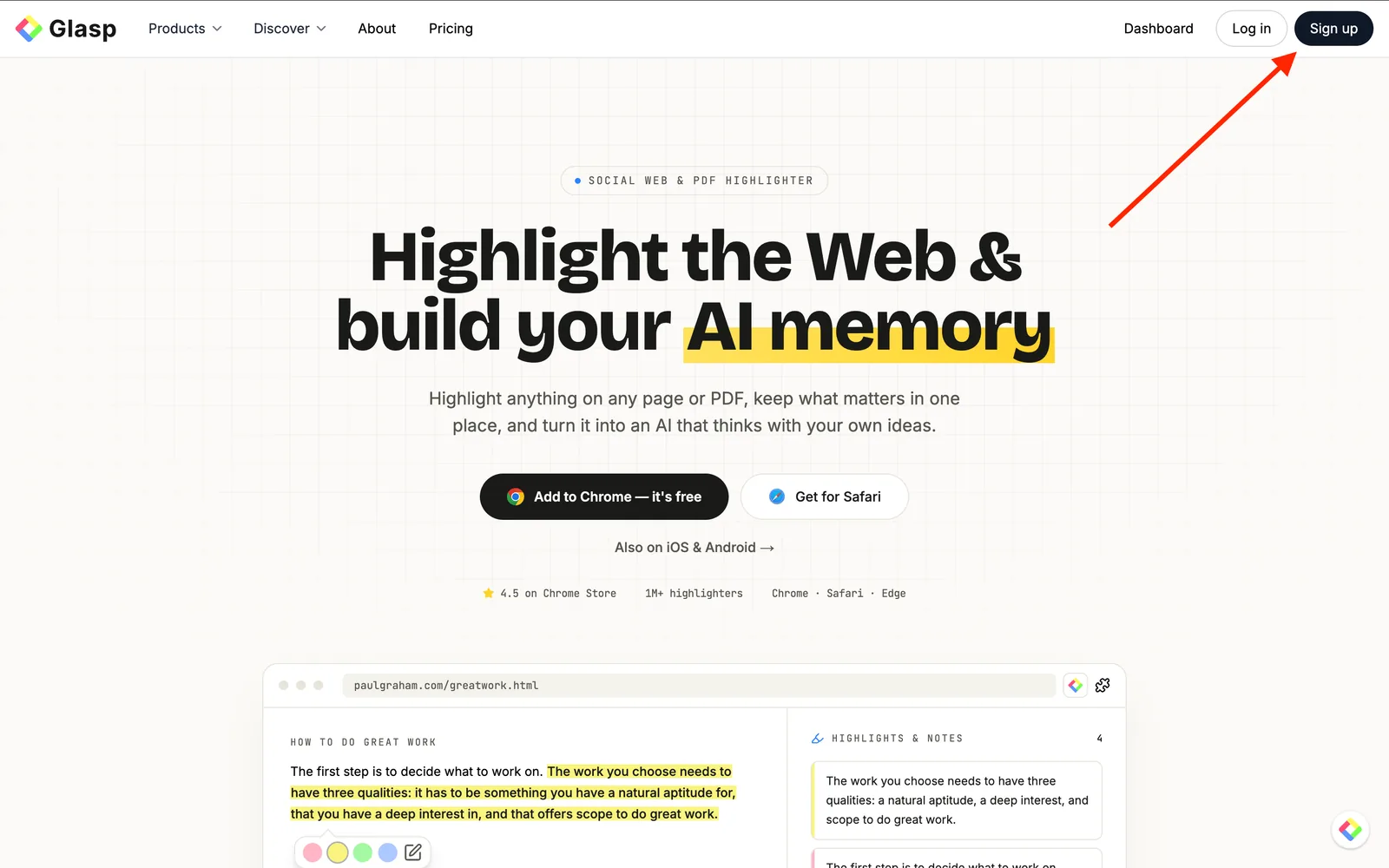
On your search tab, type in “glasp.co” and you will be automatically directed to the page of Glasp. Or access it from the link below.
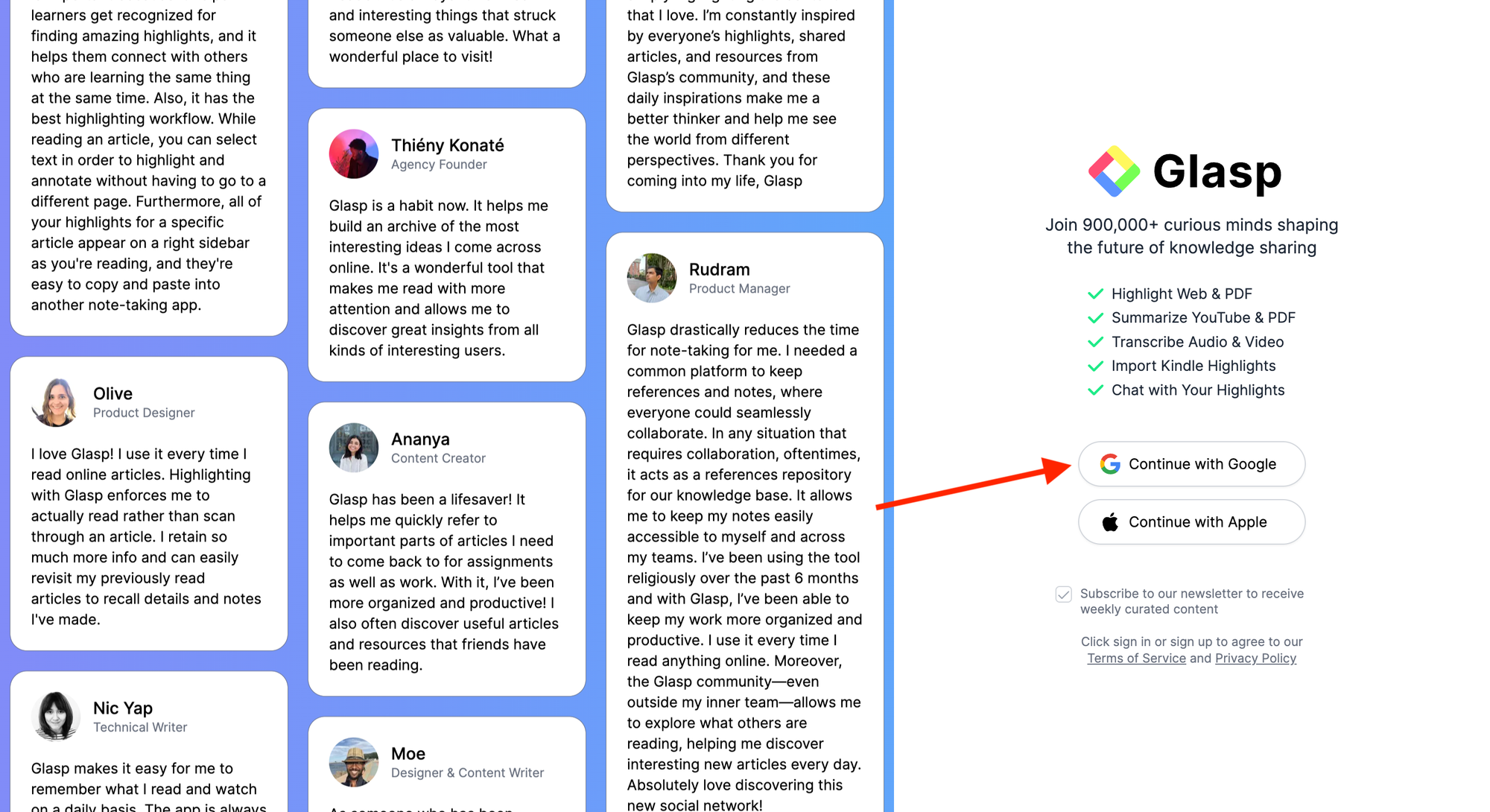
Upon reaching it click “Sign up” and continue using your Google Account.
You can sign up for Glasp with either Google Sign-in or Apple Sign-in. If you're not an iPhone/iPad user, we strongly recommend you use Google Sign-in.
Step 3: Go to the Home page on Glasp
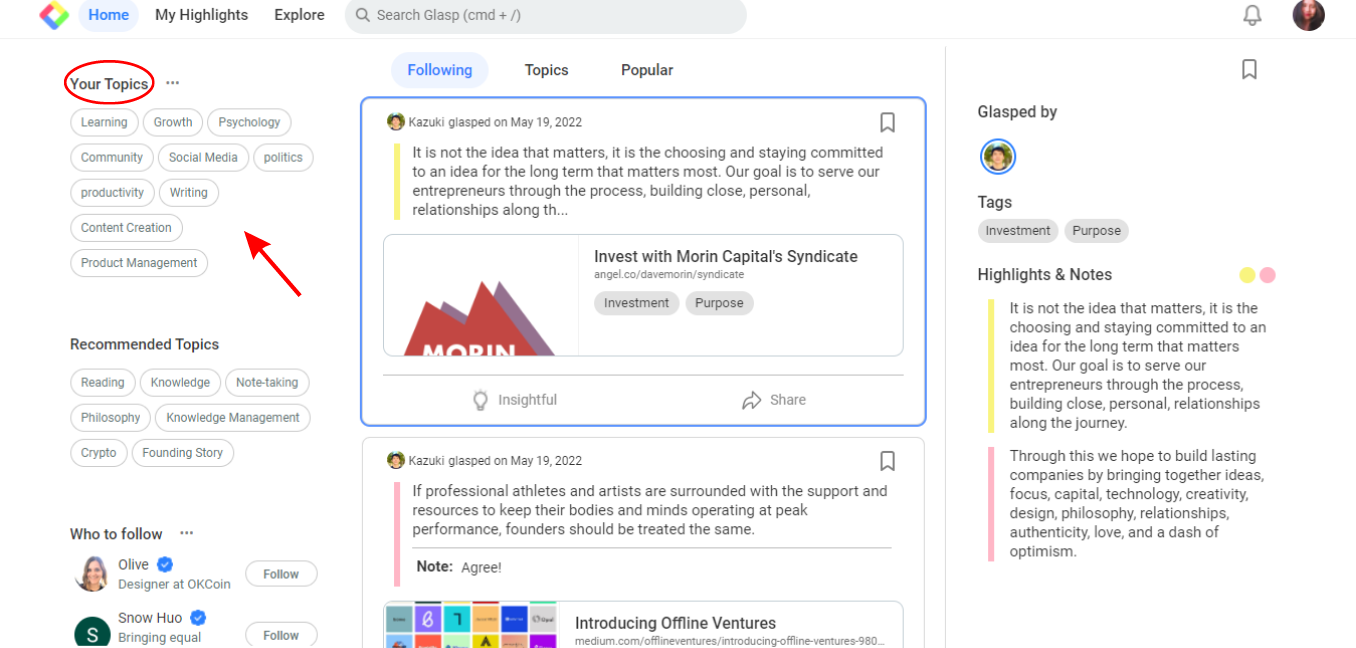
Once you have successfully created the Glasp account, you can see the Home page below. If you cannot see the page, please access "glasp.co" again.
On the Home page, you're asked to choose your favorite topics. Choosing your topics could be a leap step as this will help you identify the articles in line with your interests. And you can change your favorite topics anytime.
Step 4: Upload the Voice Memo to Glasp
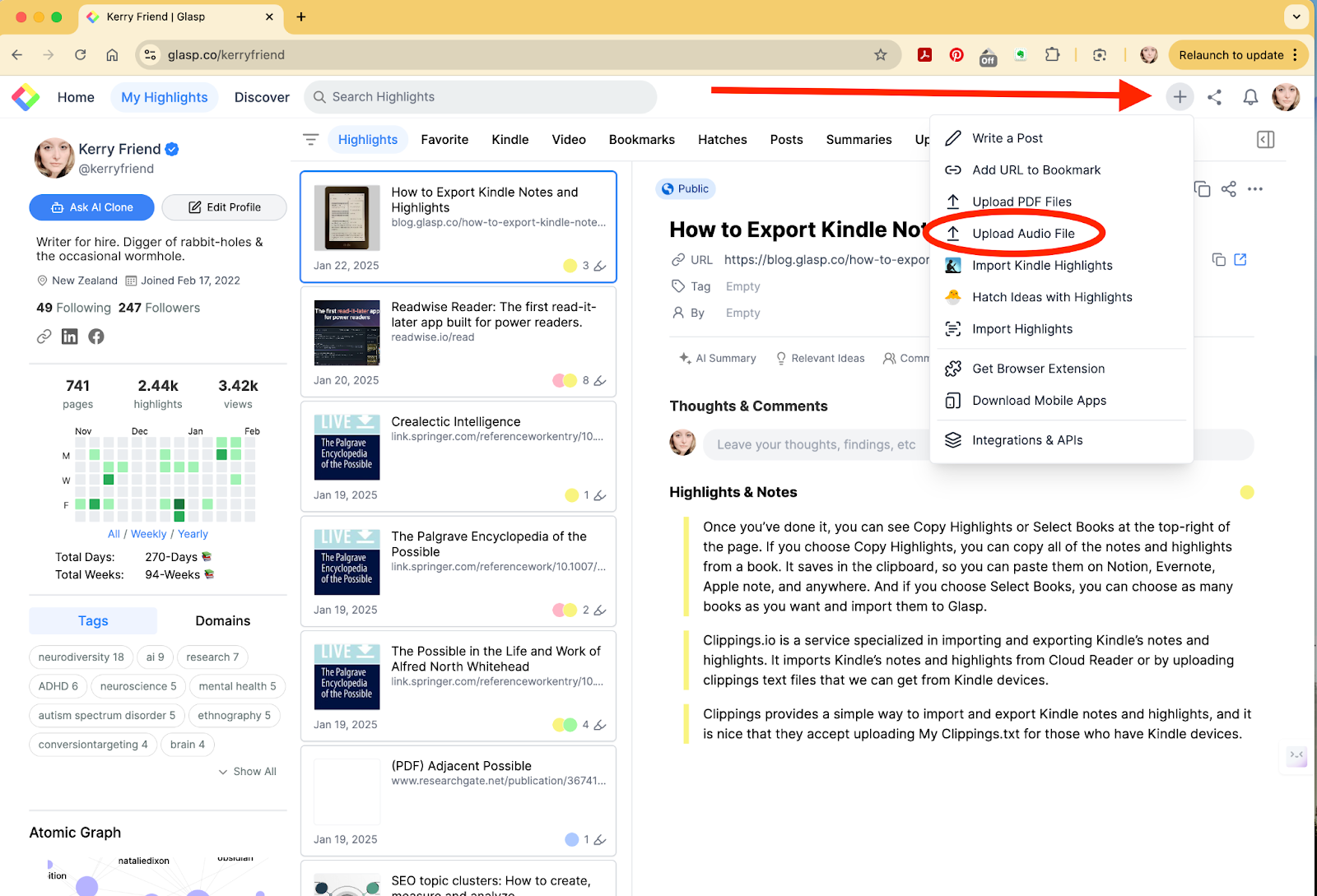
On the Home page or your profile page, you can see the + button at the right top. Then, click Upload Audio File on the modal.
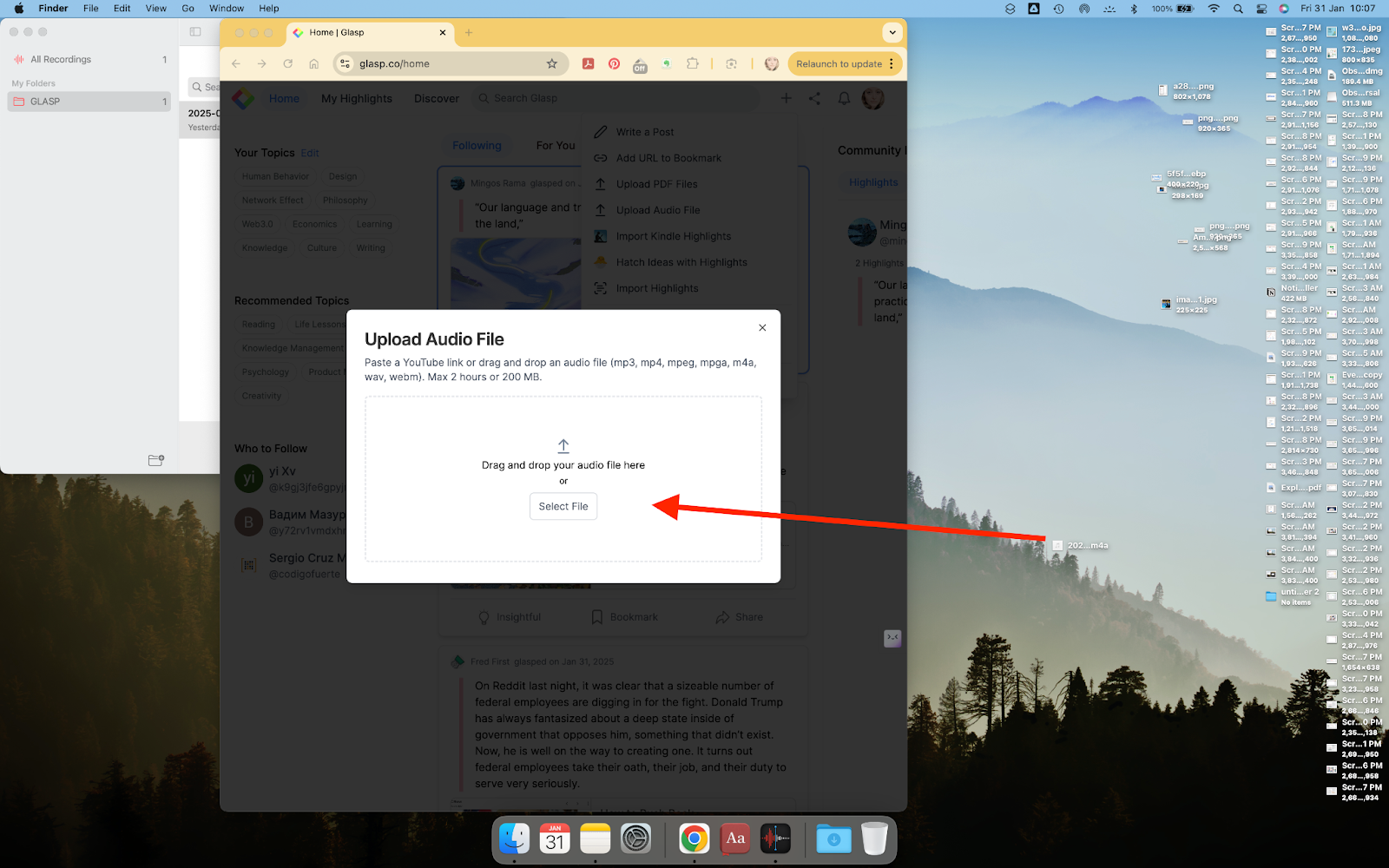
It opens a modal to select the audio file. So, select the Voice Memo file.
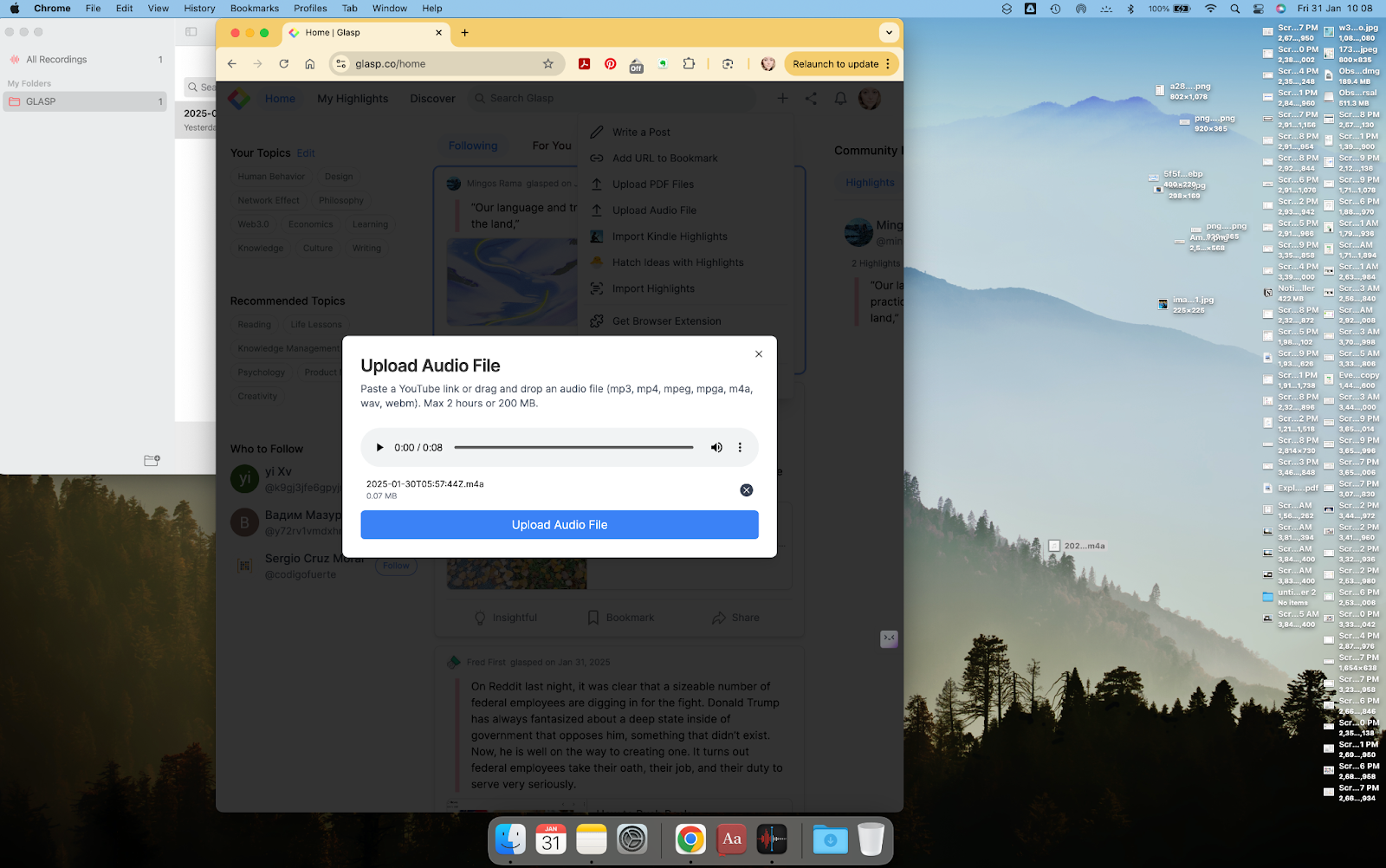
Then, you can see the modal below. Click Upload Audio File at the bottom. It starts transcribing the audio. Depending on the audio length, it usually takes a few minutes, so please wait until it's finished. You can leave the page.
Step 5: View the Transcript of the iPhone Voice Memo
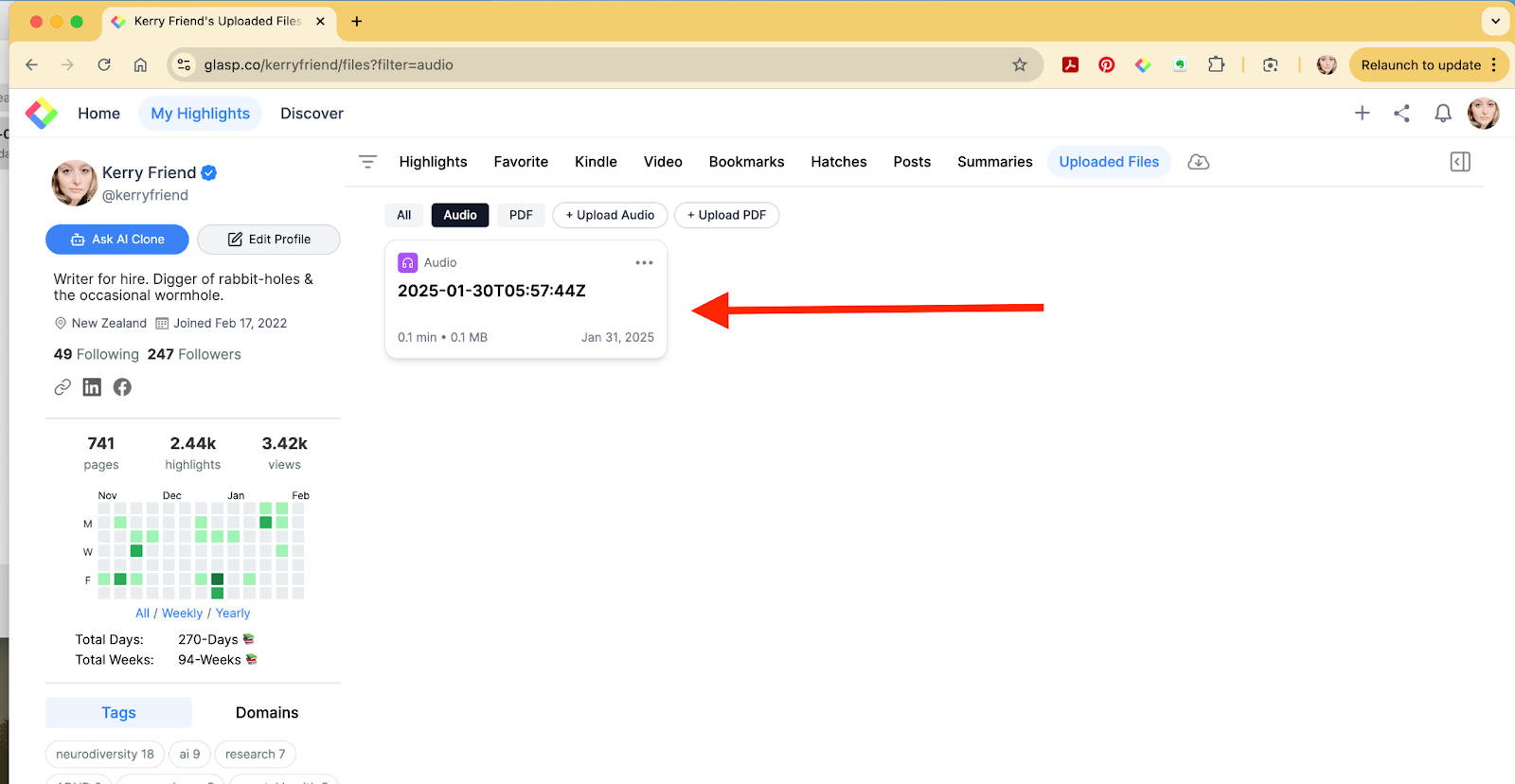
Once the audio file is uploaded, you can see the title of the audio file under the Uploaded Files on your profile page. Please click it to see if the transcription process has ended.
If the transcription is finished, you can see the transcripts below.
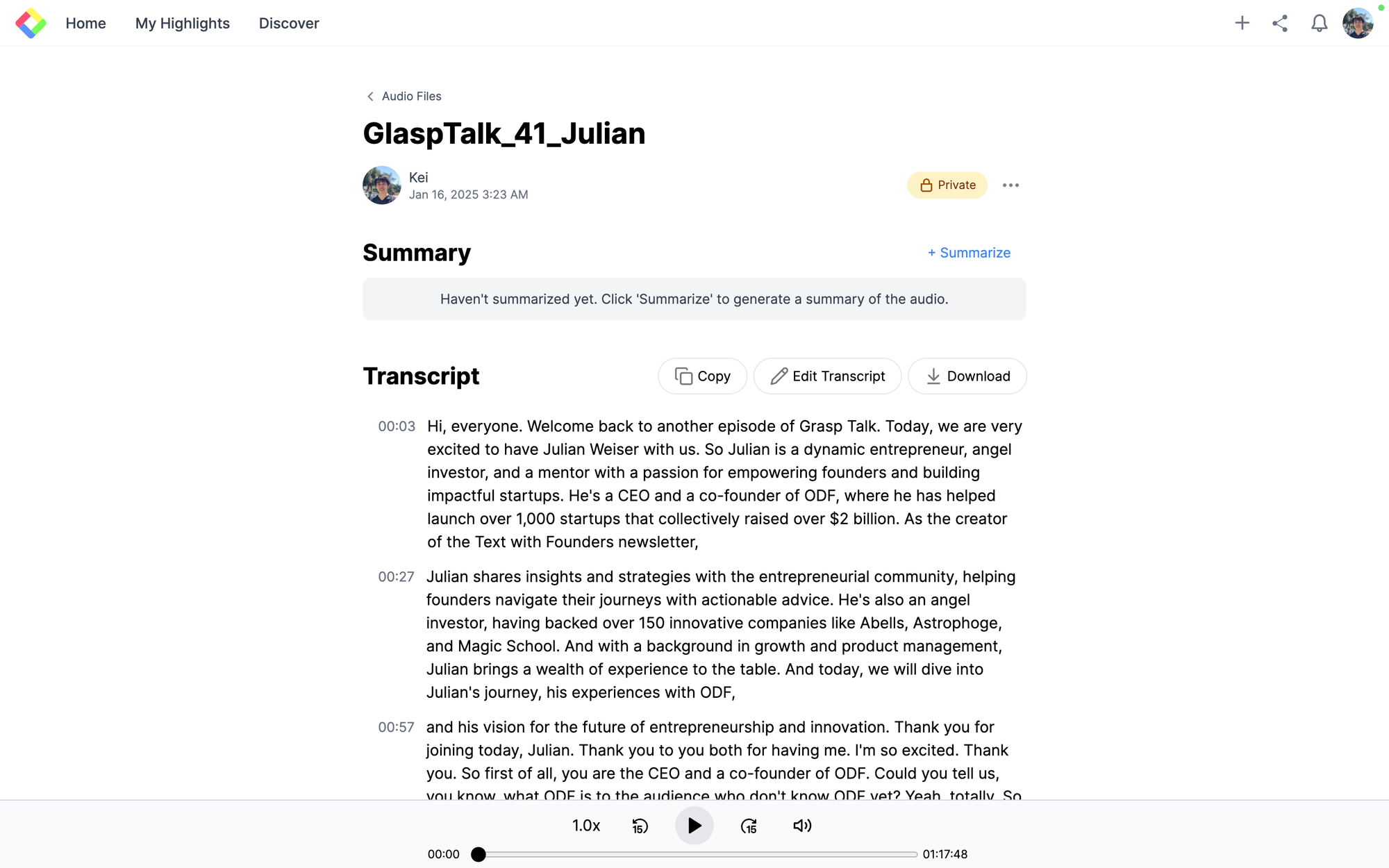
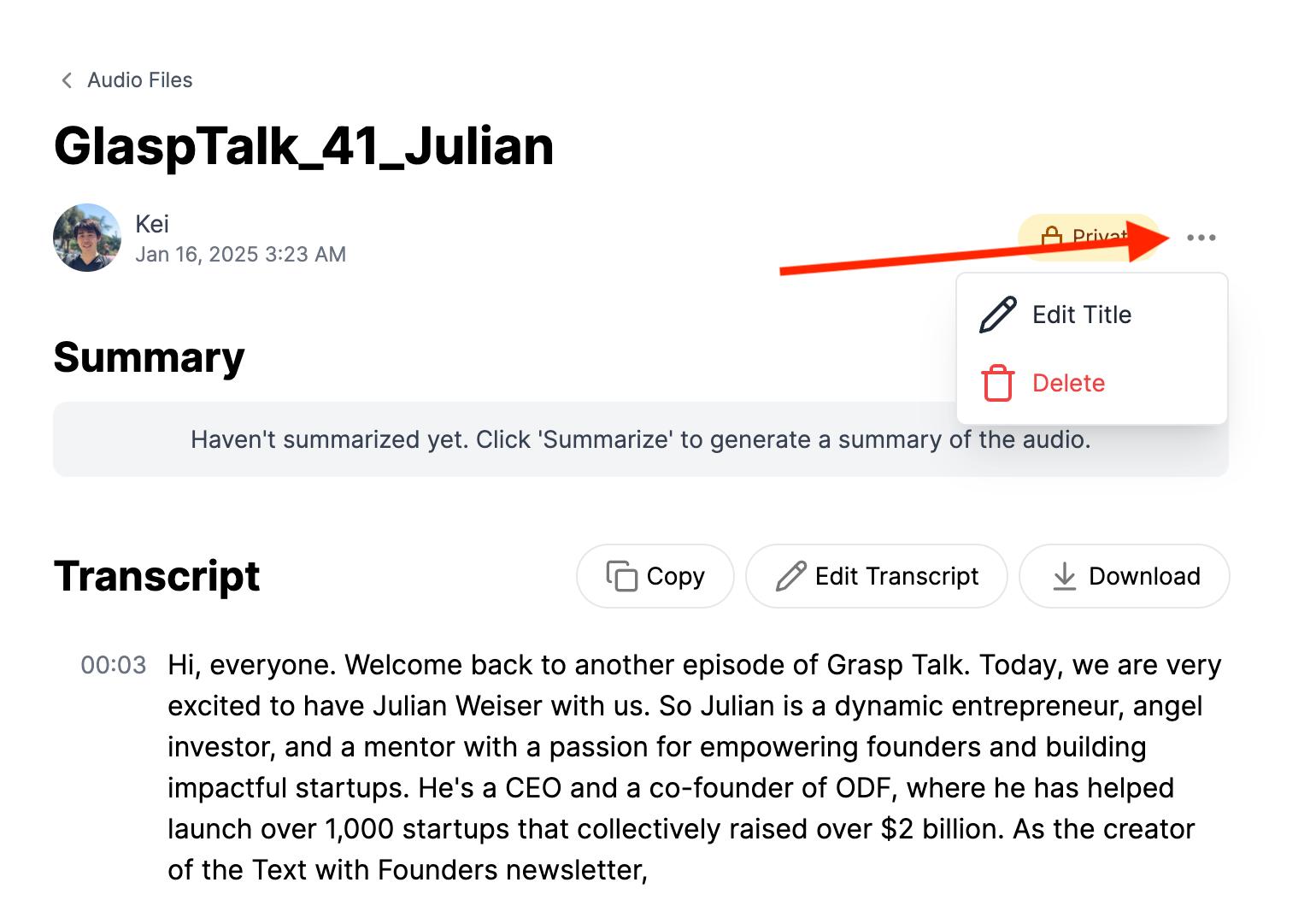
If you'd like to edit the title of the file or delete the audio file, please click the three dots at the top right.
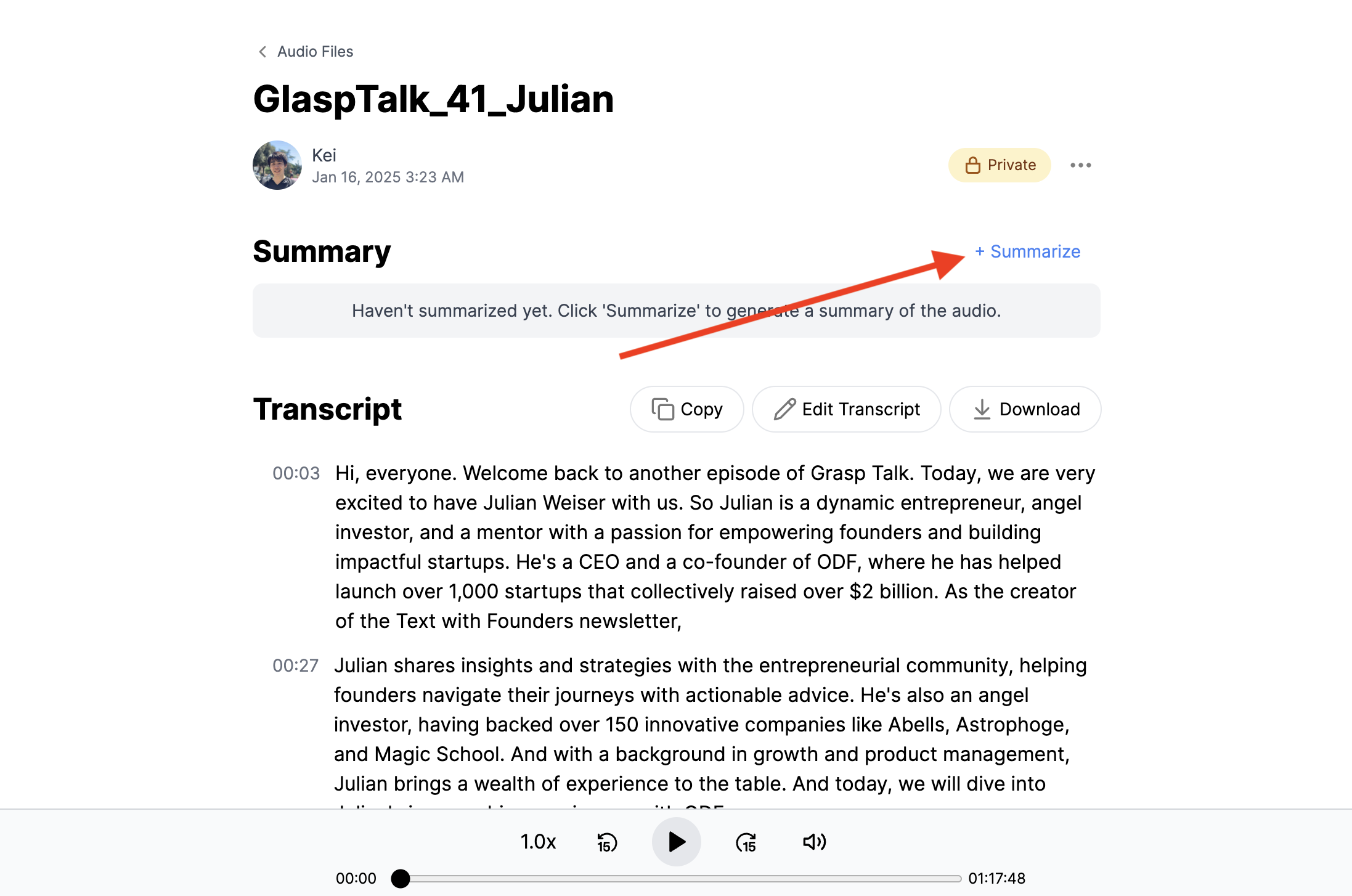
(Optional) Step 6: Summarize the Voice Memo Transcription
If you'd like to summarize the voice memo, click the +Summarize button at the right.
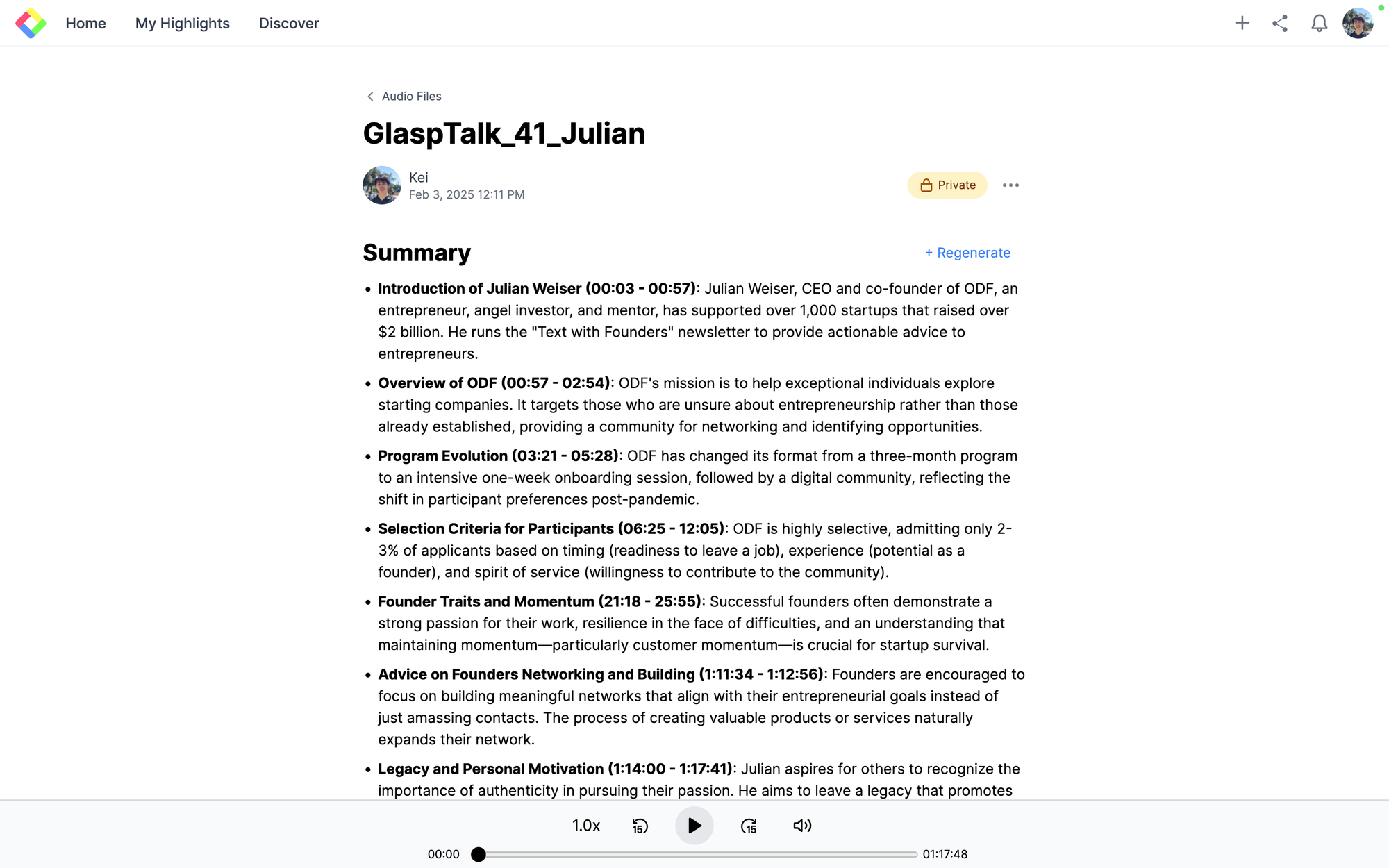
After a few seconds, you can see the summary.
(Optional) Step 7: Share the Voice Memo Transcript
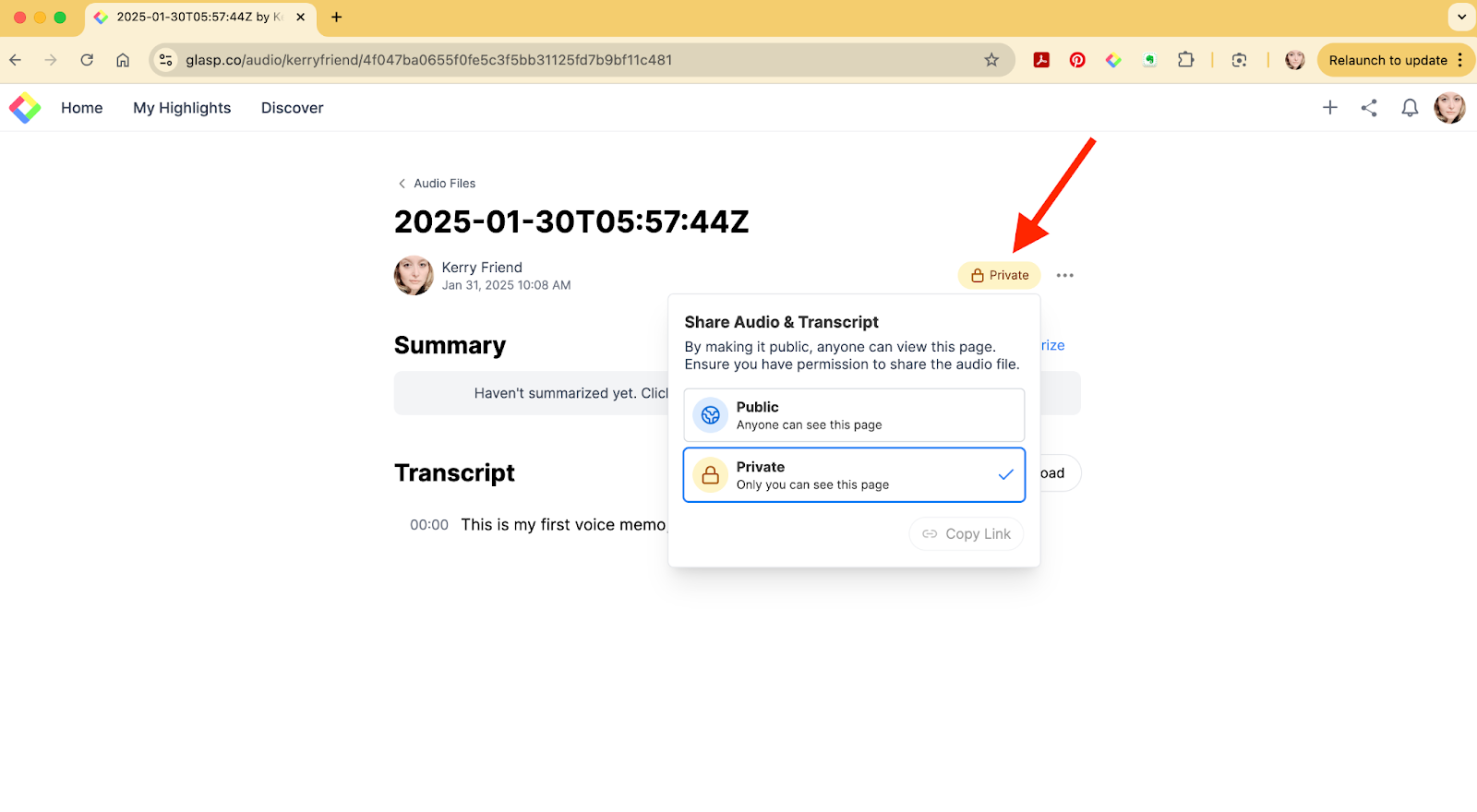
By default, the transcript is privately saved. But you can update the settings if you want to share the transcript with others. Click Private the button at the top right.
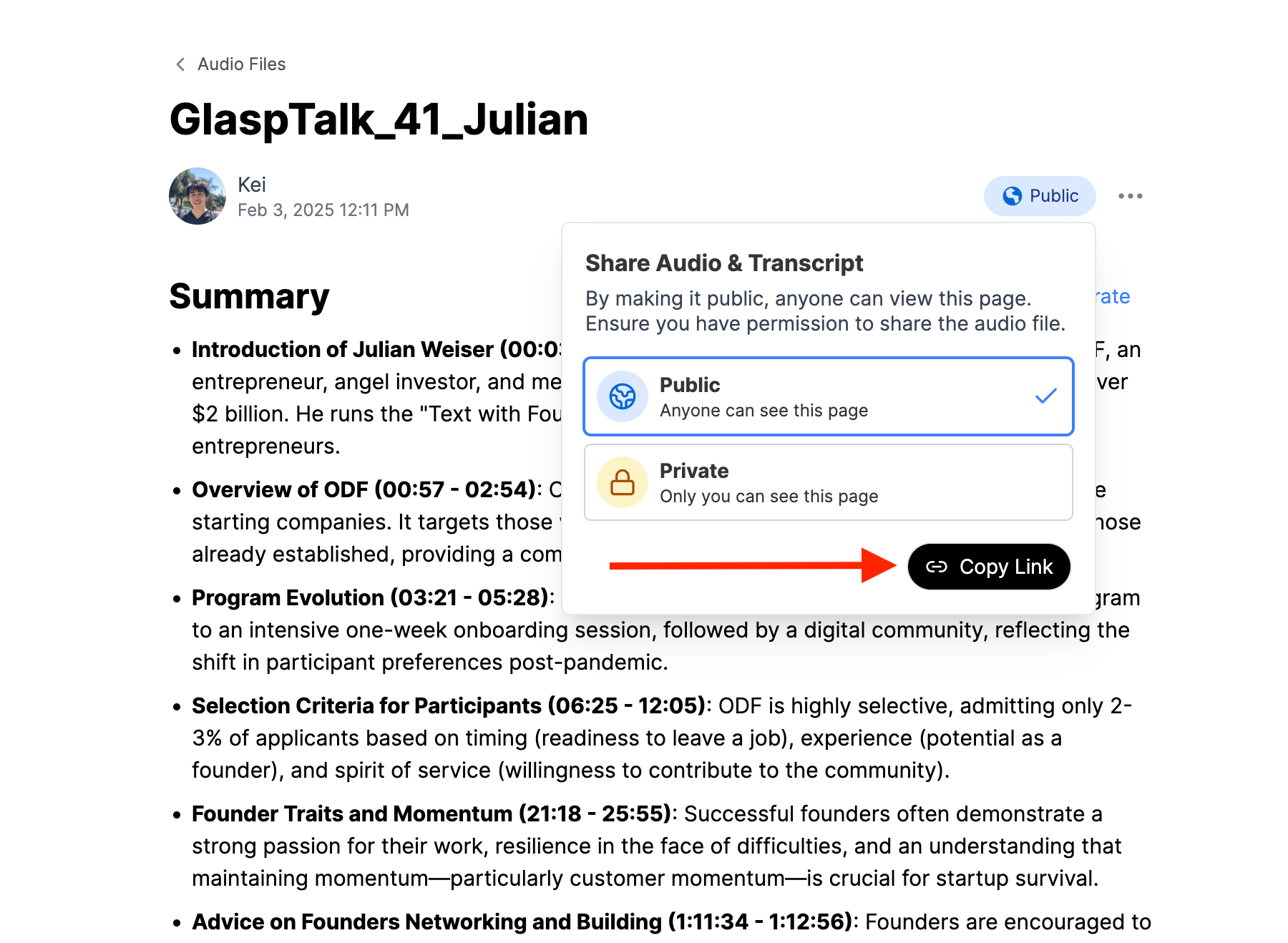
After updating the setting Public, you can see the Copy Link button. If you share the link with others, they can see your transcripts.
FAQs
Q: How long does it take to transcribe a Voice Memo?
It usually takes a few minutes, depending on the length of your recording.
Q: What file formats are supported?
You can upload common audio formats such as .m4a, .mp3, and .wav.
Q: Can I edit the transcript after it’s generated?
Yes, you can highlight, comment, and edit text inside Glasp.
Q: Is my transcript private by default?
Yes. All transcripts are saved privately unless you choose to make them public.
Q: Can I share the transcript with others?
Absolutely. Just switch the privacy setting to “Public” and use the Copy Link button to share.
Q: Do I need to install an app to use Glasp?
No installation is required. Glasp works directly in your browser.
Q: Can I also summarize my Voice Memo automatically?
Yes, Glasp offers an AI-powered summary feature with just one click.
Q: Can Claude or ChatGPT read my Glasp highlights?
Yes. With the Glasp MCP Connector, AI assistants such as Claude, ChatGPT, and Claude Code can search and read your own highlights, notes, Kindle highlights, and AI summaries, including your YouTube summaries. The connection is read-only and private to you. See How to Connect Glasp to Claude, ChatGPT, and Claude Code (MCP Connector).
Before you leave
Thanks for reading. We hope this tutorial helps you turn iPhone Voice Memos into clear, searchable text—so you no longer need to replay recordings again and again.
See you next time,
Glasp team