How to Summarize a YouTube Video in Your Own Language

Oct 25, 2026
3 min read
1 views
A lot of the best explanations on YouTube are in a language you do not read comfortably: a conference talk in English, a lecture in Japanese, a tutorial in Spanish. You can follow the gist with auto-translated captions, but it is slow, and you still end up with no notes.
Glasp can write the summary of any YouTube video in the language you choose, whatever language the video is in. This guide shows how to set it up on your computer and on your phone.
What you need: the free Glasp extension for Chrome, Safari, Firefox, Edge, Brave, or Opera (how to install it), or the Glasp app for iPhone or Android.
Step 1: Open a video and the Summary tab
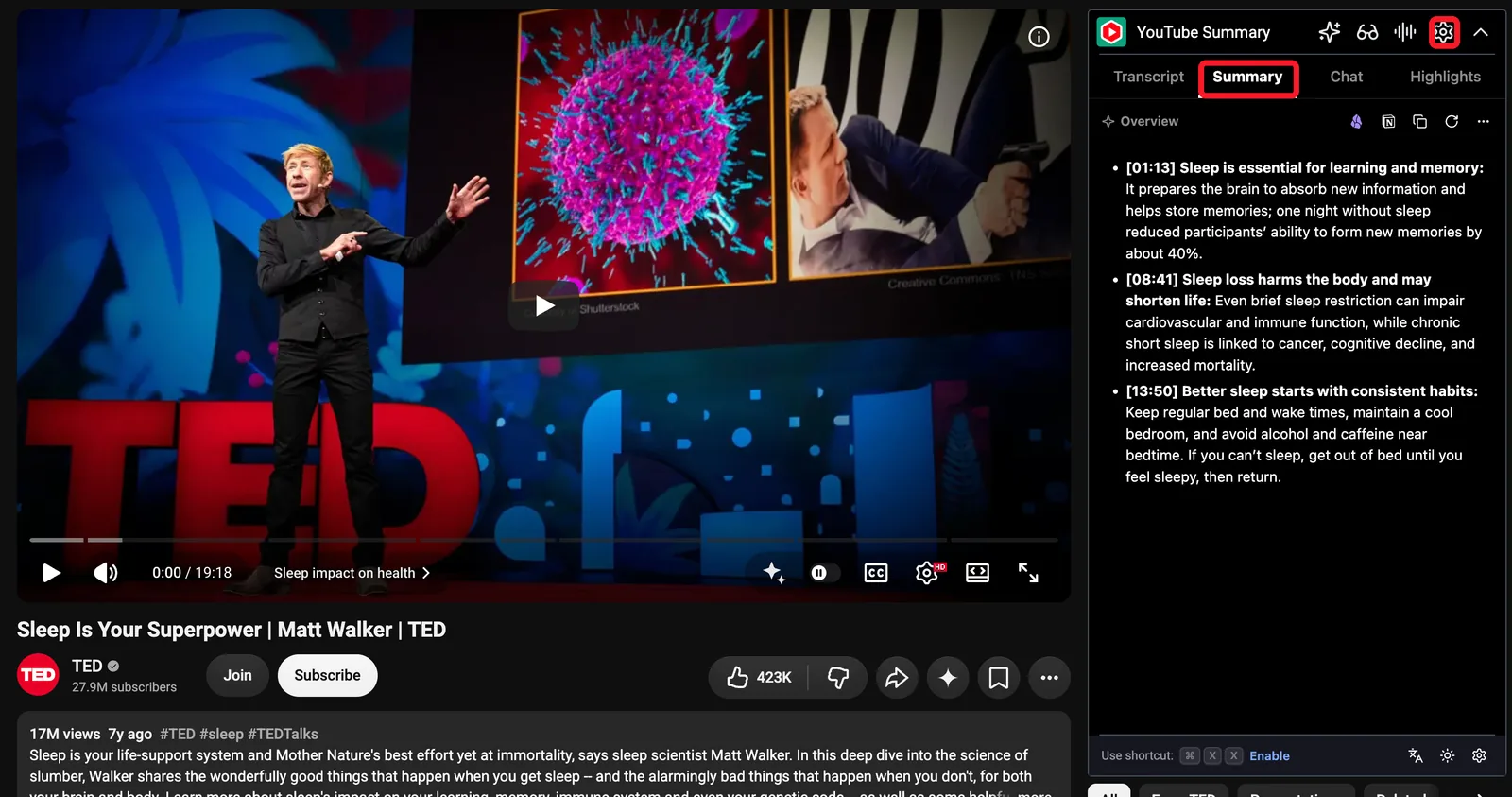
Open any YouTube video. The Glasp panel appears next to it. Click the Summary tab.
Step 2: Choose your summary language
Click the gear icon at the top of the panel. The settings open in a new tab. Go to AI Models and find Summary language.
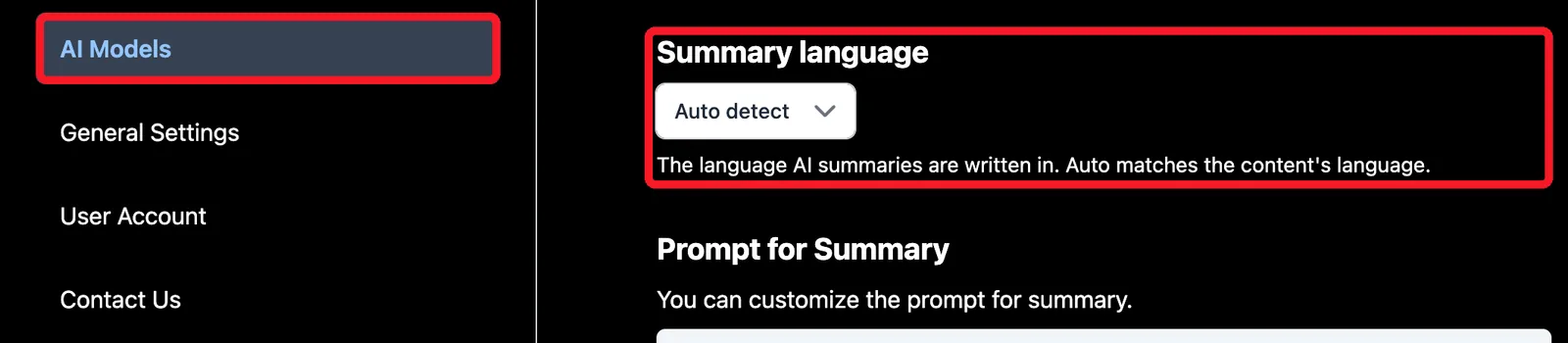
Click the box (it shows Auto detect at first) and pick the language you want summaries written in.
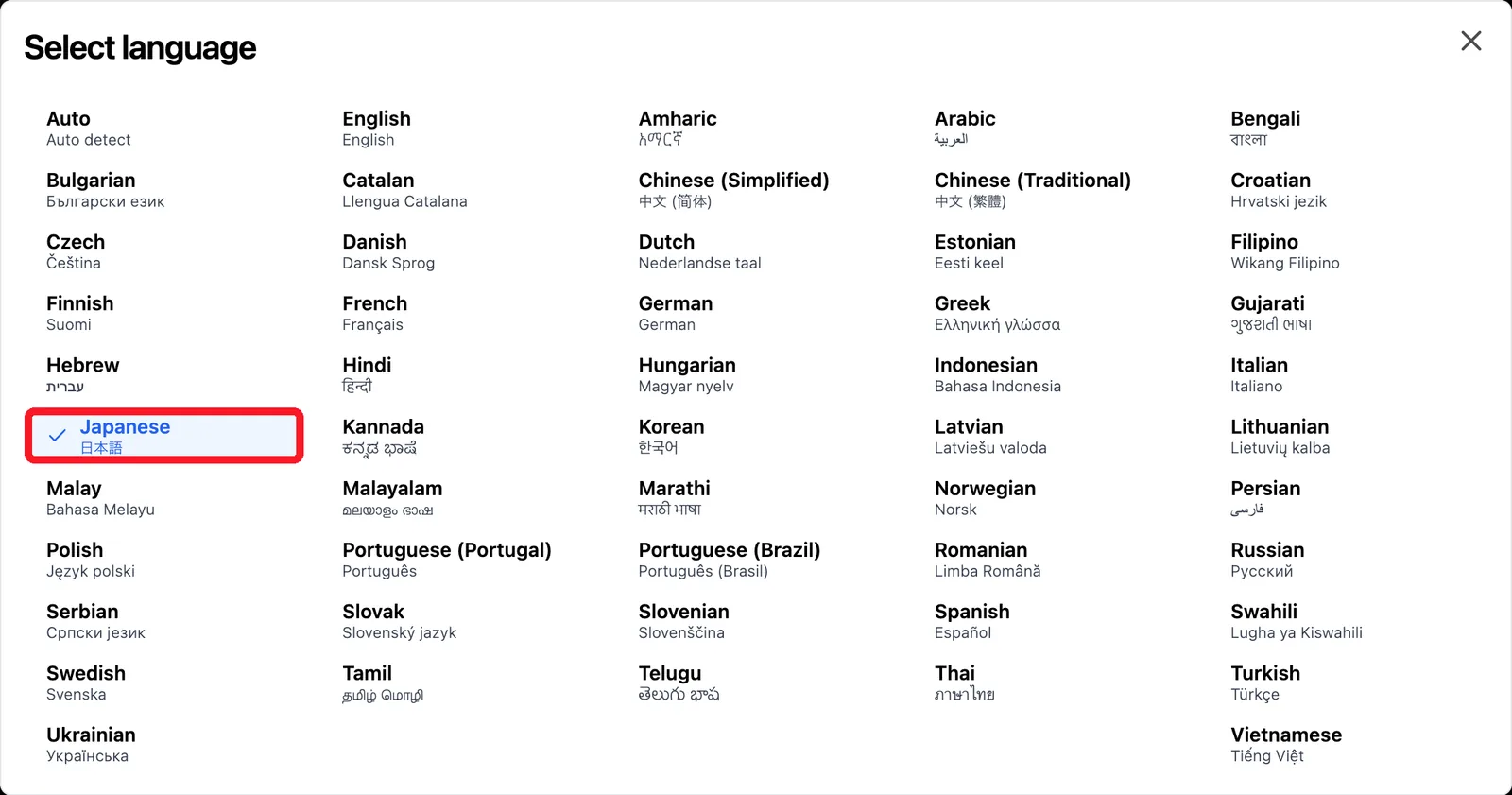
There are more than 50 languages, from English, Spanish, Portuguese (Brazil and Portugal), French, German, and Japanese to Korean, Chinese (Simplified and Traditional), Hindi, Indonesian, Vietnamese, Thai, Turkish, and Arabic.
The default is Auto detect, which writes the summary in the video's own language. Choose a fixed language when you want every summary in the same one.
Step 3: Read the summary in your language
Go back to the video and click the refresh icon on the Summary tab. The summary is now written in the language you picked, while the video and its transcript stay in their original language.
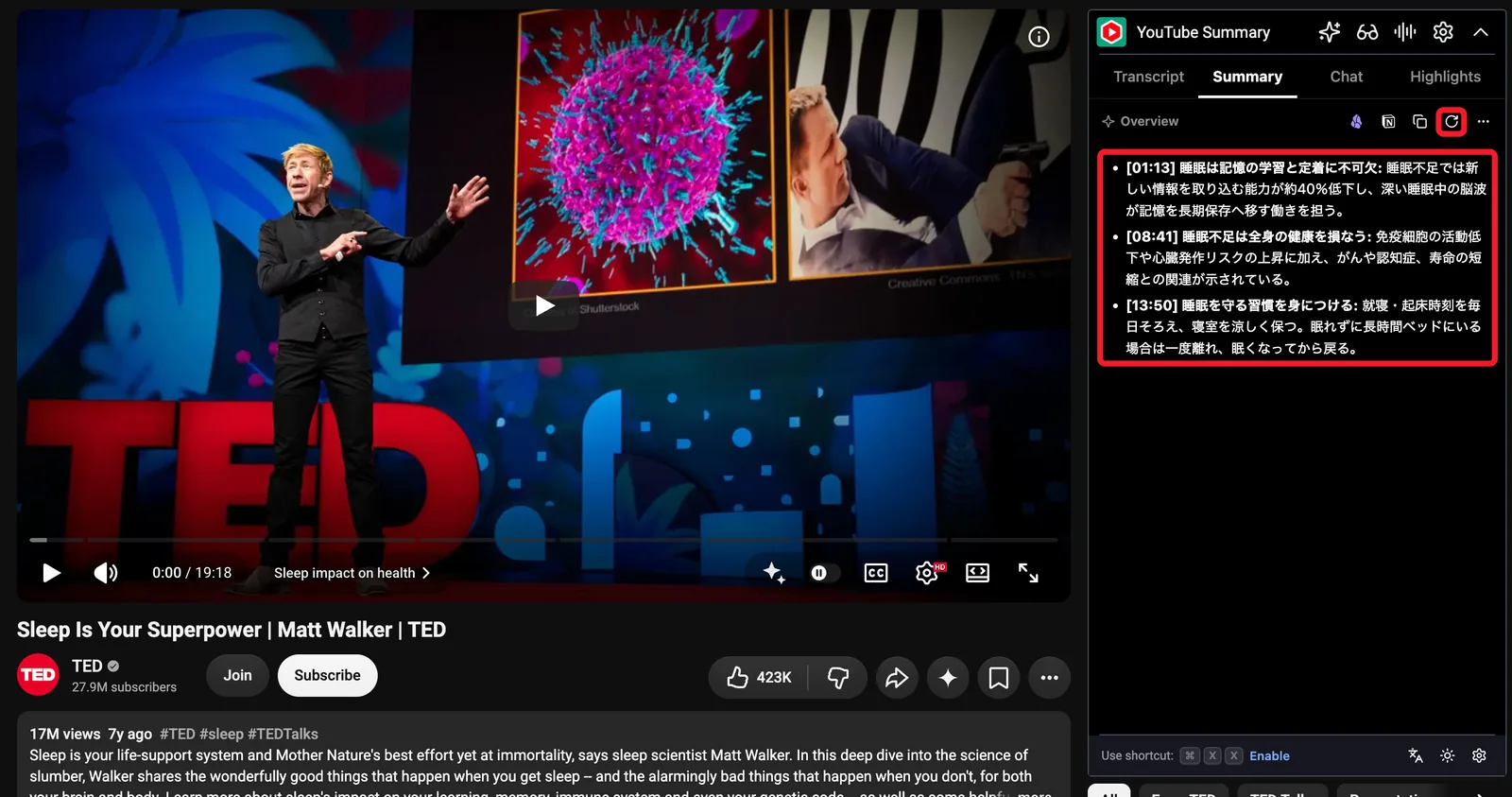
This is useful in two directions:
Learning from videos in another language: watch an English lecture, read its summary in Japanese or Spanish, then open the timestamps that matter.
Practicing a language: watch a video in your native language and read the summary in the language you are learning.
Step 4: The same setting on your phone
Your Summary Language is one setting shared across the extension, the Glasp website, and the Glasp app for iPhone and Android. Change it in one place and summaries everywhere follow.
In the app, you can also change it in Settings.
Keep the parts that matter
A summary tells you what a video covers. To remember it, keep a few lines from the video itself:
Highlight lines in the transcript. Each highlight is saved with its timestamp, so you can jump back to that moment.
Add a note in your own words, in whatever language you think in.
Everything you highlight is on your Glasp profile, searchable later.
FAQs
Which languages can summaries be written in?
More than 50, including English, Spanish, Portuguese, French, German, Japanese, Korean, Chinese, Hindi, Indonesian, Vietnamese, Thai, Turkish, and Arabic. The default, Auto detect, uses the video's own language.
Does this translate the transcript too?
No. The transcript stays in the language the video is spoken in. Only the summary is written in your chosen language.
Do I have to set it on each device?
No. Summary Language is shared across the extension, the website, and the mobile app.
Is it free?
Yes. The free plan includes 3 Glasp AI summaries per 7 days. Pro and Unlimited include more.
Can AI summaries be wrong?
Yes. Use the summary to decide what to watch, and check the video itself before you rely on a detail.
Before you leave
If you have any questions, please refer to the FAQ or contact us.
👉 X
See you next time,
Glasp team