How to Listen to Your Highlights: Turn Glasp Notes into Audio with ElevenLabs

Oct 29, 2026
5 min read
1 views

Disclosure: This post contains an affiliate link to ElevenLabs. If you sign up through it, Glasp earns a commission. Glasp is not owned by or affiliated with ElevenLabs beyond that.
You highlight a good article or a book chapter, and then you rarely read those highlights again. Reading them back takes a screen and a quiet moment. Listening only takes ears: a commute, a walk, the gym.
This guide shows how to export your highlights and notes from Glasp, turn them into an audio file with ElevenLabs Text to Speech, and review them by listening. Glasp is where you read and keep; ElevenLabs is where you listen again.
What you need:
A Glasp account with some highlights (free).
An ElevenLabs account. The free plan includes 10,000 credits a month, which ElevenLabs puts at about 10 minutes of Text to Speech (ElevenLabs pricing page, checked October 21, 2026). Sign up here: ElevenLabs (affiliate link)
Step 1: Pick one set of highlights
Short and focused works best for listening. Good choices:
One book's Kindle highlights.
One long article or paper you highlighted.
Everything under one tag, for example
sleepormarketing.
Ten minutes of audio is roughly a few dozen highlights, so start with one source, not your whole library.
Step 2: Export from Glasp
There are two ways to download, both on your Glasp profile:
One page: on the Highlights tab, open the page, click the share icon at the top right, and under Download & Export choose MD (Markdown). TXT, CSV, HTML and JSON are there too. Text (.txt) is the easiest to paste straight into a text-to-speech tool.
Many pages at once: click Download above your highlights list and pick a format.
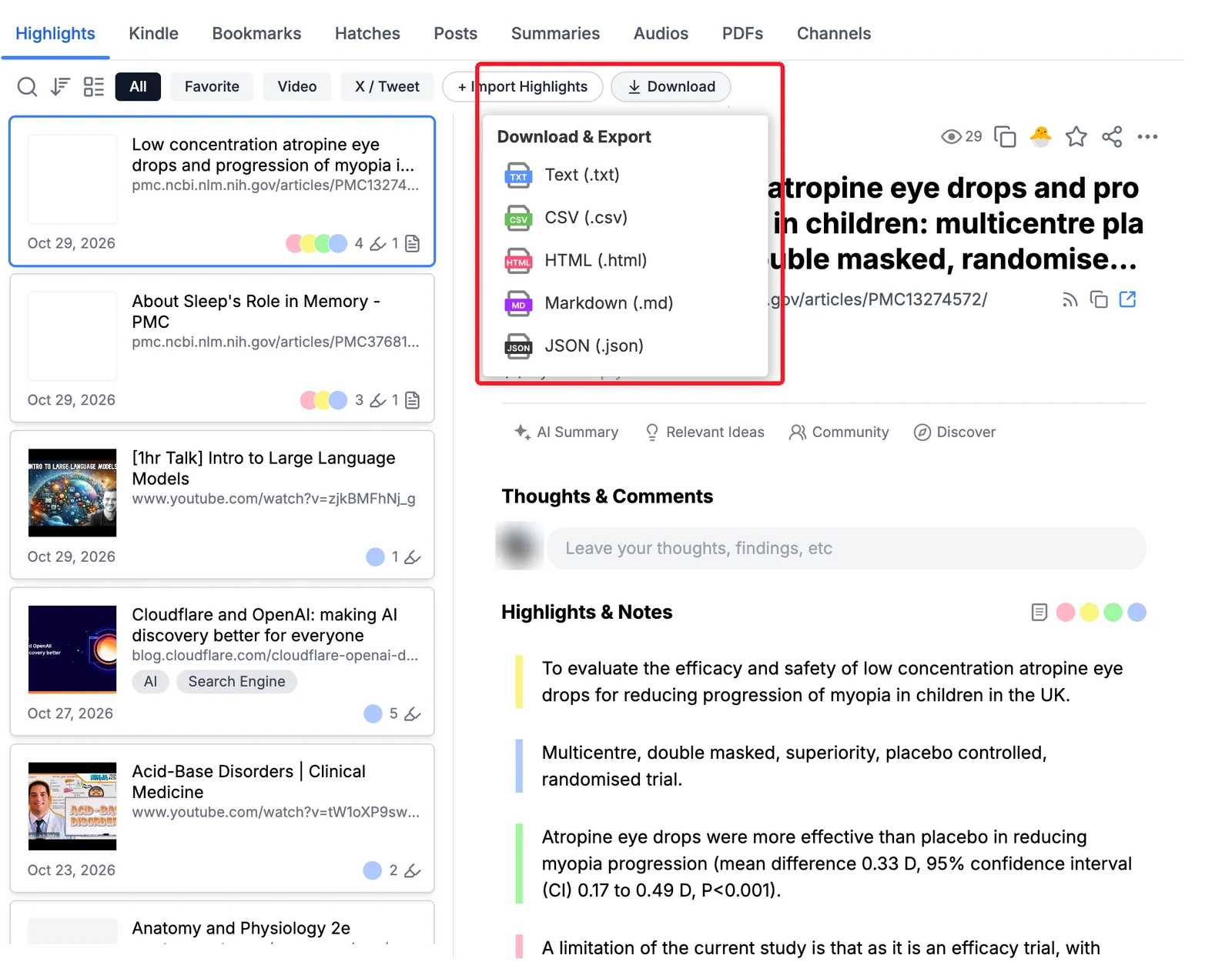
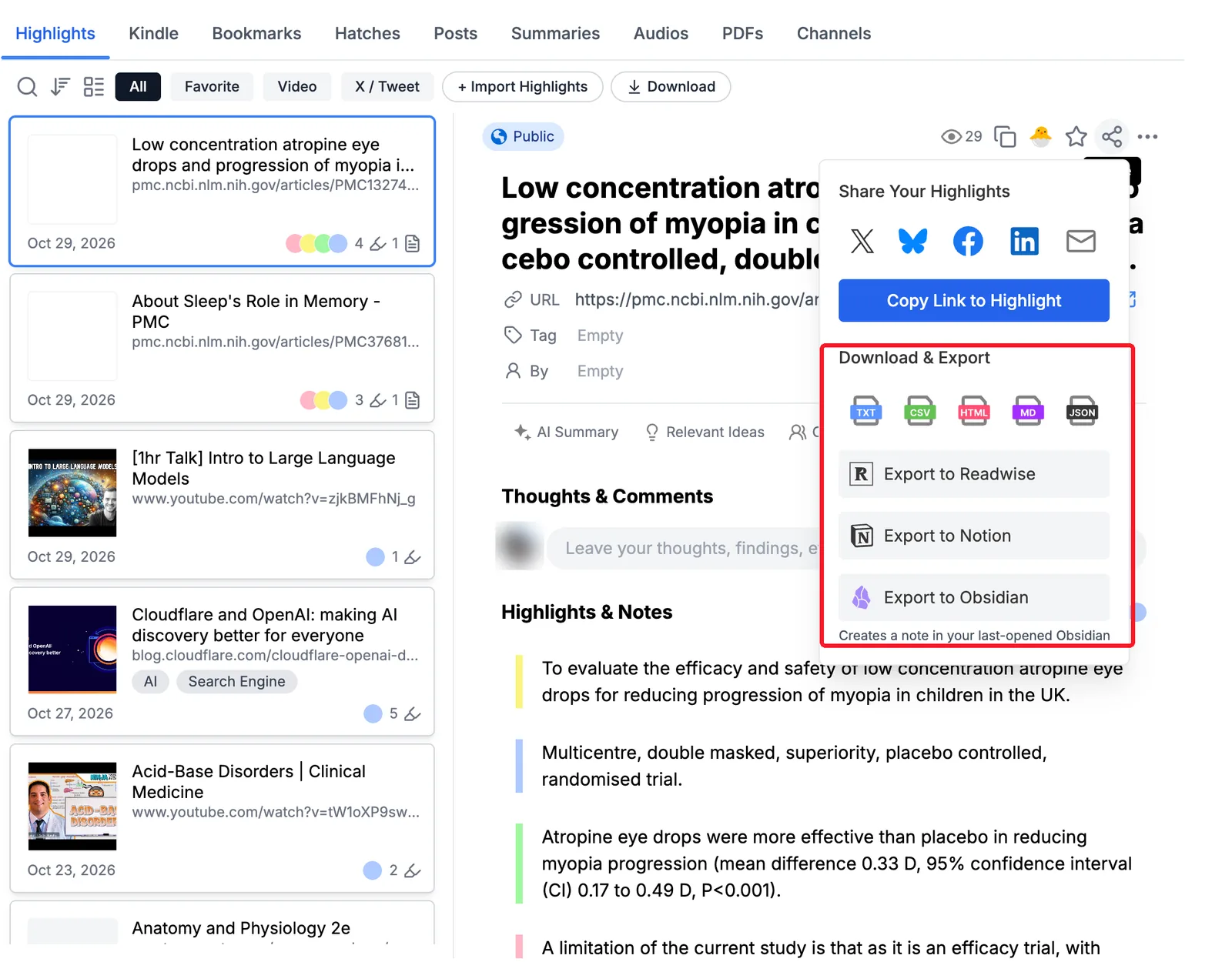
For a book, open it on the Kindle tab, where you can download its highlights as Markdown or CSV. The share menu on a page can also send highlights to Notion, Obsidian or Readwise.
Step 3: Make the text easy to listen to
A text-to-speech voice reads everything it is given, including links and symbols. Before you paste:
Remove links and symbols. The export includes the page title and its link with your highlights and notes; delete the links, and with Markdown also the marks such as
#,>and**.Keep your notes next to the highlight they belong to. Hearing "My note:" before your own words makes them easy to tell apart from the author's.
Add a short line between sources or sections, for example "Next: chapter three." It gives your ears a place to rest.
Optional: paste the export into an AI assistant and ask it to "turn these highlights into a short script to listen to, keeping each quote word for word." Read the result before you use it; AI can change a quote without telling you.
Step 4: Generate the audio in ElevenLabs
Open Text to Speech in ElevenLabs.
Choose a voice under Voice on the right. A calm, even voice is easier to follow for long passages.
Paste your text.
Click Generate speech.
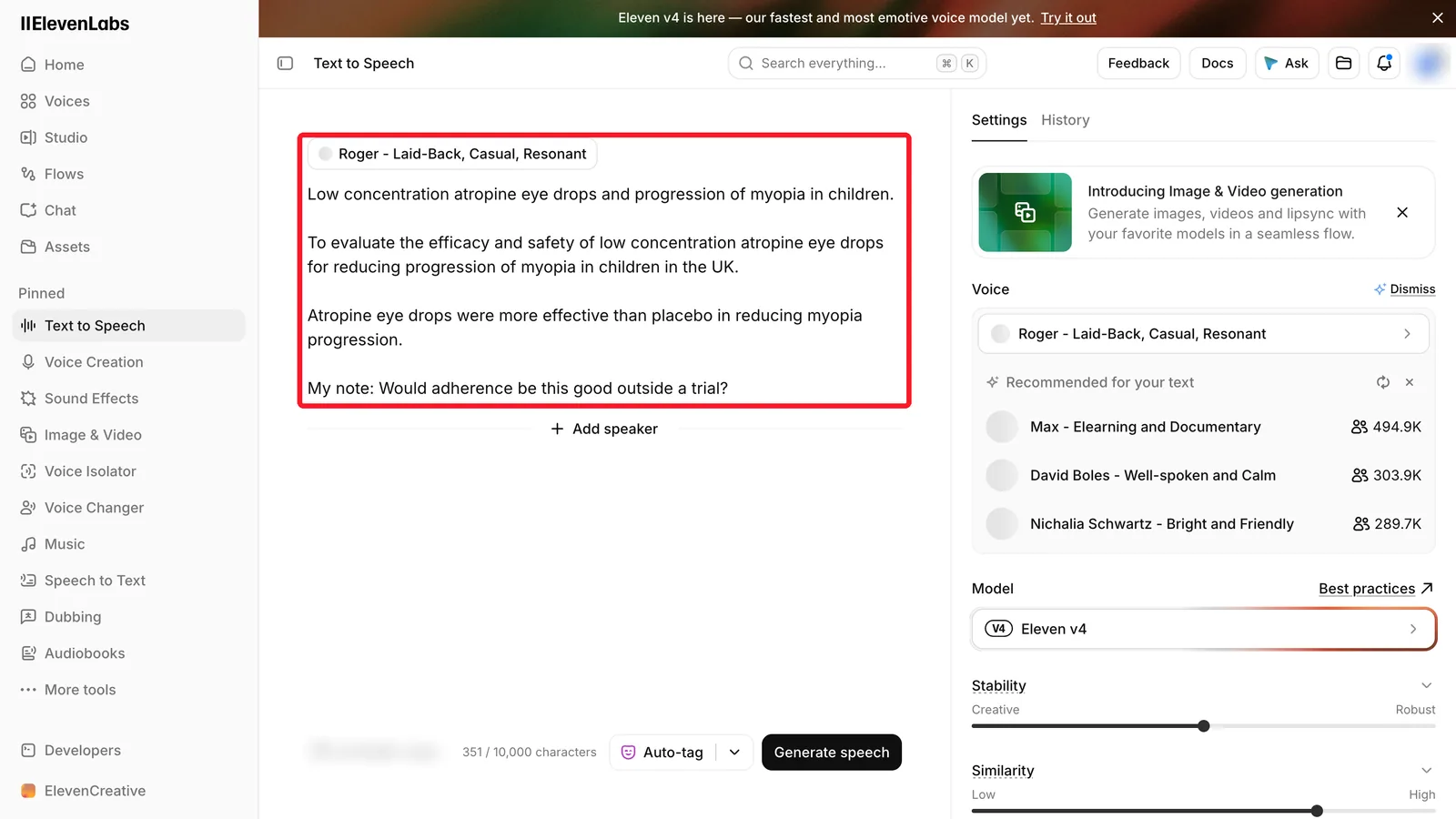
ElevenLabs takes up to 10,000 characters per generation with its Eleven v4 model and 5,000 with other models (ElevenLabs Text to Speech guide, checked October 21, 2026). If your export is longer, split it into parts, for example one part per chapter.
Step 5: Get the audio onto your phone
In ElevenLabs, open the History tab next to Settings and download the clip as an MP3.
The easiest way is to do Steps 4 and 5 in your phone's browser, so the file is already on your phone. On iPhone, Safari saves downloads to the Files app, in the Downloads folder, where you can play them directly. On Android, Chrome saves them to your Download folder.
If you made the audio on a computer, AirDrop it from a Mac to your iPhone and save it to Files, or put it in Google Drive or iCloud Drive and open it from that app on your phone.
Name the files by book and part, for example "Atomic Habits - Part 1", so they stay in order.
Step 6: Listen, then come back to Glasp
When a line sticks while you are walking, open Glasp later and add a note to that highlight: why it matters, where you will use it. The next time you export, your new notes are in the audio too.
Ideas for what to listen to
Before a meeting or exam: the highlights tagged for that topic.
After finishing a book: all its highlights, once a week for a month.
Papers for your research: the main result and limitation you marked in each one.
Your own notes only: export, keep only your notes, and hear what you thought.
FAQs
Is it free?
Glasp highlighting and export are free. ElevenLabs has a free plan with 10,000 credits a month, about 10 minutes of Text to Speech (pricing page, checked October 21, 2026). Paid plans start at $6 a month for 30,000 credits.
Can I export my highlights as text?
Yes. You can download them as Text, Markdown, CSV, HTML or JSON, or send them to Notion, Obsidian or Readwise.
How long can one audio file be?
One generation can be up to 10,000 characters with Eleven v4, or 5,000 with other models. Split longer exports into parts.
Which audio formats can I download?
MP3 or WAV from your ElevenLabs history, with more options under Advanced.
Are my highlights shared with ElevenLabs?
Only the text you paste into ElevenLabs is sent to it. Glasp does not connect to ElevenLabs.
Before you leave
If you have any questions, please refer to the FAQ or contact us.
👉 X
See you next time,
Glasp team