How to Highlight Images with Glasp

Sep 21, 2025
4 min read
110 views
Glasp now lets you highlight and save images from any webpage — not just text. With the new image highlighting feature, you can capture infographics, charts, photos, and social media posts directly into your Glasp library. This makes it easier to organize visual content, annotate images with notes, and revisit key graphics anytime.
Whether you’re a student collecting study materials, a researcher archiving visuals, or a content creator saving inspiration, Glasp’s image highlighter helps you learn and curate more effectively.
If you haven't signed up for Glasp or installed the Glasp browser extension, please do so. You can refer to this tutorial.
How to Highlight Images on The Web with Glasp (YouTube)
Step 1: Open an Article that Contains an Image
Make sure that you logged in to the Glasp account on the Chrome extension. Open any article you want to save an image. We use Glasp's page as an example.
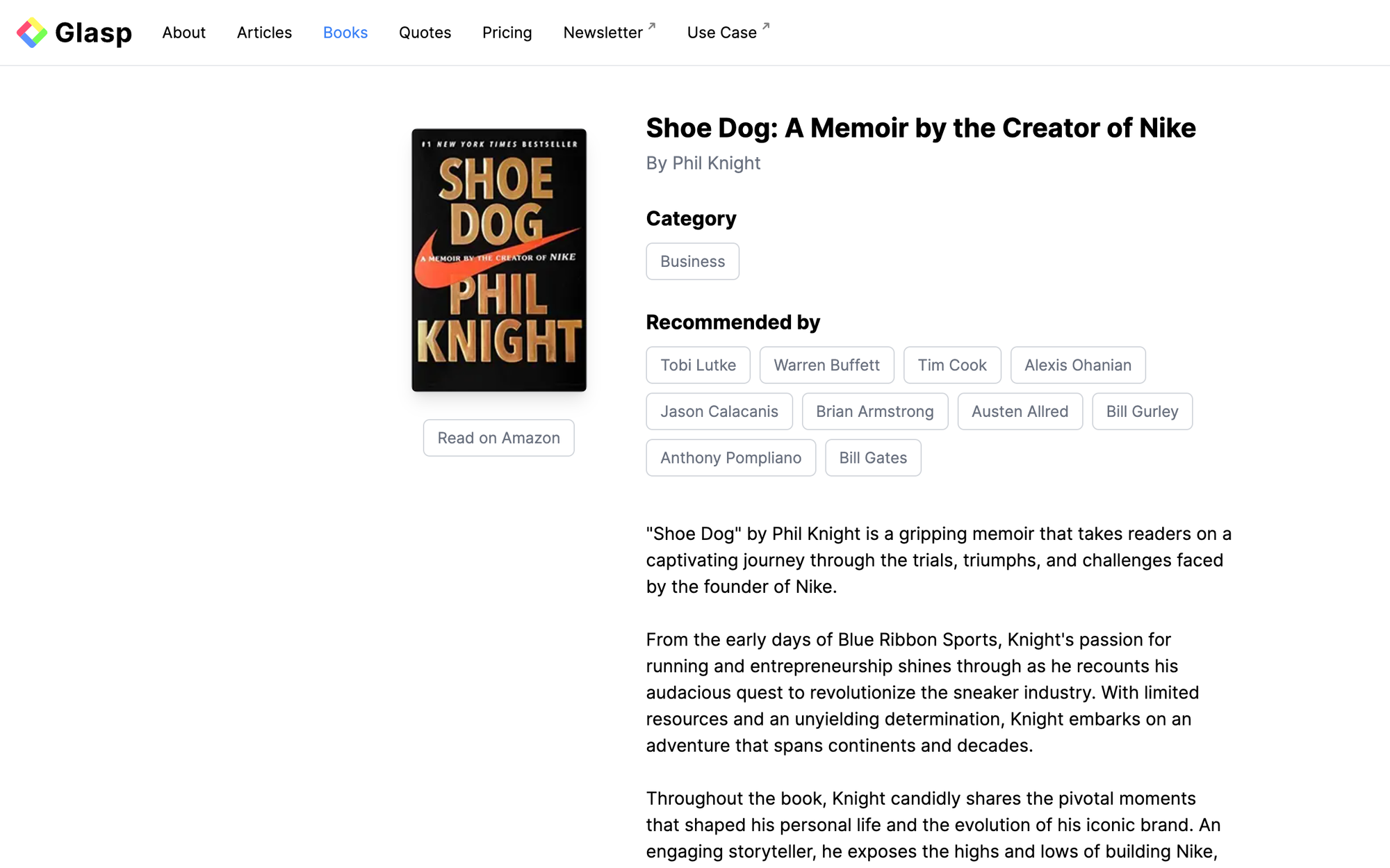
Mouse over the image and right-click it. It shows an option, Highlight Image, so click it to save the image.
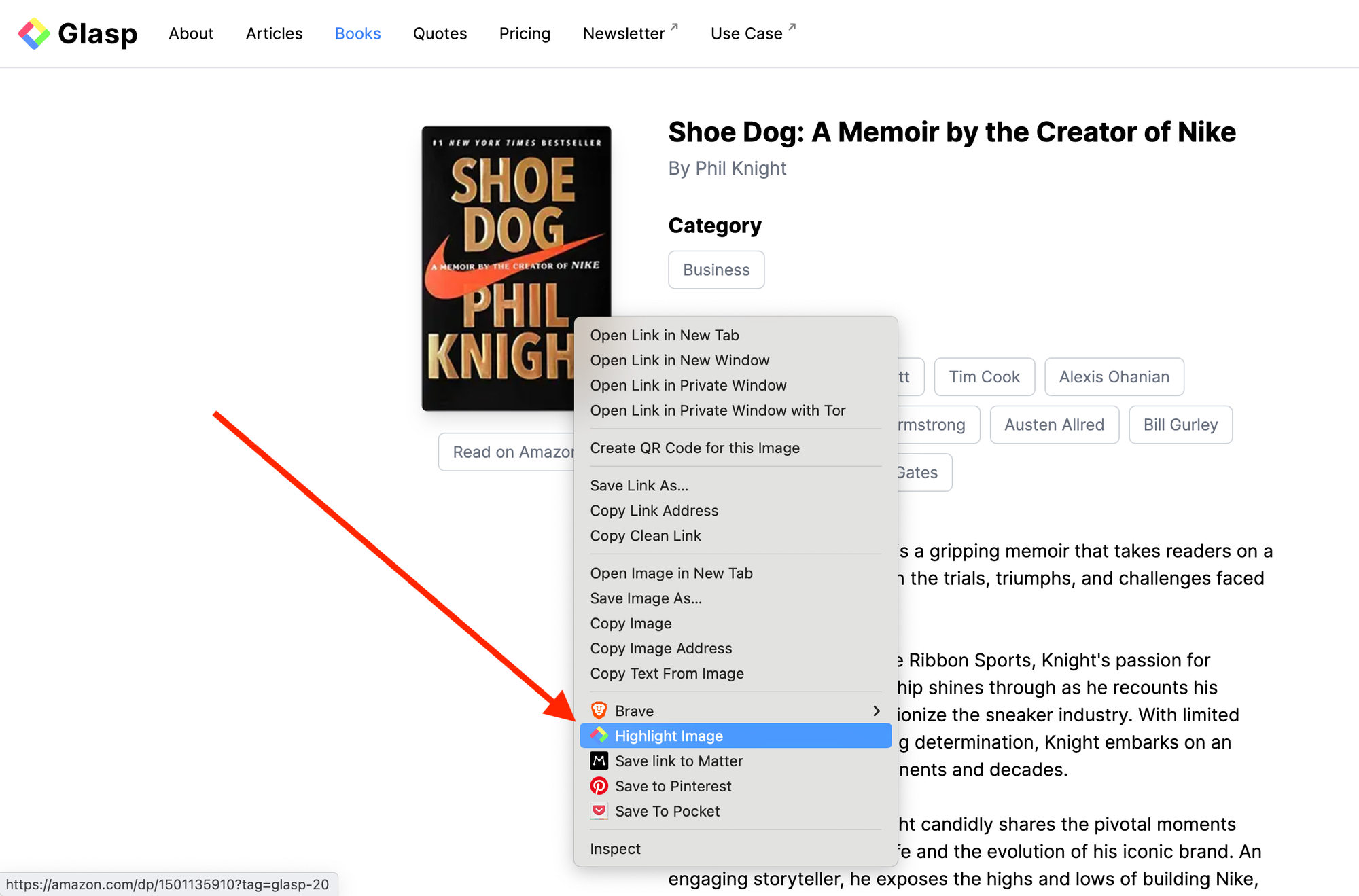
Note: Glasp is a social web highlighter, so the image is saved publicly in Glasp and is visible to anyone. If you'd like to save it privately, visit this page and upgrade the plan.
Note: You can save images on social media such as X, LinkedIn, and Facebook.
Step 2: View the Saved Images
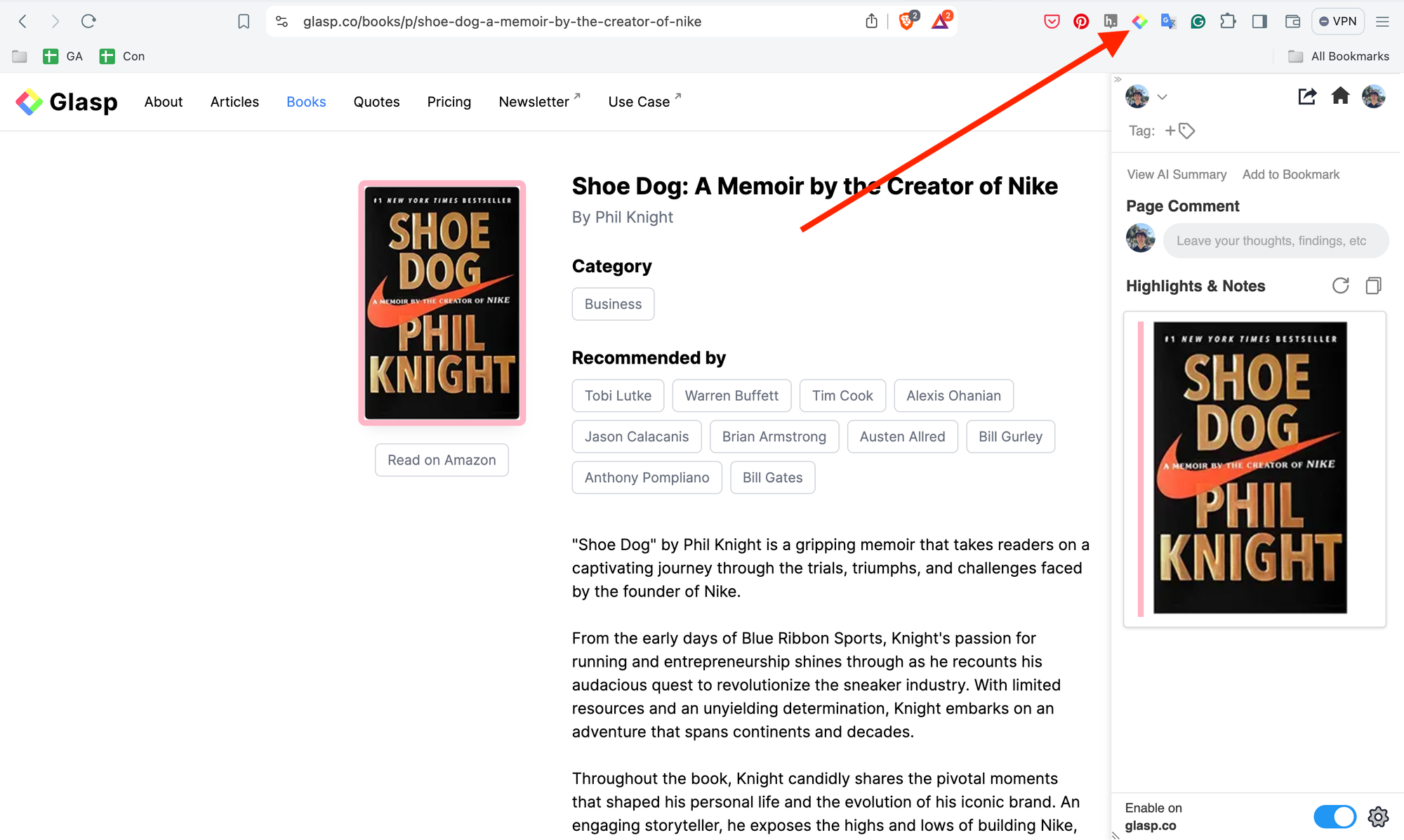
Once you save the image, you can see it on the Chrome extension and your profile page. To see the image on the Chrome extension, click the Glasp icon on the toolbar and open the sidebar.
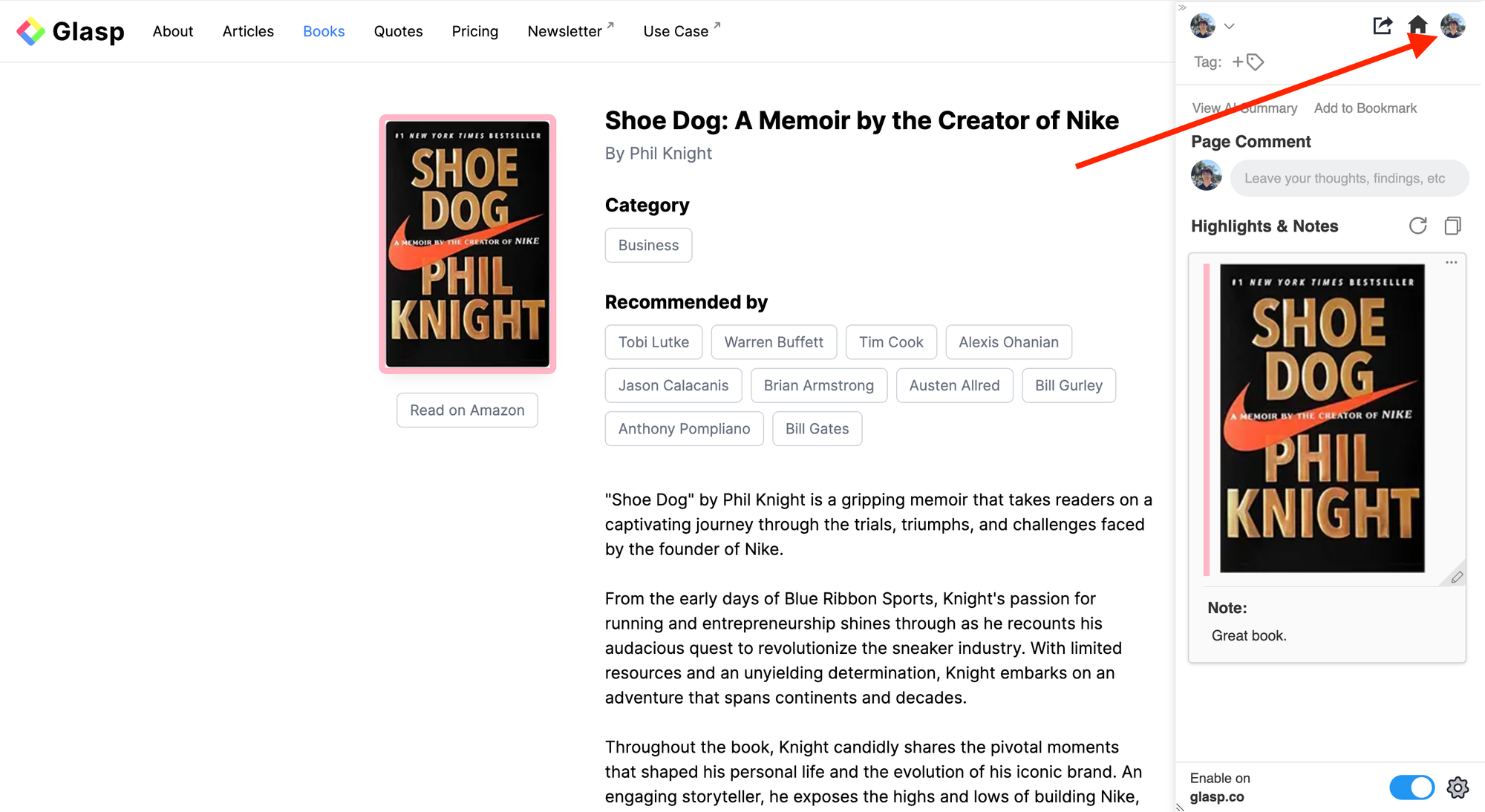
You can take notes on the image if you want. Click the pencil icon at the bottom right and open a note space.

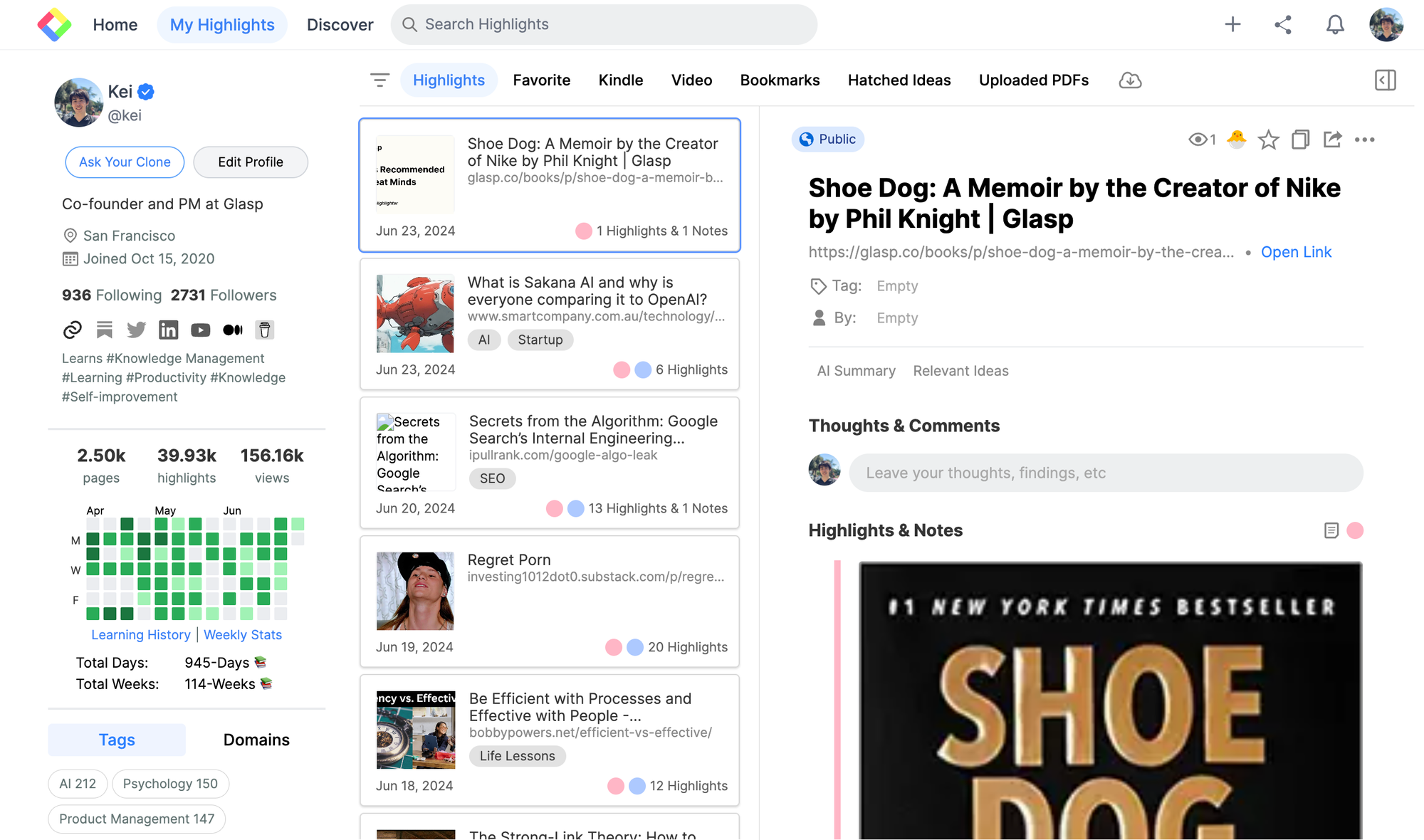
To see the saved images on your profile page, click your profile icon at the top of the sidebar. It takes you to your profile page.
You can see the saved images on your profile page.
(Optional) Step 3: Delete an Image Highlight
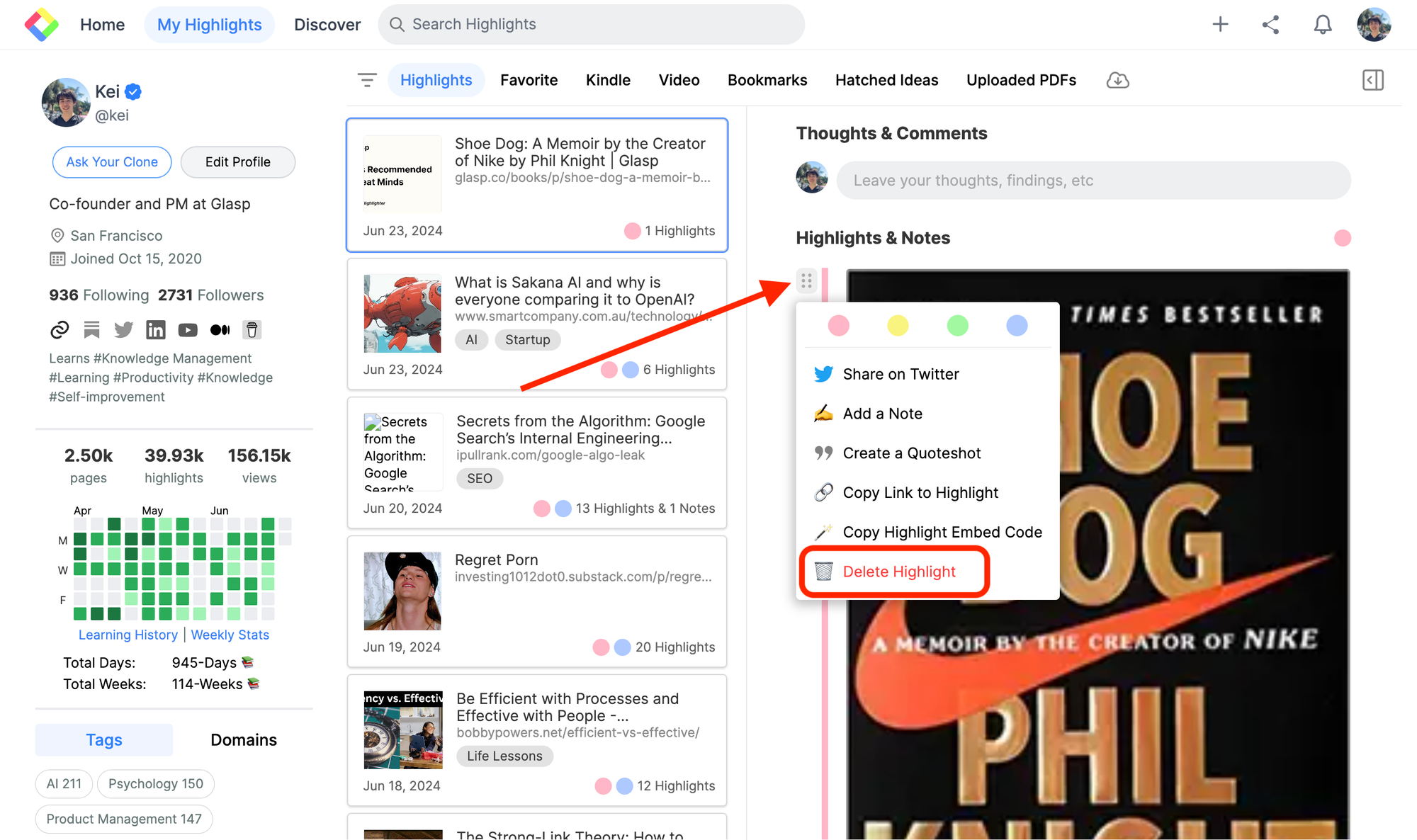
If you want to delete the image highlight, go to your profile page. Select the image you want to delete, then click the six dots button. It shows a modal, so click Delete Highlight.
(Optional) Step 4: Delete the Whole Highlights
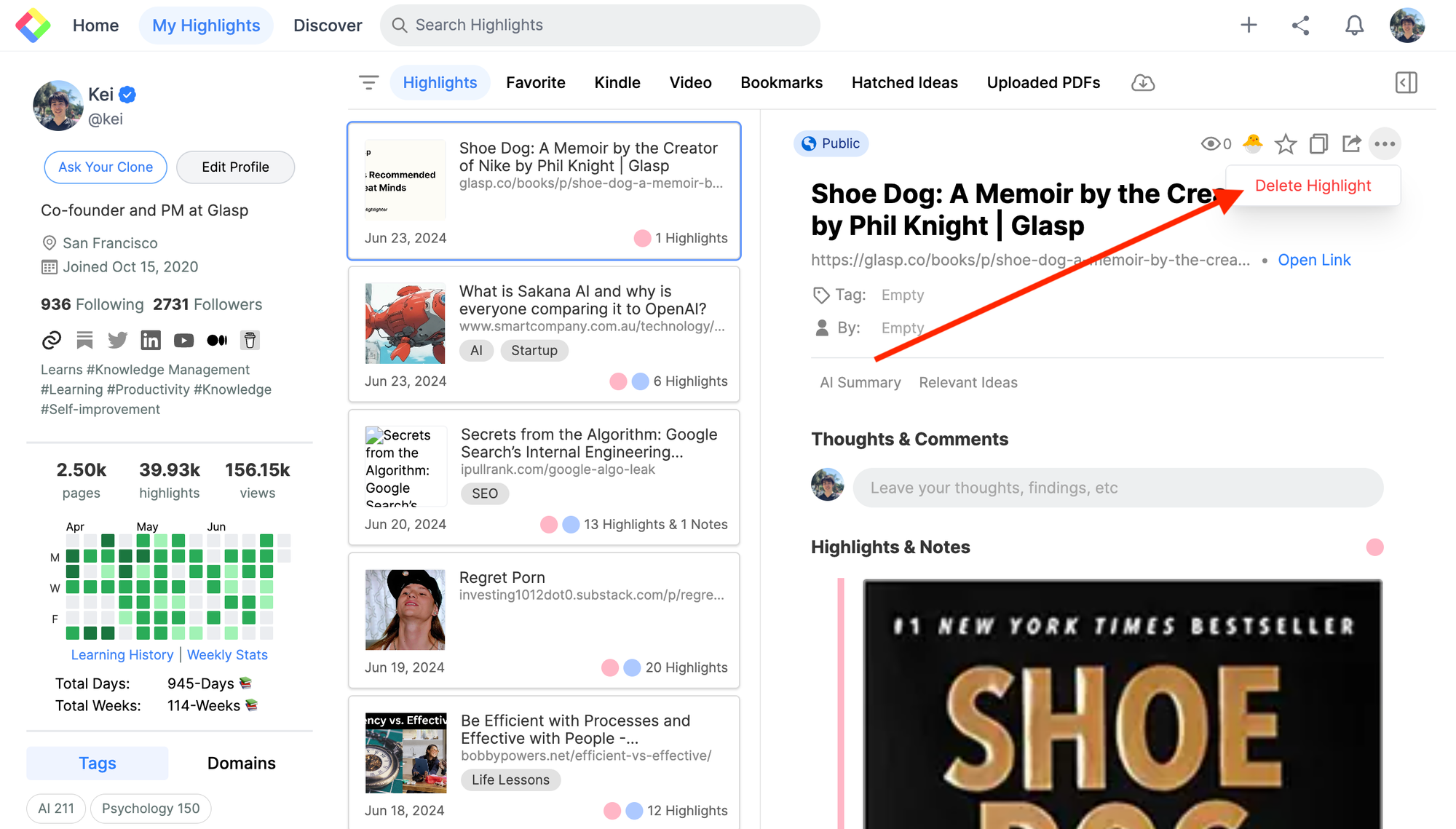
If you want to delete all the image and text highlights, click the three dots button at the top right. It shows a Delete Highlight popup, so click it.
FAQs
Q. How do I highlight and save an image with Glasp?
Right-click on any image and select “Highlight Image”. It will be instantly saved to your Glasp account, just like text highlights.
Q. Can I save images from social media like X or LinkedIn?
Yes. Glasp supports saving images from websites and major social platforms including X, LinkedIn, and Facebook.
Q. Are image highlights public or private?
By default, all image highlights are public and visible on your Glasp profile. If you want to save images privately, you’ll need to upgrade to the Pro plan.
Q. Can I add notes or annotations to images I highlight?
Yes. After saving an image, click the pencil icon in the sidebar to add notes. This is useful for context, study notes, or reminders.
Q. Where can I view all my saved images?
You can access your saved images in the Glasp Chrome extension sidebar or on your profile page on Glasp.
Q. Can I delete an image highlight?
Yes. Go to your profile page, click the three dots menu on the image, and select Delete Highlight.
Q. Can Claude or ChatGPT read my Glasp highlights?
Yes. With the Glasp MCP Connector, AI assistants such as Claude, ChatGPT, and Claude Code can search and read your own highlights, notes, Kindle highlights, and AI summaries, including your YouTube summaries. The connection is read-only and private to you. See How to Connect Glasp to Claude, ChatGPT, and Claude Code (MCP Connector).
Q. Can I use Glasp on my phone?
Yes. Glasp has native apps for iPhone, iPad, and Android, and the Glasp Safari extension for iPhone and iPad comes with the iOS app. Your highlights sync between the apps, the web, and the desktop extension. See How to Use the Glasp Mobile App on iOS, iPad, and Android.
Before you leave
If you have any questions, please refer to the FAQ or contact us.
See you next time,
Glasp team