How to Export Highlights and Notes into Logseq

Sep 21, 2025
3 min read
63 views
If you use Logseq for knowledge management or personal note-taking, you might wonder: “How can I export my highlights and notes directly into Logseq?” With Glasp, a free social web highlighter, you can easily capture insights from web articles, PDFs, YouTube transcripts, and Kindle, then export them into Logseq with just a few clicks.
In this tutorial, we’ll walk you through the simple steps to copy and paste highlights from Glasp into Logseq, so you can keep your learning organized, searchable, and connected to your existing notes.
If you haven't signed up for Glasp or installed the Glasp browser extension, please do so. You can refer to this tutorial.
How to Export Highlights and Notes into Logseq (YouTube)
Things Needed
Step 1. Go to your profile page by clicking “Profile” in the left sidebar
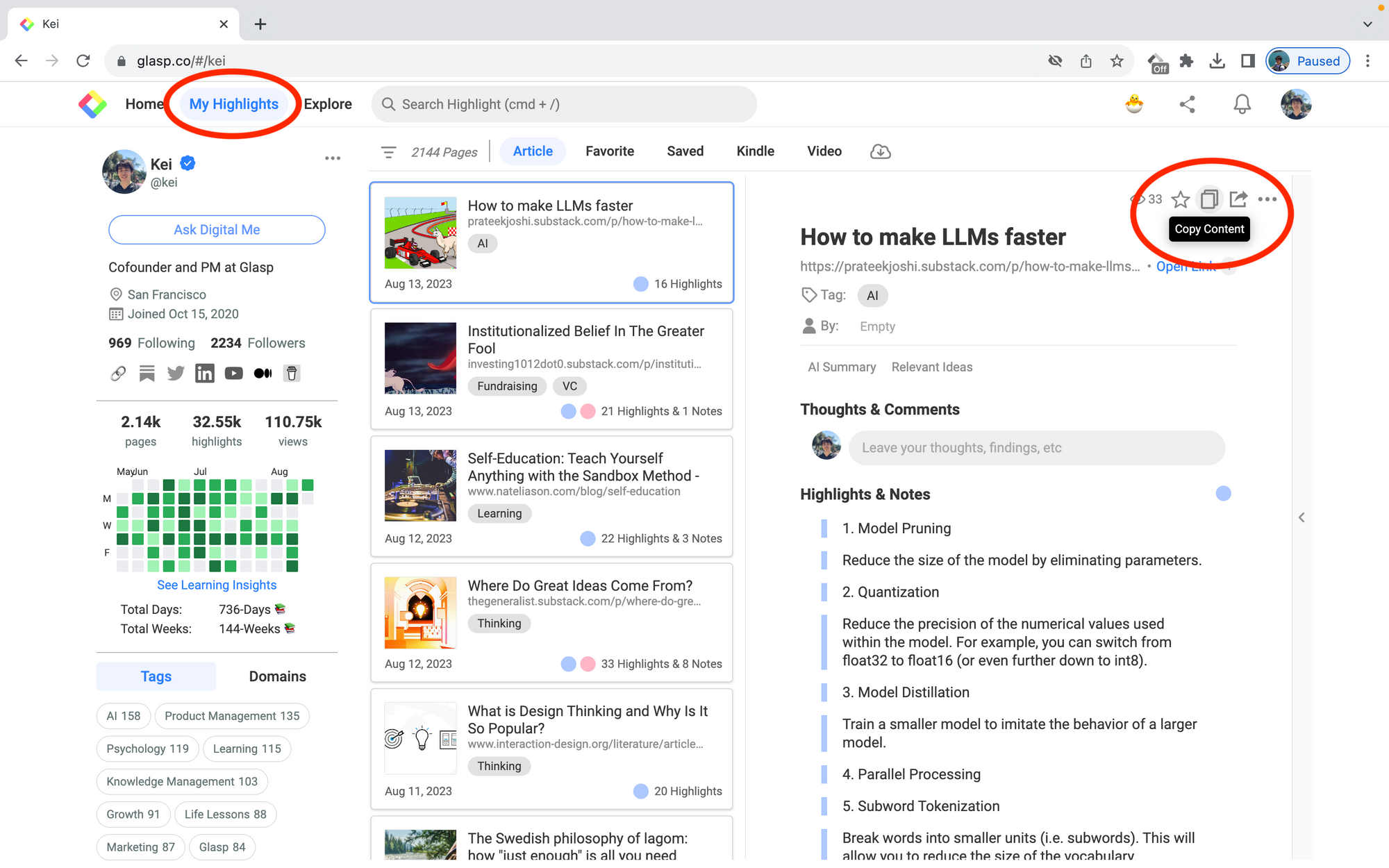
Select an article you want to export, then click
Copy Highlightsat the top right.If you click another article, you can export that article’s highlighted sentences.
Step 2. Paste highlights & notes on Logseq
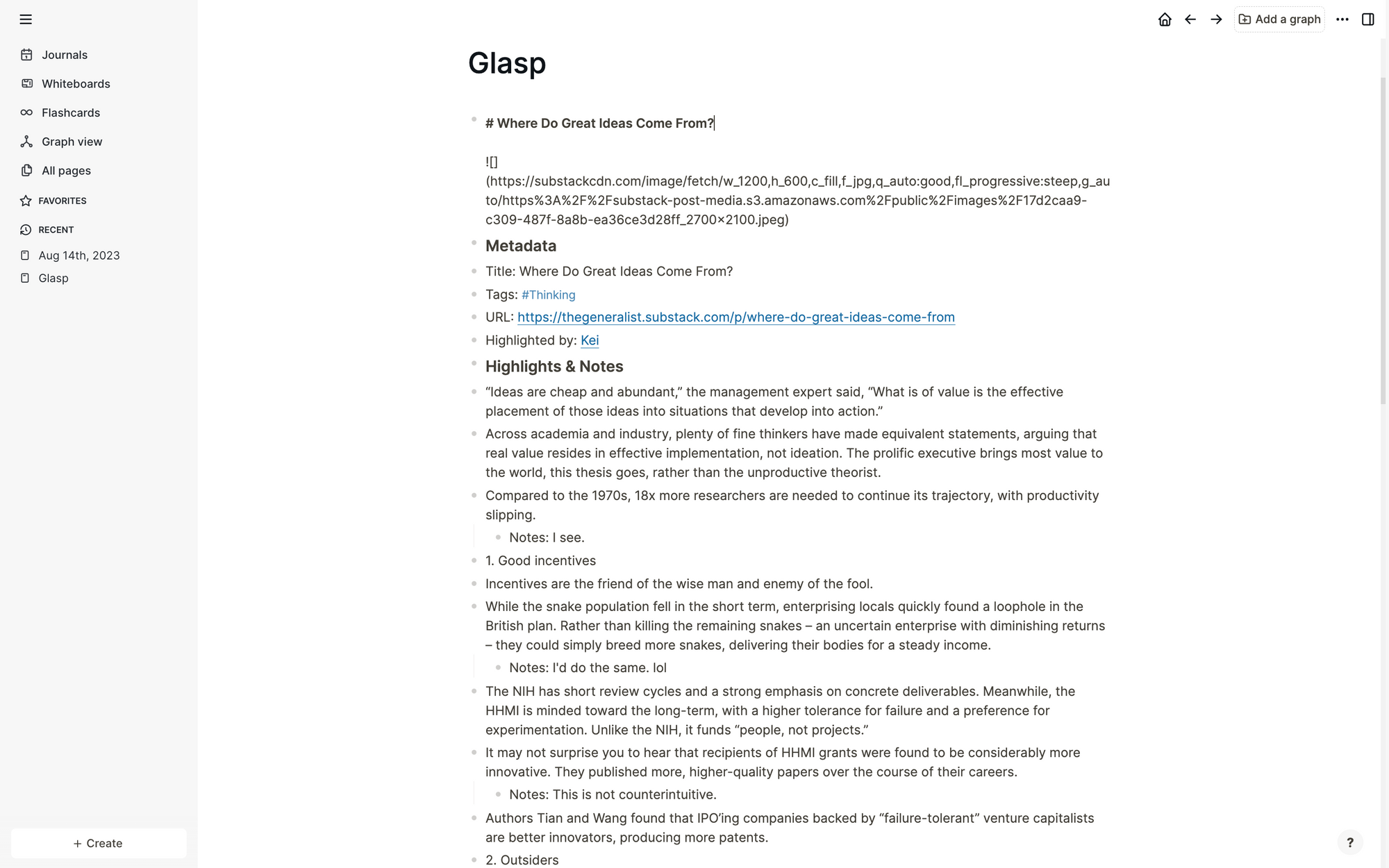
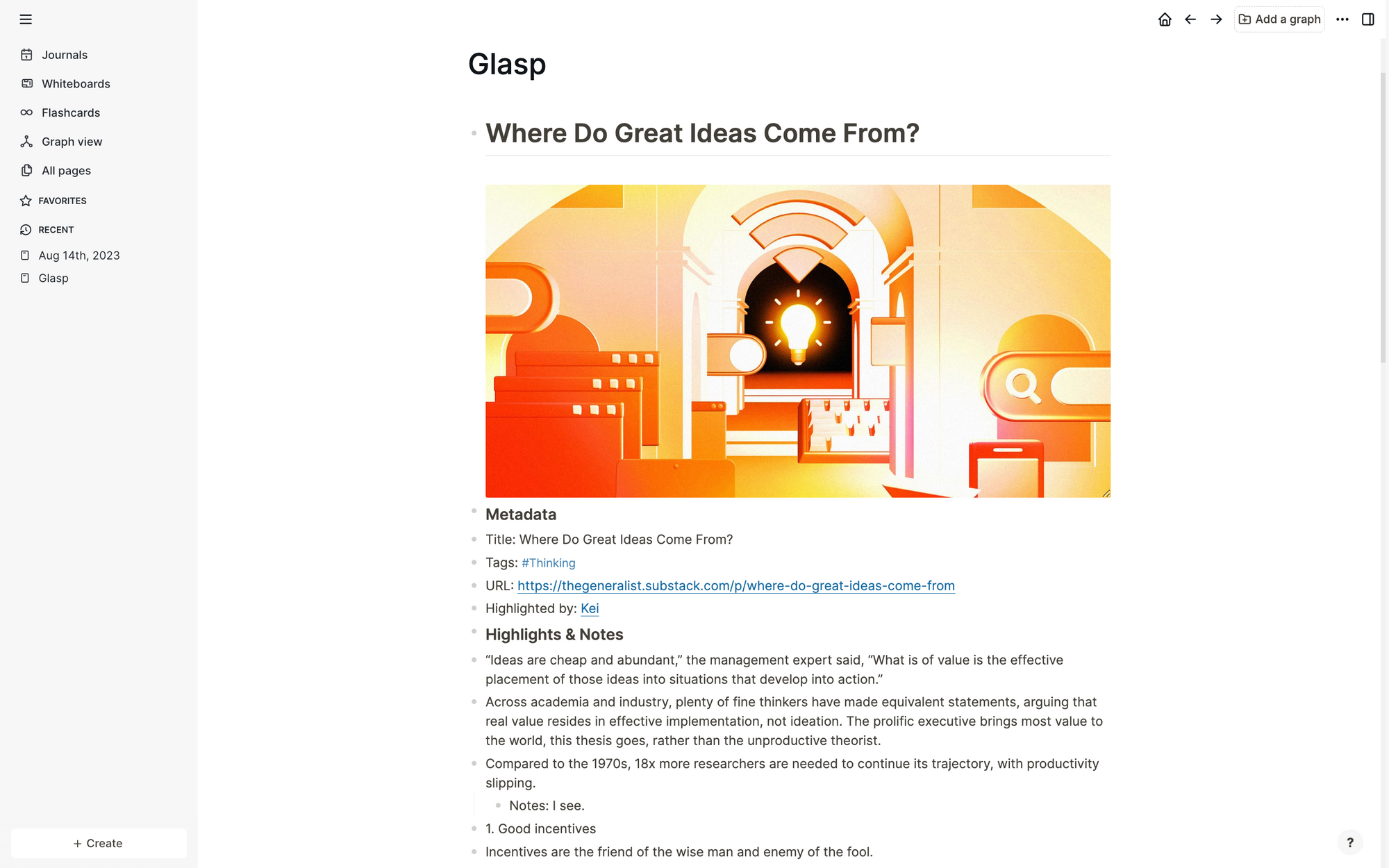
Open a new page on Logseq and paste highlighted sentences by Command+V for Mac or Ctrl+V for Windows. You can edit the sentence or style as you want 🙂
And if you see the above indent, you can see a thumbnail image of the article.
FAQs
Q. Can I export Glasp highlights and notes directly into Logseq?
Yes. You can copy and paste highlights from Glasp into Logseq or download them as a Markdown (.md) file and then import into Logseq.
Q. Do Glasp exports into Logseq include the article title and source link?
Yes. When you export highlights from Glasp, the title, link, and even a thumbnail image of the article are included along with your notes.
Q. Is there a way to batch export multiple highlights into Logseq at once?
Currently, you need to copy and paste article by article. However, you can download all highlights as a Markdown file from Glasp and then add it to Logseq for bulk export.
Q. Are the exported highlights private once they are in Logseq?
Yes. Anything you paste or import into Logseq is stored locally on your device. On Glasp, highlights are public by default unless you switch to private mode with a Pro plan.
Q. Does Glasp have a direct integration with Logseq?
Not yet. For now, copy-paste and Markdown export are the recommended ways to move your highlights from Glasp into Logseq.
Q. Can Claude or ChatGPT read my Glasp highlights?
Yes. With the Glasp MCP Connector, AI assistants such as Claude, ChatGPT, and Claude Code can search and read your own highlights, notes, Kindle highlights, and AI summaries, including your YouTube summaries. The connection is read-only and private to you. See How to Connect Glasp to Claude, ChatGPT, and Claude Code (MCP Connector).
Q. Can I use Glasp on my phone?
Yes. Glasp has native apps for iPhone, iPad, and Android, and the Glasp Safari extension for iPhone and iPad comes with the iOS app. Your highlights sync between the apps, the web, and the desktop extension. See How to Use the Glasp Mobile App on iOS, iPad, and Android.
Before you leave
If you have any questions, please refer to the FAQ or contact us.
👉 FAQs
👉 X
See you next time,
Glasp team