How to Create a Q&A-Style Article from an Audio File Using Glasp

Sep 21, 2025
5 min read
86 views
Have you ever wanted to turn an interview audio file into a Q&A-style article without spending hours transcribing and formatting? With Glasp, you can easily transcribe audio, edit transcripts, and structure them into a reader-friendly Q&A article using an AI tool like ChatGPT, Gemini, or Claude.
With Glasp, you can upload an audio file, generate an accurate transcript, highlight key parts, and transform it into a structured Q&A article using AI tools like ChatGPT, Gemini, or Claude.
In this tutorial, we’ll walk you step by step from uploading your audio file to publishing a polished Q&A-style article that’s easy to read, share, and reuse for blogs, research, or documentation.
Here’s the example post we made through the feature.
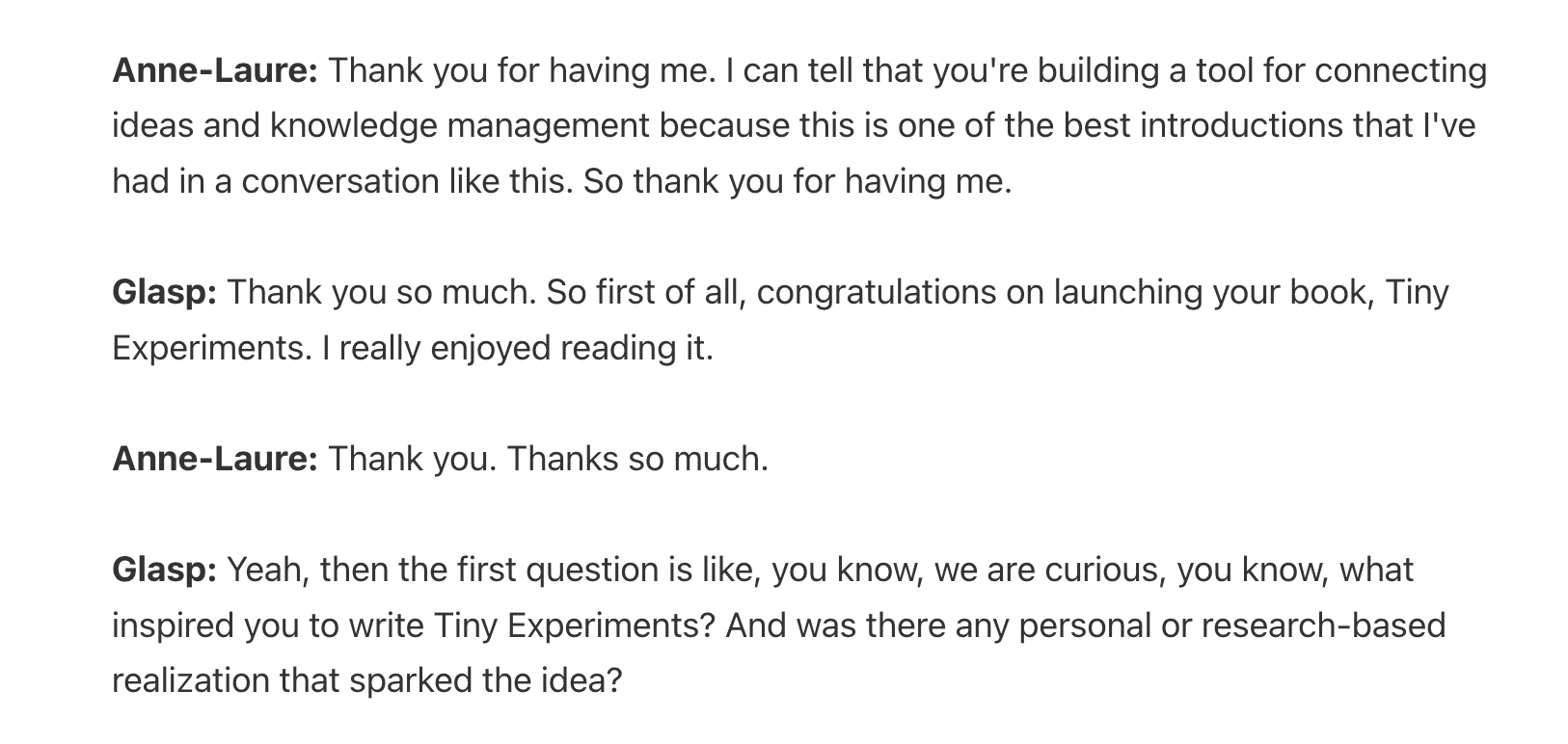
How to Build a Growth Mindset through Tiny Experiments | Anne-Laure Le Cunff | Glasp Talk #45
Step 1: Prepare an Audio File
If you have an audio file that records the interview, please save it on a desktop. If you record with iPhone Voice Memo and if you're using a Mac, you can move the file via Airdrop. You can see the tutorial below.
If you're using an Android mobile, Windows, or Chromebook, etc, please move the audio file with such as Google Drive, Slack, etc.
Step 2: Sign up for Glasp
Select a browser: Google Chrome, Brave, Safari, Microsoft Edge, Firefox, etc.
On your search tab, type in “glasp.co” and you will be automatically directed to the Glasp page. Or access it from the link below.
👉 Glasp — Audio to Text Converter
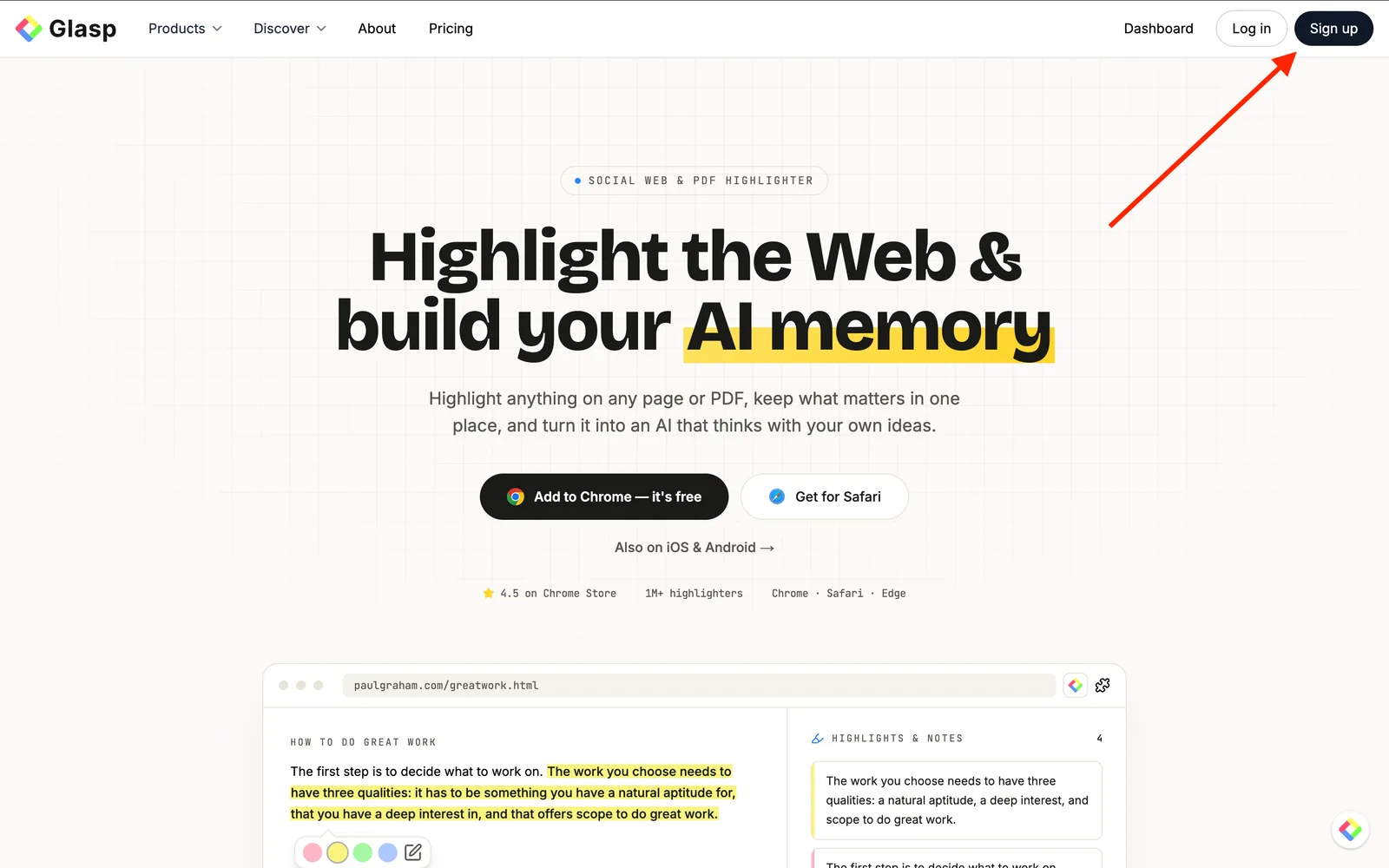
Upon reaching it click “Sign up” and continue using your Google Account.
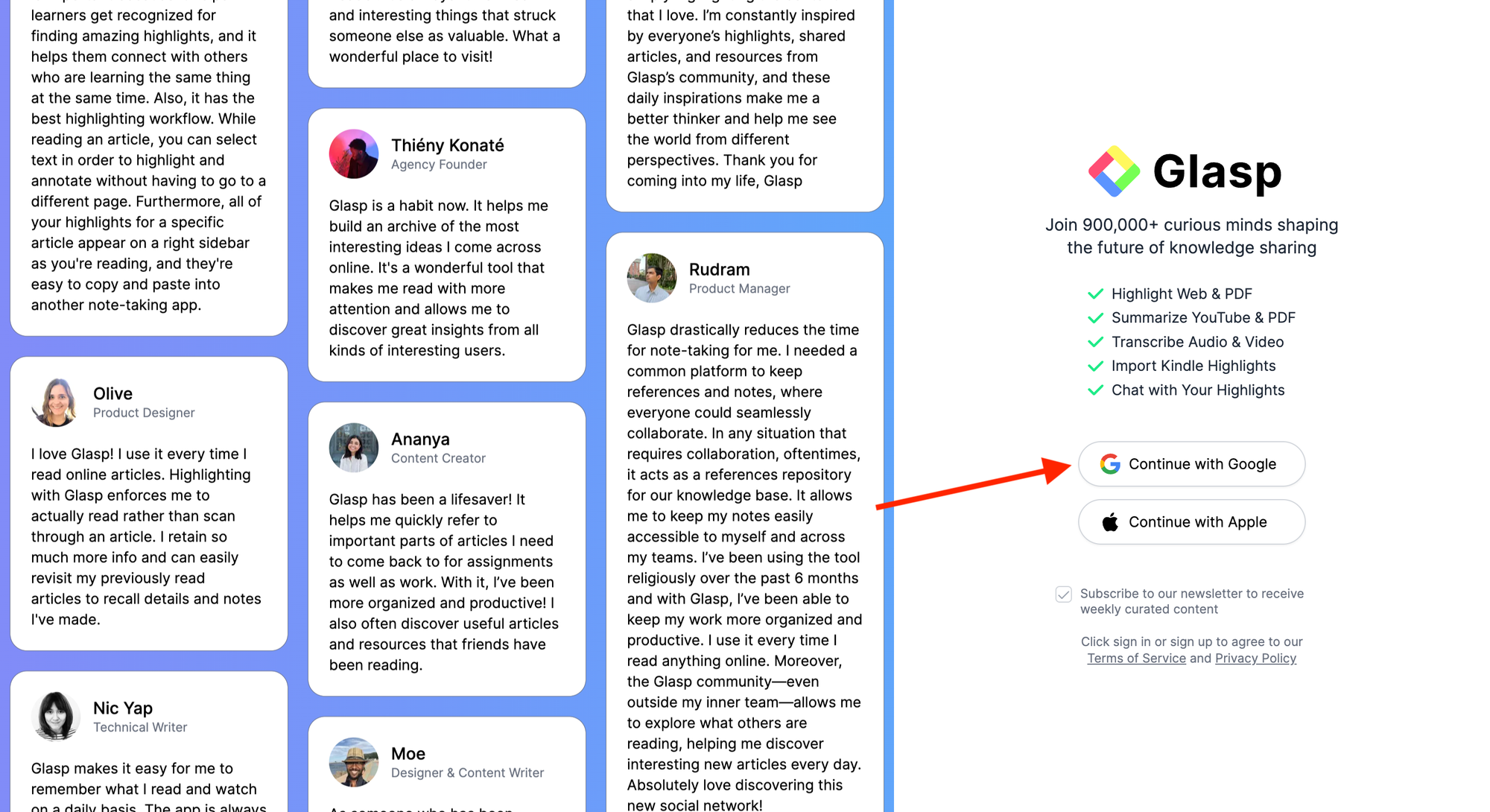
You can sign up for Glasp with either Google Sign-in or Apple Sign-in. If you're not an iPhone/iPad user, we strongly recommend you use Google Sign-in.
After finalizing your account, you will be redirected to the Chrome Web Store.
Step 3: Go to the Home page on Glasp
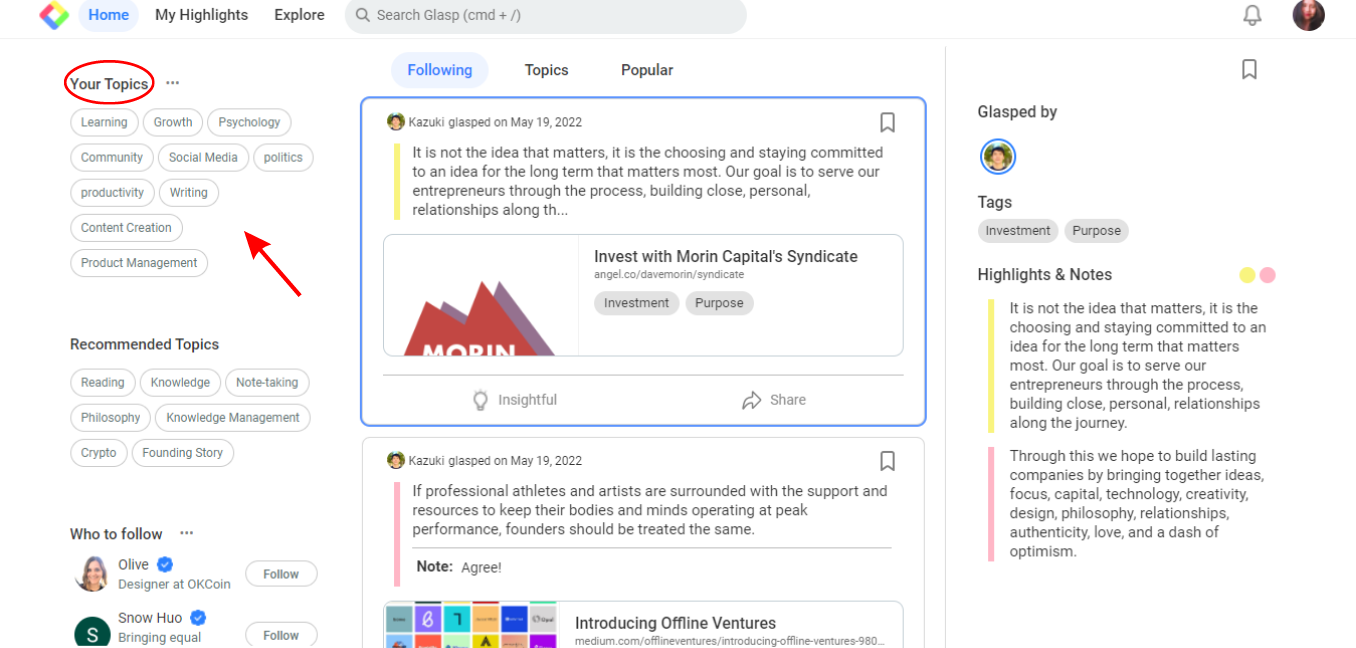
Once you have successfully created the Glasp account, you can see the Home page below. If you cannot see the page, please access "glasp.co" again.
On the Home page, you're asked to choose your favorite topics. Choosing your topics could be a leap step as this will help you identify the articles in line with your interests. And you can change your favorite topics anytime.
Step 4: Upload the Audio File to Glasp
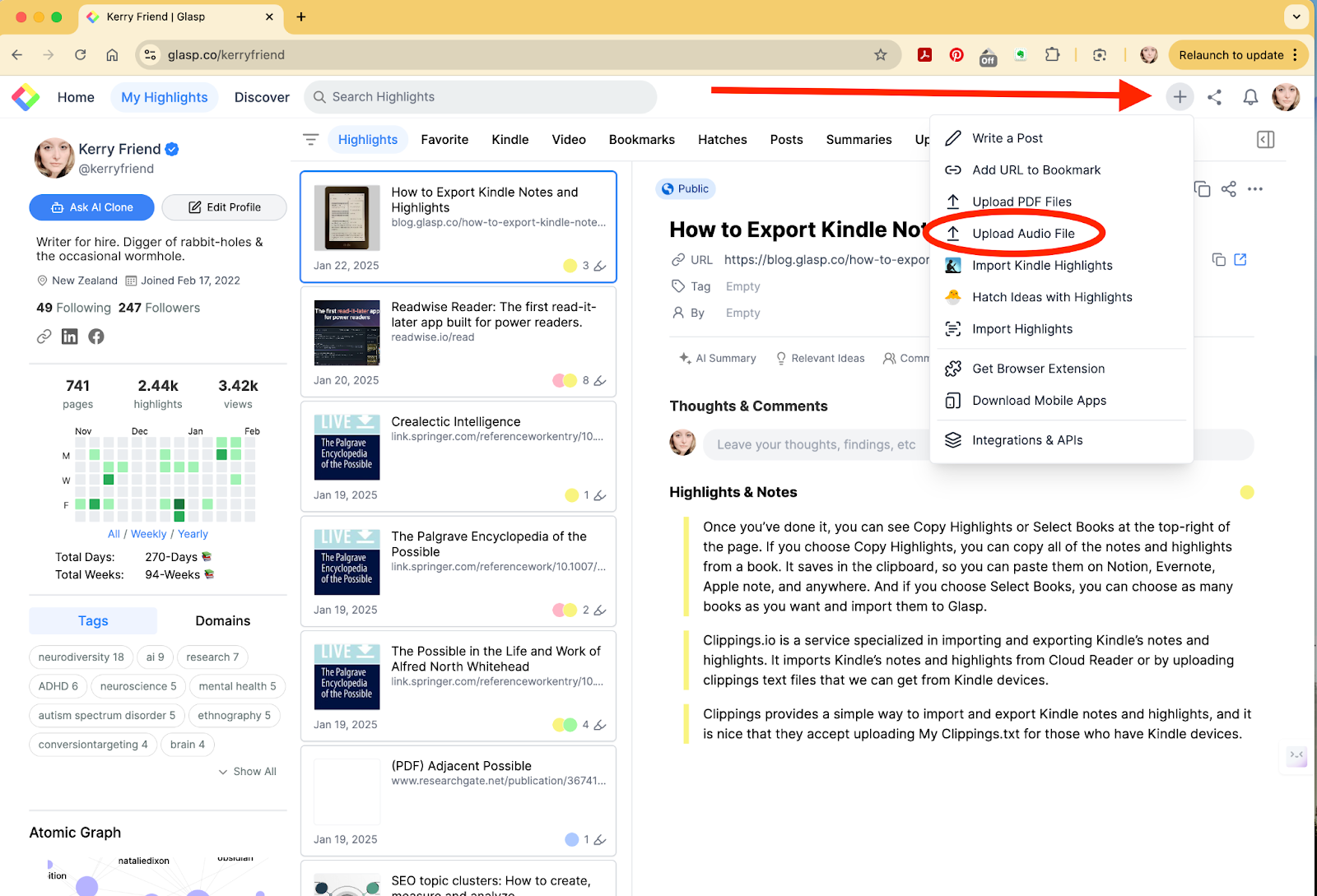
On the Home page or your profile page, you can see the + button at the right top. Then, click Upload Audio File on the modal.
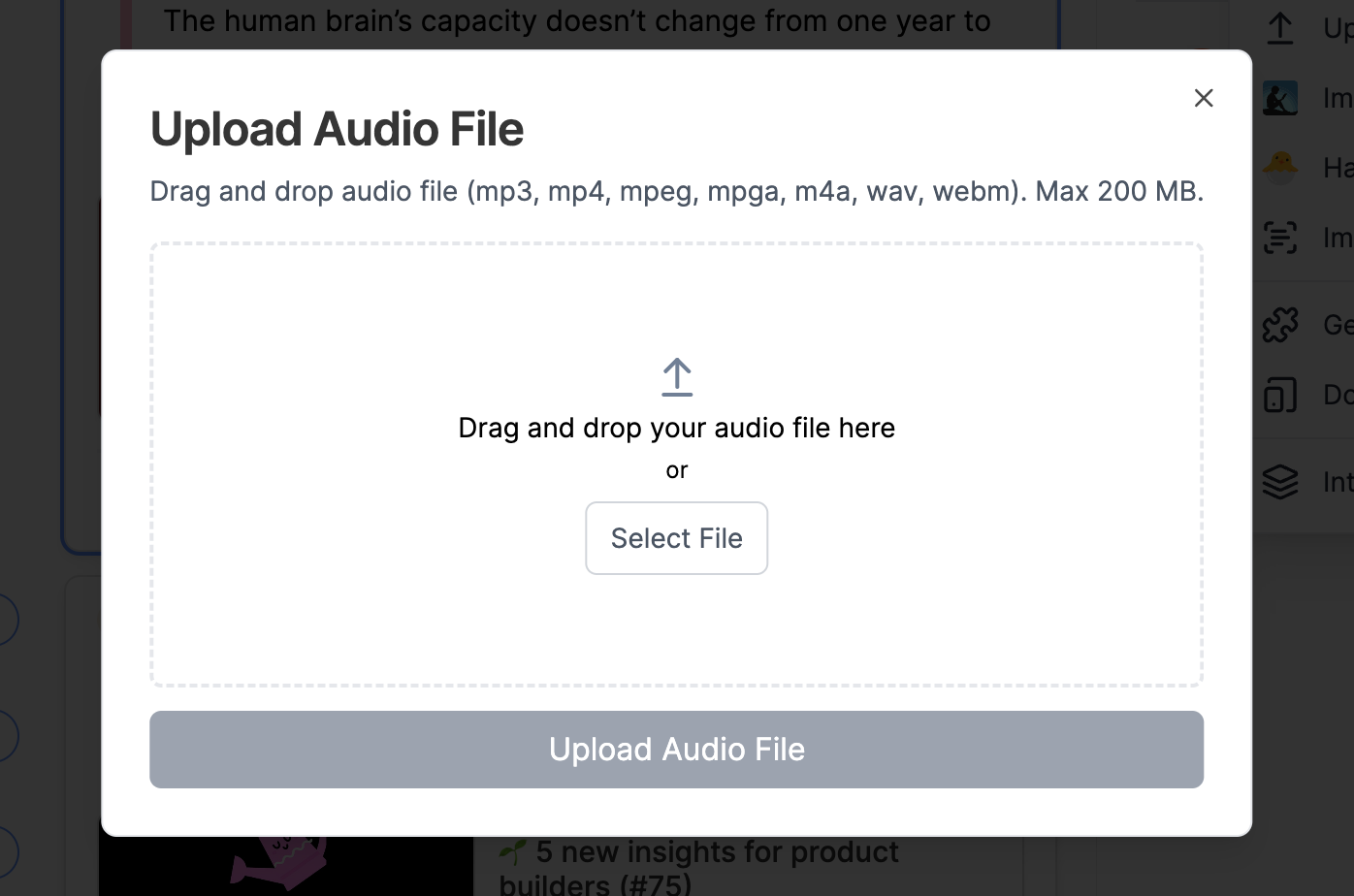
It shows another modal to choose the audio file to upload to Glasp. So, please select an audio file you want to get the transcript. The maximum file size/length is 300MB or 5 hours. It accepts audio files in these formats; mp3, mp4, mpeg, mpga, m4a, wav, and webm.
Click Select File or drag an audio file. Once it's added, you can click the Upload Audio File button.
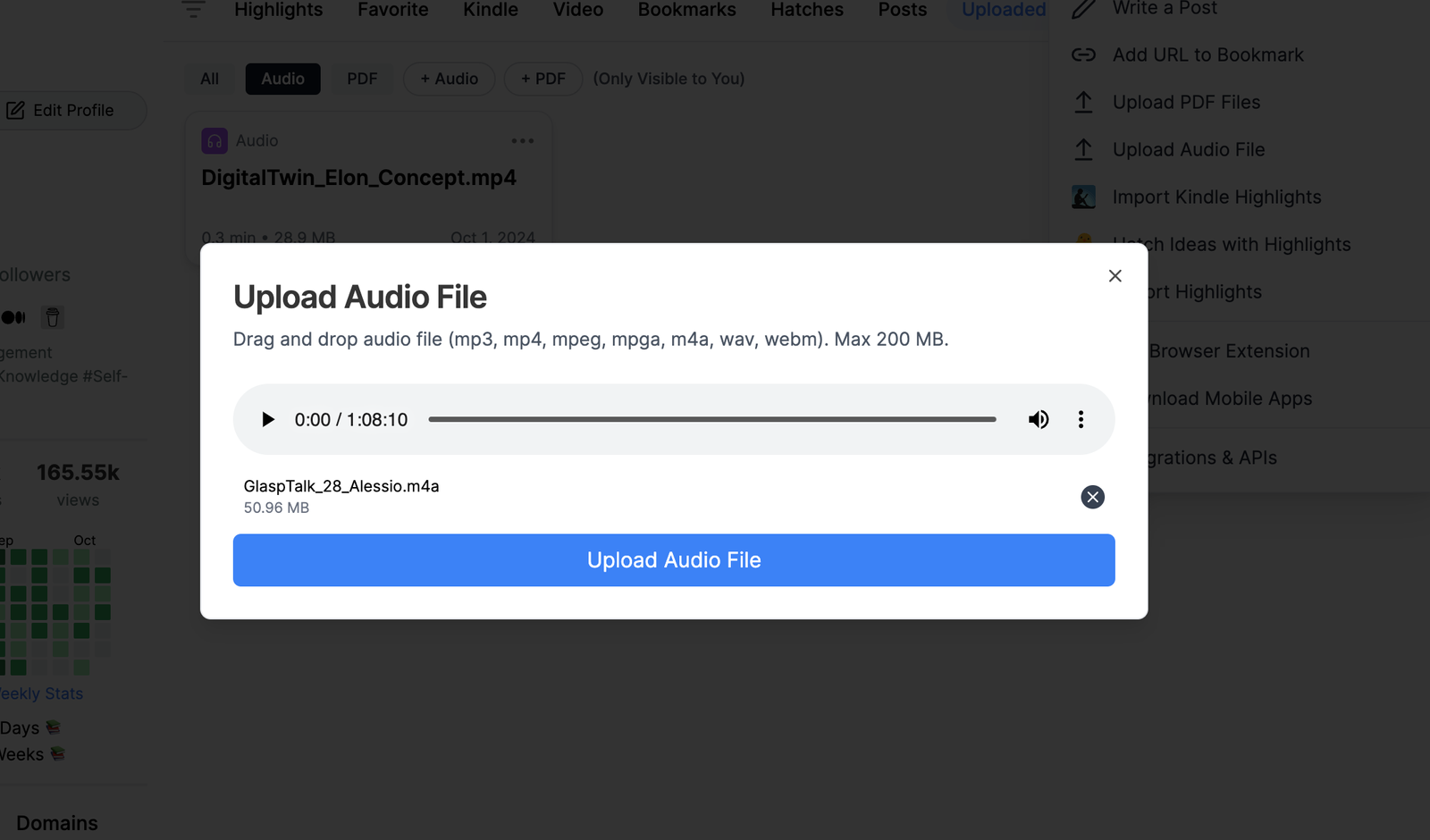
Click the Upload Audio File button to upload the file.
Once successfully uploaded, you can see the screen below. Depends on the length of the audio, but it would take a few minutes to generate the transcript, so please wait until it's ready.
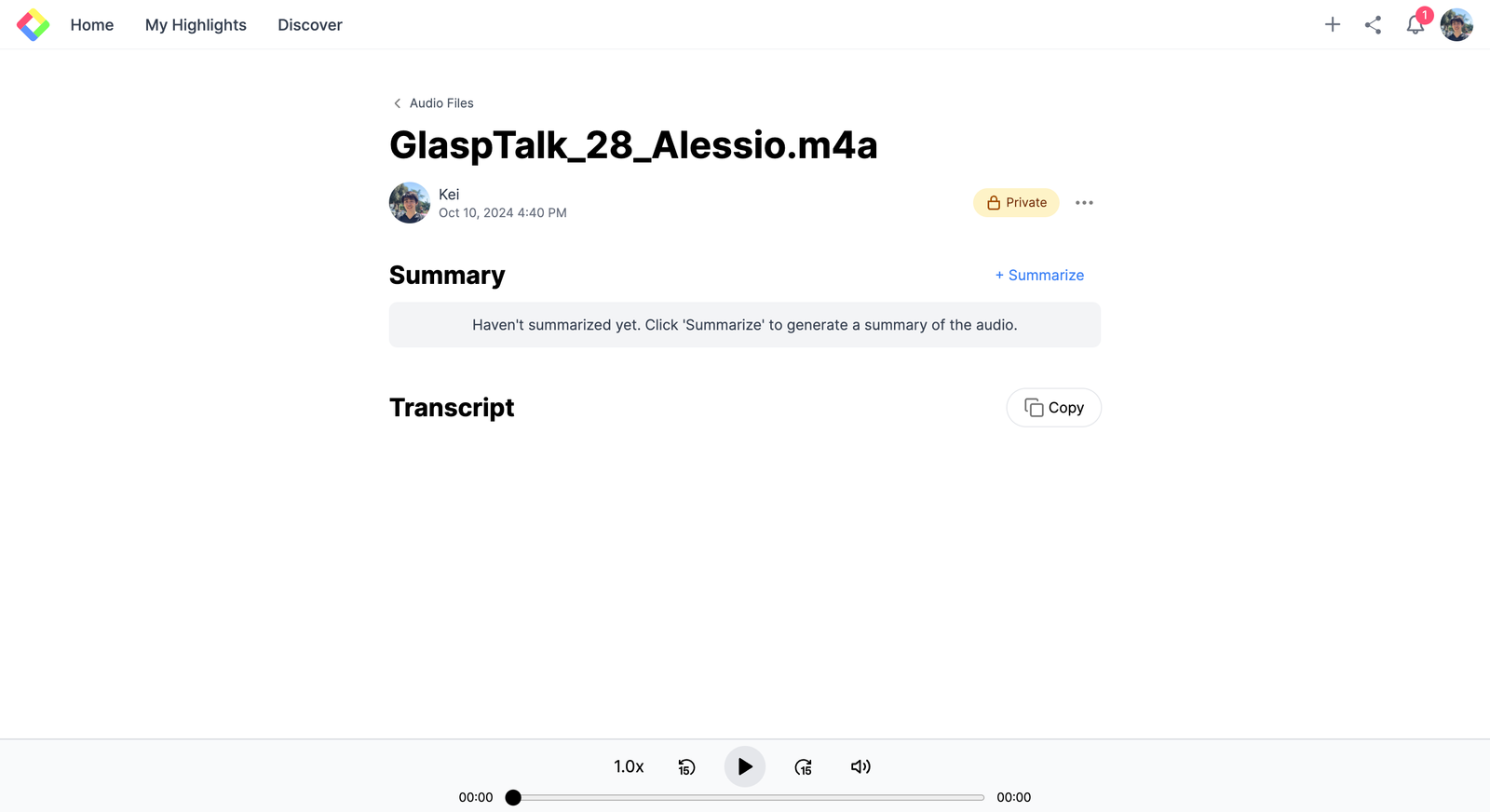
Step 5: Get the Transcript of the Audio File
Once the transcript generation process is finished, you can see the transcript. So, copy the transcript.
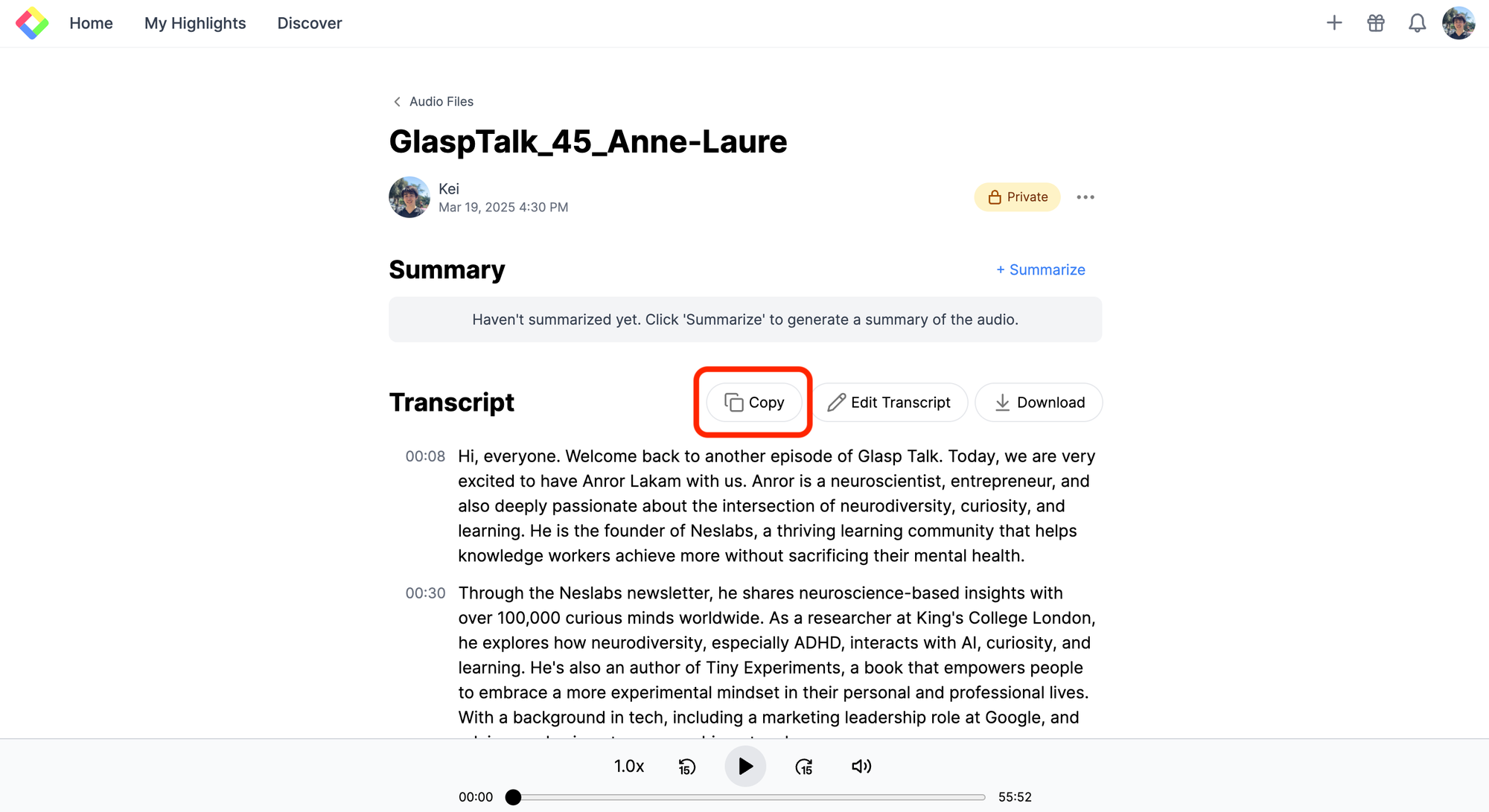
If you see typos in the transcript, you can edit it by clicking Edit Transcript.
Step 6: Open an AI Tool
Open an AI tool such as ChatGPT, Gemini, NotebookLM, Claude, etc. In this tutorial, we will use Gemini as an example.
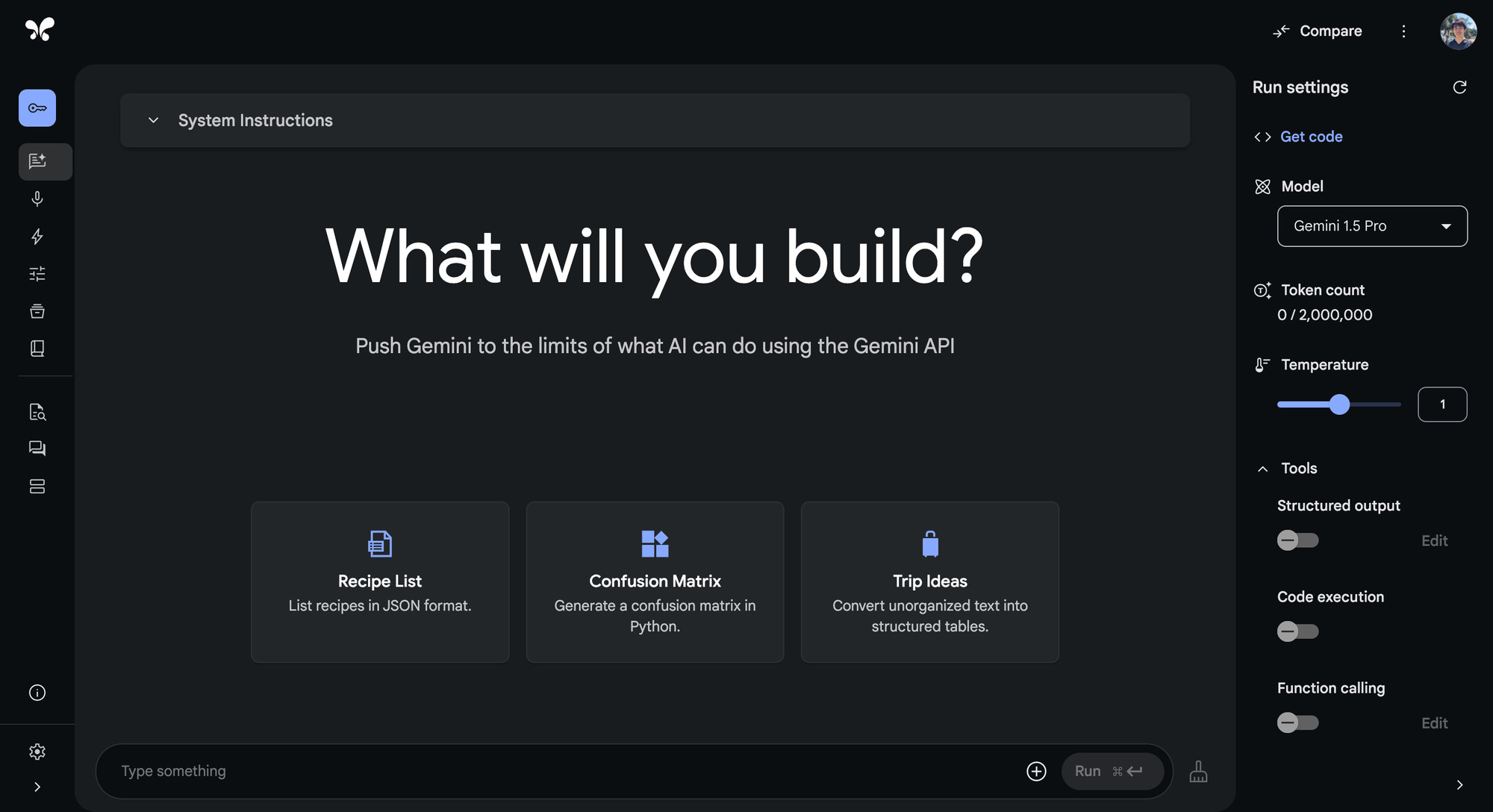
Step 7: Format the Transcript
Paste the transcript you copied on Gemini. Then, type the prompt below beneath the transcript.
This is the transcript of a YouTube video. There are two speakers. Format the transcript like below. Do not summarize nor remove the transcript. Use the full transcript. Remove filler words such as "uh," "um," and "well."
Glasp: Hi
Anne-Laure : Hello
This prompt is just an example. Please modify it depending on the output. FYI, we explicitly mention Do not summarize nor remove the transcript. Use the full transcript . This is because AI tools tend to summarize or remove long transcripts.
If you can successfully format the transcript, you can see a Q&A-style output like below.
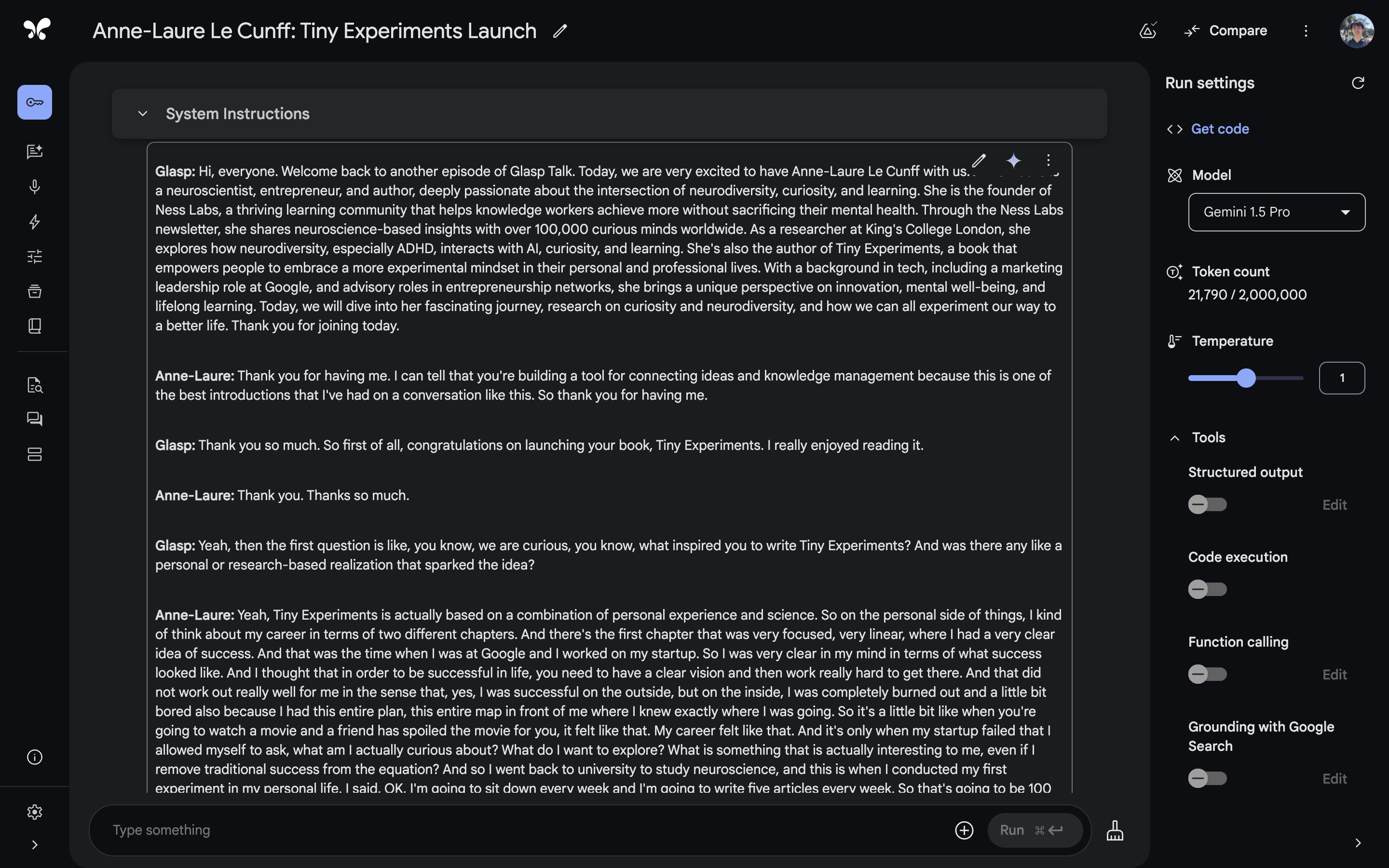
Please copy and paste the formatted transcript on an article draft. If you want to modify the formatted transcript, please do so before publishing.
Isn't it easy? With Glasp and an AI tool, you can easily write a Q&A-style article from an audio file.
FAQs
Q. Which audio formats does Glasp support?
Glasp supports mp3, mp4, mpeg, mpga, m4a, wav, and webm files up to 300MB or 5 hours in length.
Q. Can I edit the transcript after Glasp generates it?
Yes. After transcription, you can click Edit Transcript to fix typos or adjust formatting.
Q. Does Glasp automatically create the Q&A article?
Not yet. Glasp generates transcripts. You then format them into Q&A style using an AI tool (e.g., ChatGPT, Gemini, Claude, or NotebookLM).
Q. Can I use this method for interviews with multiple speakers?
Yes. Just adjust the AI prompt to identify each speaker. For example:
“Format this transcript into a Q&A with Speaker 1 and Speaker 2. Do not summarize. Keep the full transcript.”
Q. Are filler words like “uh” and “um” removed automatically?
No. But you can ask the AI tool to remove filler words during formatting while keeping the full transcript.
Q. Is this feature free?
Glasp’s transcription feature is free up to certain usage limits. Formatting with AI tools may require a separate subscription (e.g., ChatGPT Plus or Gemini Advanced).
Q. Can I publish Q&A-style transcripts directly on Glasp?
Yes. After formatting, you can post the article on Glasp Posts or export it to your note-taking app or CMS (Notion, Obsidian, WordPress, etc.).
Q. Can Claude or ChatGPT read my Glasp highlights?
Yes. With the Glasp MCP Connector, AI assistants such as Claude, ChatGPT, and Claude Code can search and read your own highlights, notes, Kindle highlights, and AI summaries, including your YouTube summaries. The connection is read-only and private to you. See How to Connect Glasp to Claude, ChatGPT, and Claude Code (MCP Connector).
Before you leave
Thanks for reading. We hope this guide helps you publish interview content faster and with more clarity.
See you next time,
Glasp team