How to Check Your Glasp Extension's Version

Oct 27, 2026
1 min read
0 views
For Glasp Extension Users:
Click the Glasp icon on your browser (on the right top)
Click "Update Settings" on the sidebar
Scroll down to the bottom to see the version
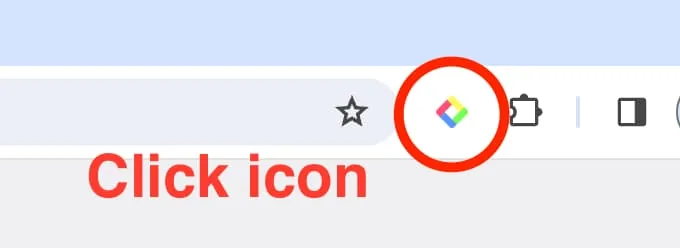
Step 1: Click the Glasp Browser icon on your browser (on the right top)
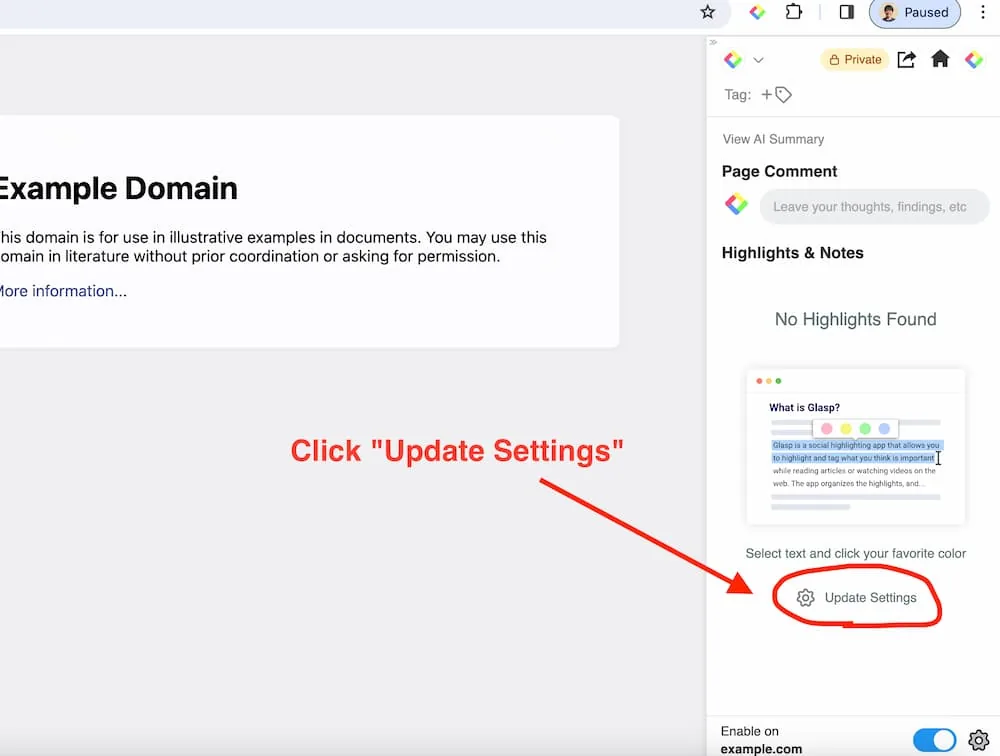
Step 2: Click "Update Settings" on the sidebar
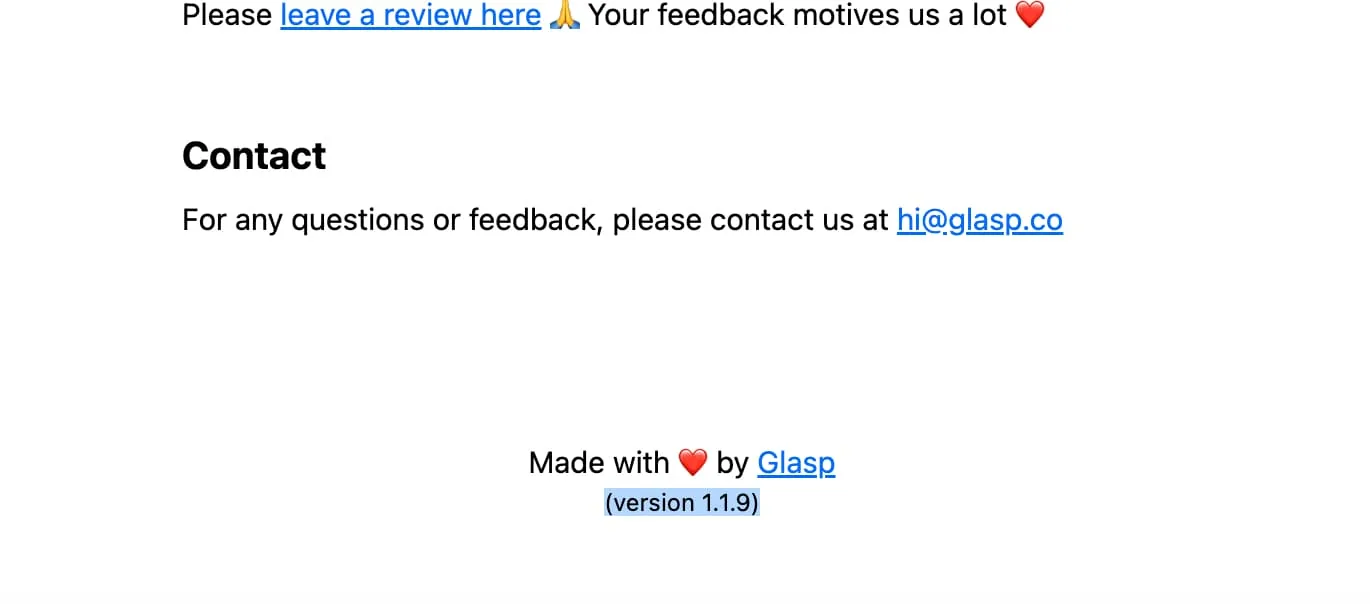
Step 3: Scroll down to the bottom to see the version
For YouTube Summary Users
Click the YouTube Summary icon on your browser (on the right top)
Scroll down to the bottom to see the version
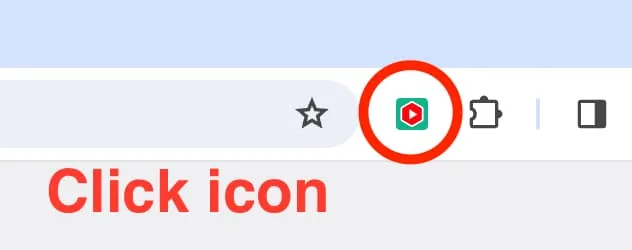
Step 1: Click the YouTube Summary icon on your browser (on the right top)
Step 3: Scroll down to the bottom to see the version
Hope this instruction helps you find the version of your Chrome Extension you're using.
Comments
Add a comment