How to Change a Highlighted URL on Glasp

Oct 27, 2026
1 min read
1 views
If you’d like to change the URL of a highlighted page, follow these steps:
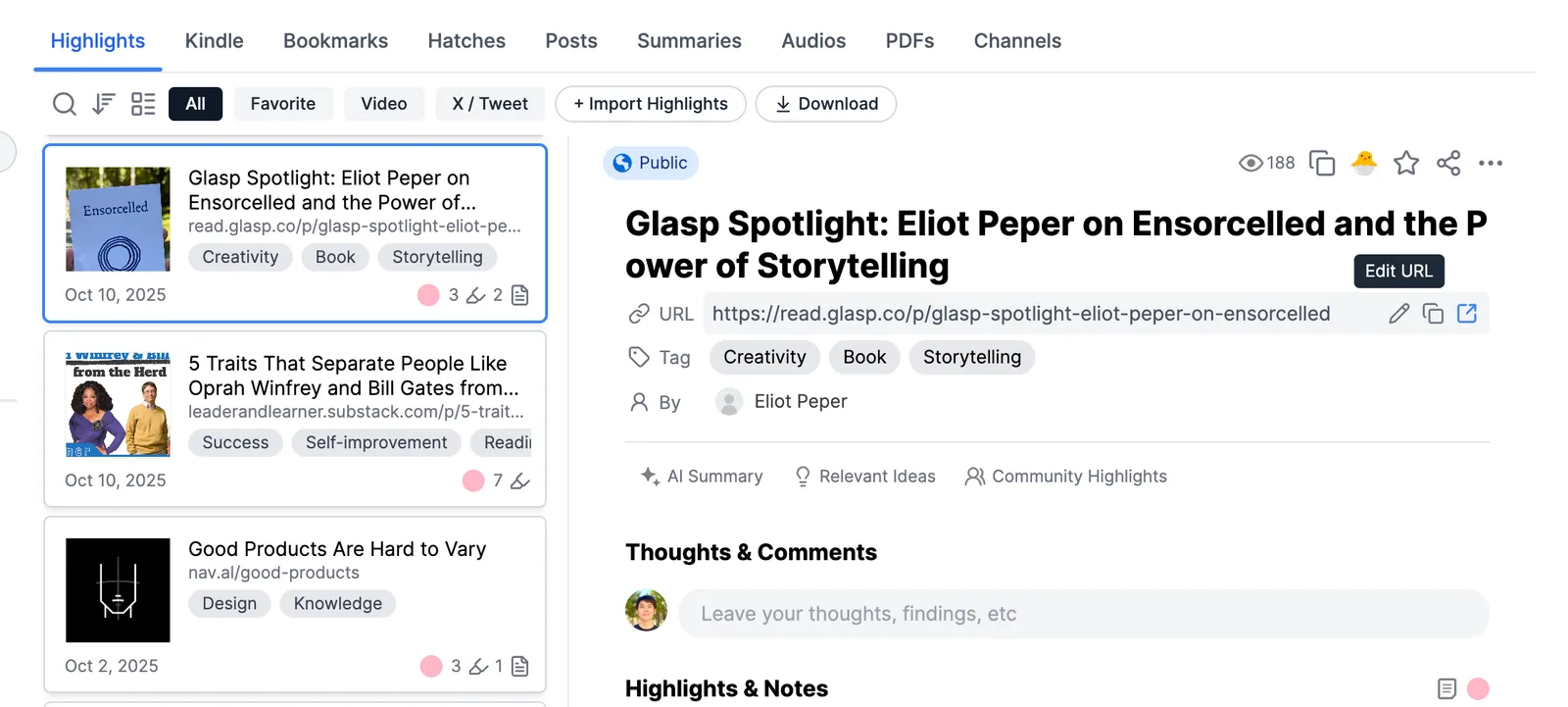
Go to your Profile page.
Select the highlighted page whose URL you want to update.
Click Edit URL.
After making your changes, click Save URL to confirm.
Comments
Add a comment