How to Export Highlights into Readwise

Sep 22, 2025
2 min read
235 views

Do you use Readwise to revisit and retain your favorite highlights? 📚 With Glasp, you can seamlessly export your web highlights into Readwise in just a few clicks. This integration allows you to keep all your notes in one place, strengthen your learning workflow, and ensure that the insights you’ve captured online stay with you long-term.
In this tutorial, we’ll walk you through step by step on how to connect Glasp with Readwise and export your highlights instantly.
If you haven't signed up for Glasp or installed the Glasp browser extension, please do so. You can refer to this tutorial.
Also, if you want to import Readwise highlights into Glasp, please refer to the tutorial below.
👉 How to Import Highlights from Readwise
Step 1. Go to your profile page by clicking “My Highlights” at the top left

Step 2. Click the Share button and “Export to Readwise”
You can cursor any article you like, so choose the article you want to export.

Step 3. Input the Readwise’s Access Token

If you click
Readwiseon the popup, it takes you to theAccess Tokenpage on Readwise.After you input the access token, click
Save.
Step 4. Click the Share button and “Export to Readwise” again

As you did in Step 2, click the Share button and
Export to Readwise.If it succeeds, it turns into
Exported! View on Readwise.
Step 5. Click “View on Readwise” to see the exported sentence

By clicking
View on Readwise, it opens a page on Readwise.
Step 6. Check exported content on Readwise

See? It’s easy-peasy, right?
Tips
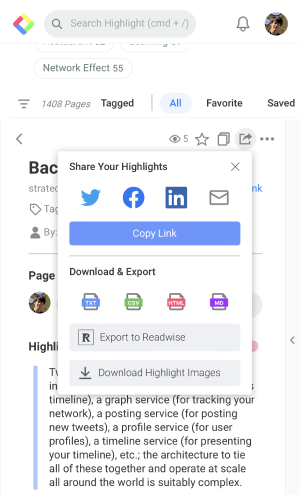
You can export highlights into Readwise through mobile devices, too!
FAQs
Q. Do I need a Readwise subscription for this feature?
Yes. You need an active Readwise account to export highlights from Glasp.
Q. Can I export multiple articles at once?
Currently, highlights must be exported one article at a time.
Q. Is this available on mobile?
Yes, you can export highlights into Readwise using Glasp on both desktop and mobile browsers.
Q. Will my highlights remain private?
Yes. Only you can see the exported highlights in your personal Readwise account.
Q. Can I also import Readwise highlights into Glasp?
Yes. Please check our tutorial 👉 How to Import Readwise Highlights into Glasp.
Before you leave
If you have any questions, please refer to the FAQ or contact us.
See you next time,
Glasp team