How to Highlight a PDF on Chrome

Aug 17, 2025
5 min read
313 views

Looking for a quick way to highlight and annotate PDFs directly in Chrome? With the Glasp browser extension, you can highlight PDF files hosted online, add notes, and export your highlights to tools like Notion, Obsidian, or Logseq—all without leaving your browser. Unlike traditional PDF viewers, Glasp works directly on the web, making it ideal for students, researchers, and professionals who want to capture insights and keep their reading organized.
In this tutorial, we’ll walk you through how to highlight PDFs on Chrome and manage your annotations inside Glasp.
If you haven't signed up for Glasp or installed the Glasp browser extension, please do so. Glasp: PDF Highlighter.
If you'd like to highlight a local PDF, please skip to Step 4.
*To upload and highlight locally stored PDF files, please see this tutorial.
👉 YouTube Tutorial: How to Highlight PDF Files on the Web
Step 1: Go to the Home page on Glasp
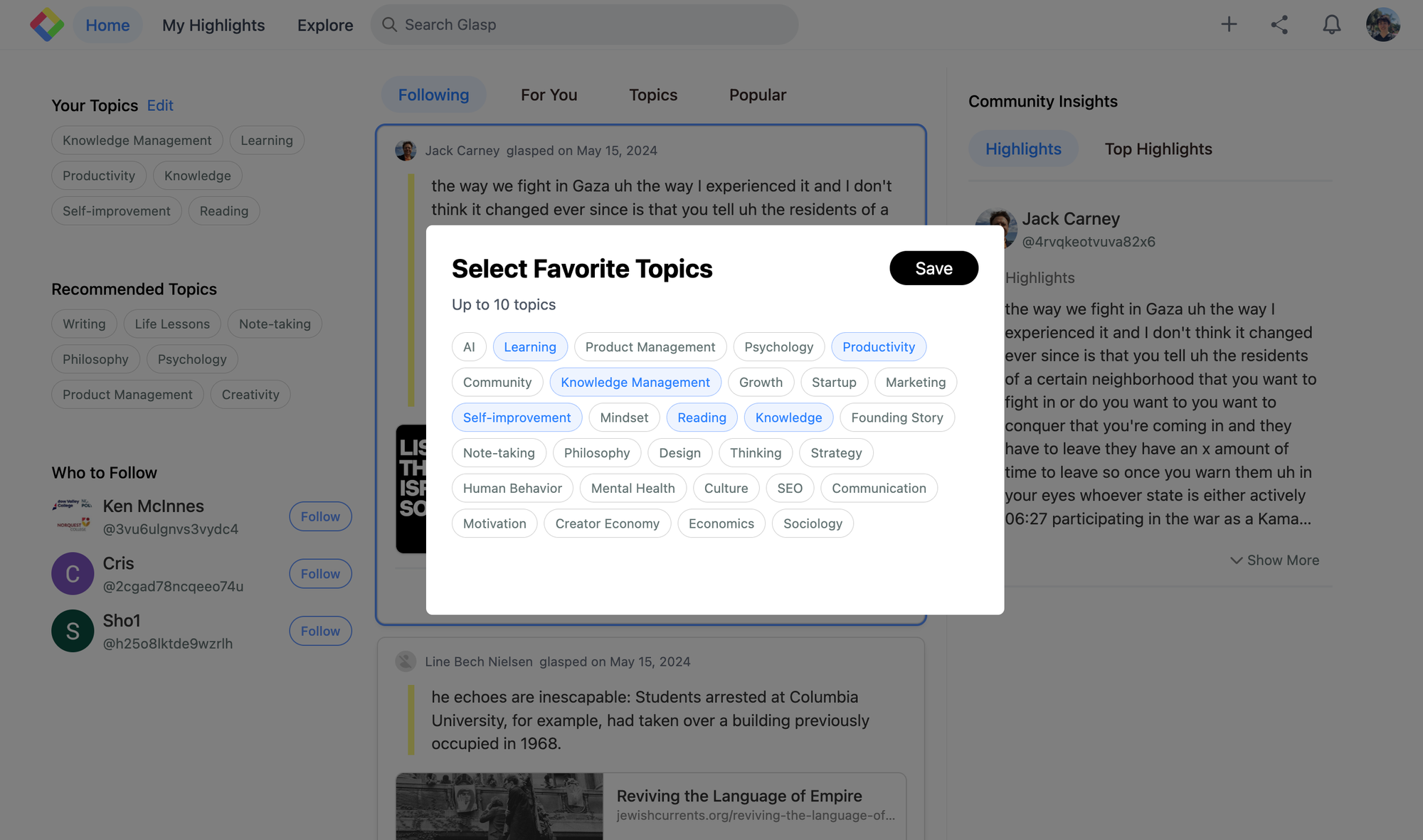
Once you’ve installed your Glasp extension, go to its home page. Here, you will see the sidebar opened where you can test highlighting words or sentences.
Also, you are free to choose your favorite topics. Choosing your topics could be a leap step as this will help you identify the articles in line with your interests.
Step 2: Open and highlight a PDF
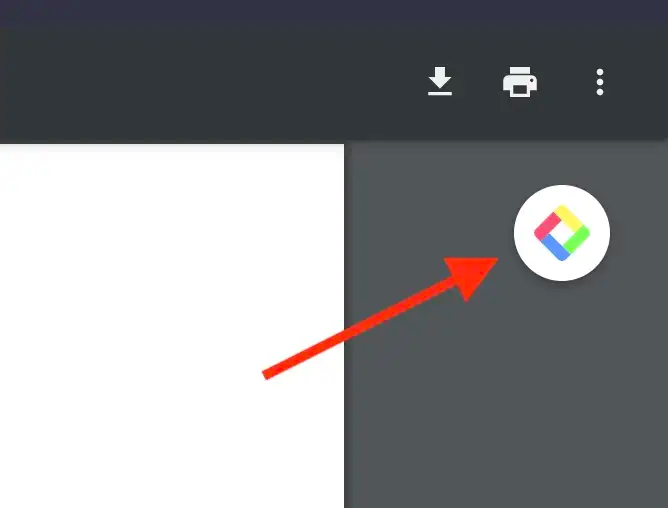
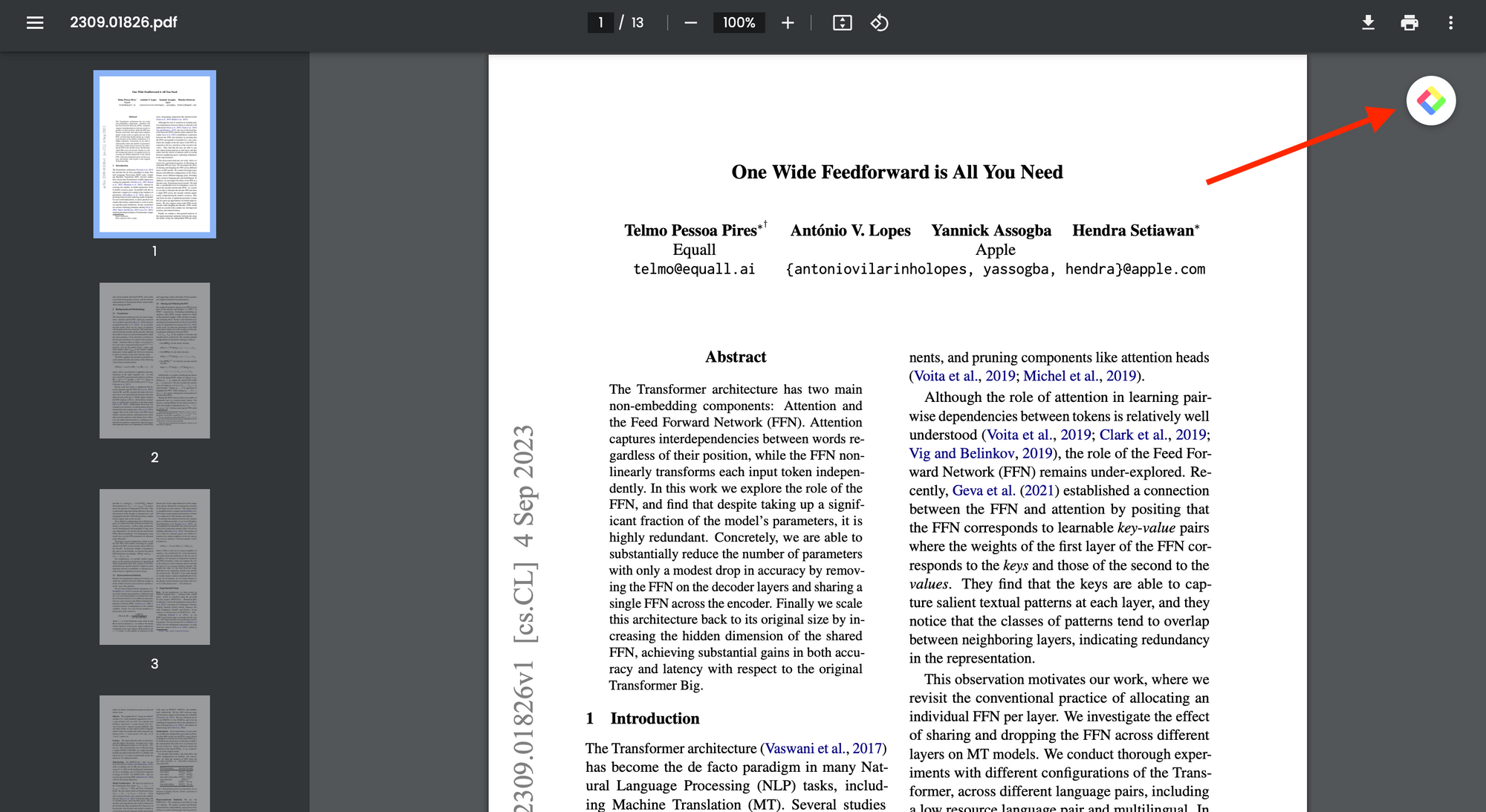
Open any PDFs hosted on the web and click the Glasp icon at the top right. It refreshes the page and allows you to start highlighting.
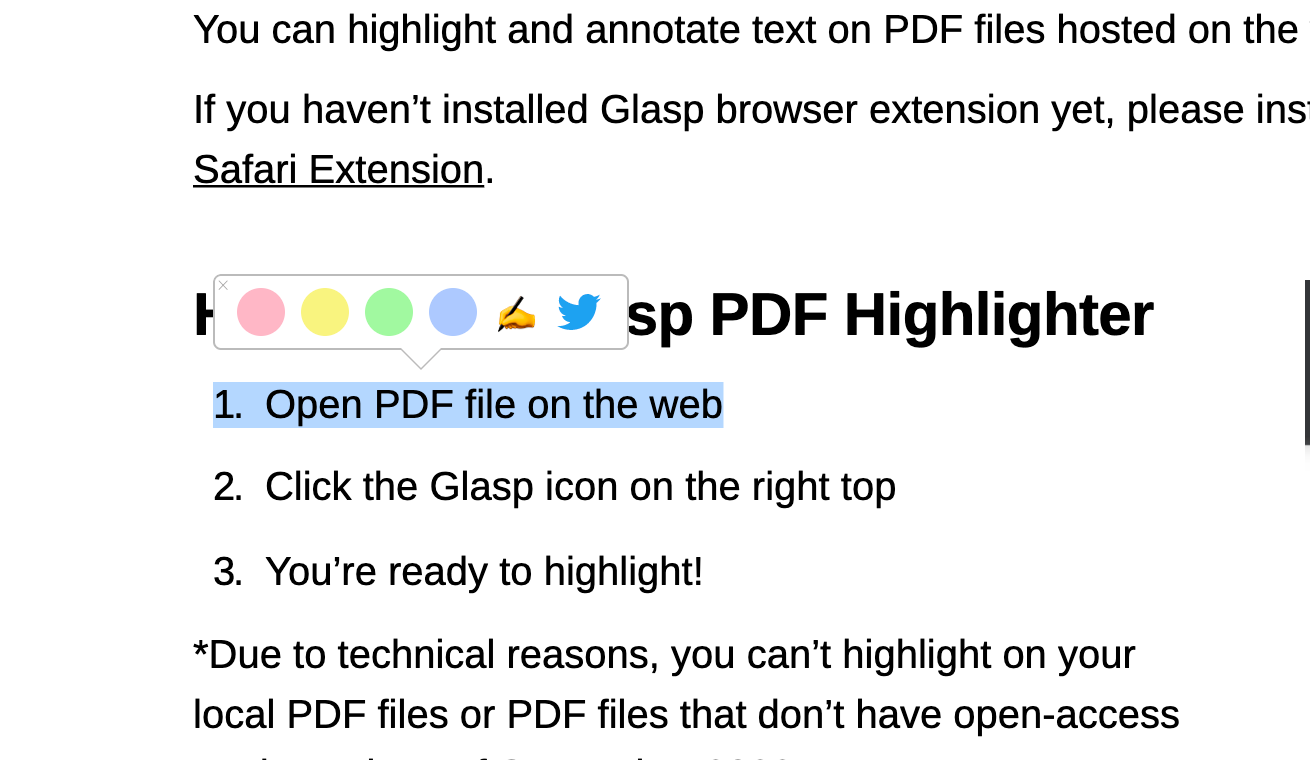
When you select a sentence, you can see a popup showing up, so please click any color you want.
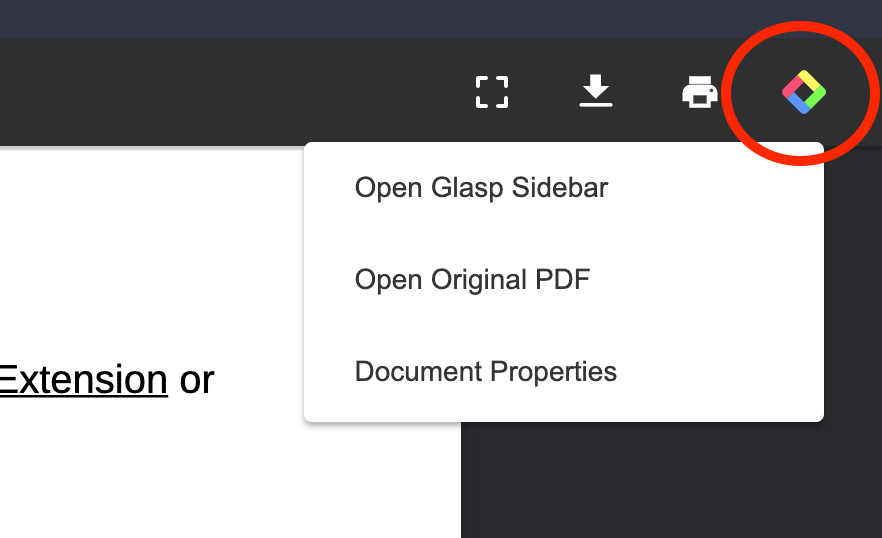
Tips: If you click the Glasp icon on a PDF, you can see a menu below. You can open the Glasp’s sidebar, switch to the original PDF, and see document properties.
(Optional) Step 3: Go to your profile page
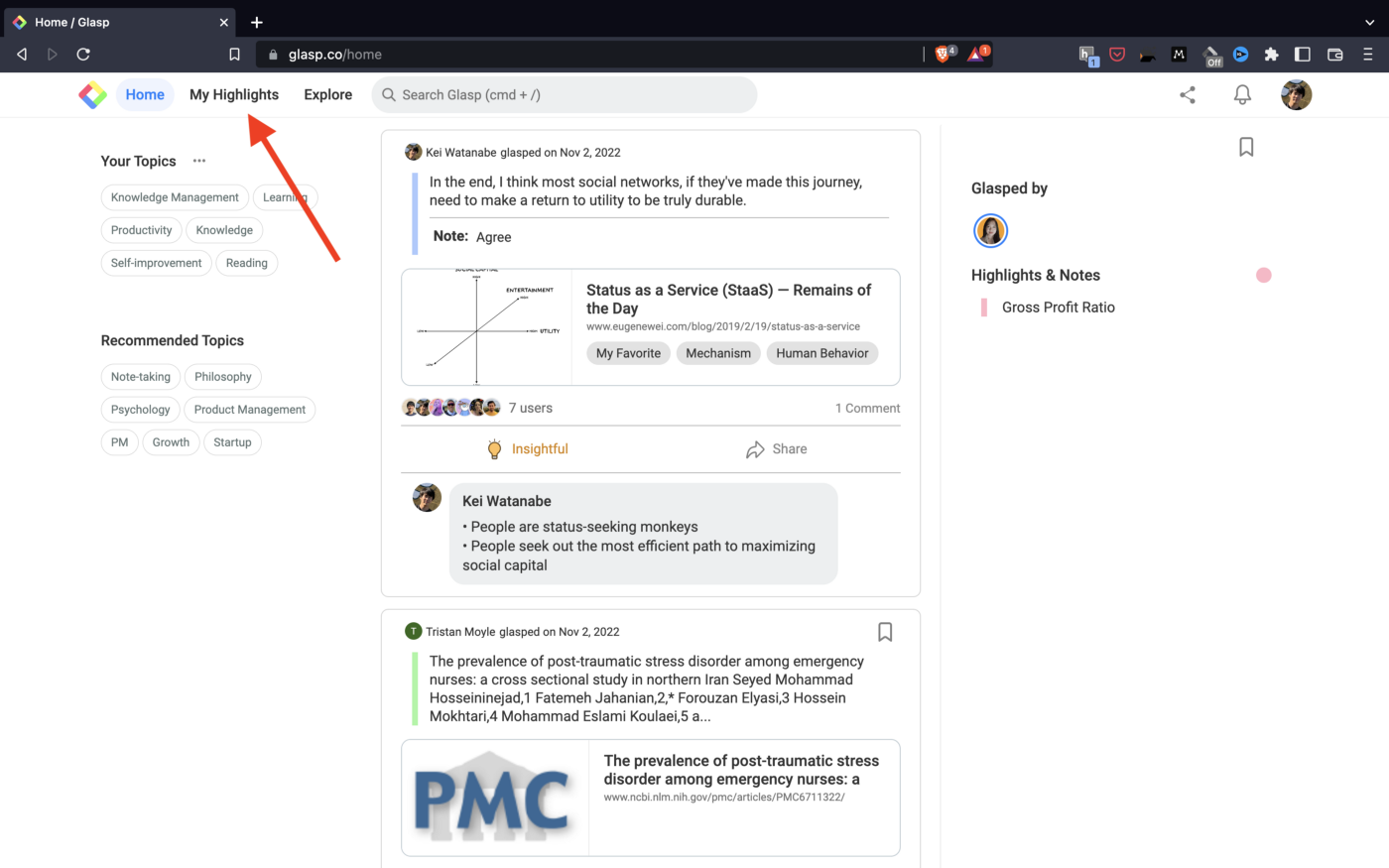
Please open Glasp’s Home page. You can go there by typing “glasp.co” on Chrome’s search bar or clicking the Glasp icon at the top right of the sidebar through the Chrome extension.
After that, please go to your profile page by clicking Profile in the left sidebar.
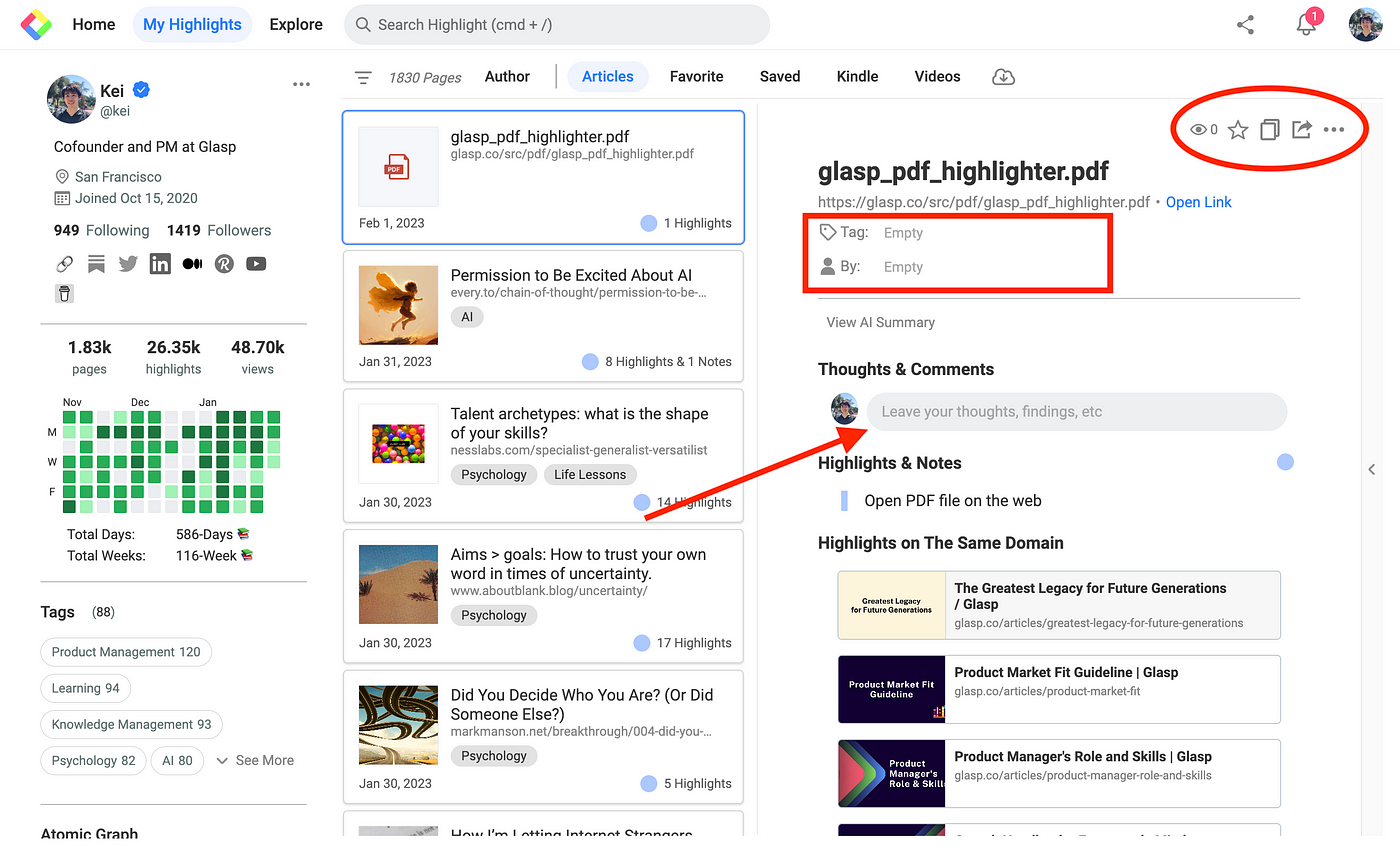
On your profile page, you can:
add to your favorite (red oval)
copy all the highlights and notes (red oval)
share the highlighted page (red oval)
delete the highlighted page (red oval)
add a category tag to the article (red square)
add an author to the article (red square)
leave your comments (red arrow)
You would encounter an issue sometime. In that case, please refresh the page and retry highlighting it. And we’ll update the feature so that you can make highlights PDFs on Safari. Please wait until it’s released.
If you’d like to see the tutorial on a video, please go to the link below.
(Optional) Step 4: Upload local PDF files
If you'd like to upload local PDF files to Glasp, please visit this tutorial.
Once you've highlighted an uploaded PDF, you can also download the PDF with your highlights embedded—just click the download button in the bottom-right corner of the PDF viewer. It's a handy way to keep an annotated copy locally or share it with others.
(Optional) Step 5: Highlight PDFs on arXiv
You would have encountered the case where you'd like to highlight local PDFs. Glasp allows users to upload and highlight local PDFs, but if you don't want to upload PDF files or if you reached the limit of uploadable PDF files under the freemium plan, please access arXiv.org to find the same PDF you have in a local folder, then highlight it online.
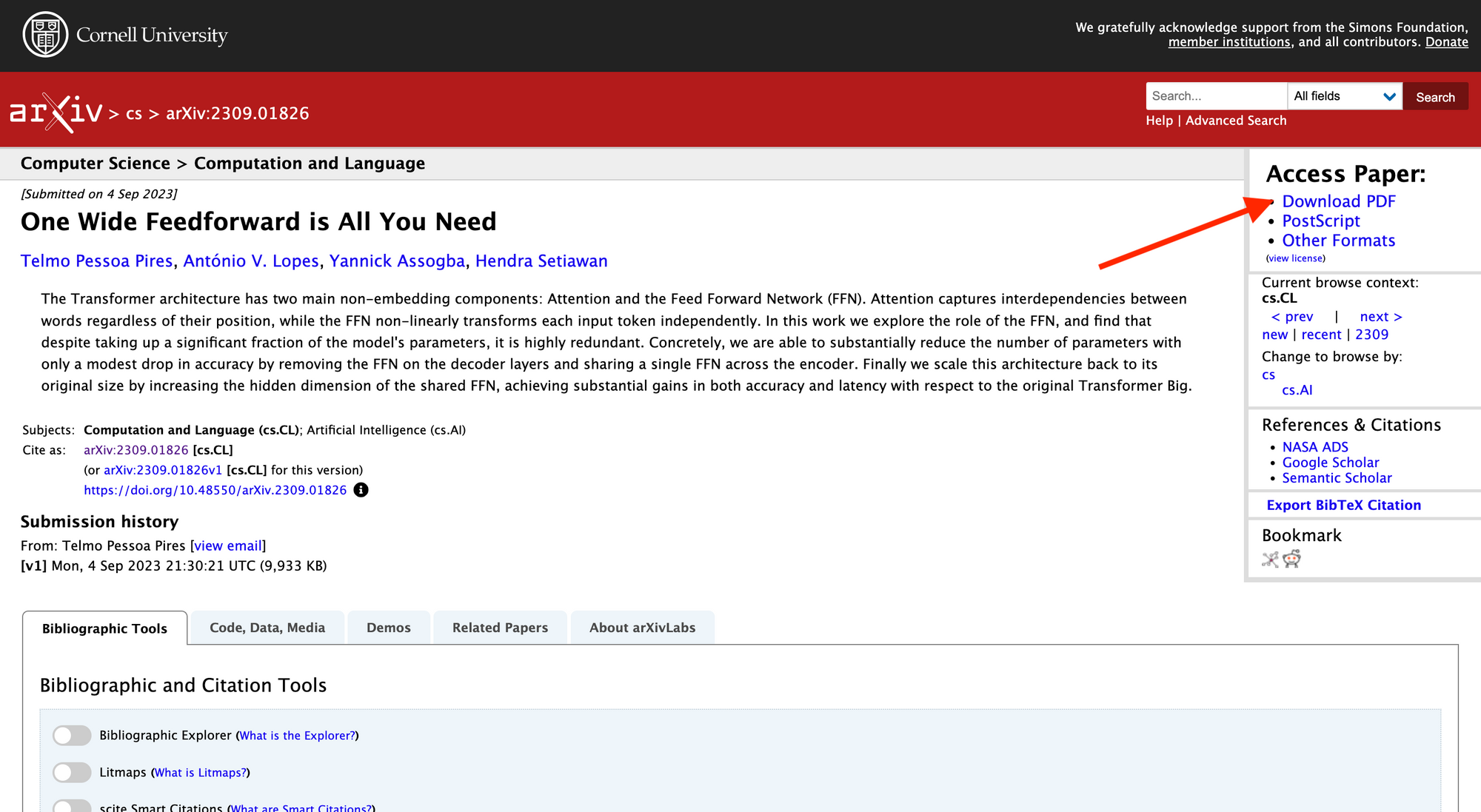
When you find the targeted PDF on arXiv, please click Download PDF at the top right.
You will see PDF documents downloaded and the Glasp icon at the top right. So, please click it and start highlighting.
FAQs
Q. Can I highlight any PDF on the web with Glasp?
Yes. If the PDF is web-hosted and accessible via a URL, you can highlight it directly in Chrome with the Glasp extension.
Q. What if I want to highlight local PDFs (from my computer)?
For local files, use Glasp’s Upload PDF feature. See this tutorial: How to Upload and Highlight Local PDFs on Glasp.
Q. Do I need a Glasp account to highlight PDFs?
Yes. A free Glasp account is required so your highlights and notes are saved to your profile.
Q. Are my PDF highlights public or private?
For web PDFs, highlights are usually public on your Glasp profile. For uploaded local PDFs, highlights are private unless you change visibility settings.
Q. Can I export PDF highlights?
Yes. You can export your highlights into formats like TXT, CSV, Markdown (MD), or JSON and send them to note-taking apps such as Notion, Obsidian, Logseq, and Roam Research.
Q. Can I download a PDF with my highlights on it?
Yes. For PDFs uploaded to Glasp, click the download button in the bottom-right corner of the PDF viewer, and the file will be saved with your highlights embedded. See How to Upload and Highlight Local PDFs on Glasp for details.
Q. Does Glasp work on Safari or Firefox for PDFs?
Currently, PDF highlighting works best on Chrome, Brave, and Edge. Safari support is planned for future updates.
Q. What if I hit the free plan’s upload limit for PDFs?
You can either upgrade to Glasp Pro or find the same PDF on a site like arXiv.org, where you can highlight it directly without uploading.
Before you leave
Thanks for reading. We hope this guide helps you highlight and annotate PDFs more efficiently in Chrome.
See you next time,
Glasp team