How to Import Highlights from CSV to Glasp

May 01, 2026
4 min read
35 views

CSV Import is a free feature by Glasp that lets you upload highlights from any CSV file directly into your Glasp account. To import, go to Settings → Integrations → CSV Import, upload a CSV file with url, title, and text columns, review the column mapping, and click Import.
Whether you're migrating from another highlighting tool, consolidating highlights from multiple sources, or backing up your reading notes, CSV Import makes it easy to bring everything into Glasp in one step. Once imported, your highlights are organized by page—just like highlights you create with the browser extension—so you can search, tag, export, and share them right away.
Step 1: Sign up for Glasp
Select a browser: Google Chrome, Brave, Safari, Microsoft Edge, Firefox, etc.
On your search tab, type in “glasp.co” and you will be automatically directed to the page of Glasp. Or access it from the link below.
👉 Glasp — Social Web Highlighter
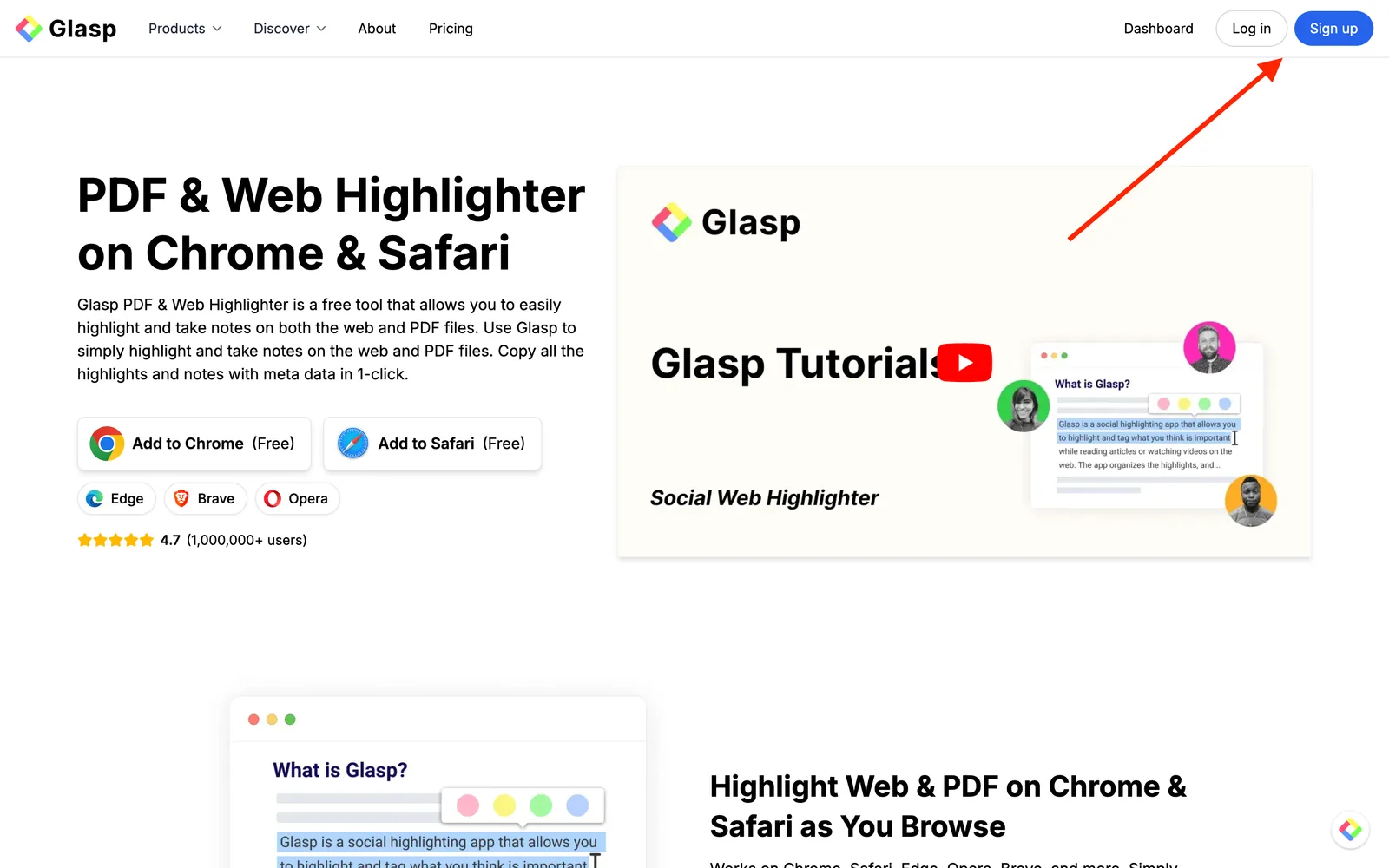
Upon reaching it click “Sign up” and continue using your Google Account.
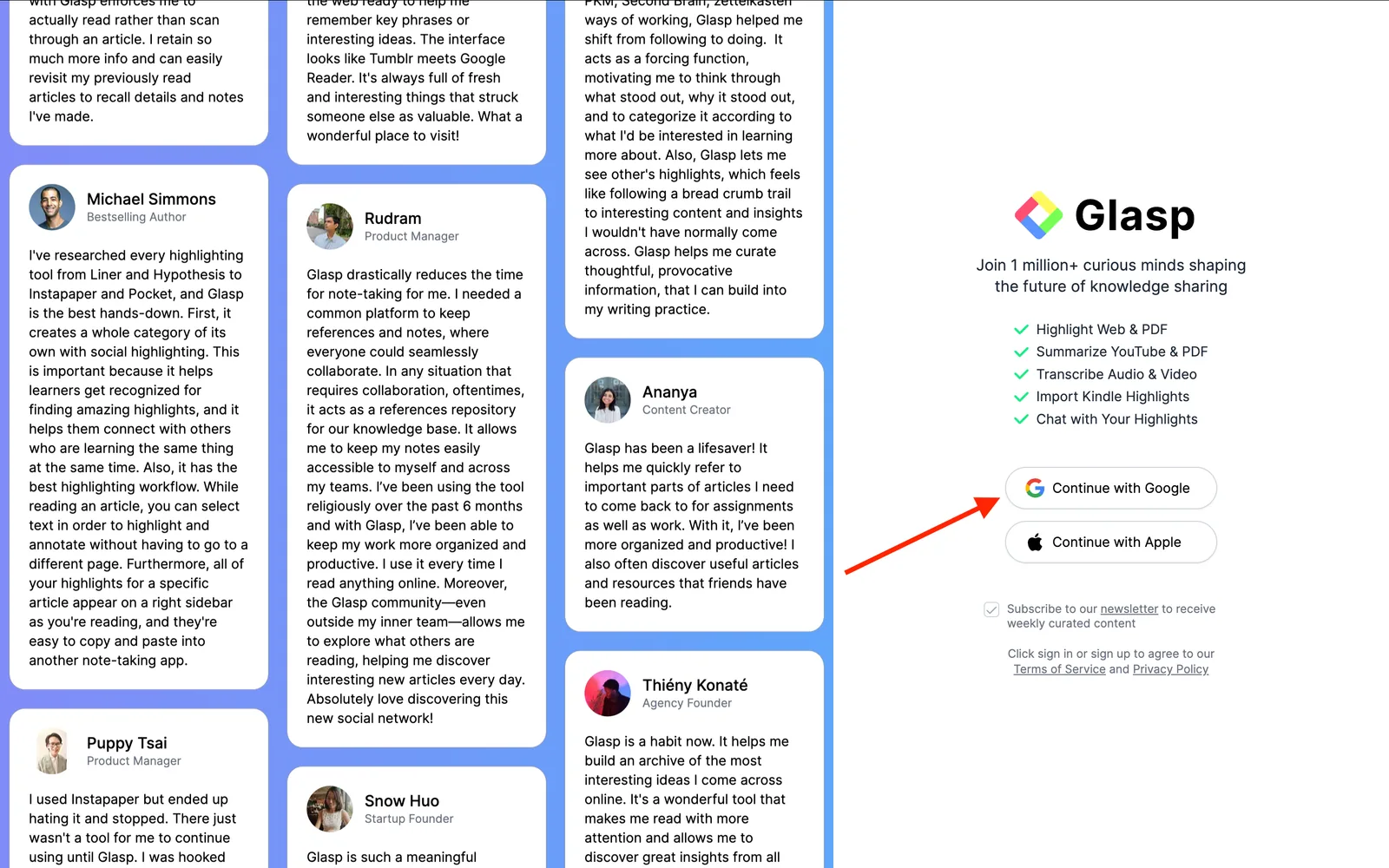
You can sign up for Glasp with either Google Sign-in or Apple Sign-in. If you're not an iPhone/iPad user, we strongly recommend you use Google Sign-in.
After finalizing your account, you will be redirected to the Chrome Web Store.
Step 2: Go to your Glasp profile page
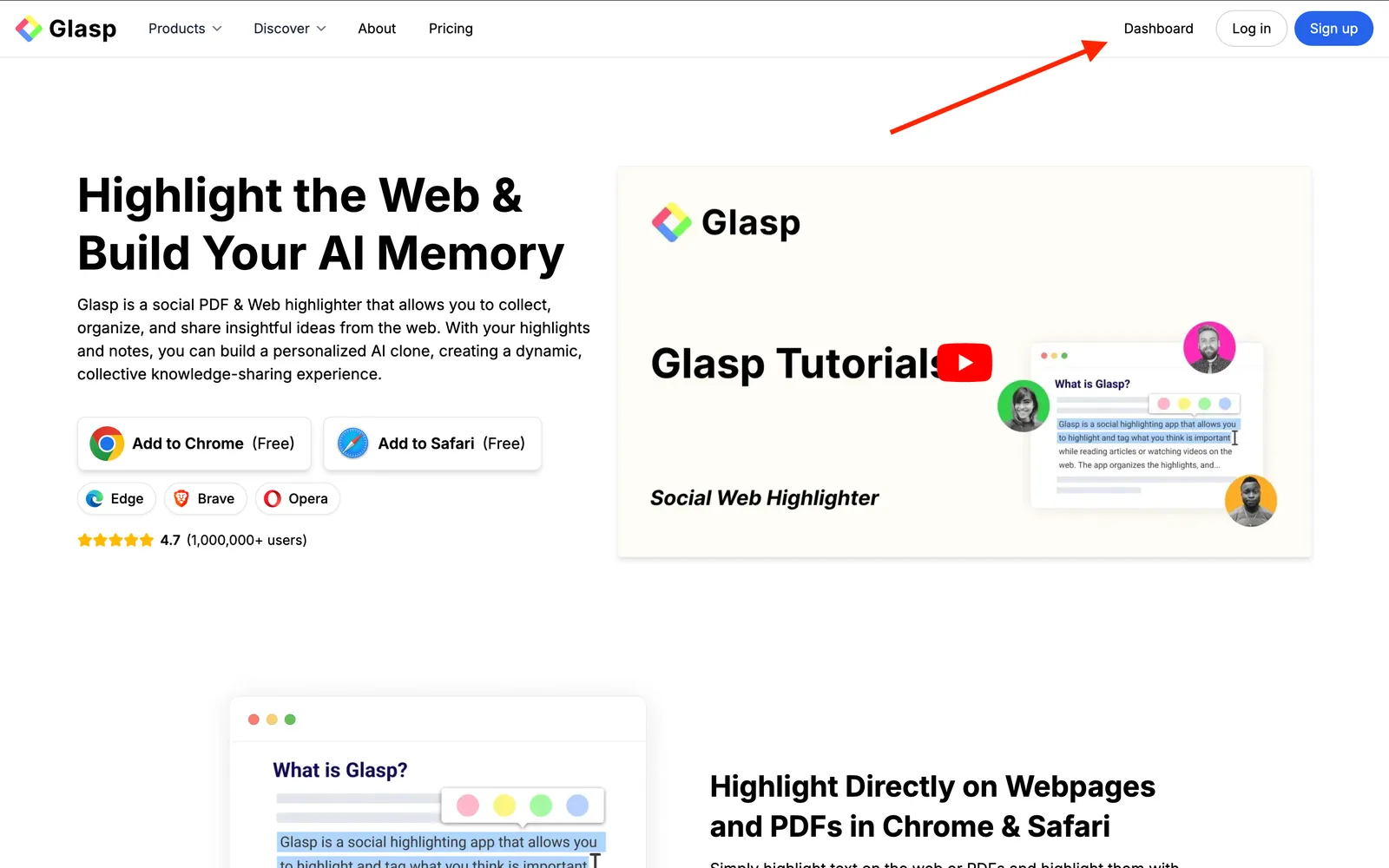
Once you created an account, go to your Glasp profile page by clicking Dashboard. If you cannot see it, go to glasp.co page again.
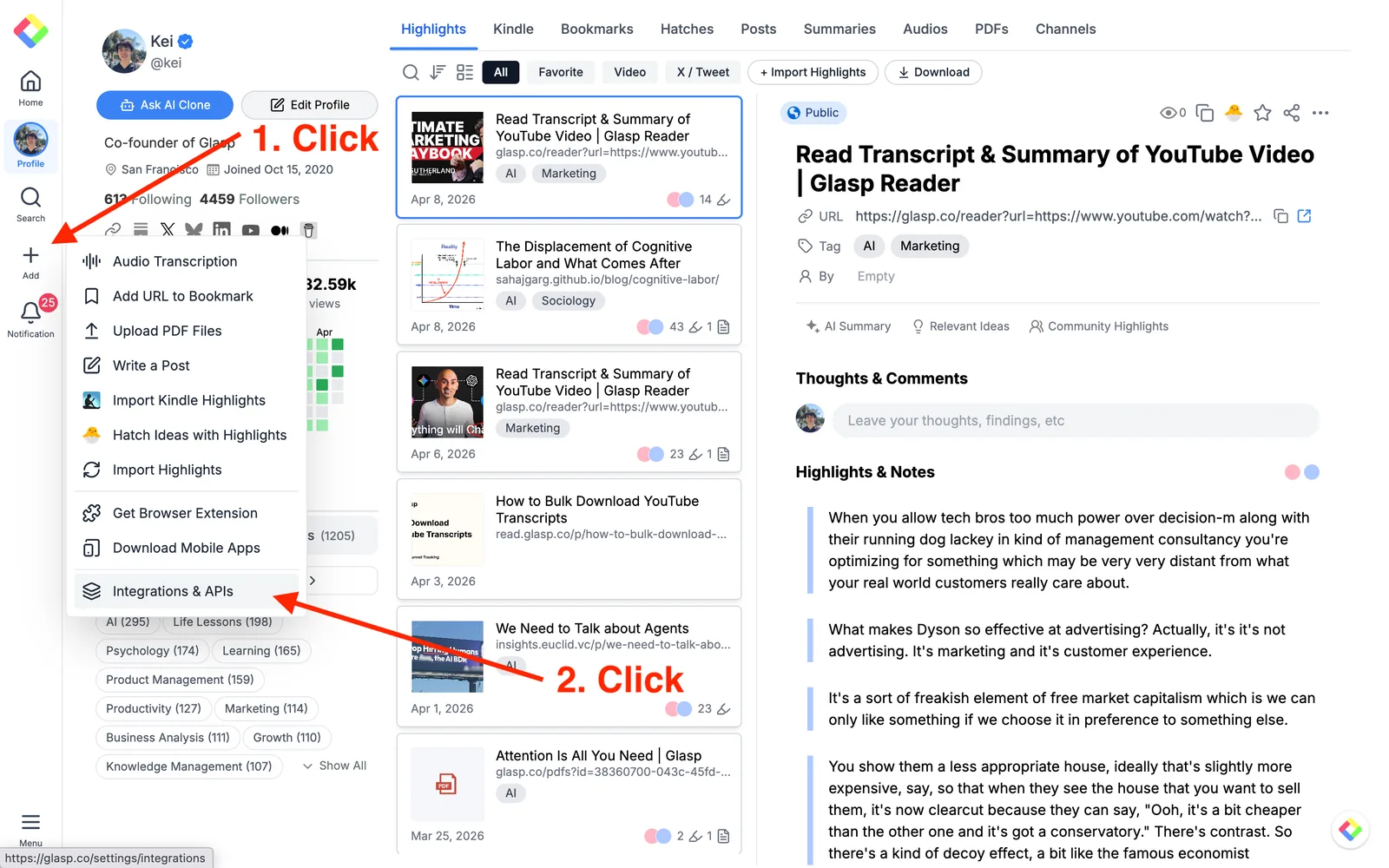
On your profile page, click + button and then Integrations & API.
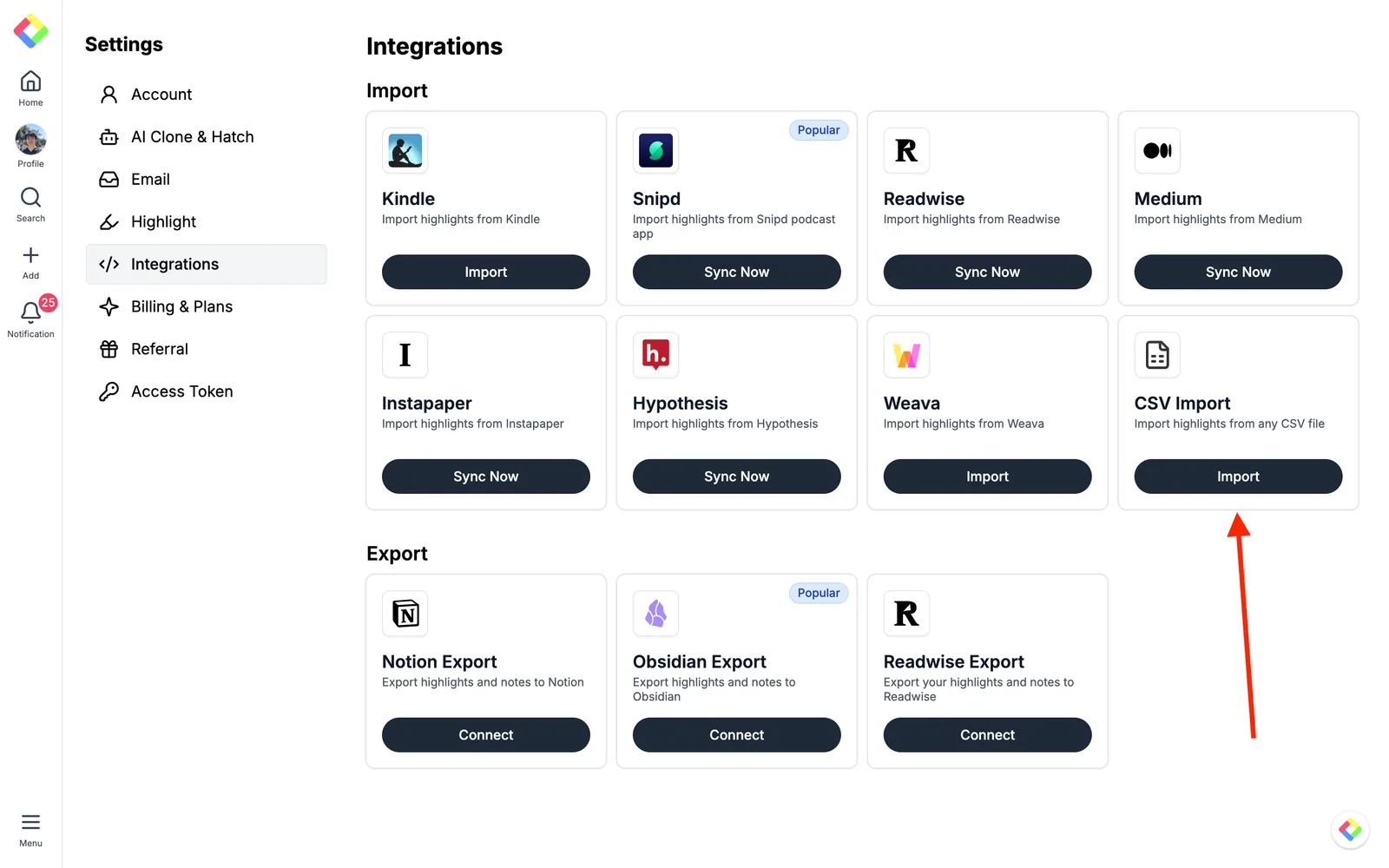
On the Integrations page, click “Import” under CSV Import.
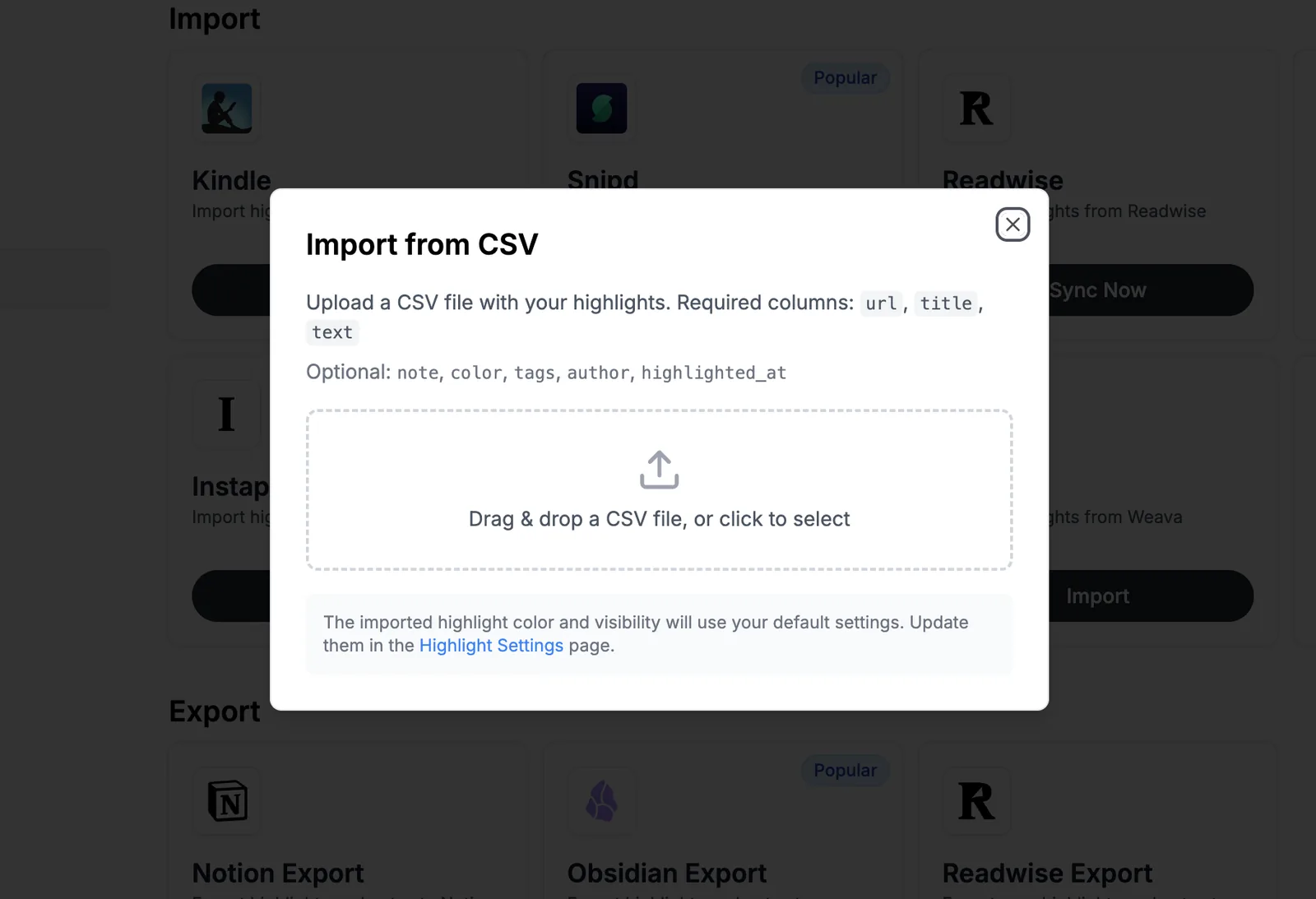
After that, you'll see a modal show up. Upload your CSV file by dragging and dropping it, or click to select a file. If you don’t have the CSV file prepared, please see Step 3.
Step 3: Prepare the CSV file
If you don’t have the CSV file to upload, please prepare it. The CSV file must have three columns: url, title, and text. You can add note, color, tags, author, and highlighted_at as optional columns.
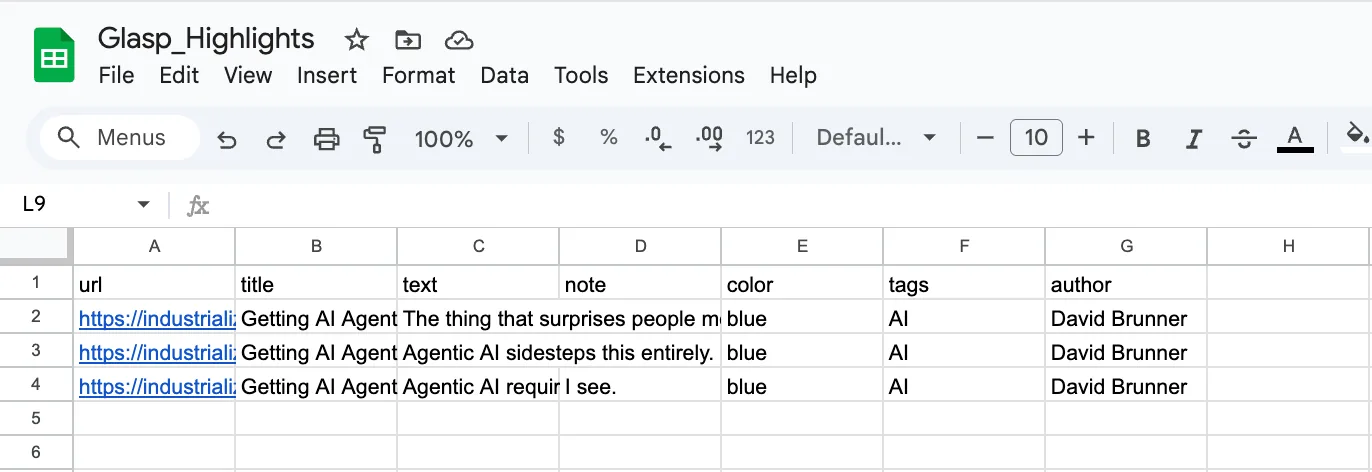
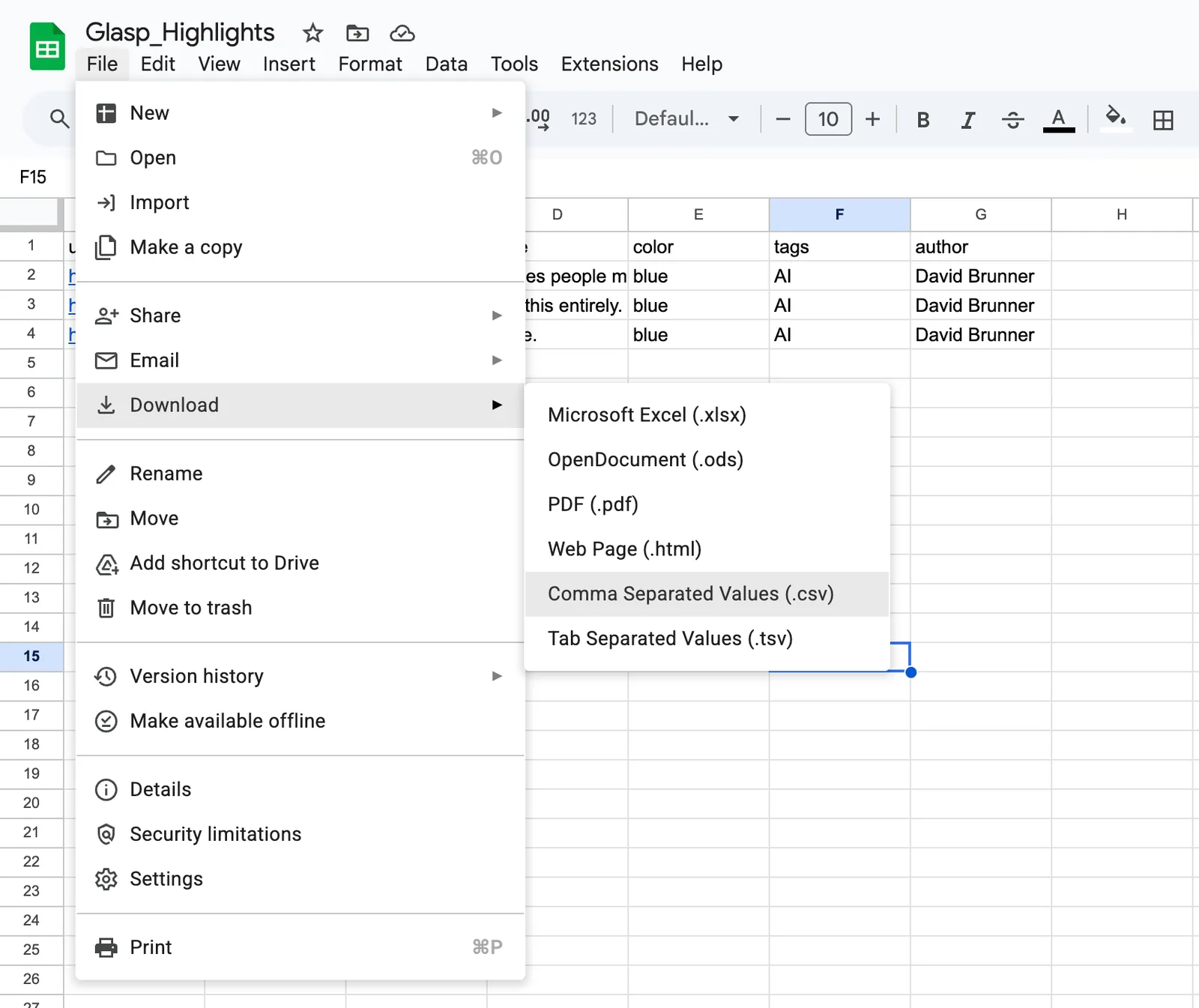
Download the CSV file.
Step 4: Upload the CSV file and view highlights
After preparing the CSV file, upload it to Glasp.
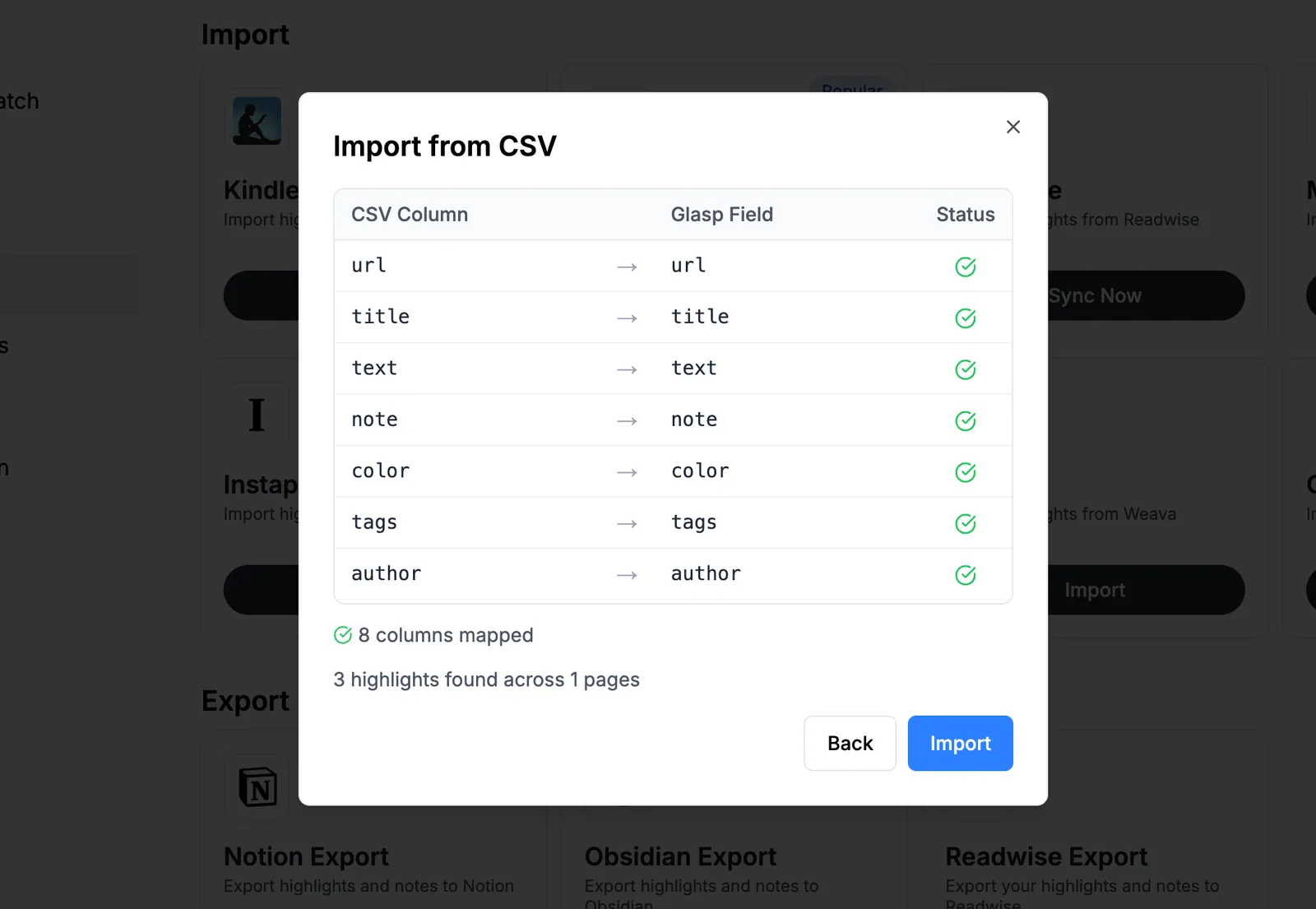
After successfully uploading the file to Glasp, you can see the page like below.
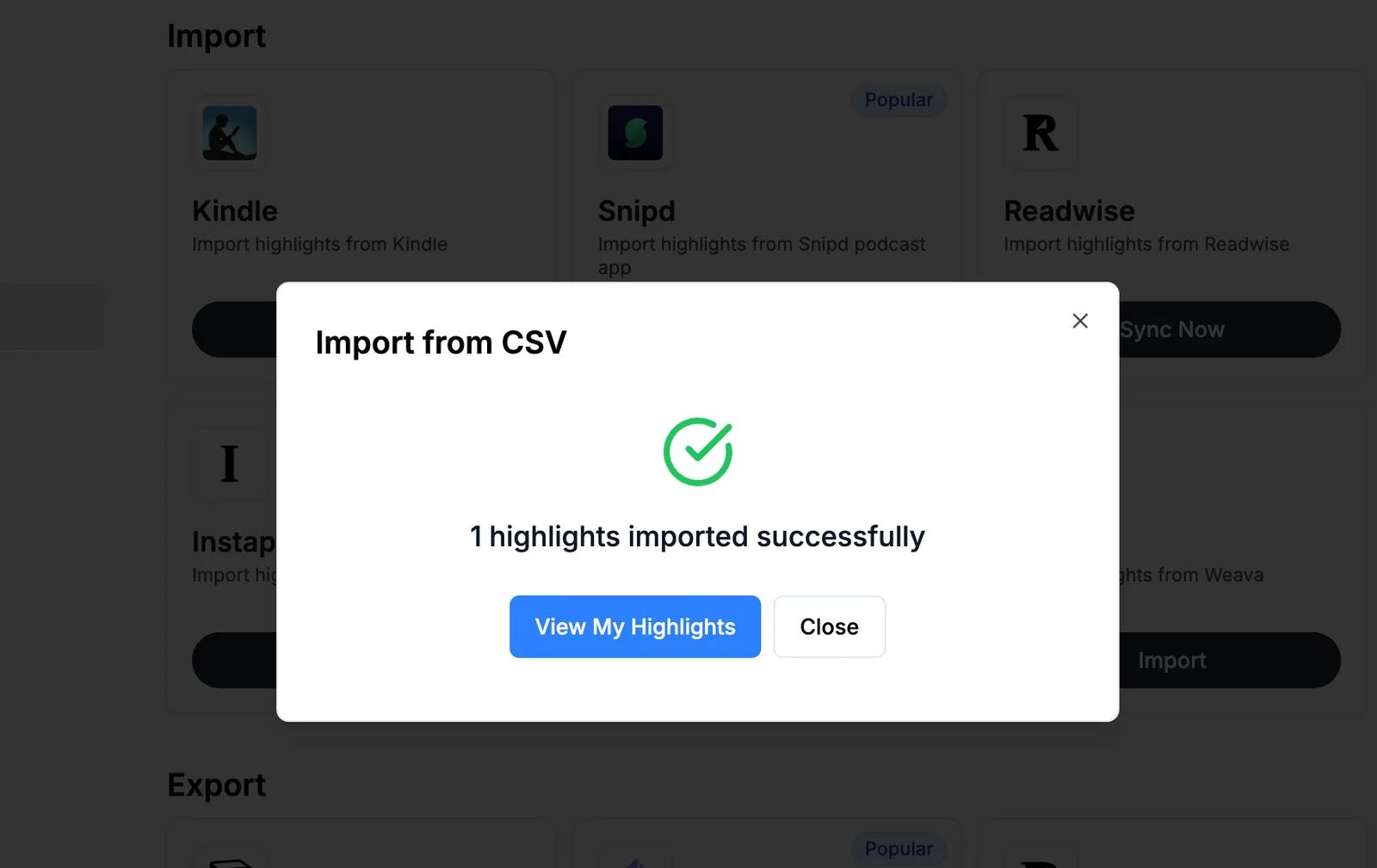
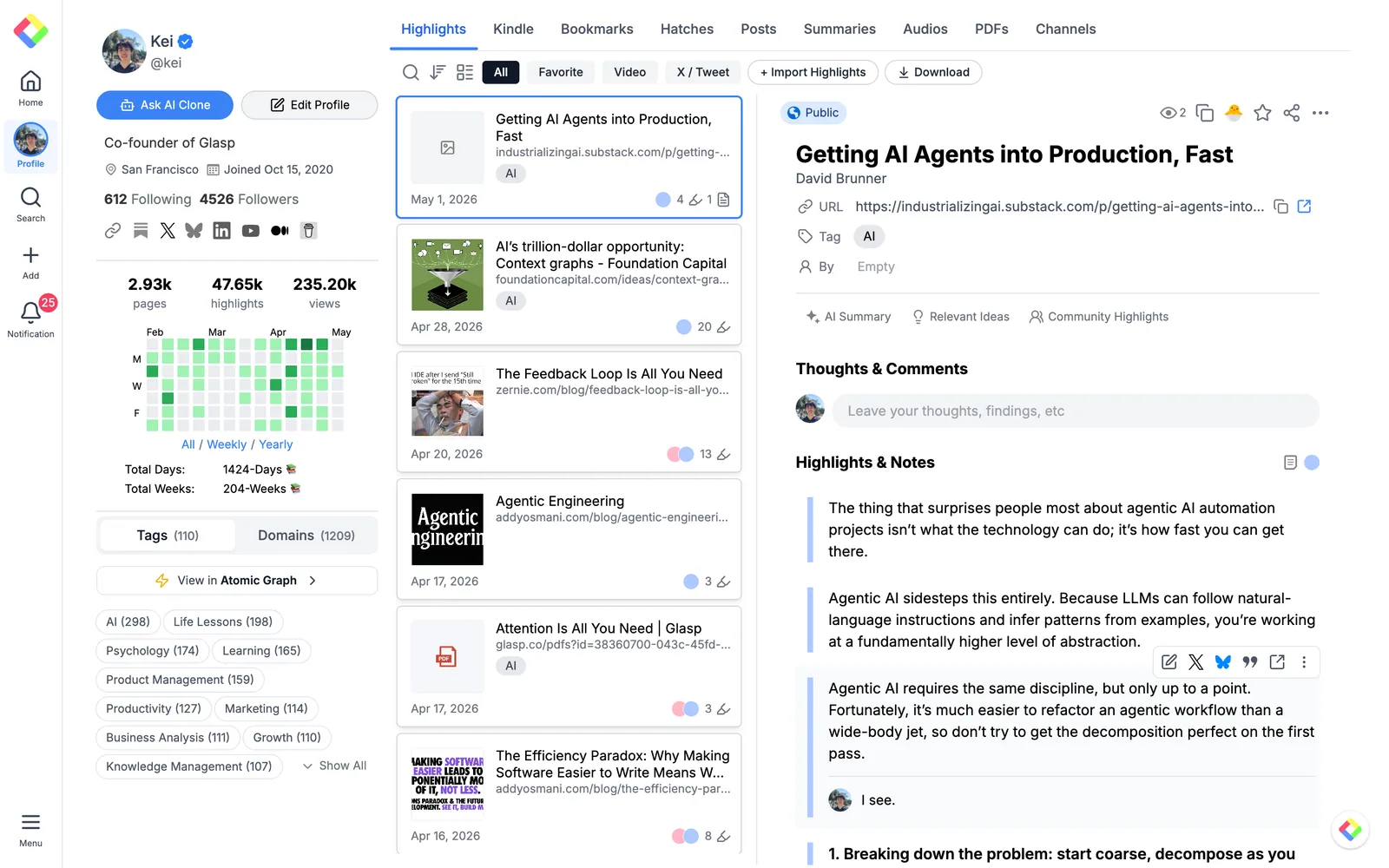
Click View My Highlights to see your imported highlights. It takes you to your Glasp profile page.
(Optional) Step 5: Re-highlight on the original page
Highlights imported via CSV are saved to your Glasp profile, but they won't appear on the original webpage automatically. If you want to see the highlights directly on the page, open the original URL in your browser with the Glasp extension installed, and highlight the same passages again. This way, the highlights will be visible both on your profile and on the webpage itself.

(Optional) Step 6: Delete highlights
If you want to delete the imported highlights, there are two ways: 1. Delete a single highlight. 2. Delete a page and all its highlights.
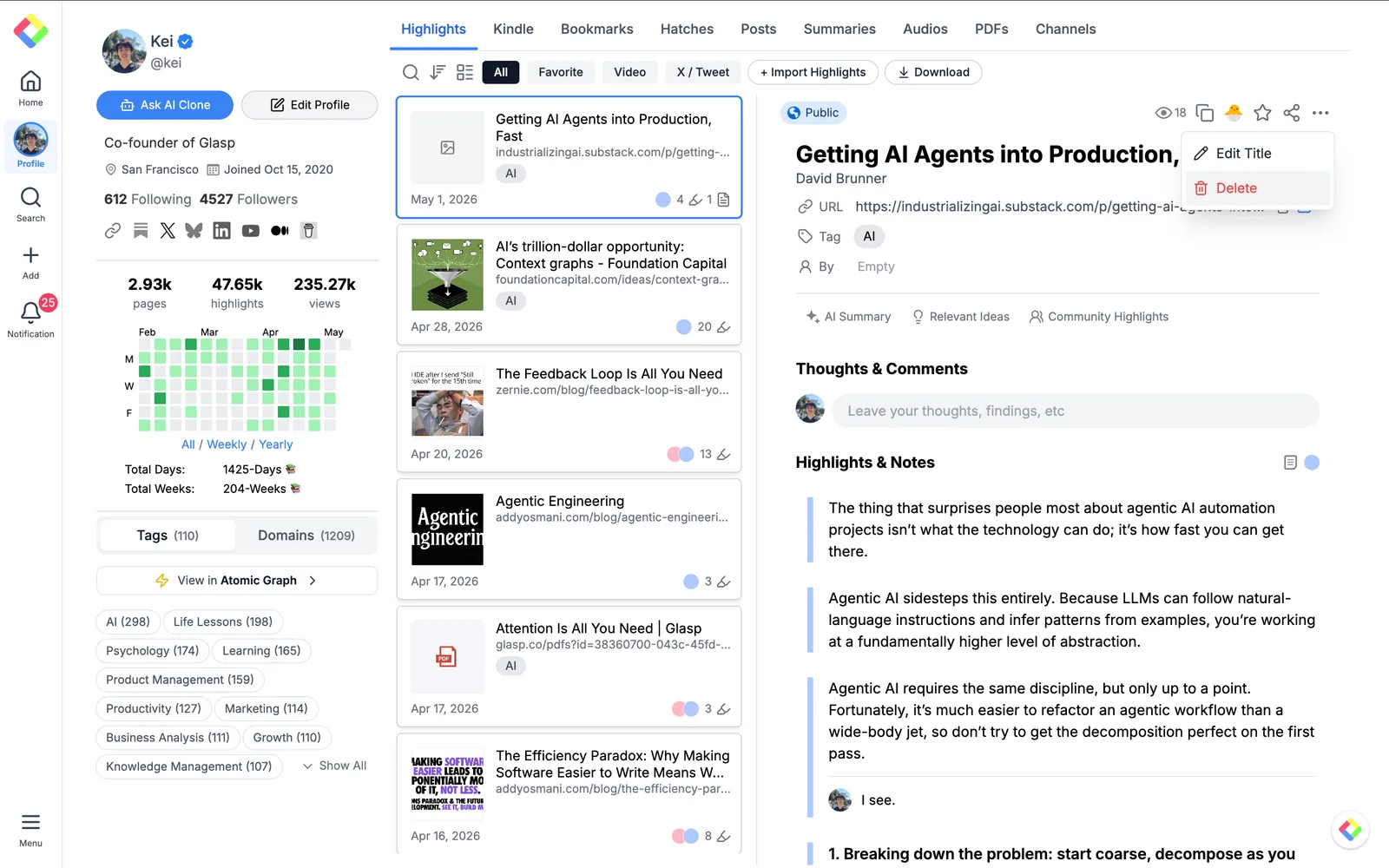
Delete a single highlight: To delete a specific highlight, go to your Glasp profile, select the page, hover over the highlight, and click the three-dot menu (⋯). Select Delete Highlight. The other highlights on the same page will remain.
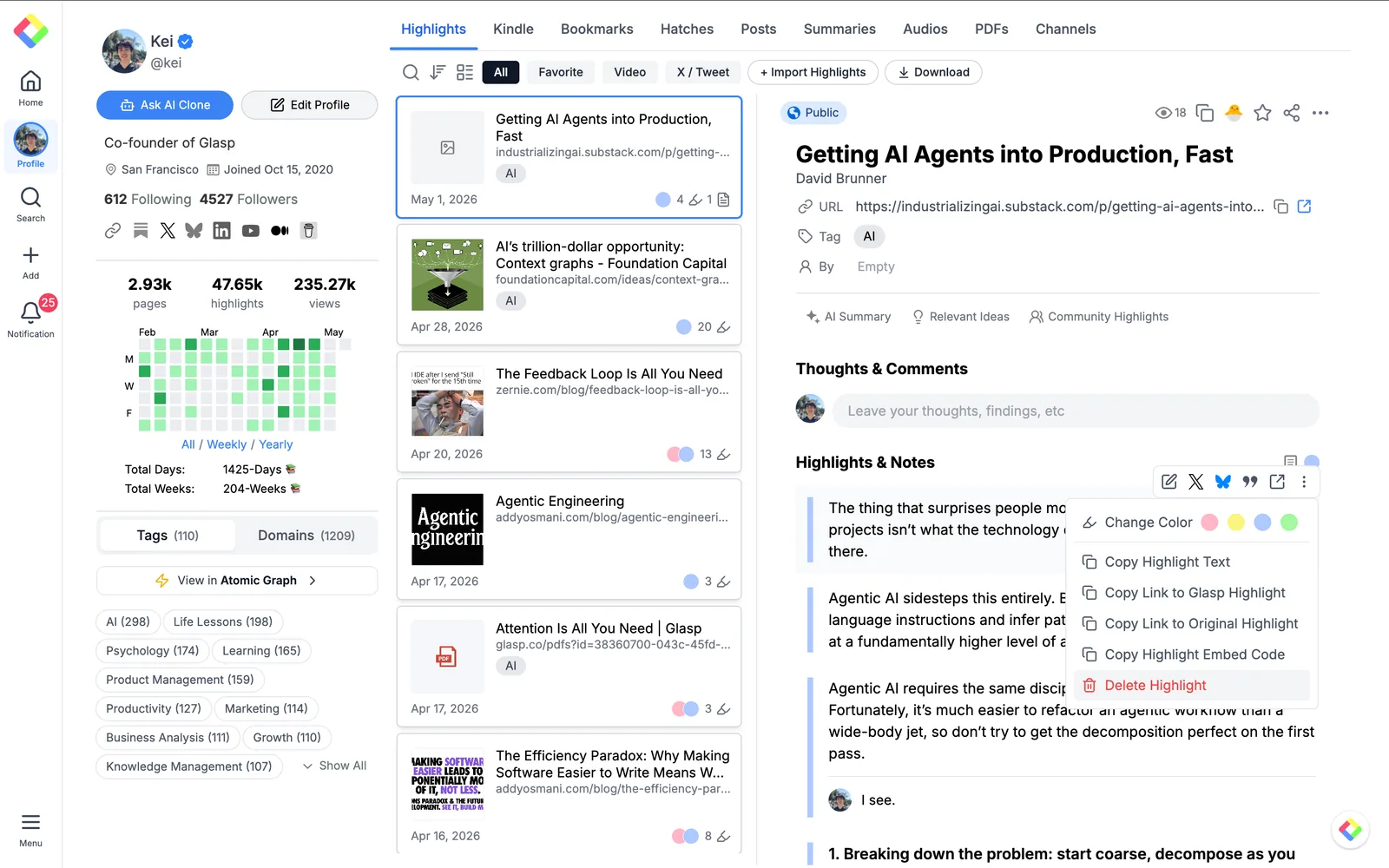
Delete a page and all its highlights: To remove a page and all of its highlights at once, go to your Glasp profile, select the page, and click the three-dot menu (⋯) in the top-right corner. Select Delete. This will remove the page and all of its highlights from your profile.
FAQs
Q: What format does the CSV file need to be in?
A: Your CSV must include three required columns: url, title, and text. You can optionally include note, color, tags, author, and highlighted_at columns for additional metadata.
Q: What color and visibility will my imported highlights have?
A: Imported highlights use your default color and visibility settings. You can update these in the Highlight Settings page before importing.
Q: Can I import highlights from Readwise, Instapaper, or other tools?
A: Yes — if you can export your highlights as a CSV file with url, title, and text columns, you can import them into Glasp. For Readwise, Instapaper, Hypothesis, and Weava, Glasp also offers dedicated one-click sync integrations under Settings → Integrations.
Q: Is CSV Import free?
A: Yes, CSV Import is free to use.
Q: Can I delete imported highlights?
A: Yes. You can delete a single highlight by hovering over it and selecting Delete Highlight from the three-dot menu. To remove an entire page and all its highlights, click the three-dot menu in the top-right corner of the page view and select Delete.
Q: What happens if my CSV has extra columns that Glasp doesn't recognize?
A: Unrecognized columns are ignored during import. Only columns that match Glasp's supported fields (url, title, text, note, color, tags, author, highlighted_at) will be mapped and imported.
Q: Can Claude or ChatGPT read my Glasp highlights?
A: Yes. With the Glasp MCP Connector, AI assistants such as Claude, ChatGPT, and Claude Code can search and read your own highlights, notes, Kindle highlights, and AI summaries, including your YouTube summaries. The connection is read-only and private to you. See How to Connect Glasp to Claude, ChatGPT, and Claude Code (MCP Connector).
Before you leave
Thanks for reading. We hope this tutorial helps you import highlights to Glasp through CSV file.
See you next time,
Glasp team
–