How to See a Summary of a YouTube Video with Glasp

Sep 11, 2025
5 min read
525 views

You can see an AI-generated summary of any YouTube video using Glasp. There are two ways to use Glasp’s YouTube summary feature, depending on whether you want to save highlights and notes or just read the summary quickly.
Install the Glasp Chrome extension and create a Glasp account.
Install the Glasp Chrome extension without creating a Glasp account.
If you’d like to save highlighted sentences from YouTube videos and revisit them later, we recommend option #1. The steps below explain how to use the YouTube summary feature. Until step 5, both options follow the same flow.
Step 1: Access the YouTube Summary page on Glasp
You can access the YouTube summary page on Glasp from the link below.
👉 YouTube Summary with ChatGPT
Step 2: Install Glasp’s Chrome extension
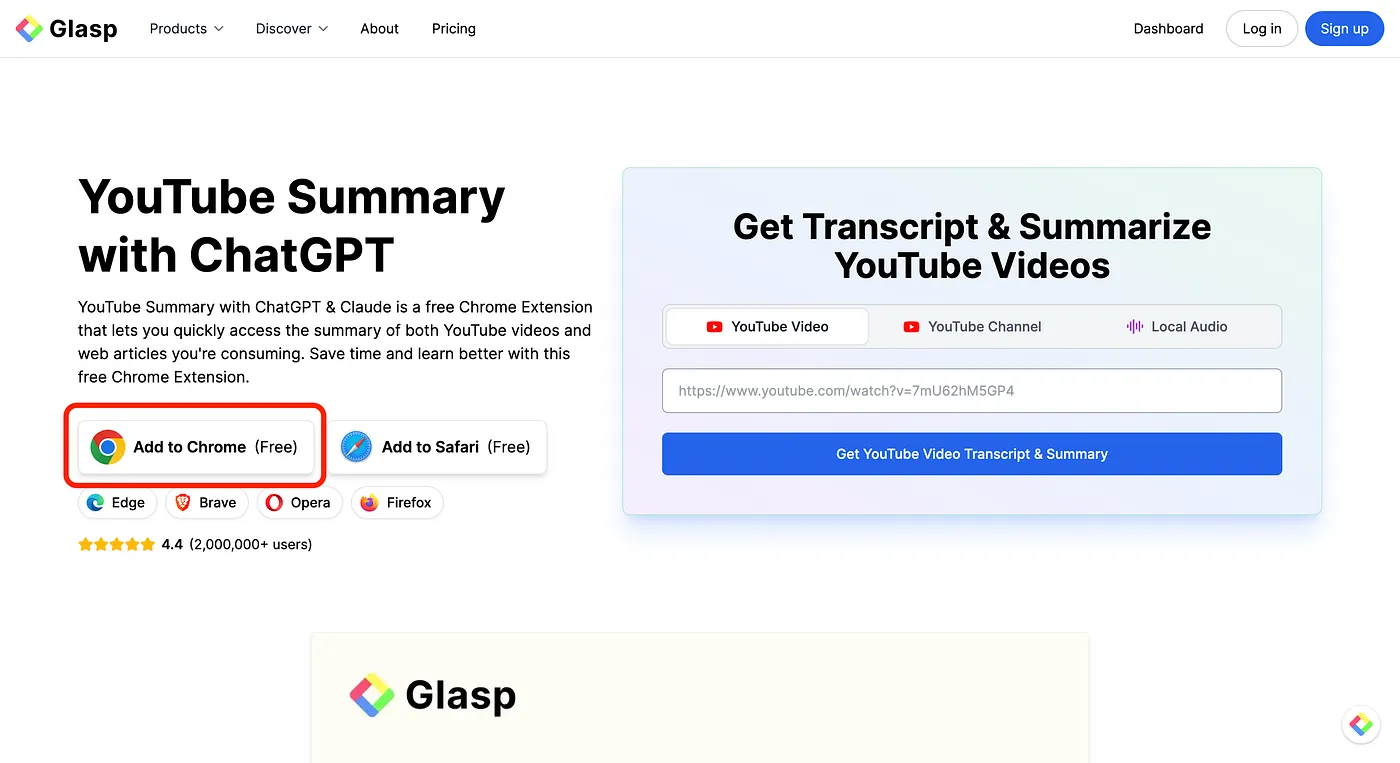
As you can see a square in red in the photo above, you can click Install on Chrome and go to the web page. And please click Add to Chrome to install the extension.

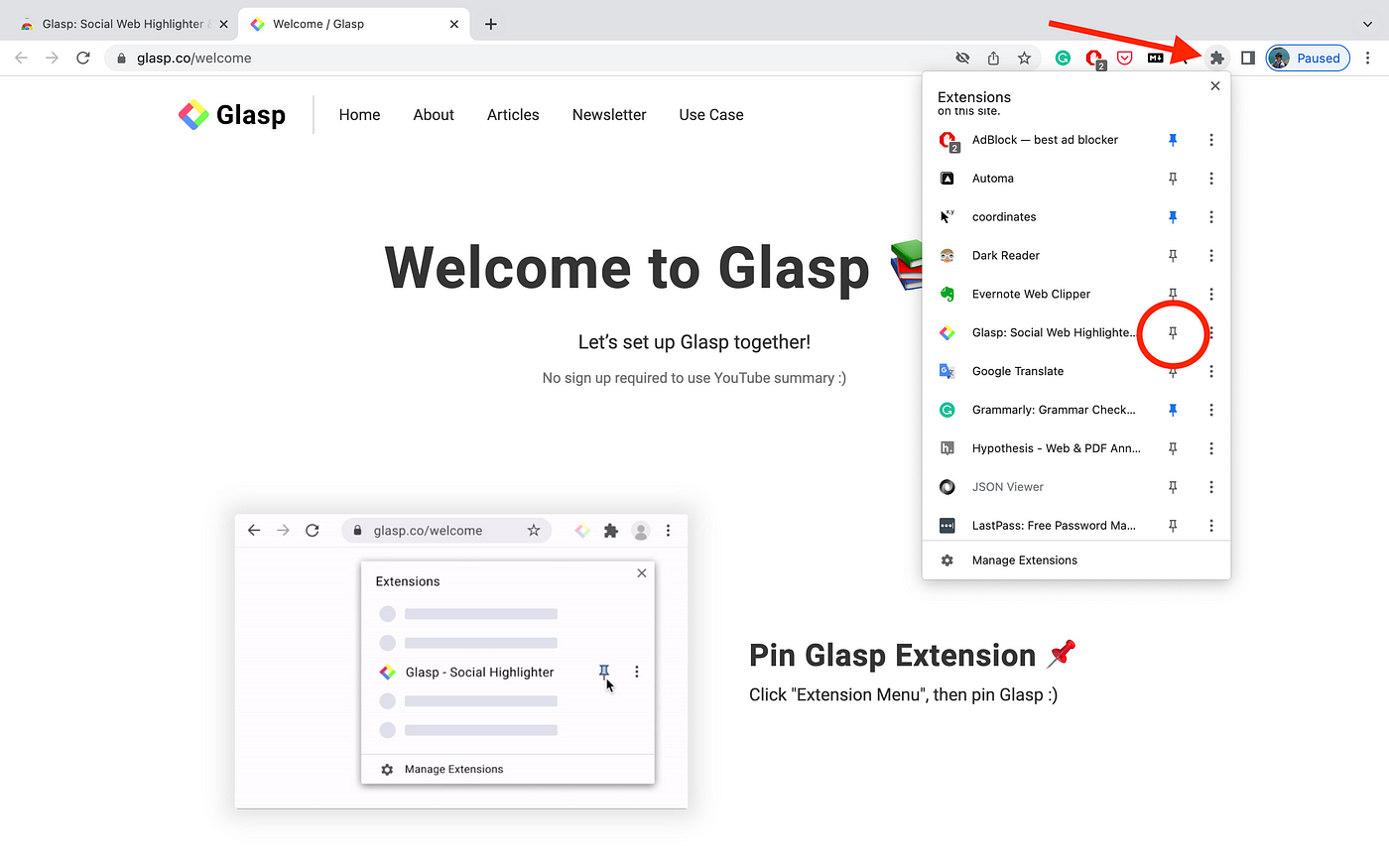
After you installed the Chrome extension, it’d be nice if you pin the Glasp extension for your efficiency.
Step 3: Open a YouTube video
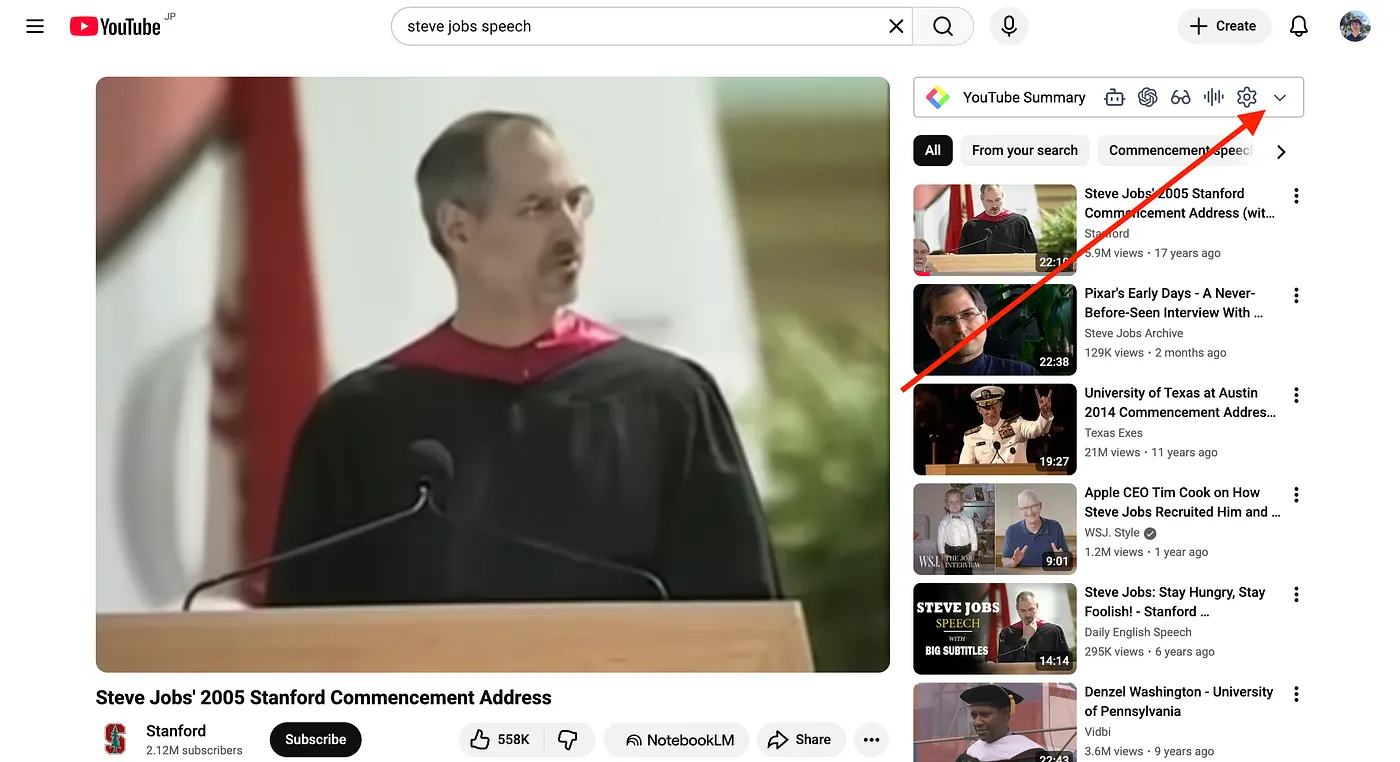
In this step, please open a YouTube video that you’d like to see the summary of. You can see Transcript & Summary on the right. So, please click the down-arrow.
You can see an OpenAI icon on the header, so please click it.
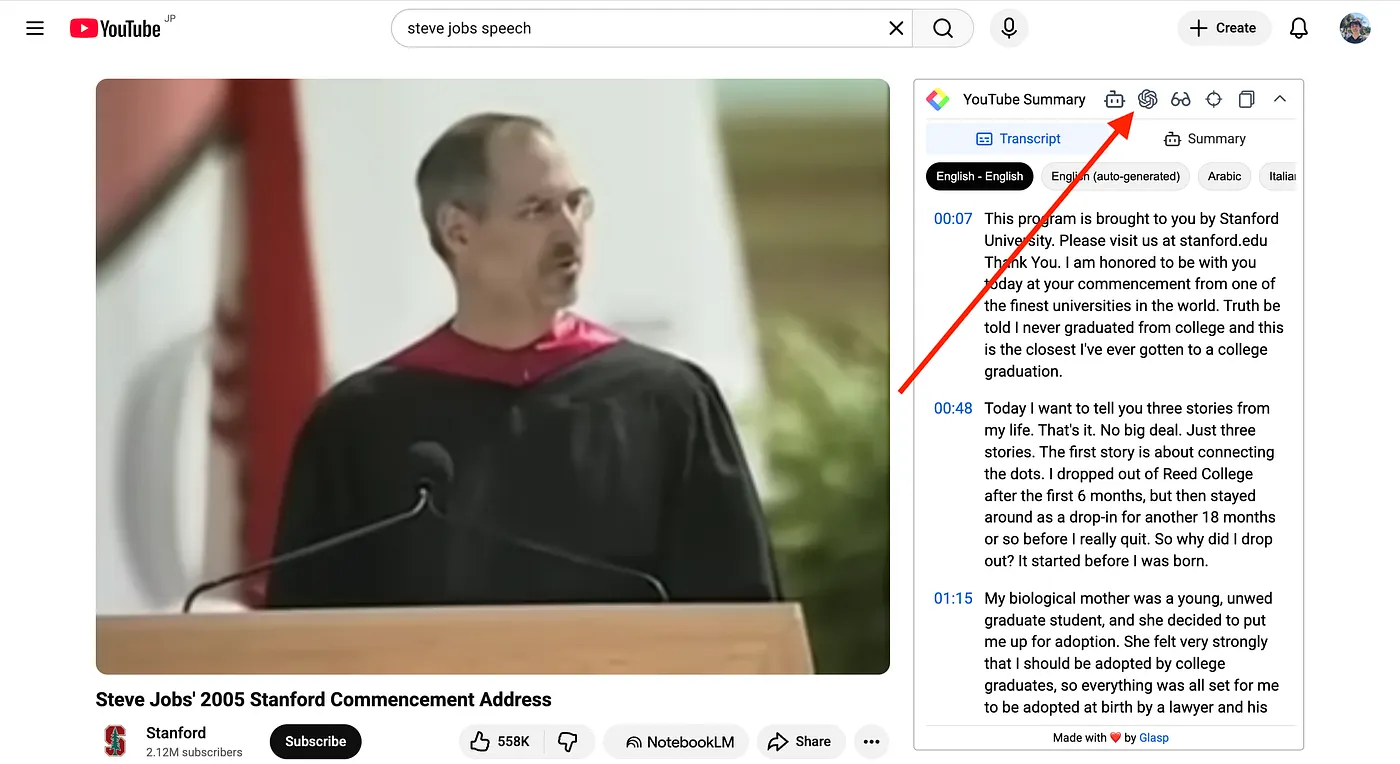
Notes: If you cannot see the transcripts at this moment, it means that YouTube doesn’t provide the transcripts, so you cannot use the summary feature by Glasp. If the video is uploaded or published just before, you can wait for a minute and try it again.
Step 4: Sign up or Log in to ChatGPT
It opens ChatGPT’s page on a new tab. If you haven’t created an account for ChatGPT, please make one. And if you already have it, please log in. If you can successfully sign up or log in, you can see a page like below.
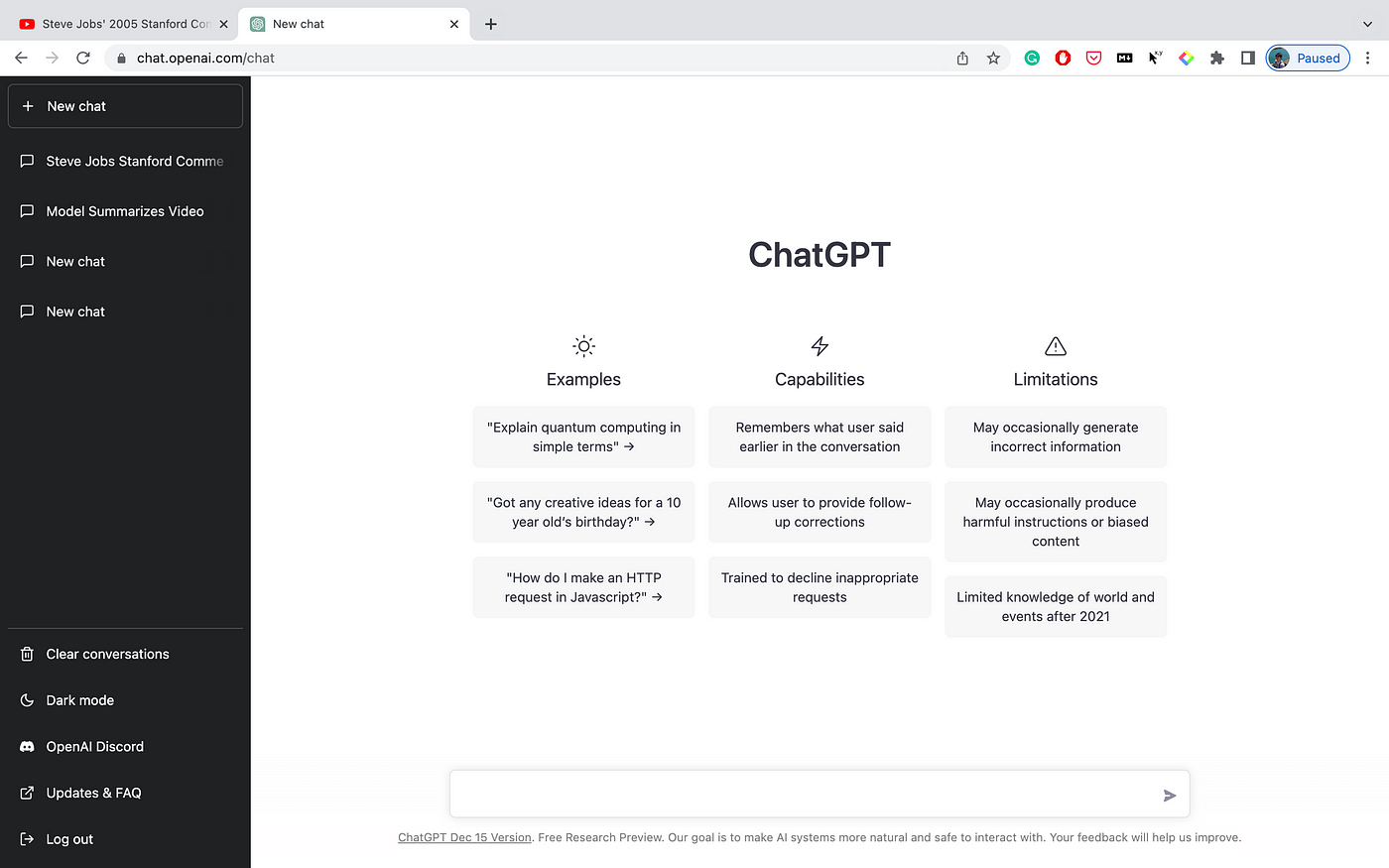
Then, please go back to the YouTube video and click the OpenAI icon again as you did in Step 3. It opens a new tab of OpenAI.
Step 5: Summarize a YouTube video
After opening a new tab of the OpenAI, please click Command + V on your keyboard if you’re using a Mac. If you’re a Windows user, please click Ctrl + V.
It pastes all the transcripts of the YouTube video and starts summarizing it.

If the summary is successfully created, you can see it like above. If it fails, please retry it. Thanks to the latest AI models, ChatGPT and Claude can now handle even very long videos of around 10 hours, so video length is rarely a problem anymore.
Step 6: Save the YouTube video’s transcripts (Optional)
This is an optional step for people who’d like to save YouTube video transcripts, highlight important parts, and replay it from the point where you’d like.
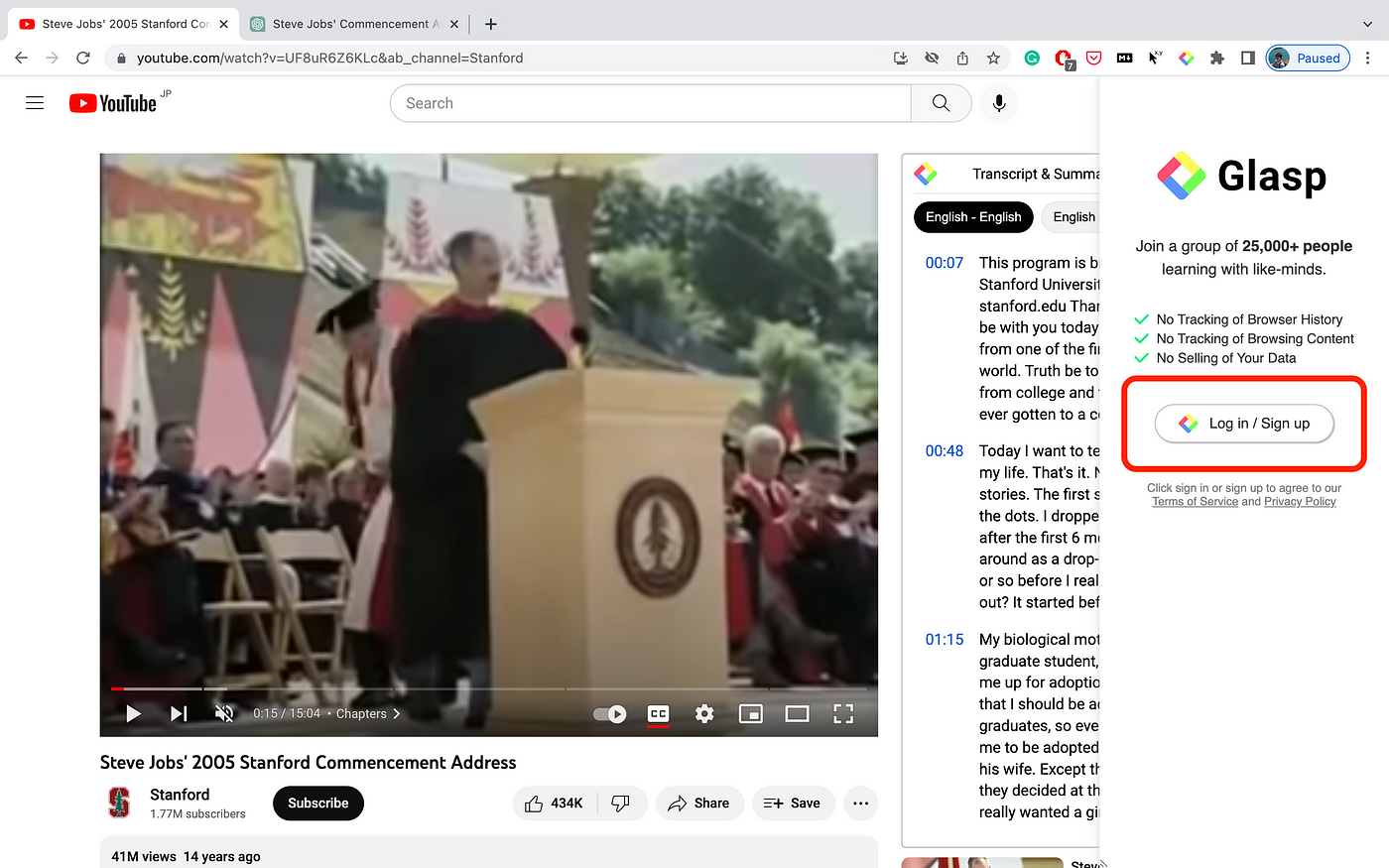
To do that, you need to have a Glasp account. In order to make one, please click the Glasp icon on the toolbar.

It opens the sidebar, and you can see Log in / Sign up, so please click it. You can sign up with either Google or Apple.
Step 7: Highlight the YouTube video’s transcripts (Optional)
After you successfully created a Glasp account, please try to select sentences on YouTube. You can see a popup showing up, so please click any color you like. It keeps highlighting the sentence. If it fails, please refresh the page and try it again.

After highlighting sentences, please open the sidebar by clicking the Glasp icon on the toolbar. It shows all of your highlights.

And by clicking your profile icon at the top right, you can go to your profile page.
Step 8: See your YouTube highlights (Optional)
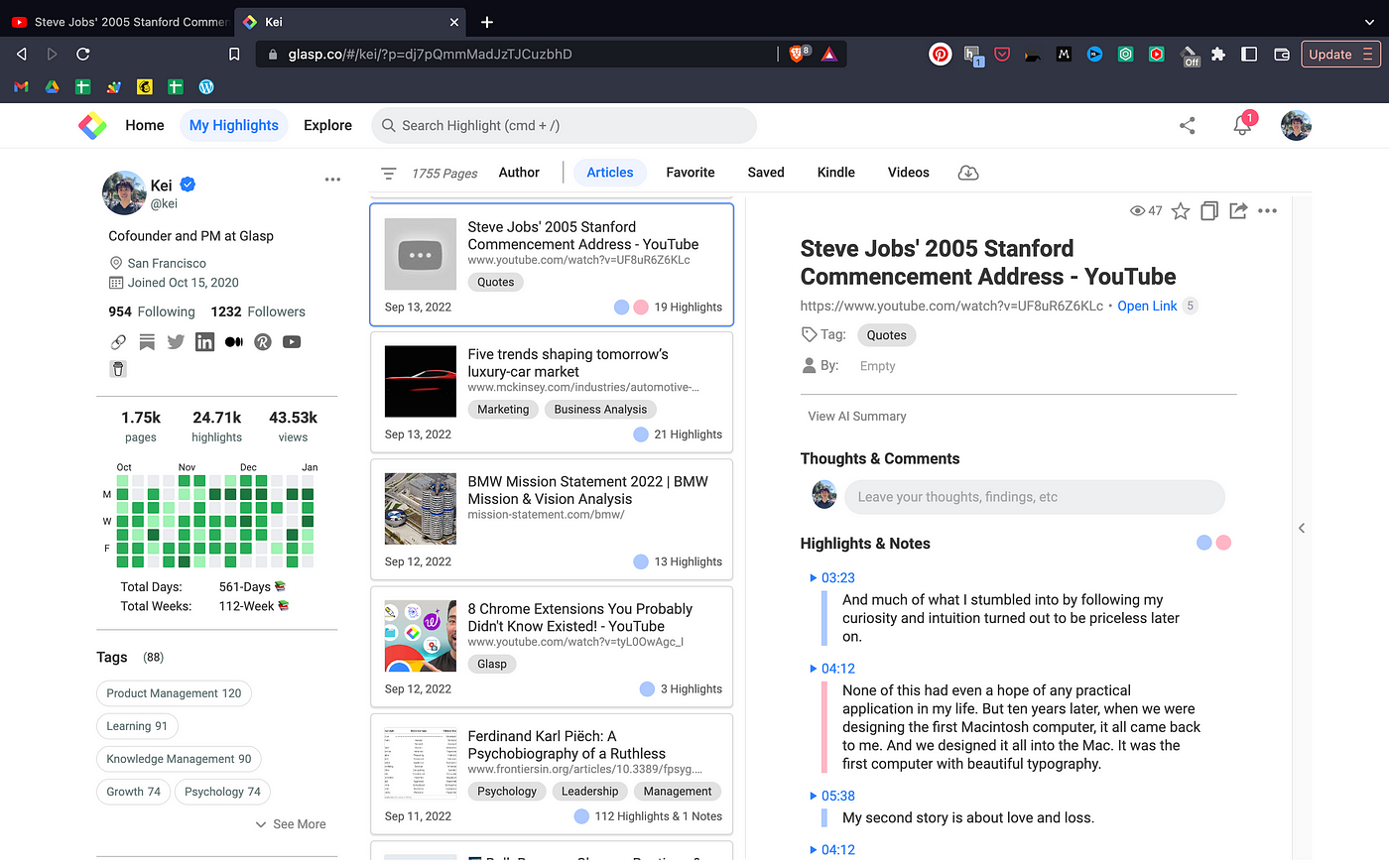
This is your profile page. On this page, you can see your highlights and notes. As you can see in the picture above, you can see highlights from the YouTube transcripts and timestamps. If you click the timestamp, it will open the YouTube video and start playing from the time. e.g. If I click 3:23, it opens Steve Jobs’s YouTube video and starts playing from 3:23.
If you want to share your highlights & notes, you can just copy the link to Glasp (this page). The recipient of the link can open this page and see your highlights.
If you want to see a video tutorial, please see it below.
YouTube Summary with ChatGPT | Chrome Extension (YouTube)
FAQs
Q. Do I need a Glasp account to use the YouTube summary feature?
No. You can use the YouTube summary function without creating a Glasp account. However, if you want to save, highlight, and revisit transcripts later, you’ll need to sign up for a free account.
Q. Why can’t I see the transcript or summary on some YouTube videos?
Some YouTube videos don’t provide transcripts (for example, newly uploaded videos or videos without captions). In such cases, the summary feature won’t work. Try again after a few minutes or check another video.
Q. Can I highlight specific parts of a YouTube transcript?
Yes. Once you create a Glasp account, you can highlight transcripts directly in your browser. These highlights are saved to your profile and can be shared with others. Please see this tutorial: How to Highlight YouTube Transcript
Q. Which browsers support the YouTube Summary feature?
YouTube Summary extension works on Chrome, Microsoft Edge, Brave, and other Chromium-based browsers, Safari, and Firefox.
Q. Can I export my YouTube highlights into apps like Notion or Obsidian?
Yes. After saving highlights on Glasp, you can export them into note-taking apps such as Notion, Obsidian, Logseq, and Roam Research for free.
Before you leave
Thanks for reading. We hope this tutorial helps you quickly understand YouTube videos using Glasp summaries.
See you next time,
Glasp team