What are the most useful beginner VSCode short cuts to learn?
TL;DR
Learn invaluable VS Code shortcuts to enhance coding efficiency and speed.
Transcript
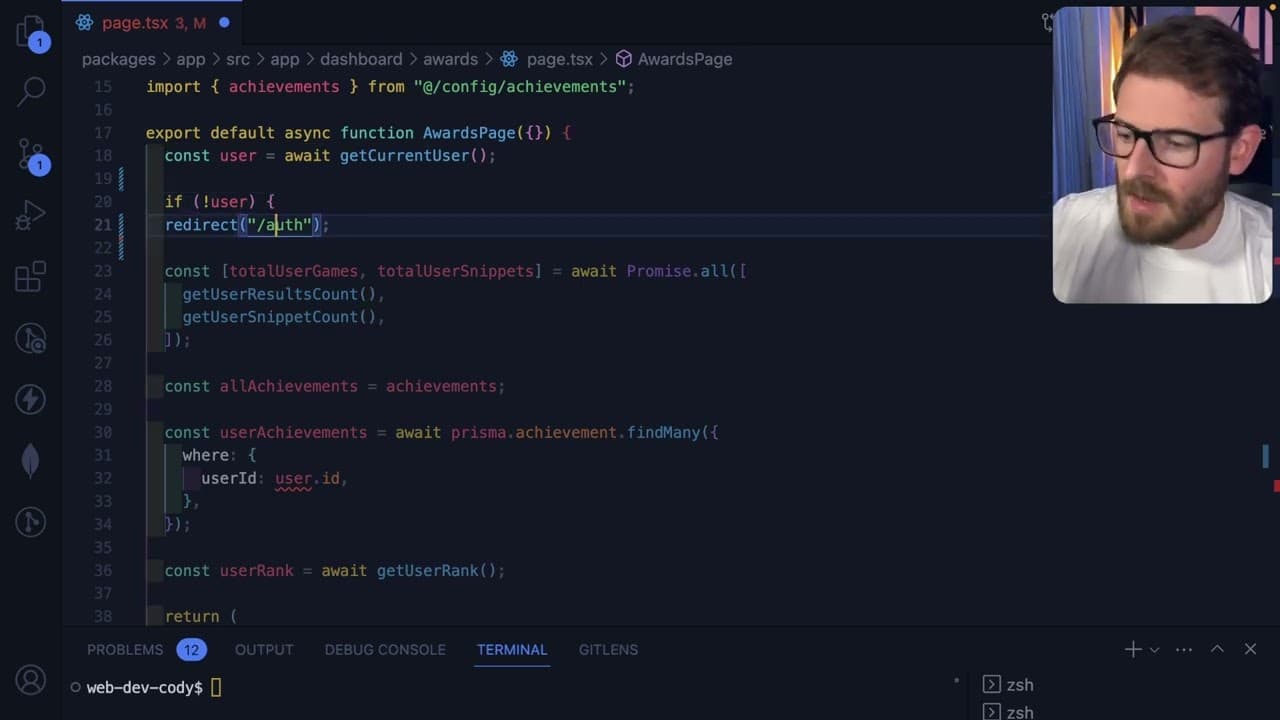
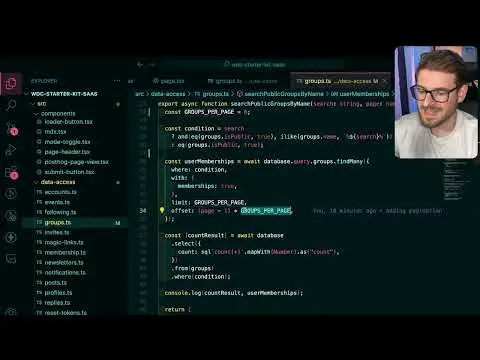
I want to share with you all the tips and tricks that I like to do when I'm coding in my vs code editor and I think learning some of these tricks can just help you become a much faster developer in general so I have this code racer project opened up here and as you can see it has a lot of files so the most important thing that you can learn when yo... Read More
Key Insights
- 📽️ Mastering fuzzy searching (Command + P) is crucial for quick file access, particularly in extensive projects.
- 👨💻 Command clicking and F12 provide seamless navigation to variable definitions, facilitating code comprehension.
- 📽️ Refactoring is simplified through shortcuts like F2 that rename variables globally within the project.
- 👻 Utilizing Command + Shift + F allows developers to search and locate function usage quickly across files.
- 🫵 The outline feature in VS Code gives a structured view of all declared variables and functions, aiding in code navigation and understanding.
- 🫥 Adopting shortcuts like Command D and Command X can significantly speed up editing and refactoring tasks by allowing quick multi-line changes.
- 🫥 Navigation shortcuts, such as Control + G, enhance efficiency by enabling direct access to specified lines of code.
Install to Summarize YouTube Videos and Get Transcripts
Explore YouTube Video Summarizer or Get YouTube Transcript Extractor
Questions & Answers
Q: How can fuzzy searching improve my file navigation in VS Code?
Fuzzy searching in VS Code allows you to find files and components quickly using the Command + P shortcut. By typing partial names, such as "dashboard" combined with a slash and additional keywords, you can instantly access specific pages without having to scroll through directories. This improves your workflow and saves time, especially in larger projects.
Q: What is the purpose of Command clicking in VS Code?
Command clicking enables you to jump directly to the definition of variables or functions within your code. This feature is especially useful for TypeScript users to explore references across multiple files and understand how components interact, increasing your comprehension of the code and speeding up debugging processes.
Q: How does the F2 shortcut enhance refactoring in VS Code?
The F2 shortcut allows users to rename variables across all instances in the codebase simultaneously. Highlighting a variable and pressing F2 streamlines the updating process, ensuring every instance is changed without manual searching, which helps maintain code consistency and reduces potential errors during refactoring.
Q: Can you explain how to find all instances of a specific function in a project?
You can use the Command + Shift + F shortcut to search across the entire project for any specified term, such as a function name. By typing it into the search bar, you’ll receive a comprehensive list of all instances where that function is called, which is instrumental in assessing usage and making necessary updates.
Summary & Key Takeaways
-
The content emphasizes the importance of fuzzy searching in VS Code, allowing developers to quickly navigate through project files by using commands like Command + P to find specific components or pages efficiently.
-
Various navigation shortcuts such as Command clicking, F12, and renaming variables with F2 are highlighted, enabling developers to streamline their code management and refactoring processes.
-
Additional tips include the use of Command + D for multi-line editing, Control + G for jumping to specific lines, and the effective use of the outline drop down for quick access to functions and variables in the codebase.
Read in Other Languages (beta)
Share This Summary 📚
Summarize YouTube Videos and Get Video Transcripts with 1-Click
Try YouTube Summary with ChatGPT & Claude or YouTube Transcript Generator
Explore More Summaries from Web Dev Cody 📚
Summarize YouTube Videos and Get Video Transcripts with 1-Click
Try YouTube Summary with ChatGPT & Claude or YouTube Transcript Generator