How to Use Aspect Ratio in Midjourney
TL;DR
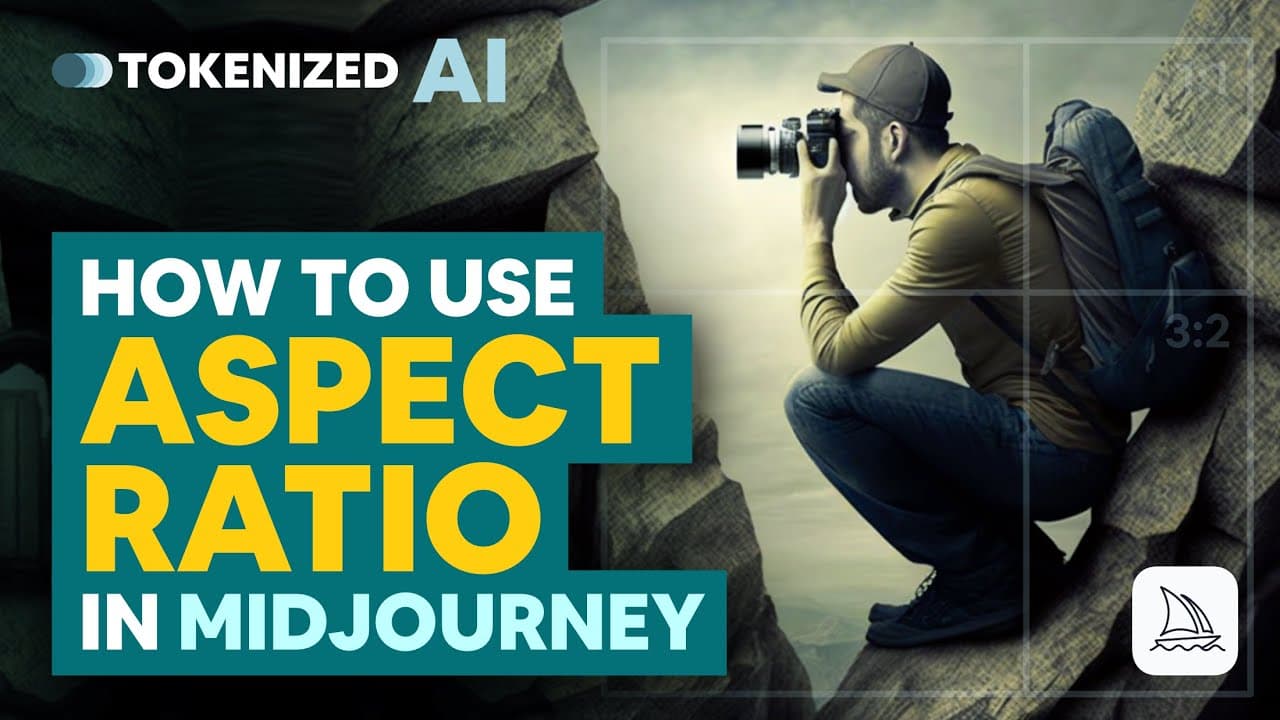
Mid-Journey AI art generator allows users to customize the aspect ratio of the generated art, providing flexibility beyond the default square images.
Transcript
why is it that nearly all AI art generators seem to produce Square images by default don't get me wrong I absolutely love the art that mid-journey produces but if I wanted to stare at Square images all day I'd go play some Minecraft or if you're born in the 80s like me you'd get high on Nostalgia and go search for some boxes of Lego in your basemen... Read More
Key Insights
- 🥳 Mid-Journey AI art generator provides users with the ability to customize the aspect ratio of generated art, allowing for flexibility in creating various shapes and sizes.
- 🥳 Aspect ratio represents the ratio between the width and height of an image and it is expressed as two numbers separated by a colon.
- 😒 Different aspect ratios, such as square, TV format, portrait, and landscape, have specific uses and create different visual impacts.
- 🥳 Mid-Journey offers flexibility in creating art with different aspect ratios by using the aspect ratio parameter in the prompt.
- 🎆 Not all aspect ratios work well with every type of image due to composition and technical limitations.
- 😒 Changing the aspect ratio of an already created image requires the use of an image editor like Photoshop.
- 📳 Remix mode or altering the original prompt with aspect ratio parameter won't change the aspect ratio of an already created image in Mid-Journey.
Install to Summarize YouTube Videos and Get Transcripts
Explore YouTube Video Summarizer or Get YouTube Transcript Extractor
Questions & Answers
Q: Why do most AI art generators default to producing square images?
AI art generators default to square images as they are versatile and widely used. Square images are commonly found on social media platforms and can easily be adapted for various purposes.
Q: How can users change the aspect ratio in Mid-Journey?
To change the aspect ratio in Mid-Journey, users need to use the "--aspect" or "--AR" parameter followed by the desired value. This can be added to the prompt along with other parameters such as seed, chaos, quality, and stylize.
Q: Can any aspect ratio be used with every type of image?
Not every aspect ratio works well with every type of image. Composition and technical limitations play a role. However, with version 3 of Mid-Journey, aspect ratios 1:1, 2:3, 3:2, 9:16, and 16:9 are safe to use. In version 4, options are limited to square (1:1), portrait (2:3), and landscape (3:2).
Q: How can the aspect ratio of an already created image be changed?
To change the aspect ratio of an already created image, an image editor like Photoshop needs to be used. Remix mode or altering the original prompt with aspect ratio parameter won't work. Alternatively, using the URL of the previously generated image with the desired aspect ratio can be an option.
Key Insights:
- Mid-Journey AI art generator provides users with the ability to customize the aspect ratio of generated art, allowing for flexibility in creating various shapes and sizes.
- Aspect ratio represents the ratio between the width and height of an image and it is expressed as two numbers separated by a colon.
- Different aspect ratios, such as square, TV format, portrait, and landscape, have specific uses and create different visual impacts.
- Mid-Journey offers flexibility in creating art with different aspect ratios by using the aspect ratio parameter in the prompt.
- Not all aspect ratios work well with every type of image due to composition and technical limitations.
- Changing the aspect ratio of an already created image requires the use of an image editor like Photoshop.
- Remix mode or altering the original prompt with aspect ratio parameter won't change the aspect ratio of an already created image in Mid-Journey.
- Using the URL of the previously generated image along with the desired aspect ratio can be a method to achieve the desired aspect ratio for an image in Mid-Journey.
Summary & Key Takeaways
-
Mid-Journey AI art generator offers customizable aspect ratios for generated art, allowing users to create art in various shapes and sizes.
-
Aspect ratio represents the ratio between the width and height of an image and is expressed with two numbers separated by a colon.
-
Users can use specific aspect ratios such as square (1:1), TV format (4:3), portrait (2:3), landscape (3:2), and others.
Read in Other Languages (beta)
Share This Summary 📚
Summarize YouTube Videos and Get Video Transcripts with 1-Click
Try YouTube Summary with ChatGPT & Claude or YouTube Transcript Generator
Explore More Summaries from Tokenized AI by Christian Heidorn 📚
Summarize YouTube Videos and Get Video Transcripts with 1-Click
Try YouTube Summary with ChatGPT & Claude or YouTube Transcript Generator