How to Remove Formatting Issues When Copying PDF to Word
TL;DR
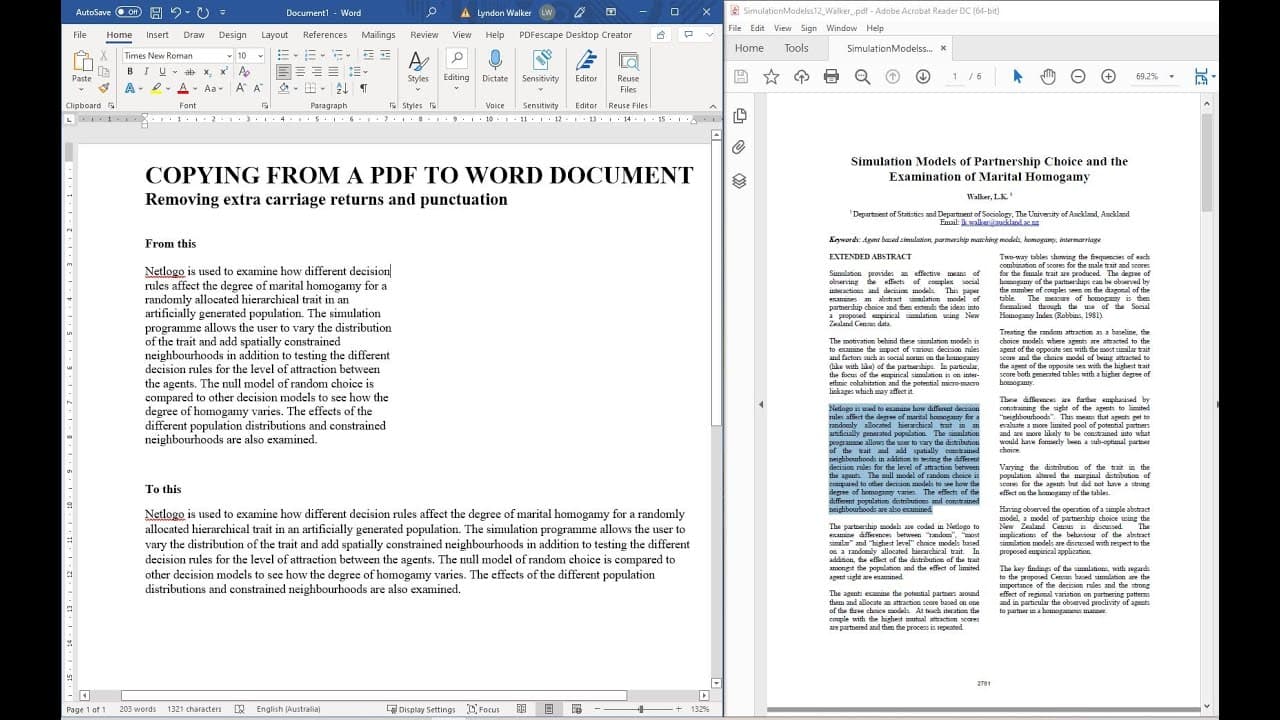
To efficiently copy text from a PDF to Word without formatting issues, use the Find and Replace feature in Word to remove line breaks by replacing carriage returns with single spaces. Additionally, replace multiple spaces with a single space using the caret symbol followed by 'w' to ensure consistent spacing throughout your document.
Transcript
hi friends welcome back to the channel today i thought i would just share a very quick tip with you for getting text from a pdf into a word document so one way you can do it is to just use word to open the word document but sometimes you might just want a single paragraph and you don't want to have to deal with all the rest of the stuff that's ther... Read More
Key Insights
- 🫥 Copying text directly from a PDF to Word can introduce formatting issues like line breaks and excess spaces.
- 🫥 The Find and Replace feature in Word can efficiently remove line breaks and excess spaces.
- 🤬 Using the Find and Replace method with the carrot symbol followed by "w" can replace grouped spaces as well.
- 👾 This technique can ensure consistency in spacing, especially when editing documents with varying space usage after punctuation marks.
- 📜 The method is particularly useful for quickly extracting paragraphs from a PDF into a Word document.
- 🫥 It's important to exercise caution when using the Find and Replace method with multiple paragraphs, as it may remove necessary line breaks.
- 👾 By replacing multiple spaces with a single space, the technique can also be helpful in removing excess spaces in copied text.
Install to Summarize YouTube Videos and Get Transcripts
Explore YouTube Video Summarizer or Get YouTube Transcript Extractor
Questions & Answers
Q: How can I convert text from a PDF to a Word document efficiently?
You can either open the PDF with Word or use the Find and Replace feature to remove line breaks and excess spaces.
Q: What can I do if I only need a single paragraph from the PDF?
If you only need a specific paragraph, using Word to open the entire PDF document can be time-consuming. Instead, you can copy the paragraph first and then utilize the Find and Replace method.
Q: Will the Find and Replace feature remove line breaks between multiple paragraphs?
Yes, when using the Find and Replace method to remove line breaks, it will also eliminate any line breaks between multiple paragraphs. It's important to be cautious when using this technique in such cases.
Q: Can the Find and Replace method help with removing excess spaces in copied text?
Yes, you can use the Find and Replace feature to replace excess spaces with a single space. This is useful when dealing with text copied from a PDF that may contain multiple spaces between words.
Key Insights:
- Copying text directly from a PDF to Word can introduce formatting issues like line breaks and excess spaces.
- The Find and Replace feature in Word can efficiently remove line breaks and excess spaces.
- Using the Find and Replace method with the carrot symbol followed by "w" can replace grouped spaces as well.
- This technique can ensure consistency in spacing, especially when editing documents with varying space usage after punctuation marks.
- The method is particularly useful for quickly extracting paragraphs from a PDF into a Word document.
- It's important to exercise caution when using the Find and Replace method with multiple paragraphs, as it may remove necessary line breaks.
- By replacing multiple spaces with a single space, the technique can also be helpful in removing excess spaces in copied text.
- This tip can enhance productivity when working with PDFs and Word documents by improving formatting and consistency.
Summary & Key Takeaways
-
Use Word to open the PDF document, but if you only need a single paragraph, there's a more efficient method.
-
When copying text from a PDF, line breaks may be added, causing formatting issues. These can be removed using the Find and Replace feature in Word.
-
Additionally, excess spaces in the text can also be eliminated using the same Find and Replace technique.
Read in Other Languages (beta)
Share This Summary 📚
Summarize YouTube Videos and Get Video Transcripts with 1-Click
Try YouTube Summary with ChatGPT & Claude or YouTube Transcript Generator
Explore More Summaries from Dr Lyndon Walker 📚






Summarize YouTube Videos and Get Video Transcripts with 1-Click
Try YouTube Summary with ChatGPT & Claude or YouTube Transcript Generator